
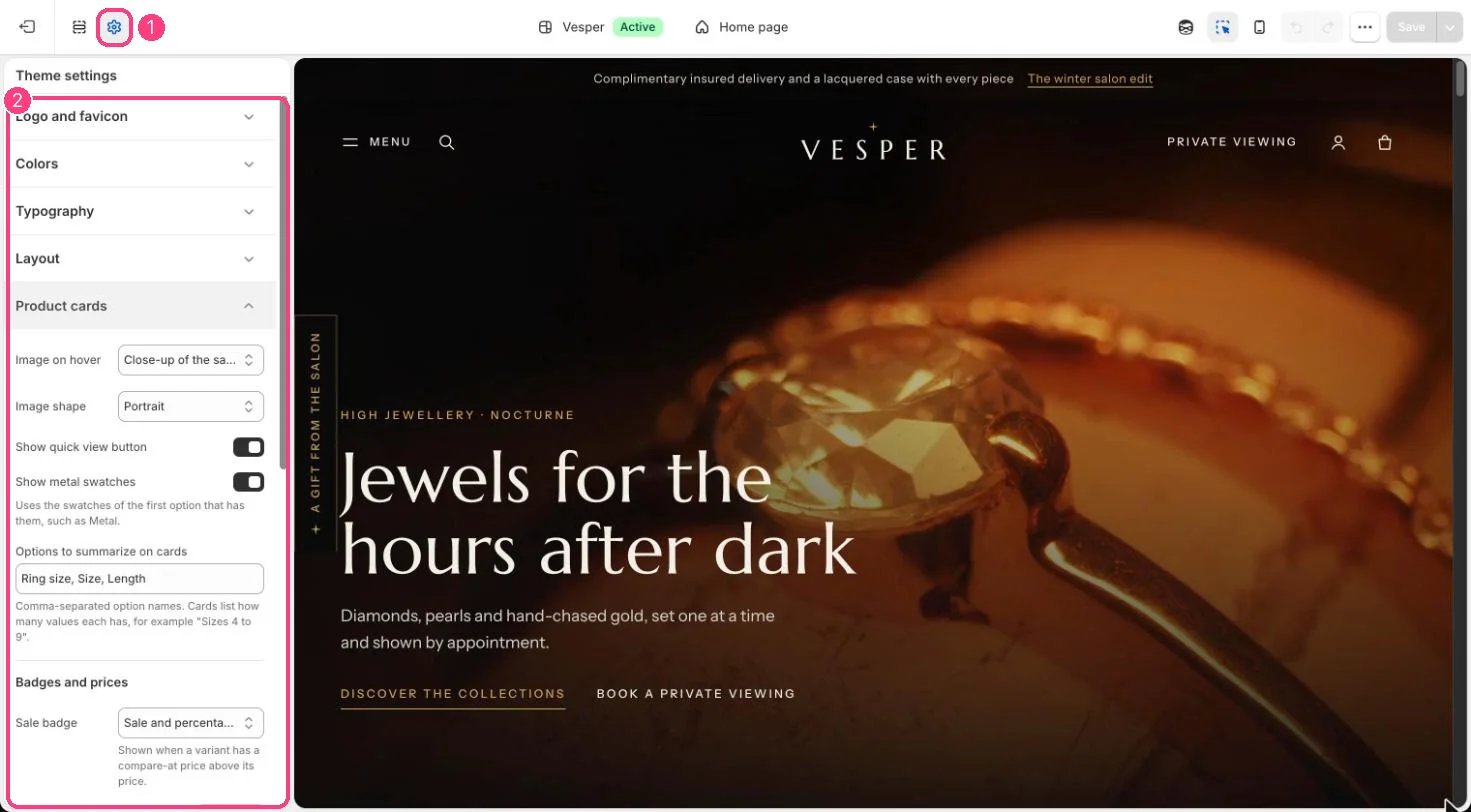
1 Theme settings (the gear icon) · 2 Product cards, opened in the sidebar
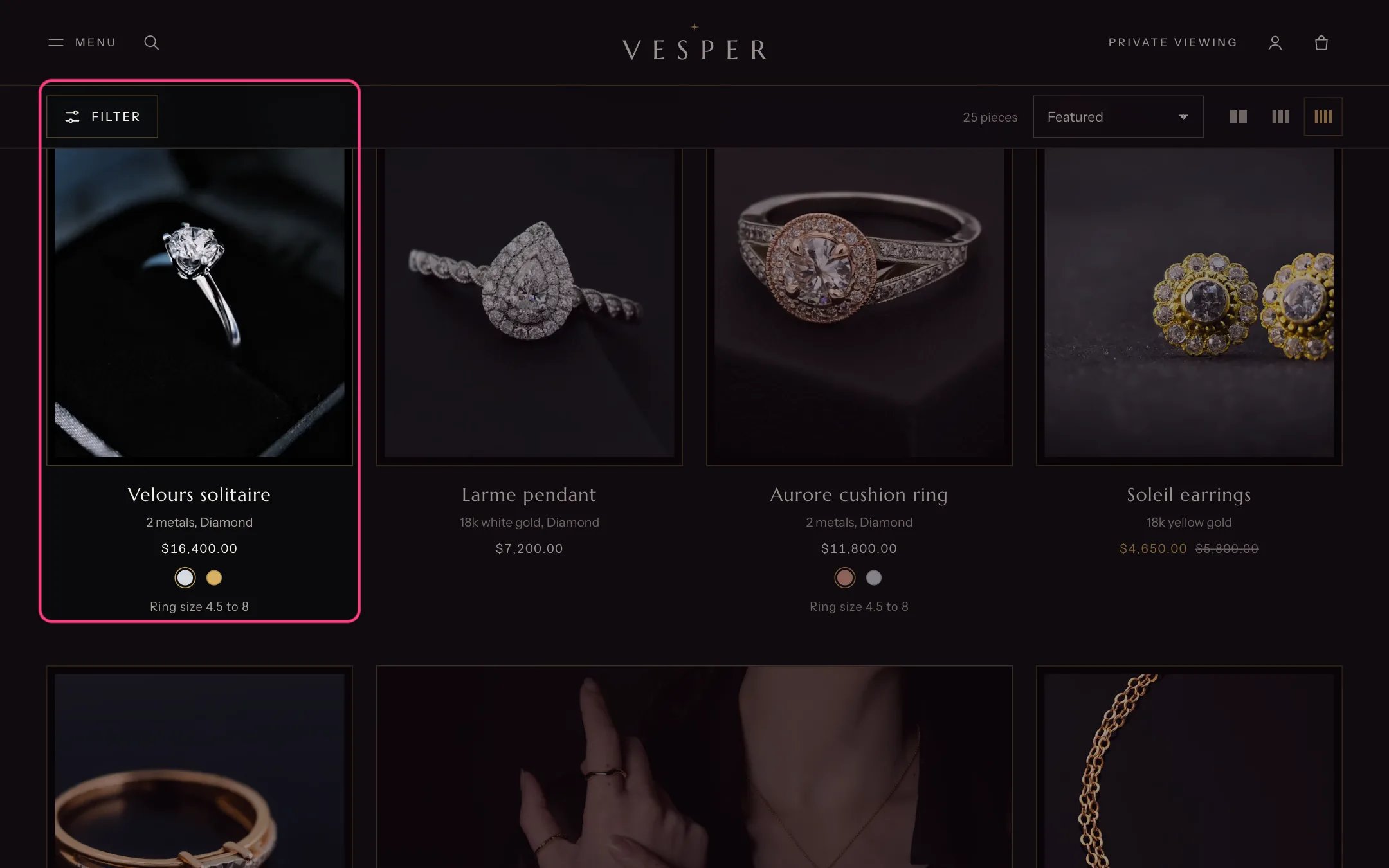
A product card with its metal swatches and the ring size summary
How it works
- Image on hover shows a close-up of the same photograph, the second photograph, or nothing.
- Image shape is Portrait, Square or Natural.
- Show metal swatches shows the swatches of the first option that has Shopify swatches, such as Metal. Pressing a swatch changes the card’s photograph and link.
- Options to summarize on cards lists how many values each named option has, for example Ring size 4 to 9.
- Sale badge shows when a variant has a compare-at price above its price: Sale and percentage off, Percentage off, Amount saved, Sale, or None.
- The New badge shows on products published in the last N days (0 turns it off).
- Products with the Pre-order product tag, or tracked variants that continue selling at zero stock, show Pre-order.
- Products with the Price on request product tag, or with the metafield custom.price_on_request set to true, hide their price and show an enquiry button.
- Show “Only N left” uses the real inventory of tracked variants. 0 turns it off, which is the default.
Edit it
- Give your Metal option Shopify swatches so cards show them. See Metal swatches.
- Change the tag names only if your products already use other tags for pre-order or price on request.
- Set Show “Only N left” at or below to 1, 2 or 3 if you want the line. It never shows invented numbers.
Settings
Badges and prices