
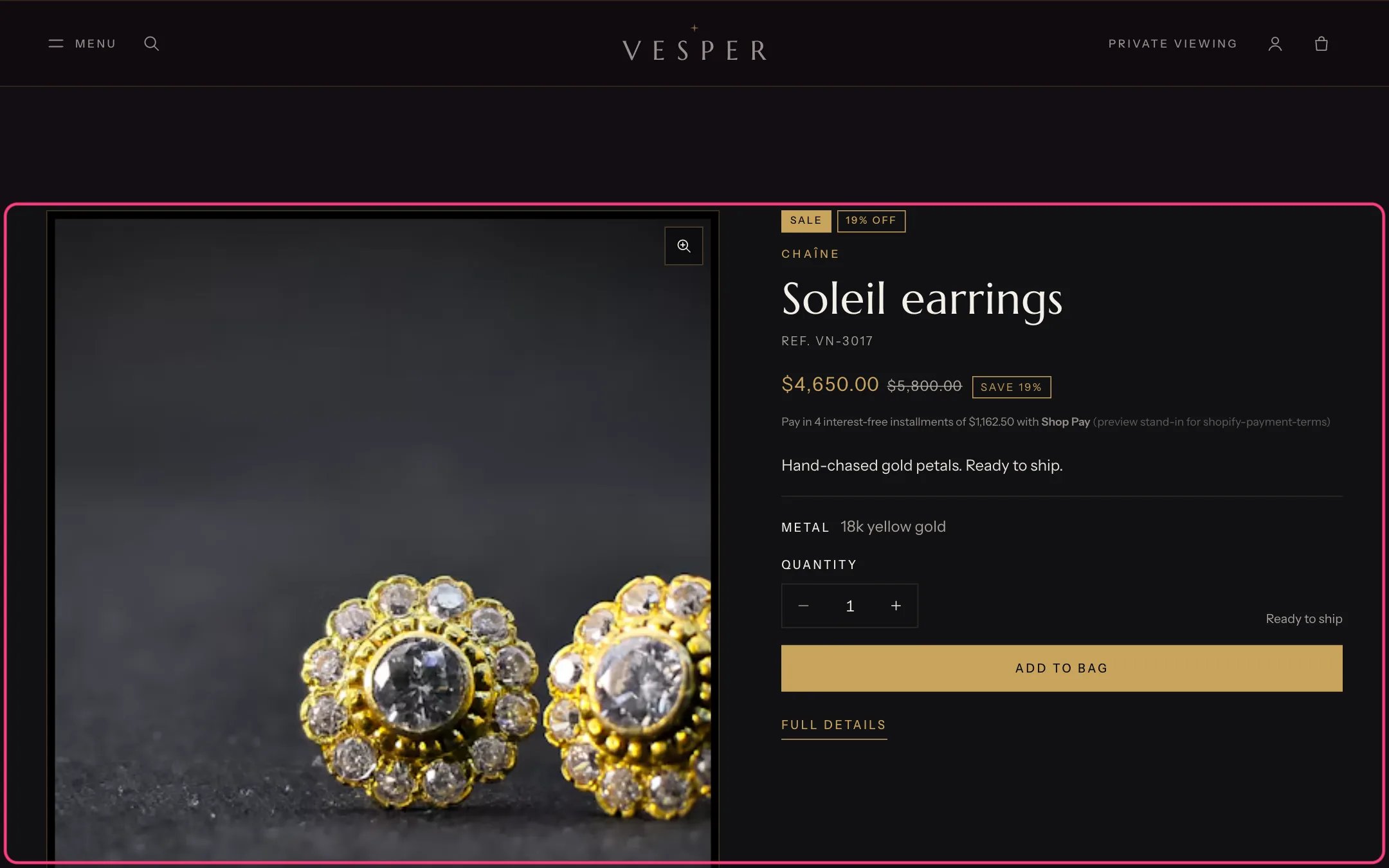
Featured product, highlighted with the demo content
Where to find it
Not on a page by default. In the theme editor open the page where you want it, click Add section and choose Featured product.How it works
- Uses the same blocks as Product information: title, price, text, variant picker, quantity, engraving, gift options, buy buttons, pickup, trust badges, details and more.
- Gallery can be a carousel with thumbnails, slides with arrows, or stacked images. Phones always swipe.
- Show the gallery first on desktop puts the gallery on the left, or turn it off to put the information first.
- Without a product chosen, it shows a placeholder.
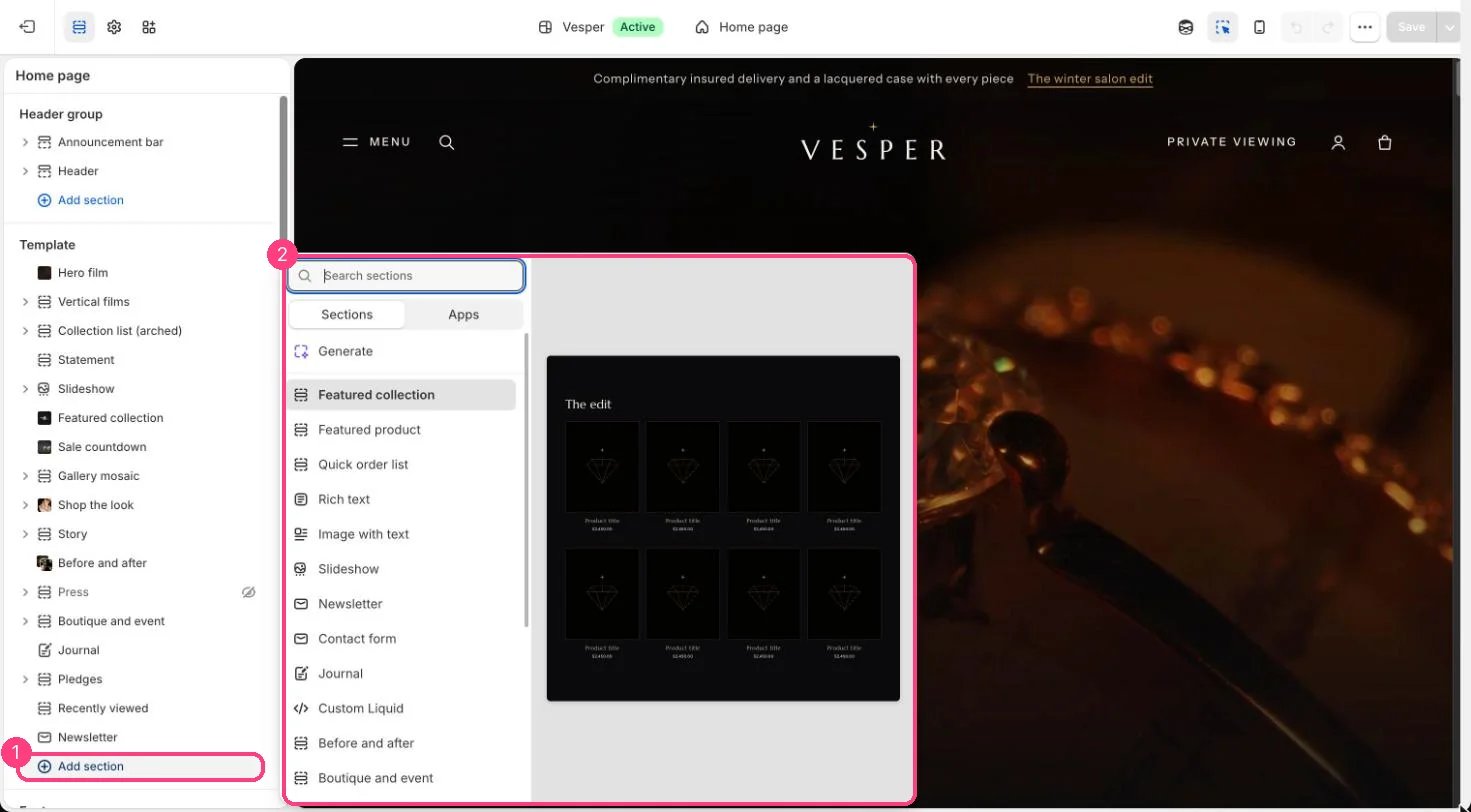
Not on the demo pages: add it with 1 Add section, then pick it in 2 the list
Edit it
- Choose the Product.
- Choose Gallery, Image zoom and Product videos.
- Add, remove and reorder blocks as on the product page.
Settings
Gallery
Details and section
Blocks
Add a block with Add block under the section in the sidebar; drag blocks to reorder them.App blocks
Blocks from apps you have installed, such as reviews or subscriptions. Click Add block and choose one from the Apps tab; its settings come from the app.Title (up to 1)
Price (up to 1)
Sale countdown
Text
Variant picker (up to 1)
Size guide
Quantity (up to 1)
Engraving (up to 1)
Gift options (up to 1)
Buy buttons (up to 1)
Price on request
Extra link