
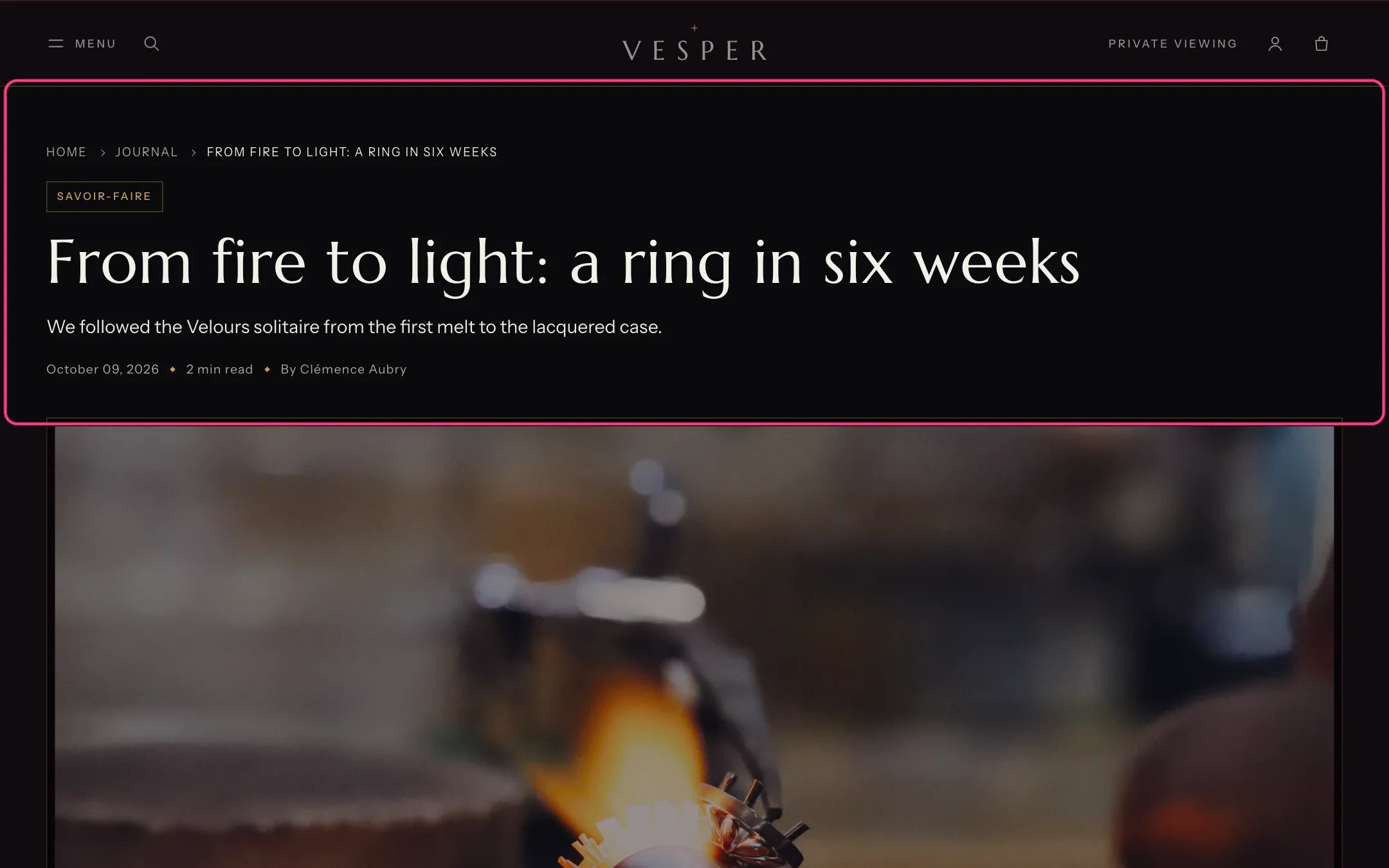
Journal story, highlighted with the demo content
Where to find it
Every blog post. In the theme editor choose Blog posts, then Default blog post, and select Journal story.How it works
- The contents list is built from the story’s level 2 headings. It shows when a story has two or more.
- The piece in the story block shows a product with a line, a detail and an Ask about it link to your contact page.
- The author note uses the bio and photo of the author’s staff account.
- Comments appear when they are turned on for the blog in Online Store, Blog posts, Manage blogs.
- Related stories share a tag with the story first, then the newest.
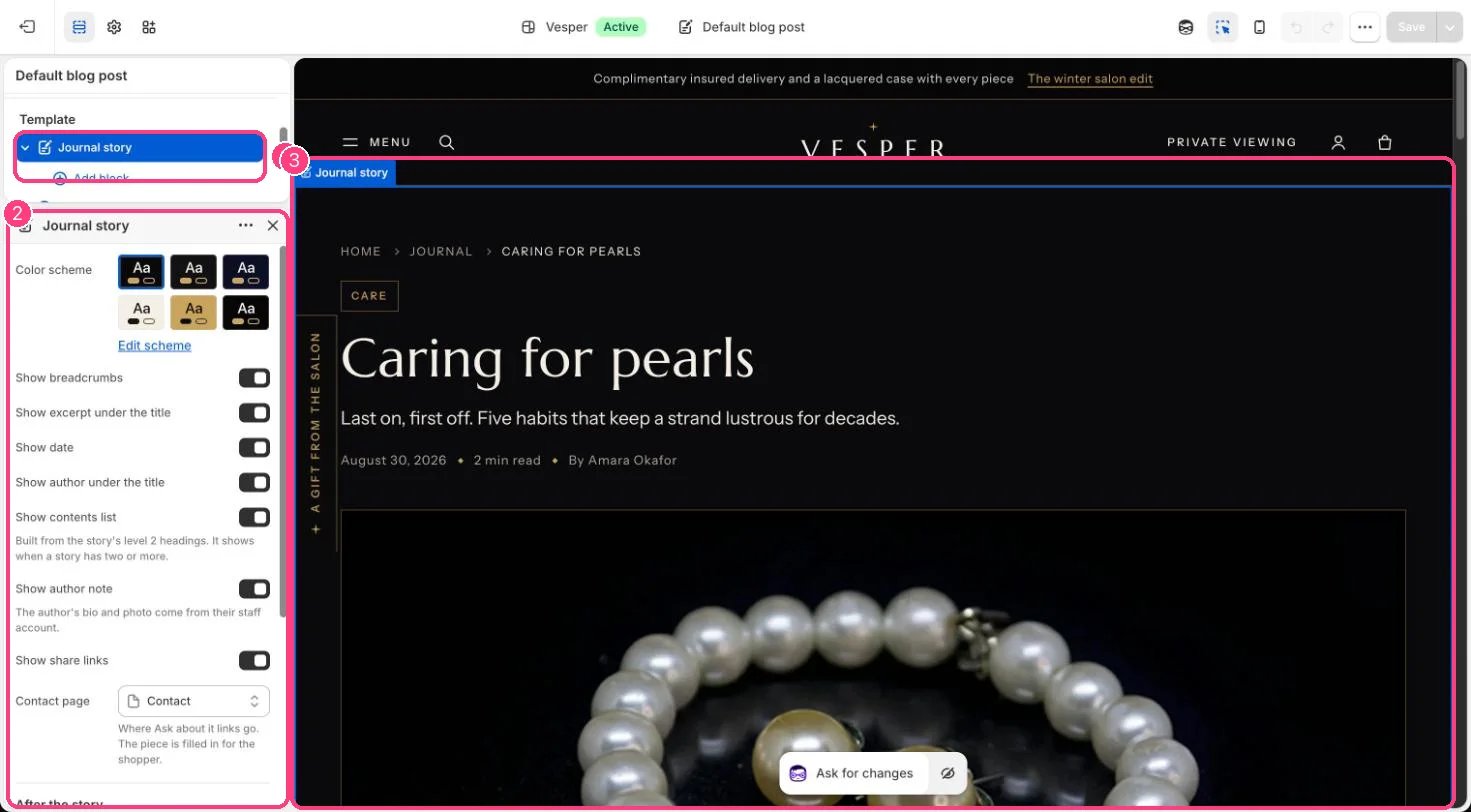
In the theme editor: 1 the section in the sidebar · 2 its settings · 3 the section in the preview
Edit it
- Turn the excerpt, date, author, contents list, author note and share links on or off.
- Add The piece in the story block (up to 2) and choose the product.
- Set Contact page for Ask about it links.
- Set Related stories (2 to 6) and turn the older and newer links on or off.
Settings
After the story