

Sale countdown, highlighted with the demo content
Where to find it
Home page. In the theme editor choose Home page, then select Sale countdown.How it works
- The countdown runs to the date in Sale ends, written with a time zone offset, for example 2026-11-30T23:59-05:00.
- A date the theme cannot read, or one that has passed, hides the countdown. It removes itself at zero and never restarts.
- With Hide the section after the end date on (the default), the whole section disappears once the end has passed, so shoppers never see sale copy after the offer. The theme editor keeps showing it so you can edit it.
- Below the countdown, 2 to 8 products from the chosen collection show with their sale prices.
- The section uses the Velvet color scheme (scheme 2) by default.
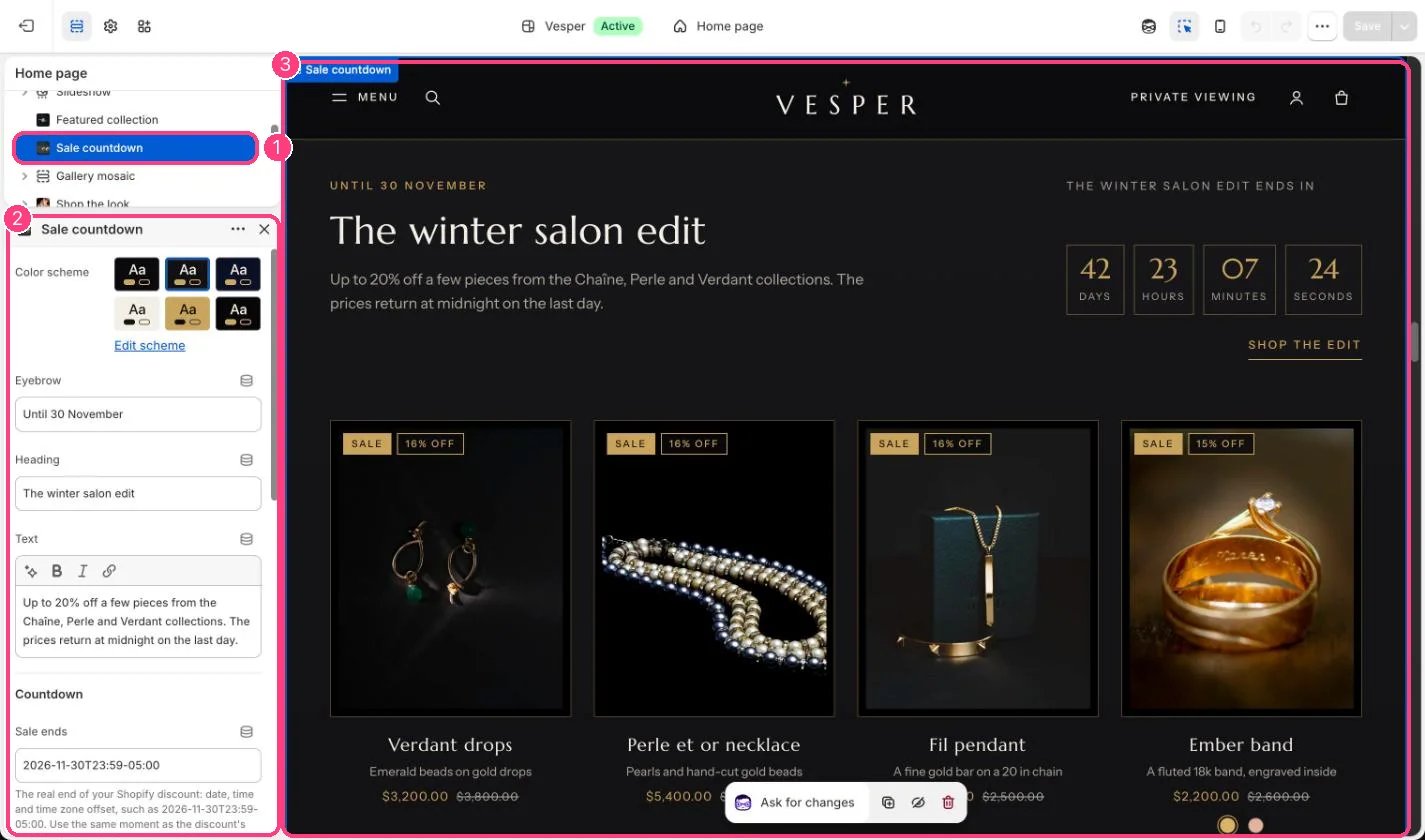
In the theme editor: 1 the section in the sidebar · 2 its settings · 3 the section in the preview
Edit it
- Create the discount in Shopify first, or set compare-at prices on the pieces.
- Type the discount’s end in Sale ends, using the same moment as the discount’s end date in Shopify.
- Choose the Collection of sale pieces and set Products to show.
- Edit Eyebrow, Heading, Text, Countdown label and the link.
Settings
Countdown
Products
The theme ships with no end date, so there is no countdown on install. See Honest countdowns.