
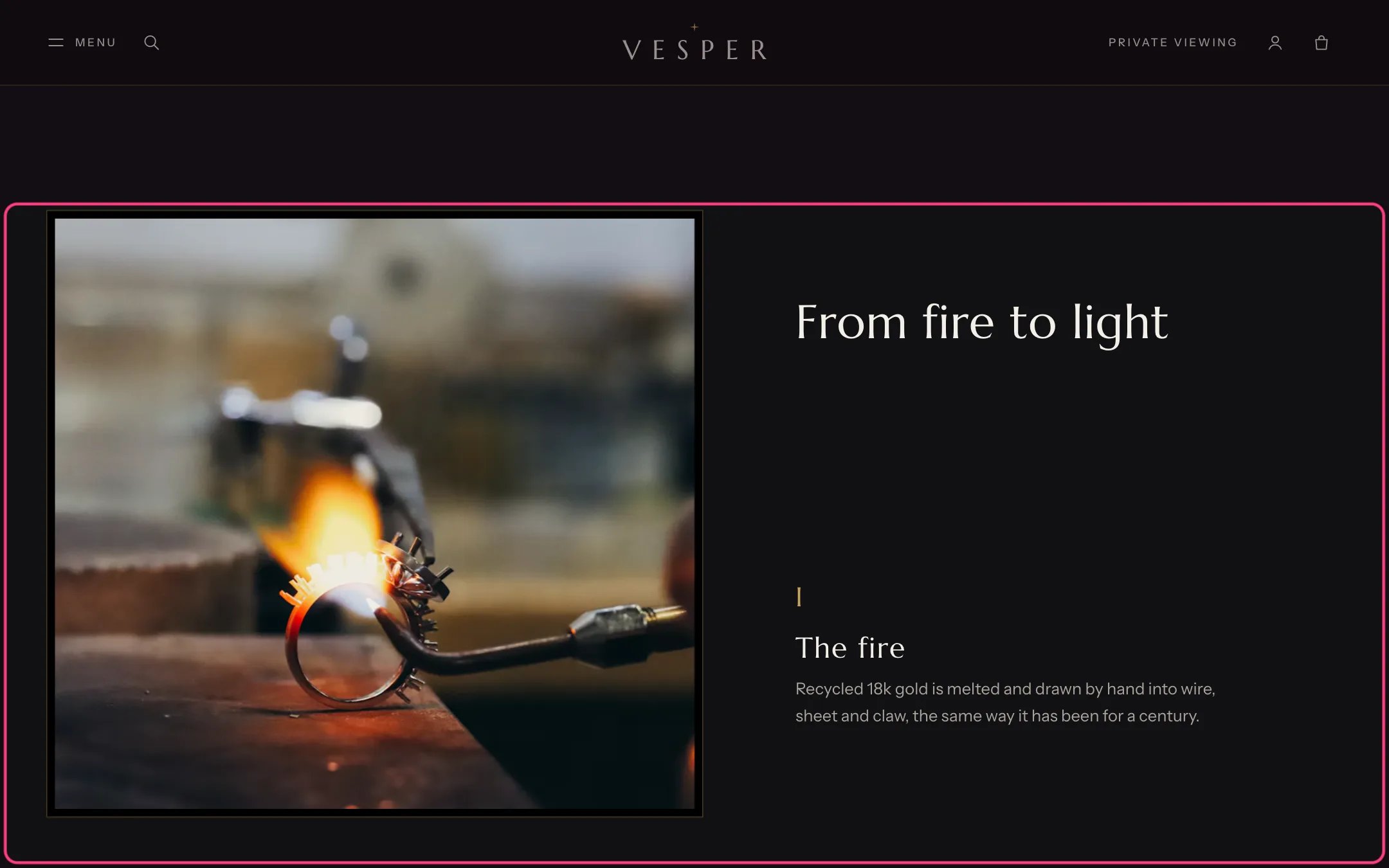
Story, highlighted with the demo content
Where to find it
Home page. In the theme editor choose Home page, then select Story.How it works
- On desktop the image or film of the chapter in view stays beside the text and changes as the shopper scrolls.
- On phones each chapter shows its own image or film above its text.
- A chapter film plays muted on a loop while on screen, with a pause button, and never plays with reduced motion or data saving.
- With reduced motion the change between chapters has no fade.
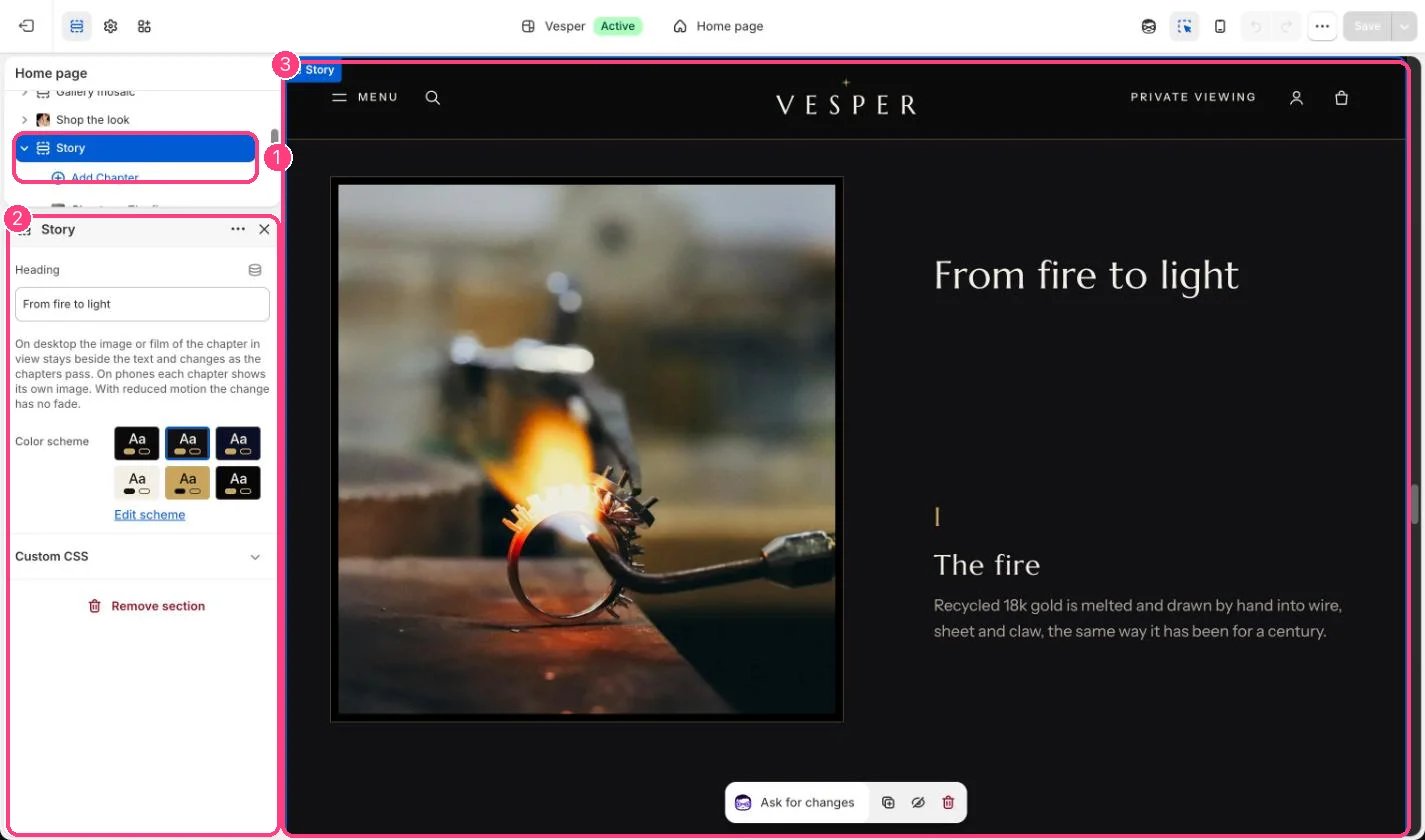
In the theme editor: 1 the section in the sidebar · 2 its settings · 3 the section in the preview
Edit it
- Add a Chapter block per chapter. Set Number (for example I, II, III), Heading and Text.
- Upload an Image, and optionally a short Film (under 3 MB). The image is also the film’s poster.
- Add a Link label and Link to the last chapter, for example to your About page.
- Edit the section Heading.