
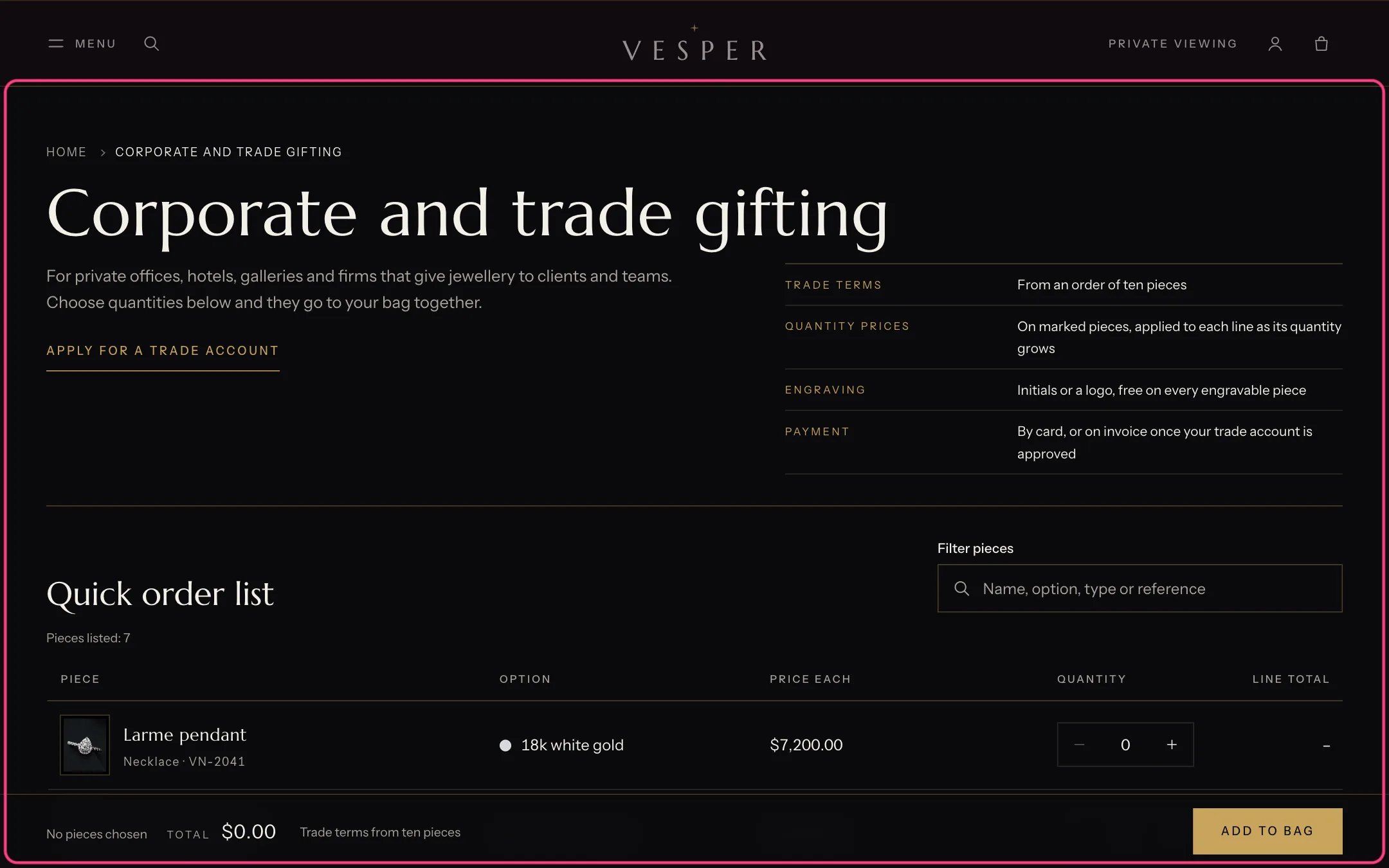
Quick order list, highlighted with the demo content
Where to find it
A page that uses the page.quick-order template. In the theme editor choose Pages, then quick-order, and select Quick order list. It can be added to other pages with Add section.How it works
- Each variant is a row with its price, stock and a quantity field.
- Quantity rules (minimum, increment, maximum) and quantity price breaks from B2B catalogs are followed.
- One Add to bag button adds every row with a quantity, on top of what is already in the bag, then opens the bag.
- A filter field narrows the rows as the client types.
- Its heading is the page’s main heading when it is the first section.
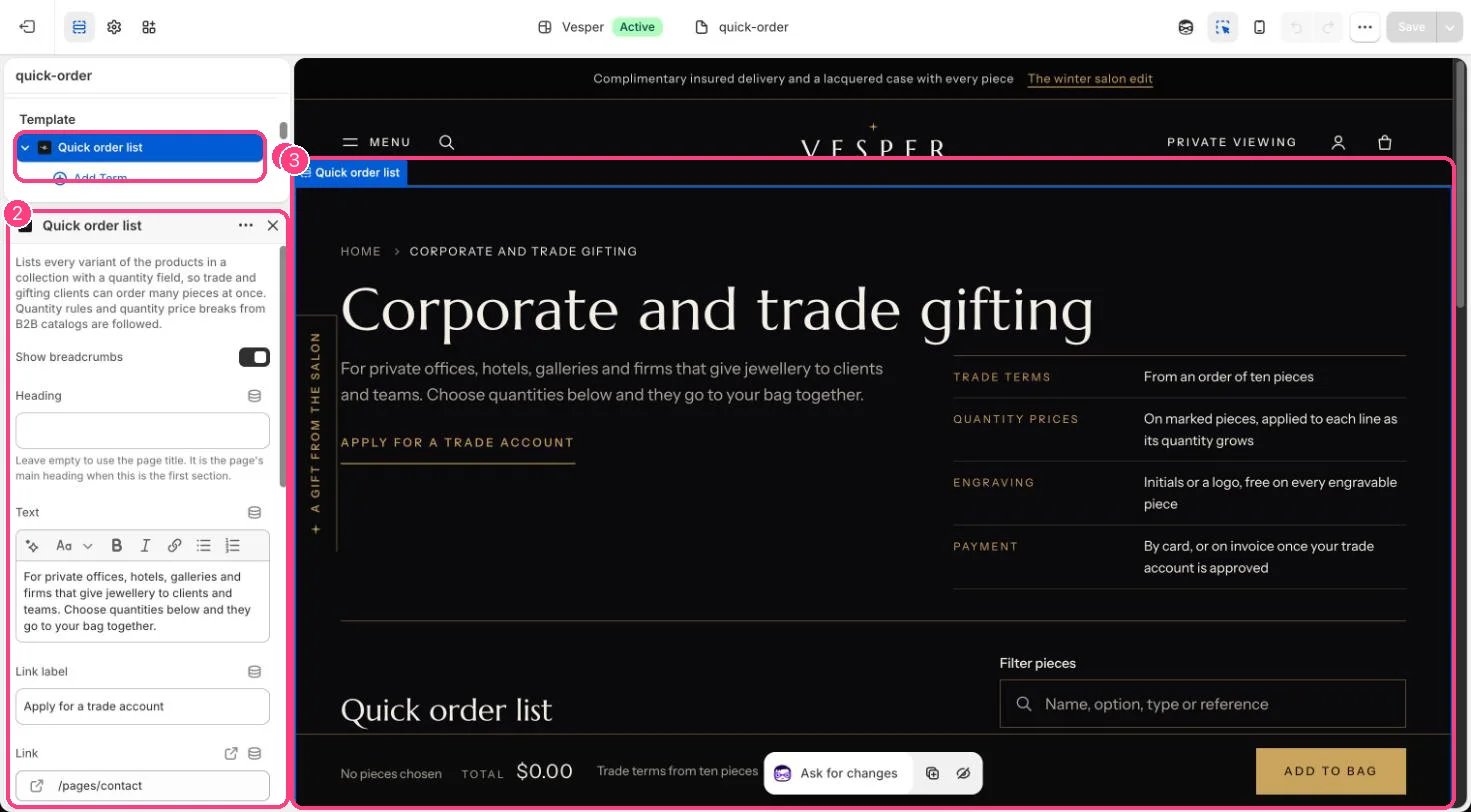
In the theme editor: 1 the section in the sidebar · 2 its settings · 3 the section in the preview
Edit it
- Choose the Collection and set Products per page.
- Turn images, the filter field and sold-out variants on or off.
- Add Term blocks for your trade terms, such as engraving or delivery.
- Type a Note beside the total, for example your trade minimum. It is shown as written; the theme does not check it.
Settings
List
Blocks
Up to 8 blocks. Add a block with Add block under the section in the sidebar; drag blocks to reorder them.Term
Quantity price breaks need a B2B catalog. See Quantity breaks and trade orders.