
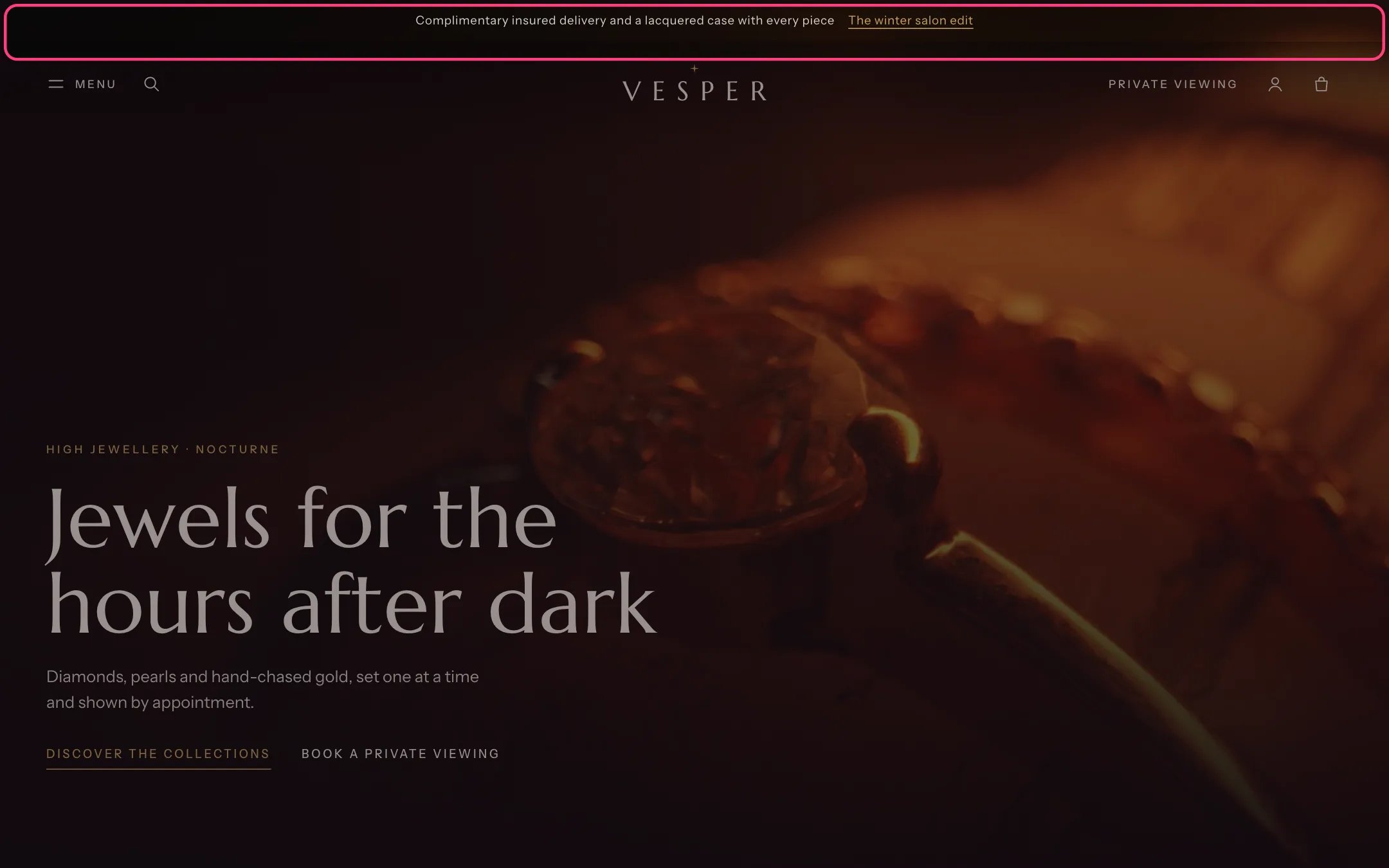
Announcement bar, highlighted with the demo content
Where to find it
Every page, above the header. In the theme editor open any page, then select Announcement bar in the Header group of the sidebar.How it works
- Holds up to 4 announcements. With more than one, shoppers step through them with the arrow buttons. They never change on their own.
- An announcement with a link label and a link shows the label as a link after the text.
- Each announcement can have its own countdown to the real end of an offer. A date the theme cannot read, or one that has passed, hides the countdown, and it removes itself at zero.
- On a home page that opens with the Hero film section, the bar floats over the film together with the header.
- The bar uses the Onyx color scheme (scheme 6) by default.
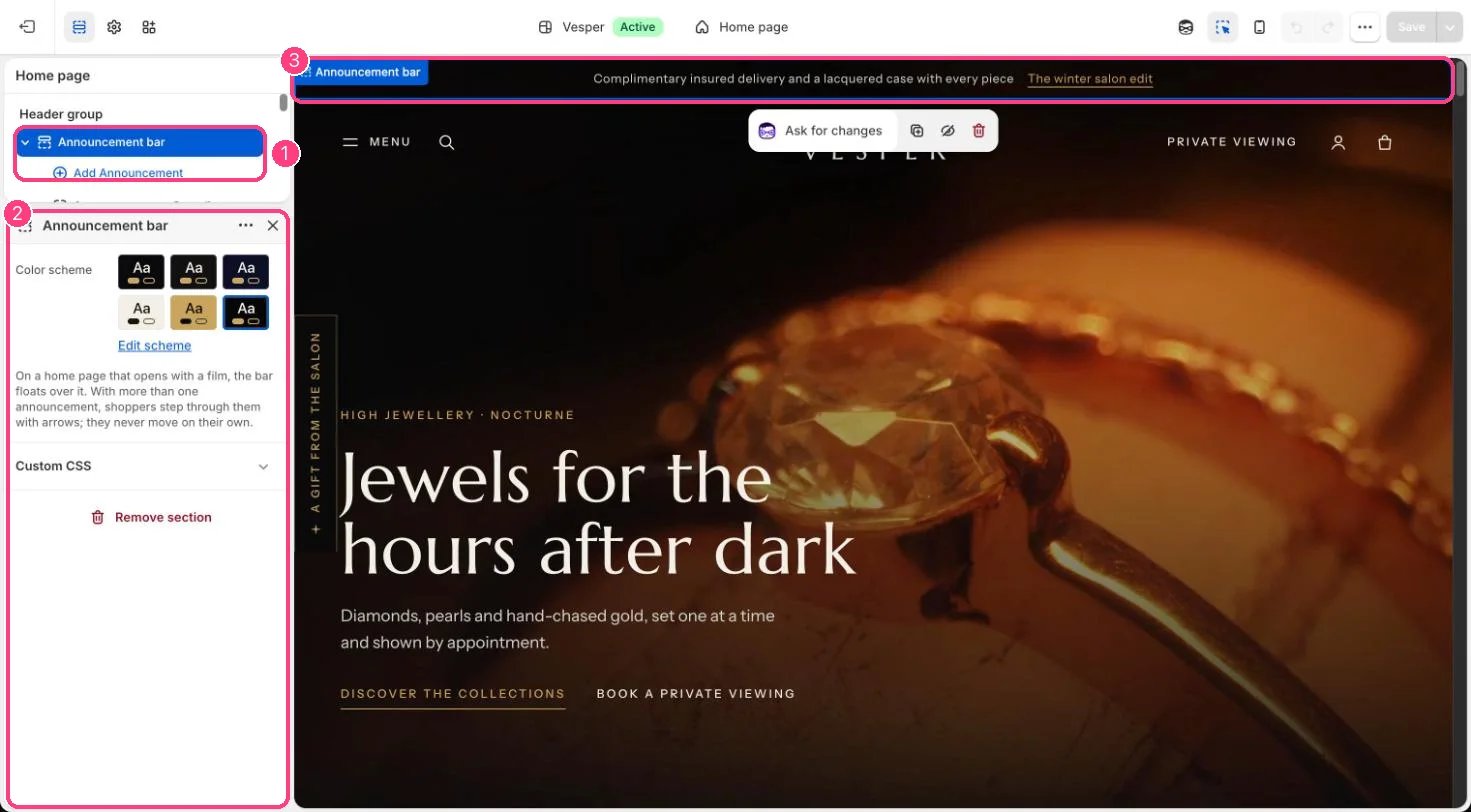
In the theme editor: 1 the section in the sidebar · 2 its settings · 3 the section in the preview
Edit it
- Select an Announcement block and type the text. Keep it to one short line so it does not wrap on phones.
- Add a Link label and a Link to send shoppers to a collection, the boutiques page or an event.
- To add a countdown, type the end of your discount in Offer ends, for example 2026-11-30T23:59-05:00, and change Countdown label if you like. See Honest countdowns.
- Remove every Announcement block, or hide the section, to remove the bar.
Settings
Blocks
Up to 4 blocks. Add a block with Add block under the section in the sidebar; drag blocks to reorder them.Announcement
Countdown
No countdown ships with the theme. Use the same end time as the discount in Shopify, so the countdown and the offer end together.