Metal swatches on product cards

Metal swatches on product cards
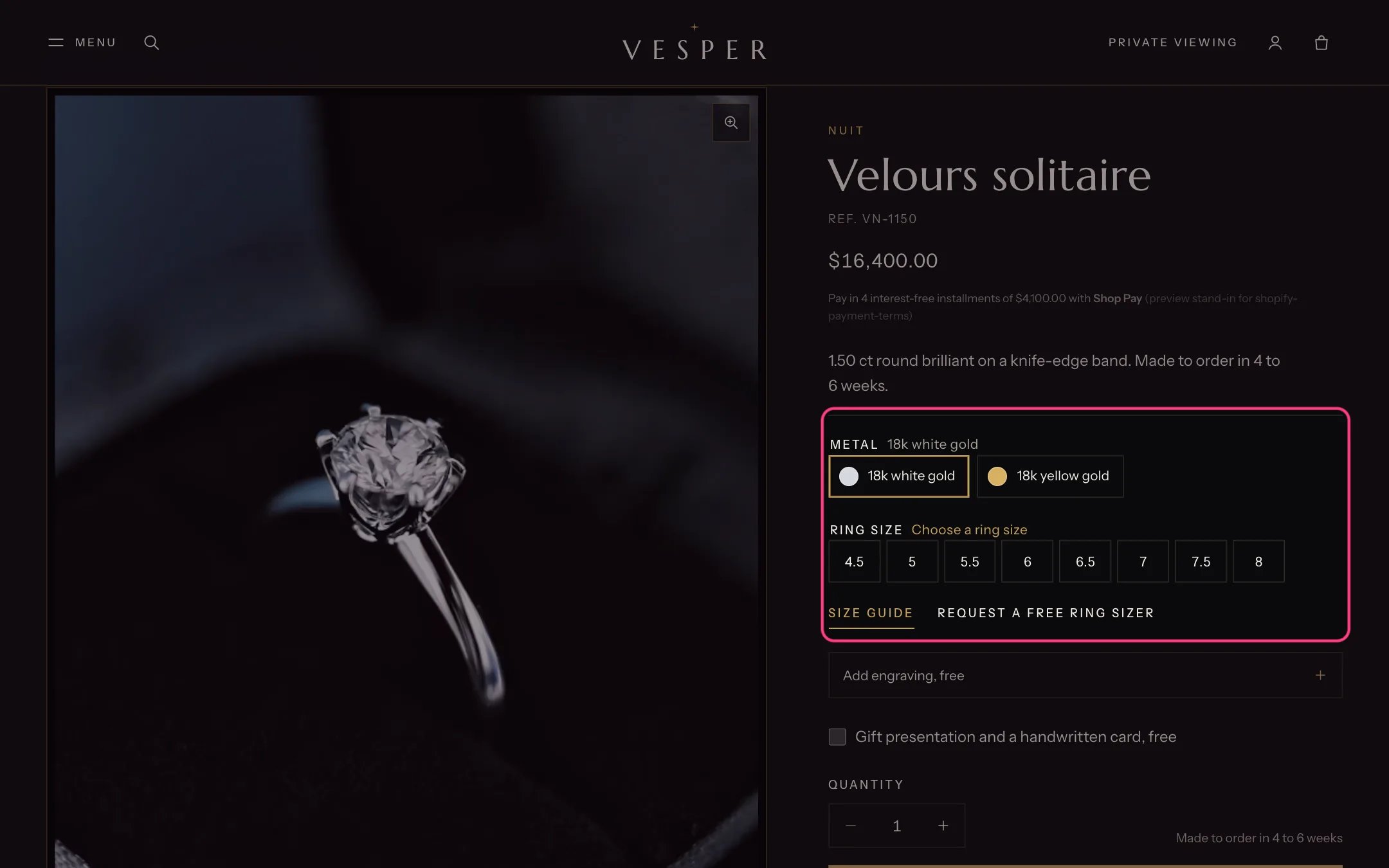
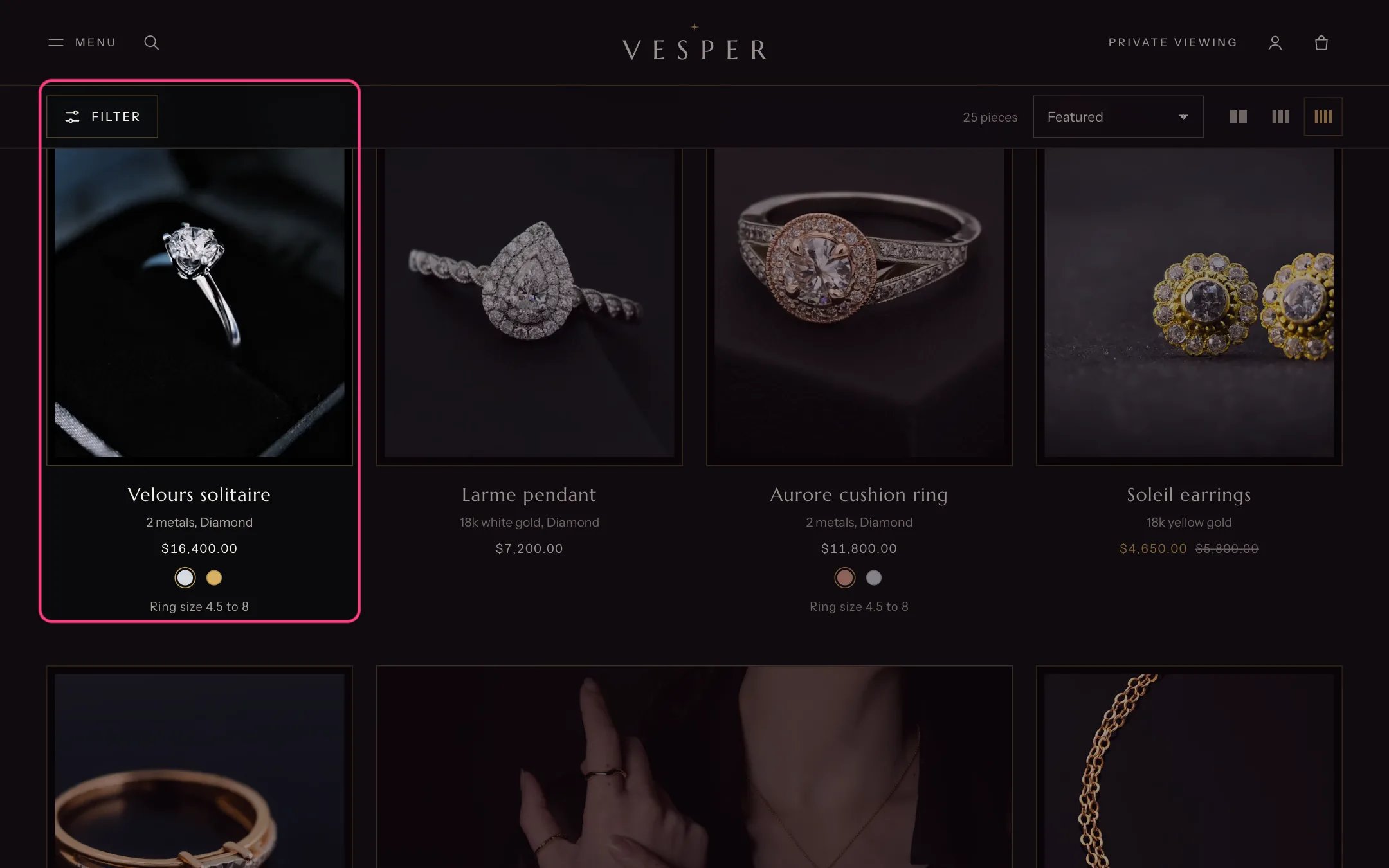
Gloaming shows the metal of a piece as a small swatch: on product cards, where pressing a swatch switches the photograph, and on the product page beside each metal choice. The swatch colors come from Shopify’s own option swatches, which you set once per metal. 1. Order the options. Give each product its options in this order: Metal first (for example 18k yellow gold, 18k white gold, 18k rose gold, Platinum), then Ring size or Size if it has one. Cards use the first option that has swatches. 2. Give the product a category. On the product page in the Shopify admin, set Category to the right jewelry category, for example Apparel & Accessories > Jewelry > Rings. The category brings Shopify’s category metafields, including Color. 3. Link the option to the Color metafield. In the product’s Variants card, add the metal option linked to the Color category metafield (Shopify offers the category metafields when you add an option). Choose an entry for each metal, or create one: each entry has a name (such as 18k rose gold) and a swatch color or image. Entries live in Content, Metaobjects, so you create each metal once and reuse it on every product. Gloaming finds the swatches whether the option is called Metal or Color. 4. Check the result. Cards now show a dot per metal, and the product page shows each metal with its swatch. Sold-out metals stay selectable and are marked sold out.
Metal choices with swatches on the product page

Metal choices with their swatches on the product page

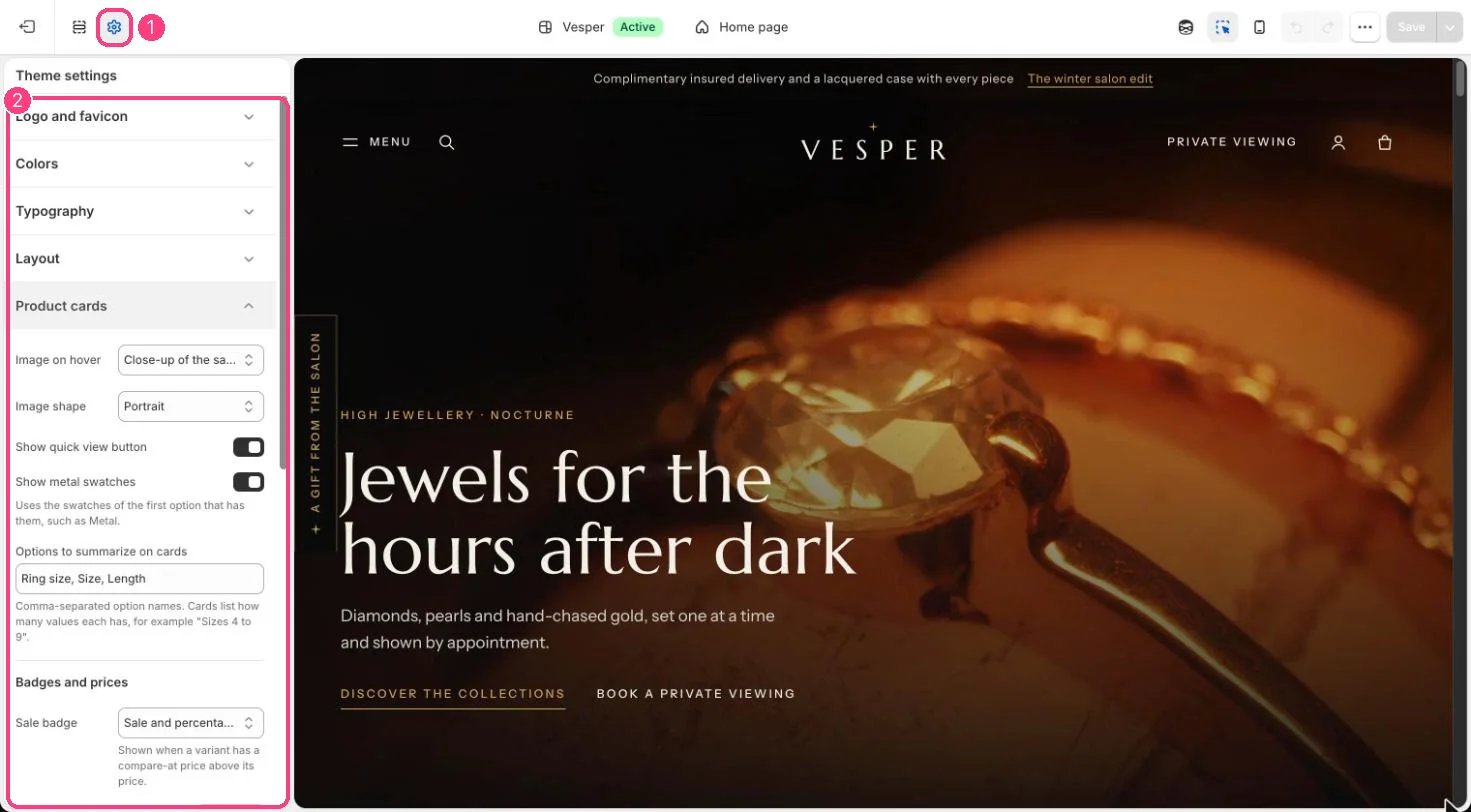
Without swatches. On the product page, options named Metal, Material, Finish or Color still get a dot: Gloaming draws yellow, white, rose and vermeil tones from the value names (rose, white, platinum, silver, vermeil, yellow or gold). Product cards only show swatches that are set in Shopify. Change which options count as metal. In the theme editor, open Products, Default product, Product information, Variant picker, and edit Metal options (default Metal, Material, Finish, Color). Turn card swatches off. Untick Theme settings, Product cards, Show metal swatches. Filters. The Search & Discovery app shows the same swatches for a Metal filter. See Filters with Search & Discovery.

In the theme editor

Product card settings

Show metal swatches: 1 Theme settings · 2 Product cards