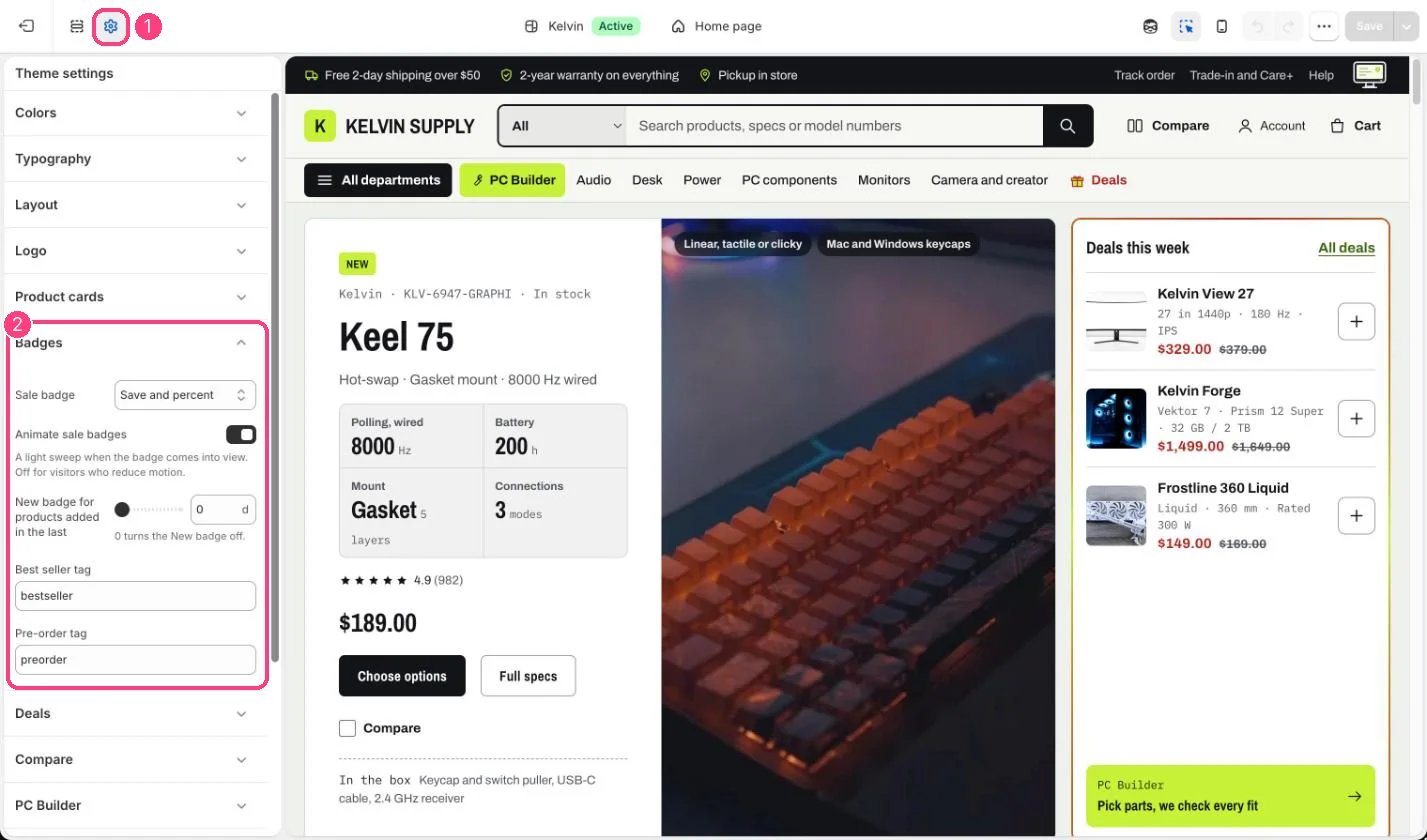
Kelvin shows badges in the corner of each product card’s photo, and next to the price on the product page, in quick view and in the home page’s hero and deal countdown. They are set in Theme settings → Badges. On the product page they follow Show badges in the Price block of Product information and change with the selected variant. Which badges show. A product shows at most two, picked in this order:
  1. Sold out when nothing can be bought, or Pre-order (see below).
  2. Sale, when the variant has a compare-at price above its price and the product can be bought.
  3. One of your own badge, New or Best seller, in that order of preference, when fewer than two badges show already.
Cards use the variant a shopper would get first (the first available one), so a product whose discounted variant is not that one shows no sale badge on its card.
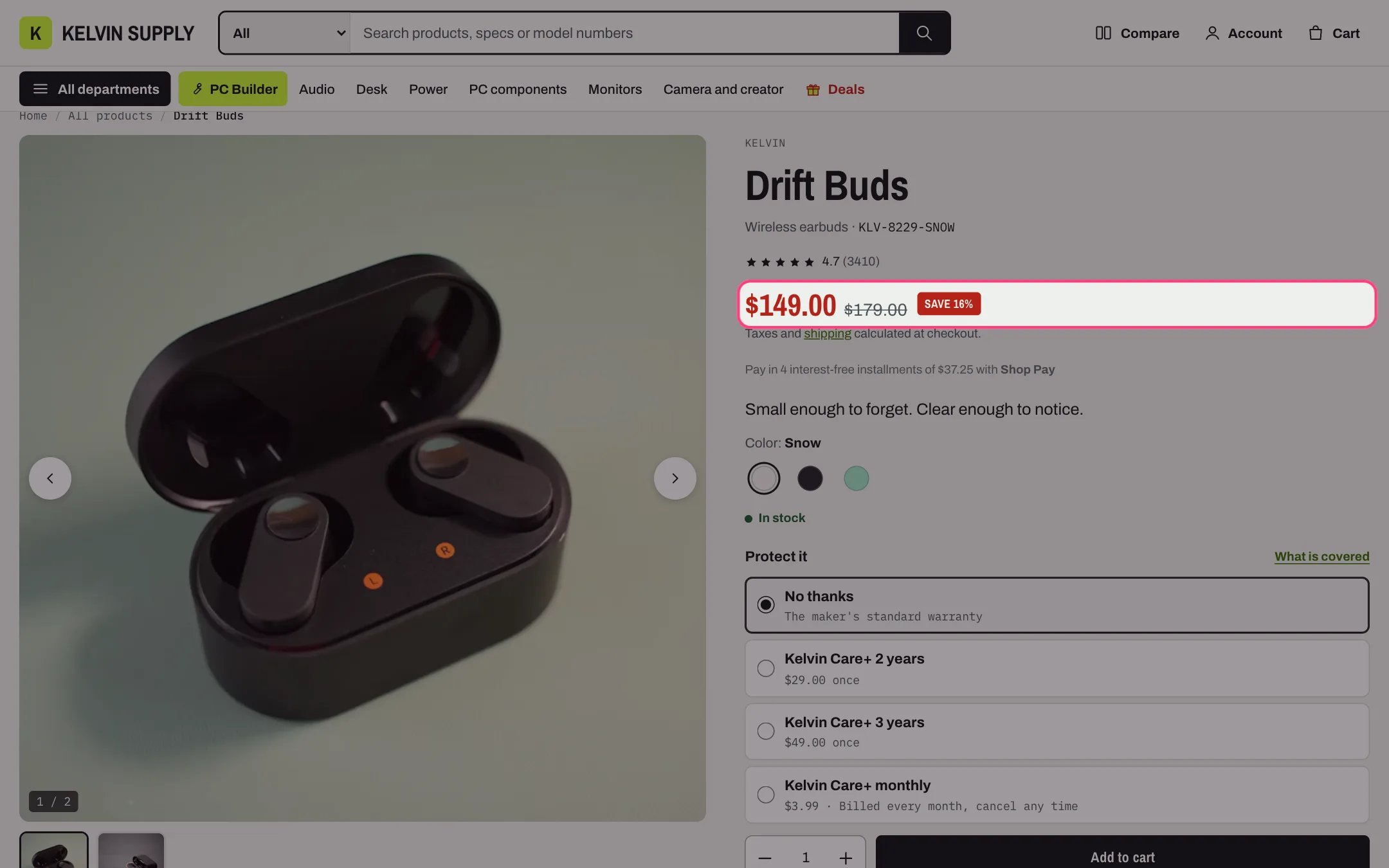
A sale badge next to the price

The sale price, the struck regular price and the Save badge on the product page

Sale. Give the variant a Compare-at price above its price in the admin. Sale badge chooses the text: Save and percent (Save 16%, rounded), Save and amount (Save and the amount in the shopper’s currency), Sale, or None. Sale badges are red in light mode and coral in dark mode. Animate sale badges (on at install) sweeps a light across each sale badge when it comes into view, and again when a shopper hovers over or focuses its card. Visitors who ask their device for reduced motion see a still badge. Untick it to keep every badge still. New. New badge for products added in the last sets a number of days, 0 to 60 in steps of 5. Products created in Shopify within that many days show New. It is 0, off, when Kelvin is installed: products you import all get the import date as their creation date, so turn it on once that has passed. Best seller. Tag a product with the Best seller tag, bestseller on install. Tags must match exactly, capitals included. Kelvin does not work out best sellers from your sales: you choose them. Your own badge. In Settings → Custom data → Products, add a definition with the namespace and key specs.badge (or custom.badge) and the type Single line text. Type a word or two on a product, such as Staff pick or Refurbished. It shows in the accent color, like New, and takes the place of New and Best seller on that product. Keep it short so it fits the corner of the photo.
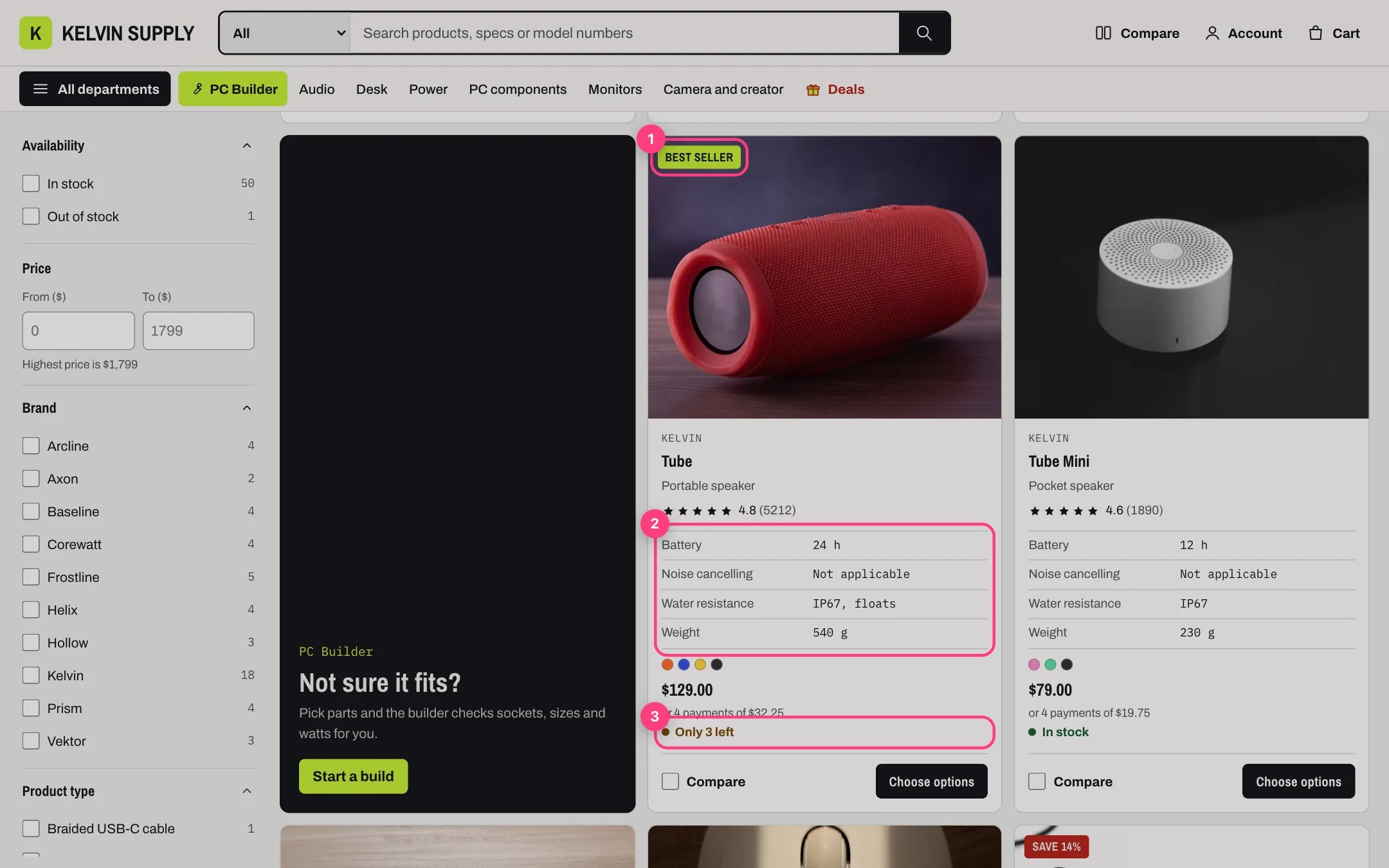
A product card with a Best seller badge

The Best seller badge (1), the spec rows (2) and the real stock line (3) on a card

Pre-order. A product sells as a pre-order in either of two cases:
  • it has the Pre-order tag, preorder on install (Theme settings → Badges);
  • its variant tracks quantity, is at zero or below, and has Continue selling when out of stock ticked. This works variant by variant: only the variants at zero are pre-orders.
The tag alone does not make a product buyable. A tagged variant that tracks quantity and is at zero without Continue selling shows Sold out. Turn on Continue selling, or stop tracking quantity, for products you sell before stock arrives.
What changes for a pre-order.
  • A Pre-order badge, on the card and next to the price.
  • On the card, the stock line and the quick add button read Pre-order.
  • On the product page, the stock line and the add button read Pre-order, and a line above the button says Pre-order: ships when stock arrives. When Shopify has an expected date for incoming stock of that variant (from an inventory transfer), it says Pre-order: ships from, and the date.
  • The cart line, and then the order, carry the line item property Pre-order with the value Ships when stock arrives, from the product page and from quick add alike, so your team can tell pre-orders apart.
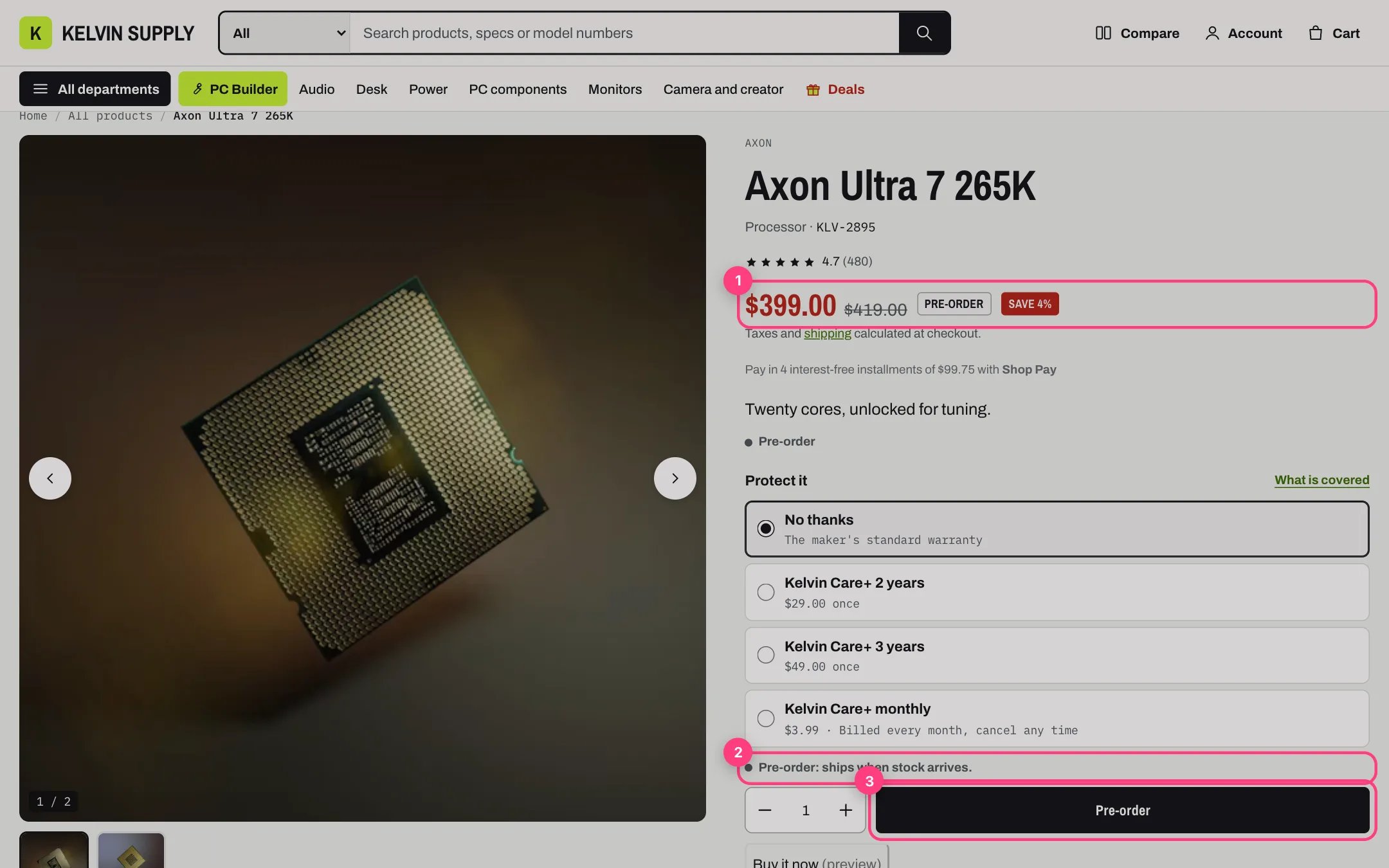
A pre-order can also be on sale; both badges show.
A pre-order product page

The Pre-order and sale badges (1), the shipping line (2) and the Pre-order button (3)

What pre-order never does. Kelvin does not hold payment, take a deposit or cap quantities: shoppers pay in full at checkout, as for any order. To charge later or take a deposit, use a pre-order app that sells with selling plans. The stock line. Cards and the product page print a stock line from your real inventory:
  • Only 3 left (for example) when the variant tracks quantity in Shopify and has at least 1 and at most Show low stock at or below in stock (Theme settings → Product cards, 0 to 25, 10 on install);
  • In stock otherwise, including products that do not track quantity;
  • Sold out or Pre-order when those apply.
The number is the variant’s inventory as Shopify reports it, so Kelvin never invents scarcity. Setting Show low stock at or below to 0 removes Only N left everywhere and In stock from cards. On the product page, the Stock block’s Say In stock above the low stock level decides whether In stock shows there.

In the theme editor

Badge settings

Sale badge style, the New badge, and the Best seller and Pre-order tags: 1 Theme settings · 2 Badges