
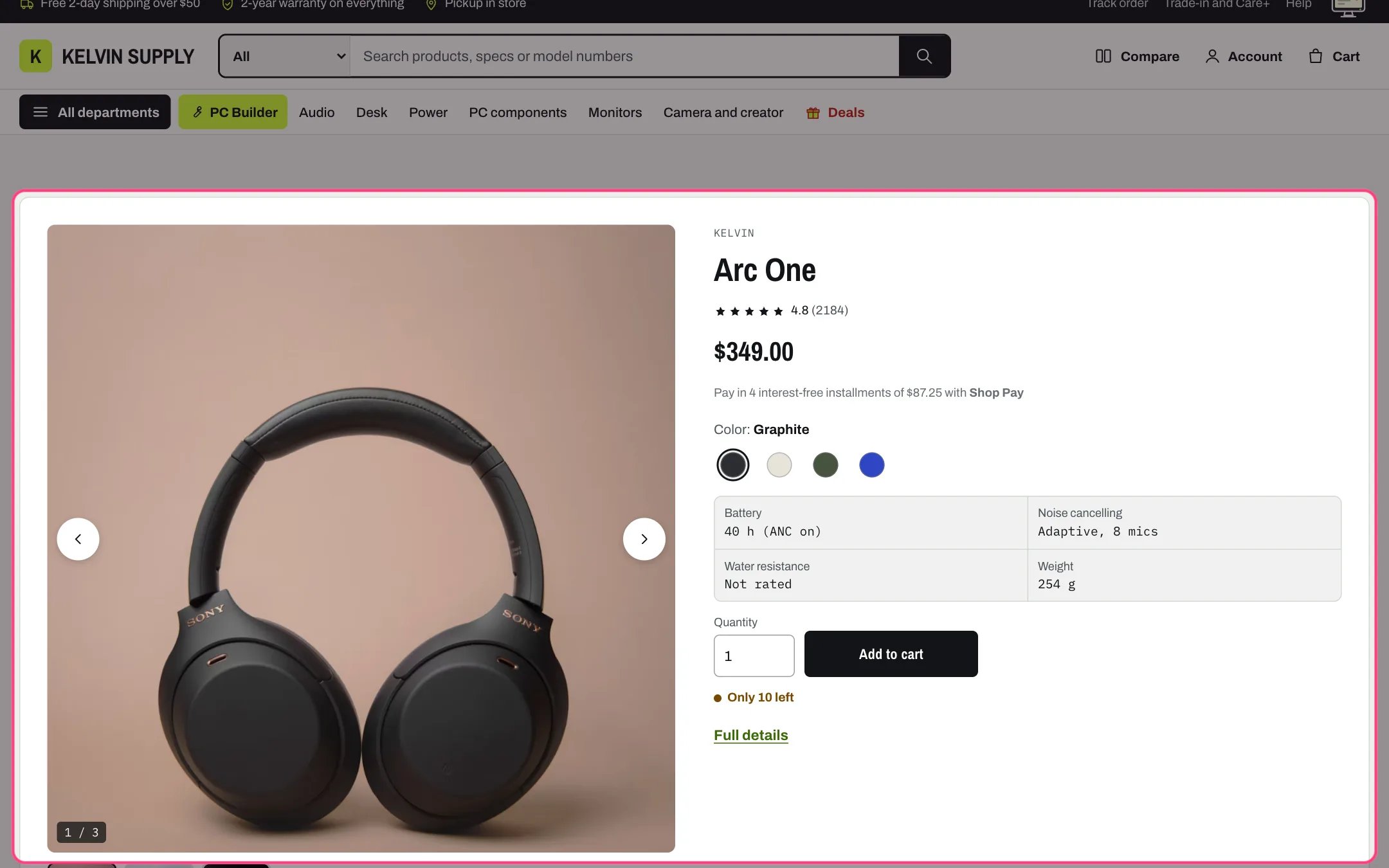
Featured product, highlighted with the demo content
Where to find it
On the home page on a fresh install, below Shop the setup, with no product chosen: it shows a placeholder until you pick one. In the theme editor choose Home page and select Featured product. To add another, open any page, click Add section and choose Featured product.How it works
- The gallery (photos, videos, YouTube and Vimeo, 3D models) sits beside the buy box; under 900 px they stack.
- Blocks: Vendor, Title, Type and SKU, Rating, Price, Shop Pay Installments, Description, Variant picker, Purchase options, Gift card recipient, Key specs, Stock, Buy buttons, Pickup availability, PC compatibility, Compare and share, Text, Custom Liquid and app blocks. They behave as on the product page; the Compare box shows only when Theme settings → Compare → Compare page is set.
- Changing an option updates the price, stock and buttons in place. The address bar does not change.
- Key specs show as a two-column grid, one column on phones.
- The product title is a second-level heading, so the page keeps one main heading.
- Protection plans, the size guide, Delivery estimate, Trust badges, the details below and the sticky bar belong to the product page only.
- Without a product it shows a placeholder: a sample name, a zero price and a disabled Add to cart button.
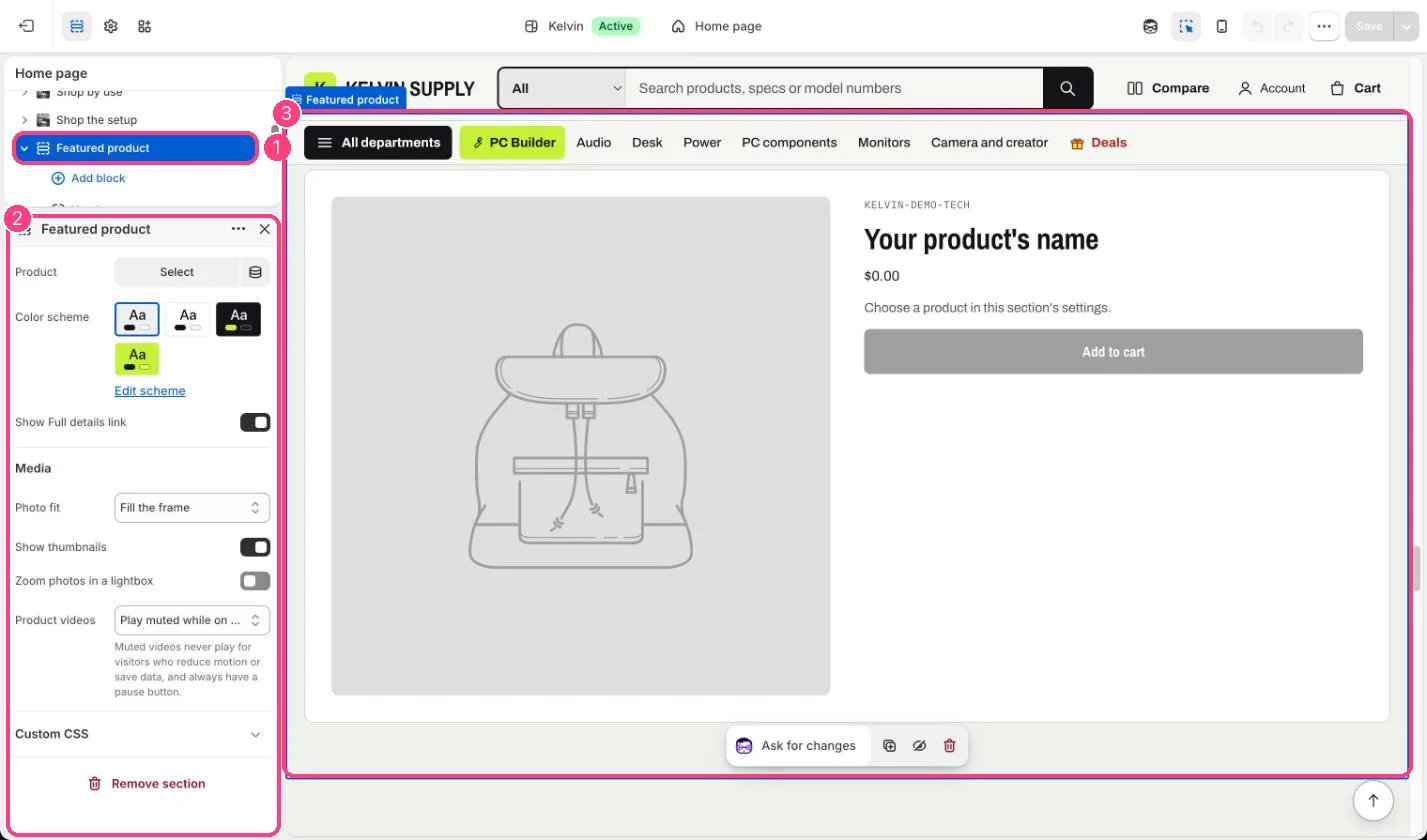
In the theme editor: 1 Featured product · 2 its settings, with no product chosen yet · 3 the placeholder it shows until you pick one
Edit it
- Choose the Product. Pick one with good photos and some key specs (Theme settings → Product cards → Spec rows).
- Keep Show Full details link on, so shoppers can reach the full product page.
- Under Media set Photo fit (Show the whole photo on install; Fill the frame crops photos that are not square), Show thumbnails, Zoom photos in a lightbox (off on install here) and Product videos.
- Buy buttons starts with Quantity selector set to Number box and Show dynamic checkout button off; change them in the block if you like.
- Add, remove and reorder blocks as on the product page.
Settings
Media