Everything in this guide is set in Theme settings → Cart and shows in the Cart drawer and in the order summary of the Cart page. Fields save as soon as the shopper types or ticks, so nothing is lost on the way to checkout, and the drawer and the cart page always agree. The order note and the gift message are also part of the cart form, so Check out sends them even when a shopper checks out right after typing.
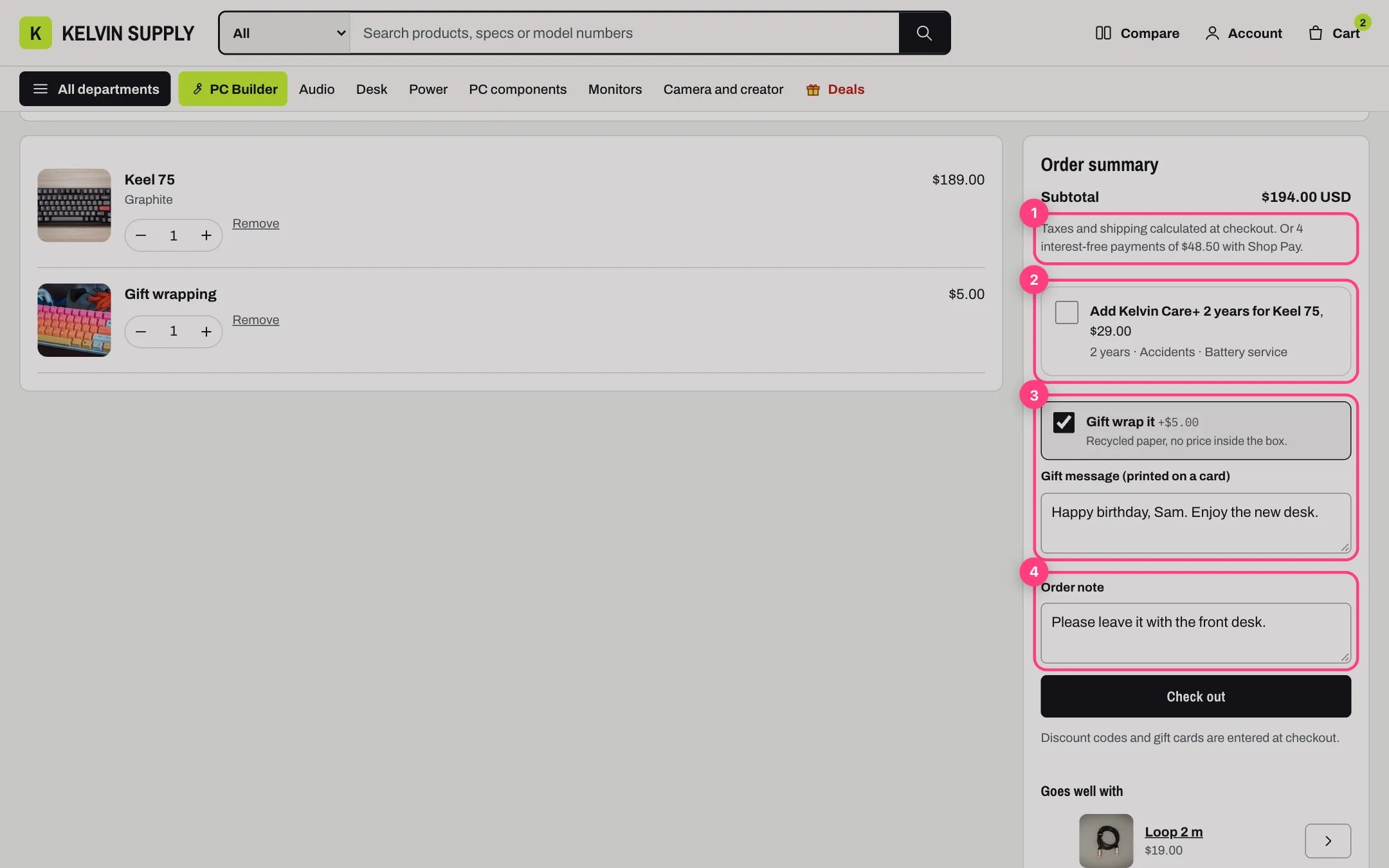
The order summary on the cart page with the cart extras numbered

The Shop Pay line (1), the Care+ offer (2), gift wrap with its message (3) and the order note (4)

Drawer or page. Cart type is Drawer on install: every Add to cart opens the drawer and the shopper stays on the page. With Page, Add to cart goes to the cart page and the drawer is not used; Goes well with still shows on the cart page. Gift wrapping.
  1. In Products, create a product such as Gift wrapping, with its price and a photo. Untick Track quantity, or keep it in stock, and make it available on the Online Store sales channel.
  2. Keep it out of your collections. To keep it out of search too, use the seo.hidden metafield as step 2 of Care+ protection plans describes; it works the same way for any product.
  3. In Theme settings → Cart, choose it under Gift wrapping product.
The cart then shows a Gift wrap it box with the product’s price. Ticking it adds one gift wrapping line (the product’s first available variant) and unticking removes it. The box hides while the product is unavailable. Gift wrapping note, in the same group, adds a short line under the box, for example what the wrapping is made of. It is empty on install, and no line shows until you fill it. Gift message. With Gift message on (on install), a field labeled Gift message (printed on a card) opens once gift wrapping is in the cart. It takes up to 200 characters and is saved as the cart attribute Gift message, which shows on the order under Additional details. The name stays in English in every language, so your team always finds it in the same place. Without a gift wrapping product there is no gift message field, and unticking gift wrap clears the message. Order note. With Order note on (on install), the cart has an Order note field with the hint Delivery instructions, or how you would like a PC build set up. It is saved as the order’s note, in the Notes card of the order. Free shipping bar. Show free shipping progress is off when Kelvin is installed, and Free shipping over is empty. The bar is a promise to shoppers, so first create the rate in Settings → Shipping and delivery (a free rate with a minimum order price), then type the same amount in Free shipping over, in your store currency without the symbol (for example 50 or 75.50), and tick Show free shipping progress. A bar at the top of the drawer and the cart page then tells shoppers how much more they need, and says Free shipping unlocked once the subtotal after discounts reaches it.
The bar shows only in your store currency. Carts in another currency, through Shopify Markets, do not show it.
Care+ line. When a product in the cart has protection plans in its custom.protection_plans metafield, the cart offers the first plan of that list for the first such product, for example Add Kelvin Care+ 2 years for Keel 75 on the demo, with the plan’s price and a one-line summary (the plan’s specs.summary metafield, or the start of its description). A plan sold only as a subscription, such as a monthly plan, shows its subscription price and the selling plan’s name, and is added with that selling plan. Ticking the box adds the plan as its own line with the property Covers and the product’s title; unticking removes that line. Products inside a PC build are not offered a plan. Set up the plans in Care+ protection plans.
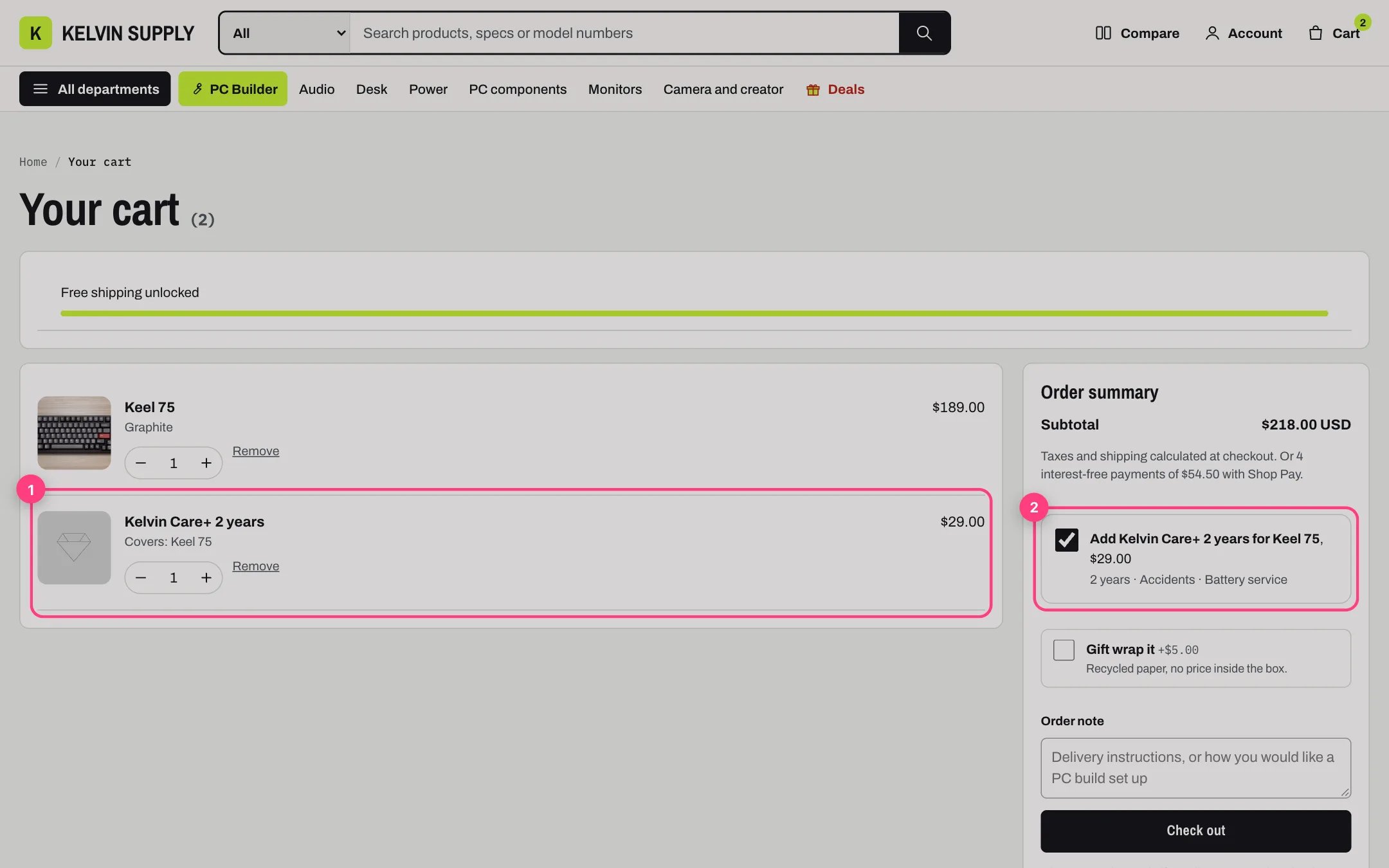
A Care+ plan in the cart

The plan on its own line with Covers (1) and the ticked Care+ offer in the summary (2)
Goes well with. Up to three suggestions show under the order note in the drawer and at the bottom of the cart page’s order summary: the complementary products you set for the newest item in the Search & Discovery app, or else products from the Suggested products collection. See Cart suggestions.
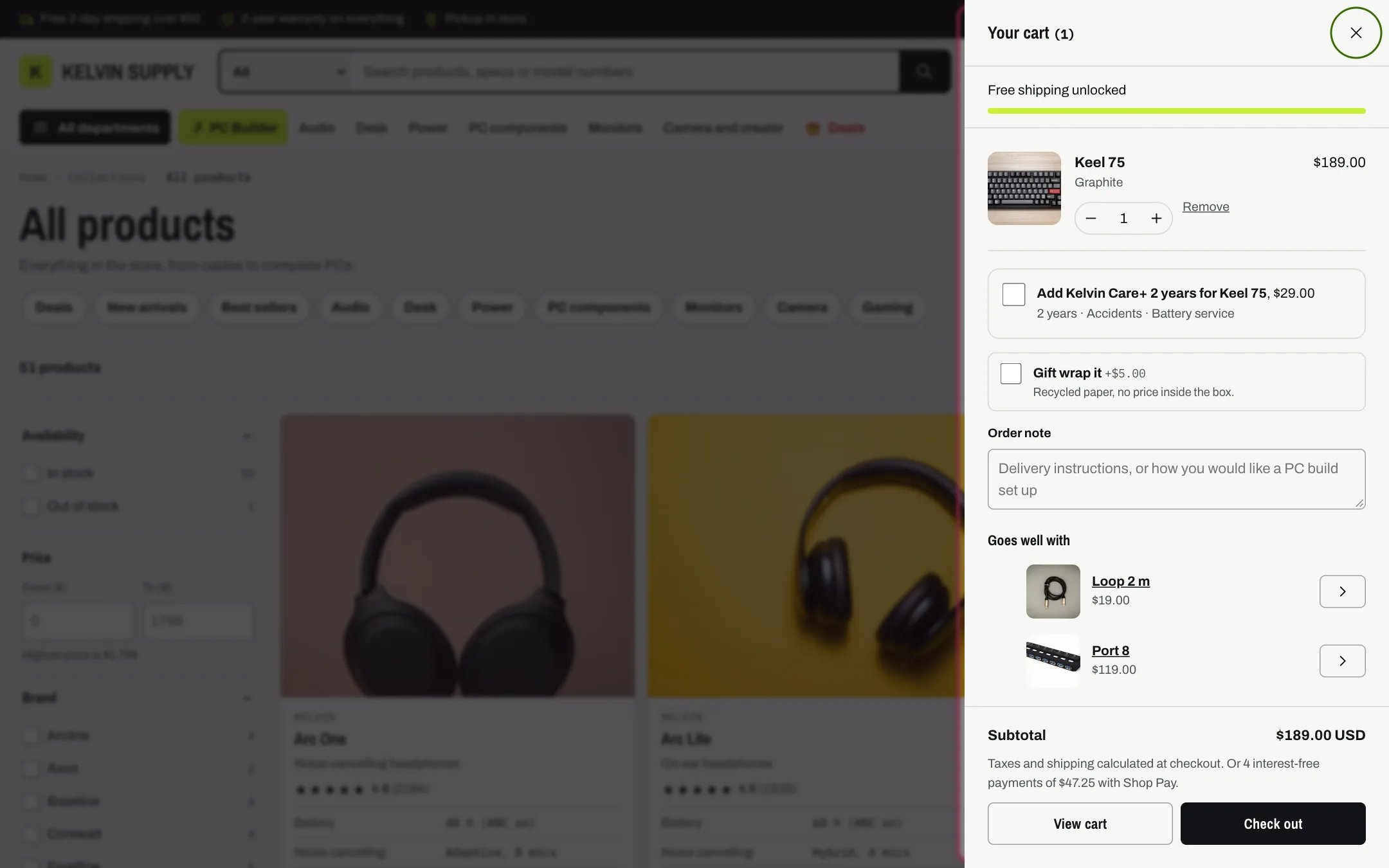
The cart drawer after adding a product

The drawer with the Care+ offer, gift wrap, the order note, Goes well with and the totals

Express checkout. With Show express checkout buttons on, Shopify’s express buttons, such as Shop Pay, Apple Pay, Google Pay and PayPal, show under Check out in the drawer and on the cart page, for the methods you turn on in Settings → Payments. Shopify decides which buttons each shopper sees; with none turned on, nothing shows. Shop Pay Installments line. Under the subtotal, the cart can read Or 4 interest-free payments of, the subtotal divided by four, with Shop Pay. It follows the same rule as the Pay in 4 line on product cards: Show the Pay in 4 line is on in Theme settings → Product cards (off on install), Shop Pay is one of your payment methods, the cart total reaches Pay in 4 minimum price (50 on install), and the shopper pays in your store currency (the minimum is not converted, so carts in other currencies never show the line). Turn it on only when Shop Pay Installments is active on your store, and match the minimum to your market. Shopify decides real eligibility at checkout. The product page uses Shopify’s own installments banner instead. Discount codes. The cart page says Discount codes and gift cards are entered at checkout: shoppers type codes on Shopify’s checkout, and automatic discounts show by name in the cart’s totals. What these extras never do. Kelvin does not change shipping rates, print the message or wrap anything: the order carries the gift wrapping line, the Gift message attribute and the note, and your team acts on them.

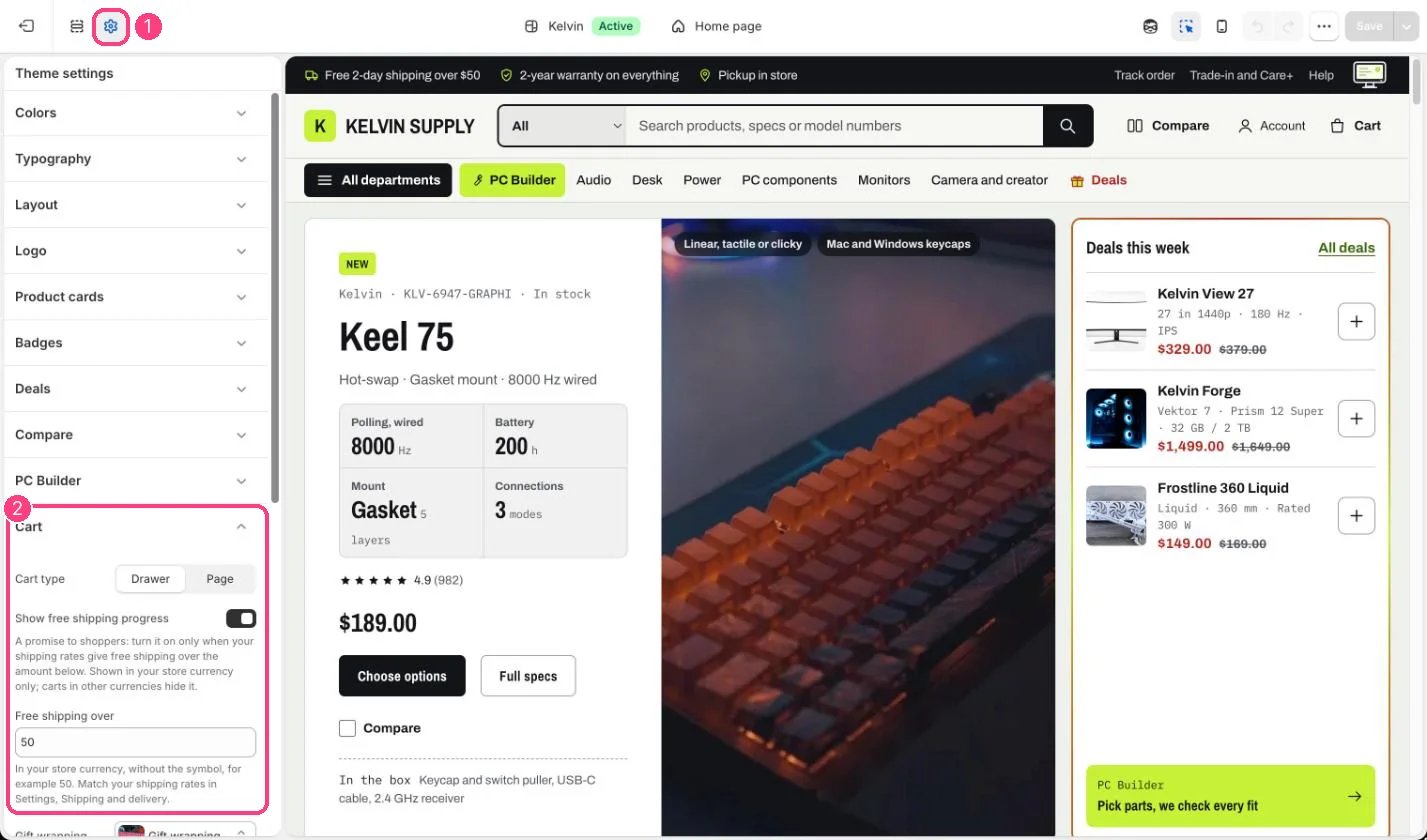
In the theme editor

Cart settings

Cart type, free shipping progress and gift wrapping: 1 Theme settings · 2 Cart