
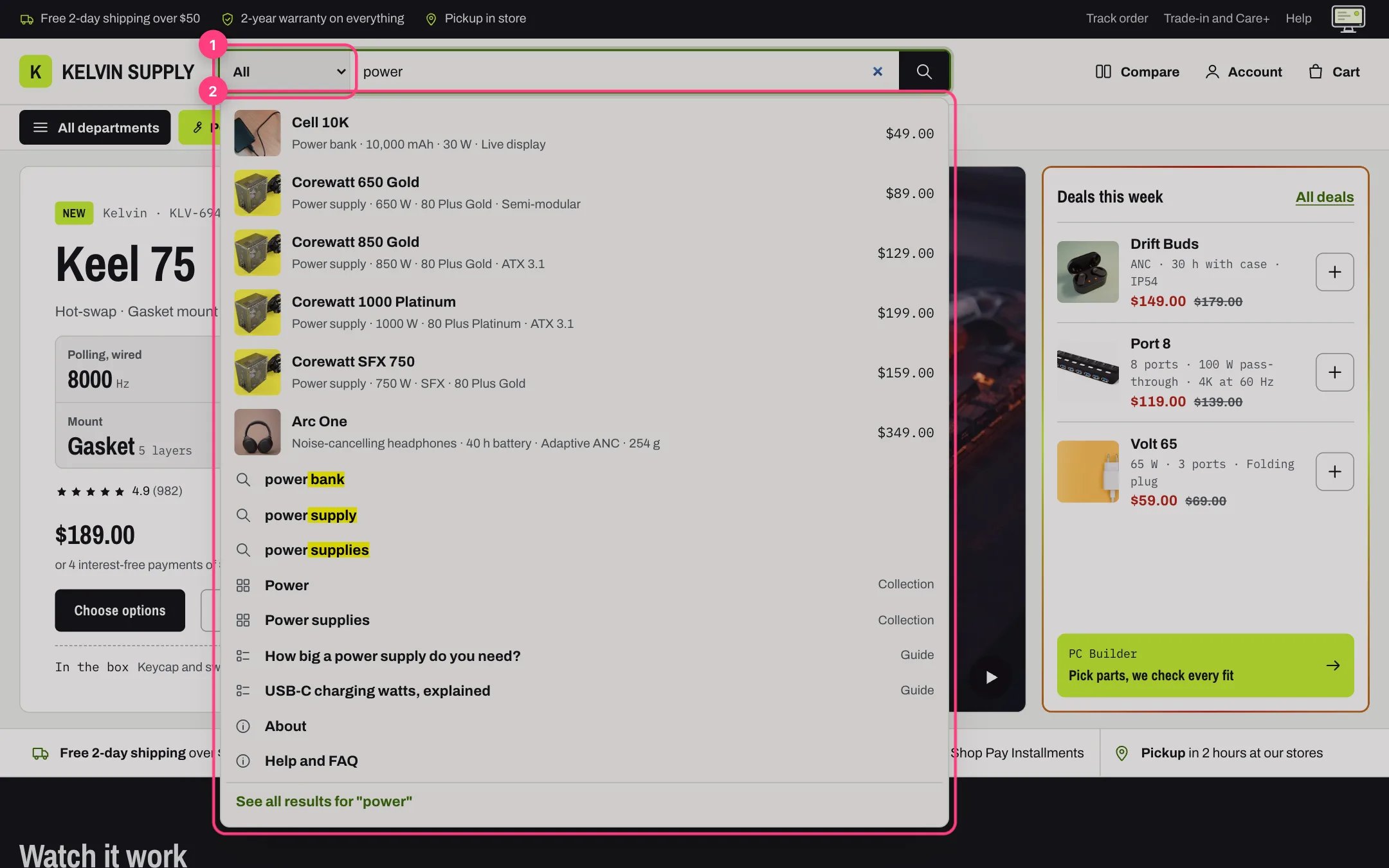
Suggestions while typing: products with their spec line and price, suggested searches, collections and guides
Where to find it
Under the search box in the header on every page, and under the search box on the 404 page when that page shows one. It belongs to no template, has no settings of its own and does not appear in the theme editor sidebar: turn it on or off in Theme settings, Search, and show or hide the header search box with Show search in the Header section.How it works
- Suggestions appear a moment after the shopper stops typing and come from Shopify’s predictive search.
- Up to six products come first, each with its image, name, product type, the specs.summary metafield when it is filled, and the price. Sold-out products come last.
- Then up to three suggested searches, three collections (marked Collection), two blog posts (marked Guide) and two pages.
- See all results for and the terms, at the bottom, opens the full search page. When nothing matches the list says No results for and the terms.
- The Up and Down arrow keys move through the suggestions and Enter opens the highlighted one. Escape or a click outside closes the list.
- Screen readers hear how many suggestions appeared, or that nothing matched, in the header and on the 404 page.
- When Theme settings, Search, Department choices lists product types, a Department choice sits at the start of the box on screens 750 px and wider, starting at All. It narrows the full search with Shopify’s product type filter; the suggestions while typing always cover the whole store.
- On phones the search box sits full width under the logo row, without the Department choice.
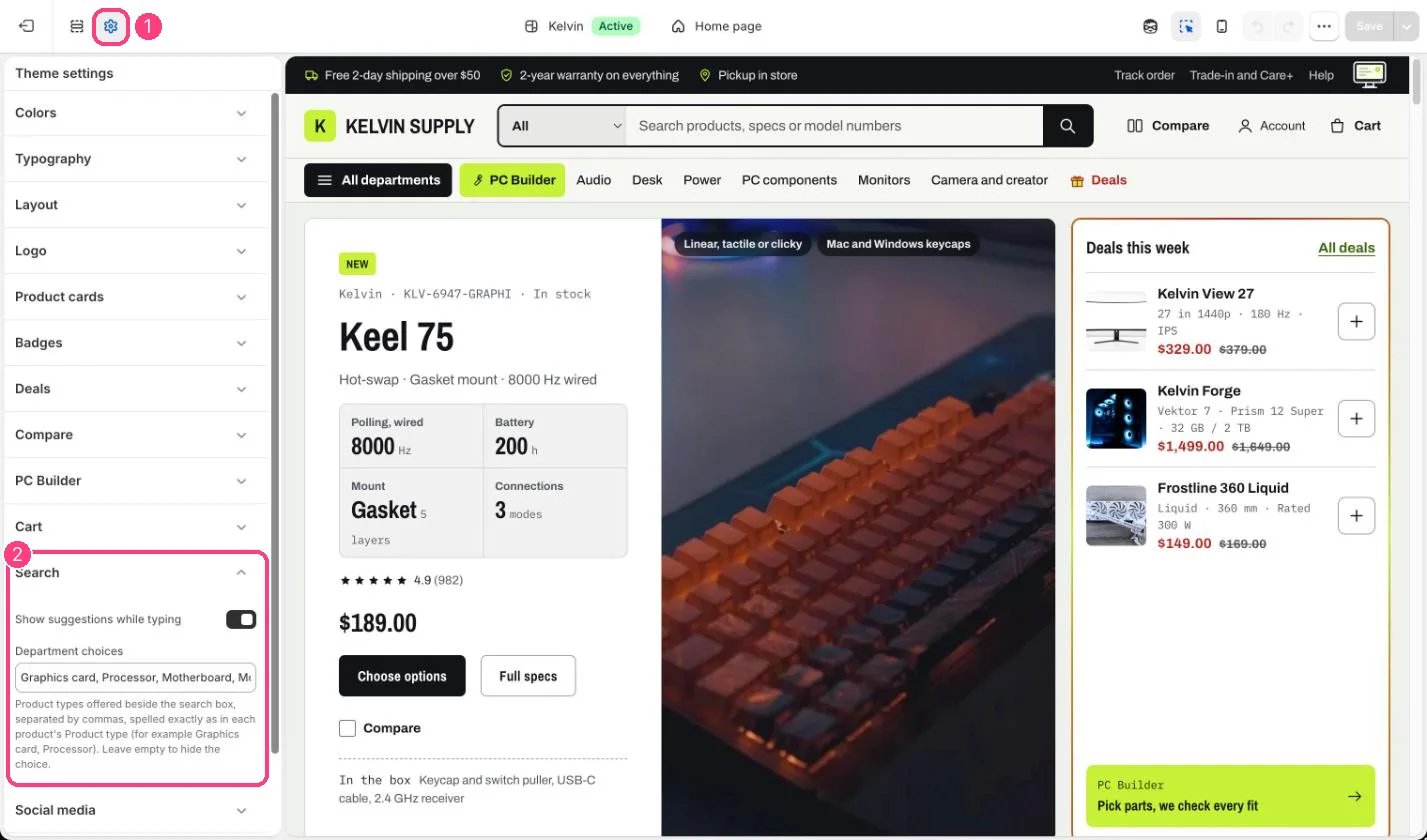
Suggestions while typing and the department choice: 1 Theme settings · 2 Search
Edit it
- Turn suggestions on or off with Show suggestions while typing in Theme settings, Search. With it off, the box still searches when the shopper presses Enter.
- To offer departments, fill Department choices with your own product types, separated by commas and spelled exactly as in each product’s Product type, for example Graphics card, Processor. Leave it empty to hide the choice.
- Fill the product metafield specs.summary (Single line text) with a short spec line, such as 650 W · 80 Plus Gold. It shows after the product type in each product suggestion.
- Keep product types short and consistent: they show in every product suggestion.
Department choices is empty on install, so the header search has no department choice until you add product types. The demo store uses Graphics card, Processor, Motherboard, Monitor, Power supply. A choice that matches no product type finds no products.See Theme settings, Search for both settings.