
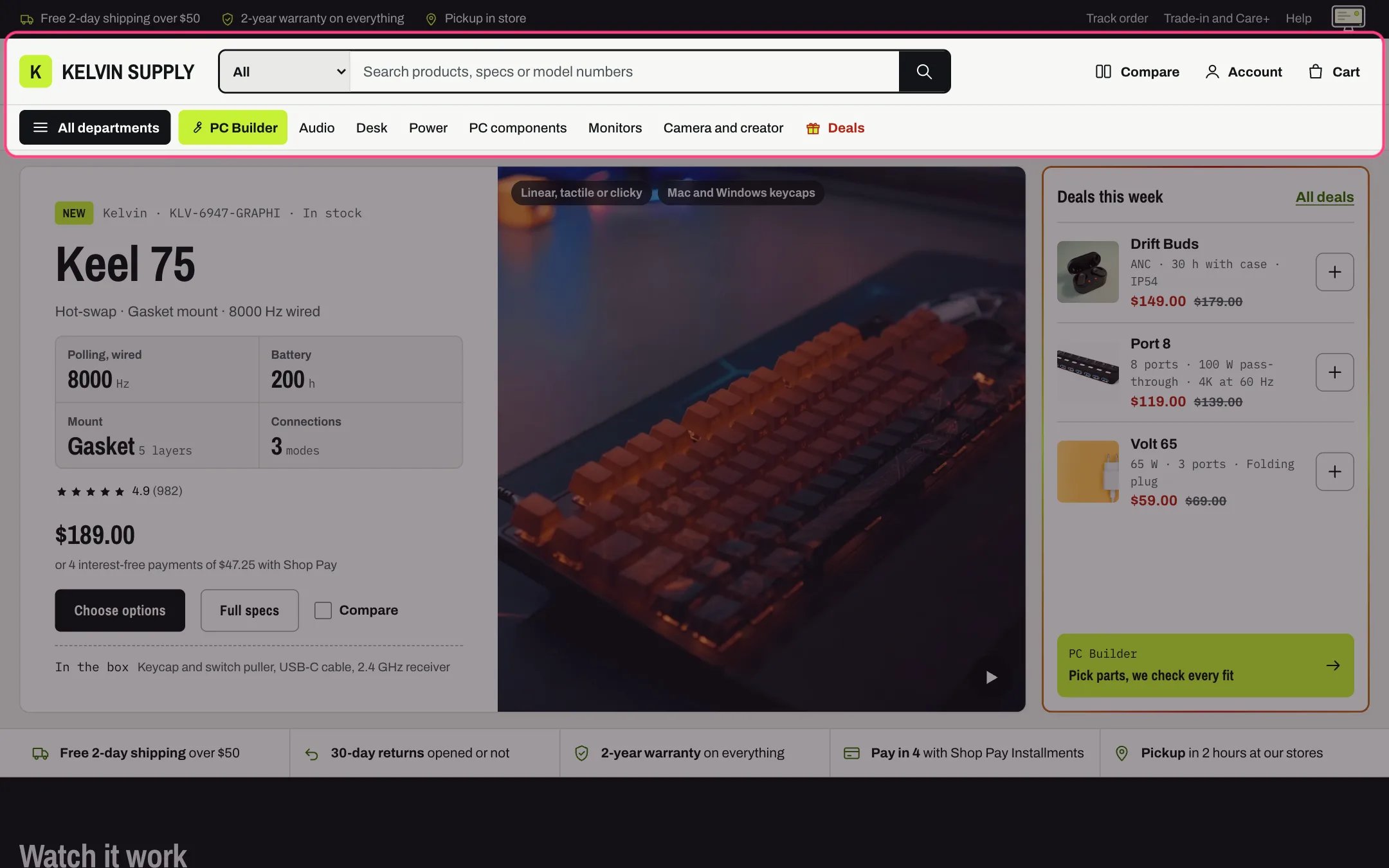
Header, highlighted with the demo content
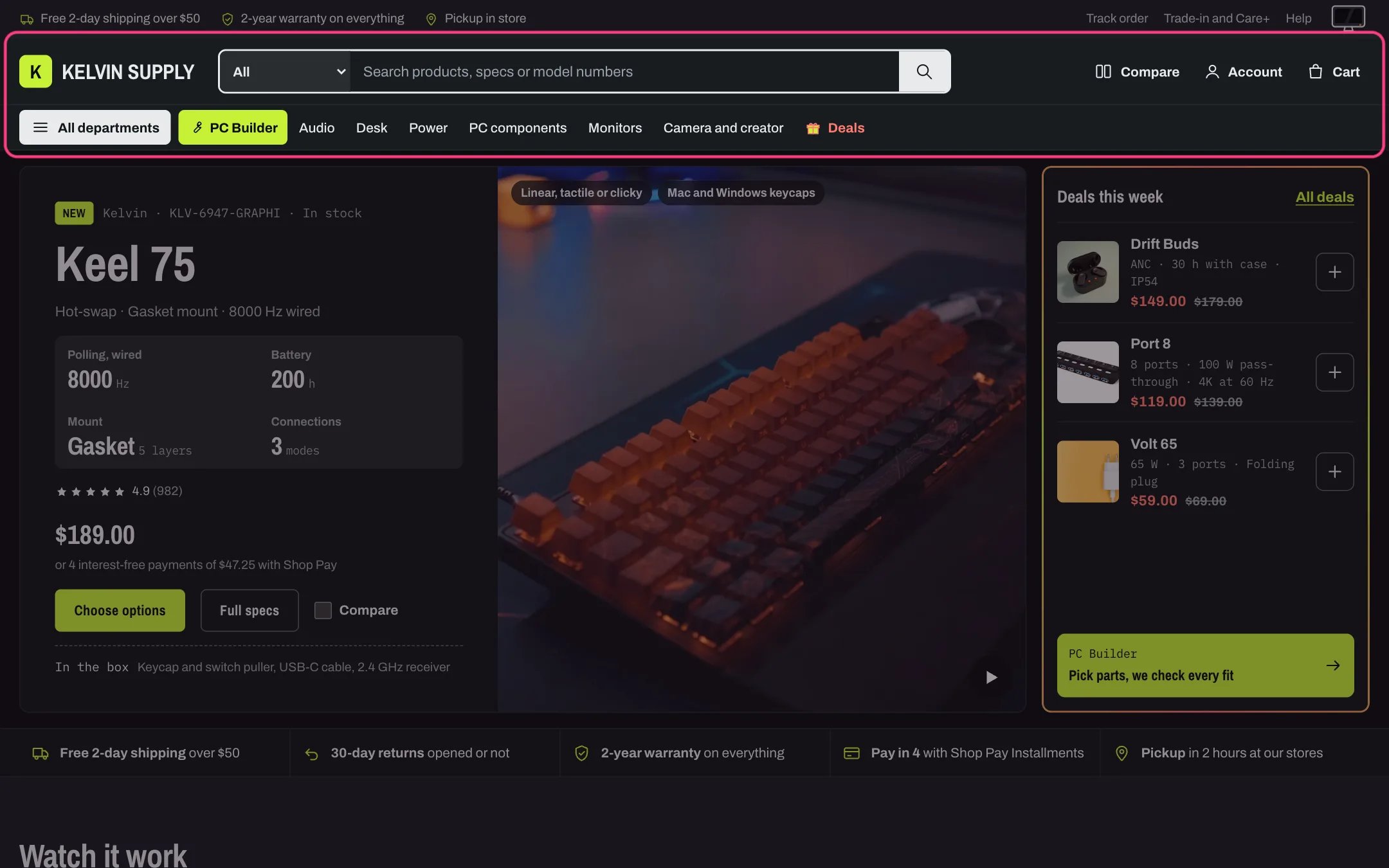
Header in dark mode
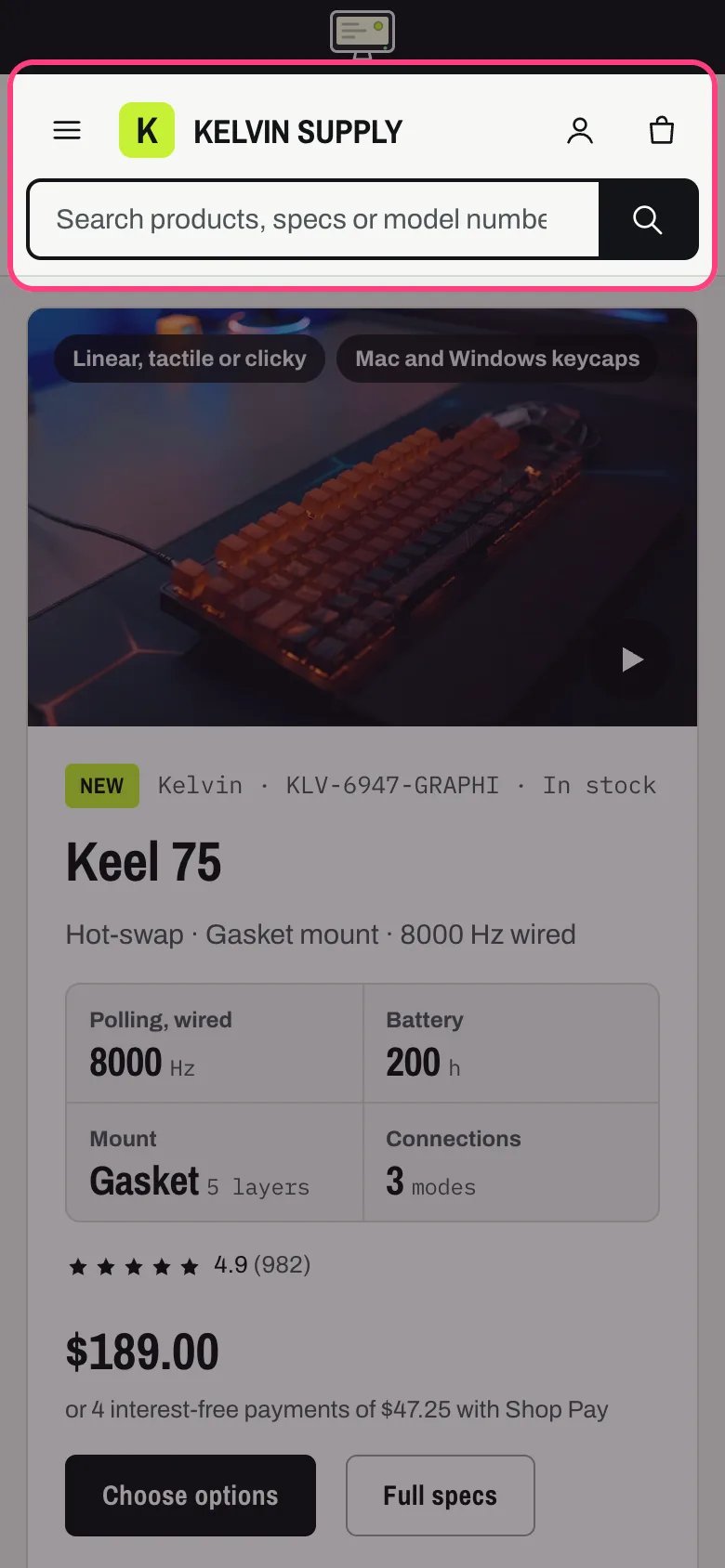
Header on a phone
Where to find it
Every page. In the theme editor open any page, then select Header in the Header group of the sidebar. Menu promo blocks are added under it.How it works
- The top row holds the logo, the search box and, at the end, Compare (when a compare page is set in Theme settings → Compare), the account button and the cart with its item count. Under it, the department row holds All departments, the PC Builder link and the quick links.
- Search can start with a department choice from Theme settings → Search → Department choices: picking Audio narrows the results page to products of that product type. Suggestions while typing look across the whole store; see Predictive search.
- All departments shows when at least one top-level item of the menu chosen under Main menu has child links. It opens on click, or after a short pause when a mouse rests on it. Departments are listed on the left with their product counts, and pointing at or tabbing to one shows its columns. Esc closes the menu and returns focus to the button.
- A Menu promo block adds a product card beside one department’s columns: image, label, title, spec line and price. Promos show on screens wider than 1000 px.
- The quick link whose title matches Theme settings → Deals → Deals menu item (default Deals) shows an animated gift box and is drawn in the sale color. See Deal highlights.
- The PC Builder link comes first in the department row, in the accent color with a wrench icon, once Theme settings → PC Builder → PC Builder page is set. A quick link to the same page is skipped so it never shows twice.
- The account button is Shopify’s own account menu: Sign in with Shop for guests, and the Customer account menu once a customer is signed in. It shows only when customer accounts are turned on.
- With Keep the header in view while scrolling on (the default), both header rows stay at the top of the screen. The utility bar above scrolls away.
- On phones under 750 px a menu button opens the phone menu, with all three levels of the main menu. The search box moves to its own row under the logo and the icons (without the department choice), and the department row and Compare leave the bar. Keyboard focus follows the same order: menu button, logo, icons, then search. The account button stays, as an icon. From 1000 px down the labels beside the icons hide and the quick links scroll sideways when they do not fit.
- The logo links to the home page and is never a heading.
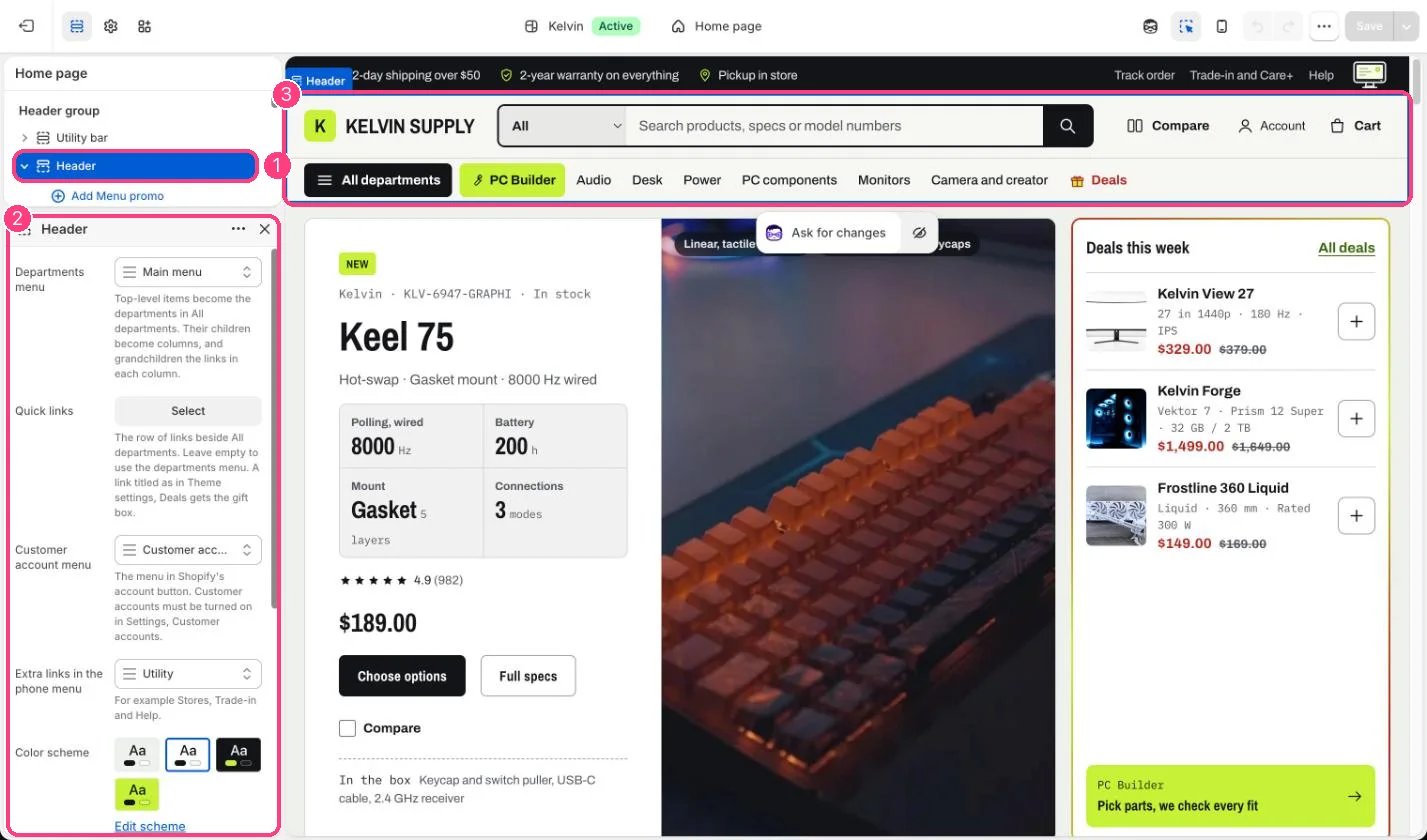
In the theme editor: 1 the section in the sidebar · 2 its settings · 3 the section in the preview
Edit it
- Build the main menu in three levels in Content → Menus (departments, their columns, the links in each column) and choose it under Main menu. See Menus and the mega menu.
- Under Quick links choose a short one-level menu, such as New, Deals, Monitors and Gift cards. Leave it empty to list the top-level items of the main menu.
- Add a Menu promo block, type the department’s title in Department exactly as in the menu (for example Audio) and choose a Product. Image, Label, Heading, Spec line and Link are optional overrides.
- Under Extra links in the phone menu choose a menu with links such as Stores, Trade-in and Help. They show at the end of the phone menu.
- Change PC Builder link label, or untick Show the PC Builder link if you do not sell PC parts.
- Turn on Show country and language selectors in the phone menu if you sell in more than one market or language.
- Set the department choices beside the search box in Theme settings → Search → Department choices, and the logo in Theme settings → Logo.
Settings
Blocks
Add a block with Add block under the section in the sidebar; drag blocks to reorder them.Menu promo
Department choices is empty on install, so the search box has no department choice. To add one, type product types your products really have, spelled as in the admin. The choice uses Shopify’s product type filter, so add Product type as a filter in the Search & Discovery app if picking a department does not narrow the results.The account button only shows when customer accounts are turned on in Settings → Customer accounts.