
Where to find it
On no page when Kelvin is installed. In the theme editor open the page where you want it, click Add section and choose Custom Liquid. It can go on any template: the home page, product, collection, cart and every page template. For code inside the product page’s buy box, use the Custom Liquid block of Product information instead; Featured product has one too. The Article, Page and Reviews sections also take Custom Liquid blocks, shown after the article, the page content or the quotes, in block order with any app blocks.How it works
- Prints the code from Liquid code inside the page width, with the same space above and below as Kelvin’s other sections.
- Color scheme paints the background and text color in light and dark mode, so plain text or HTML you add follows the store’s colors.
- Liquid in it can use the objects of the page it sits on, such as product on a product page or collection on a collection page.
- It has no heading of its own. If your content needs one, add it in your code and keep the page’s heading order: the page already has its main title.
- Left empty, the section still keeps its spacing as a blank band.
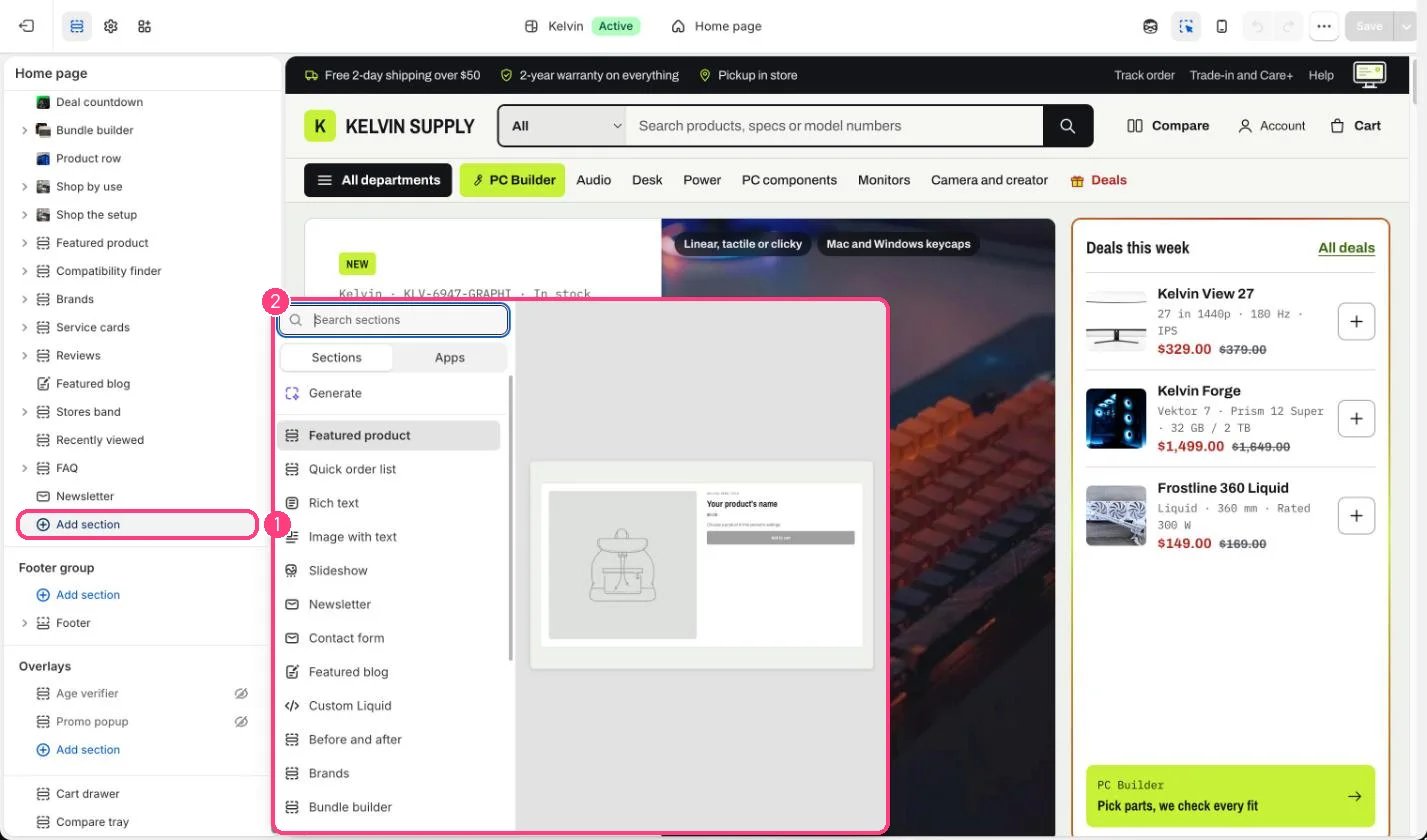
Not on the demo pages: add it with 1 Add section, then pick it in 2 the list
Edit it
- Paste the code in Liquid code. Shopify checks the Liquid when you save and will not save code with Liquid errors.
- Choose a Color scheme: Scheme 1 matches the page, Scheme 2 is a white band, Scheme 3 a dark band and Scheme 4 the bright accent band.
- Load outside scripts and iframes only after a shopper action where you can, so they do not slow down the first view of the page.
- Remove the section when you stop using it rather than leaving it empty.
Settings
Most apps add their own blocks or app embeds; use this section for an app only when it gives you a snippet to paste.Code you add stays yours: theme updates do not change it, and theme support does not cover it.