
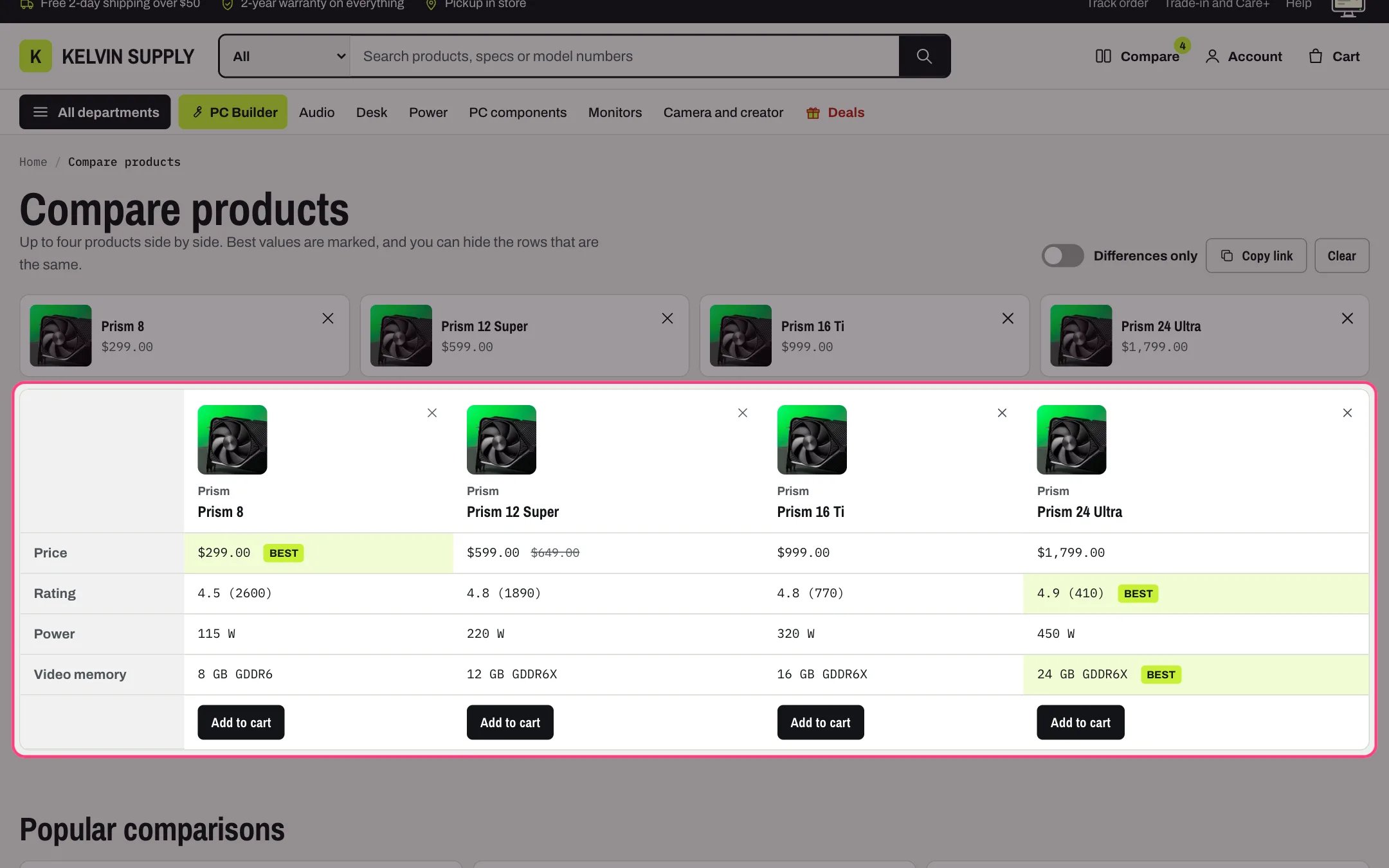
Compare page, highlighted with the demo content
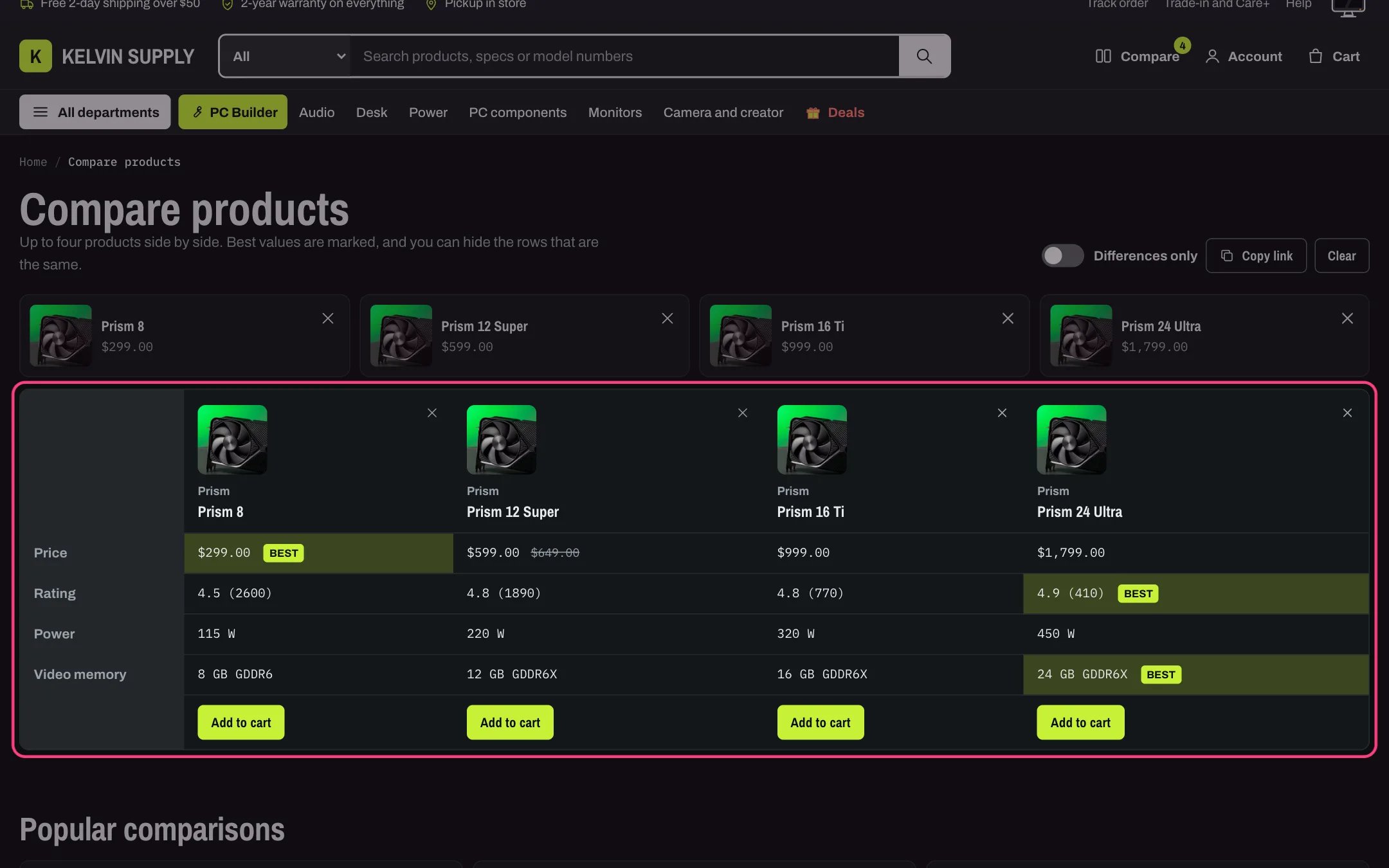
Compare page in dark mode
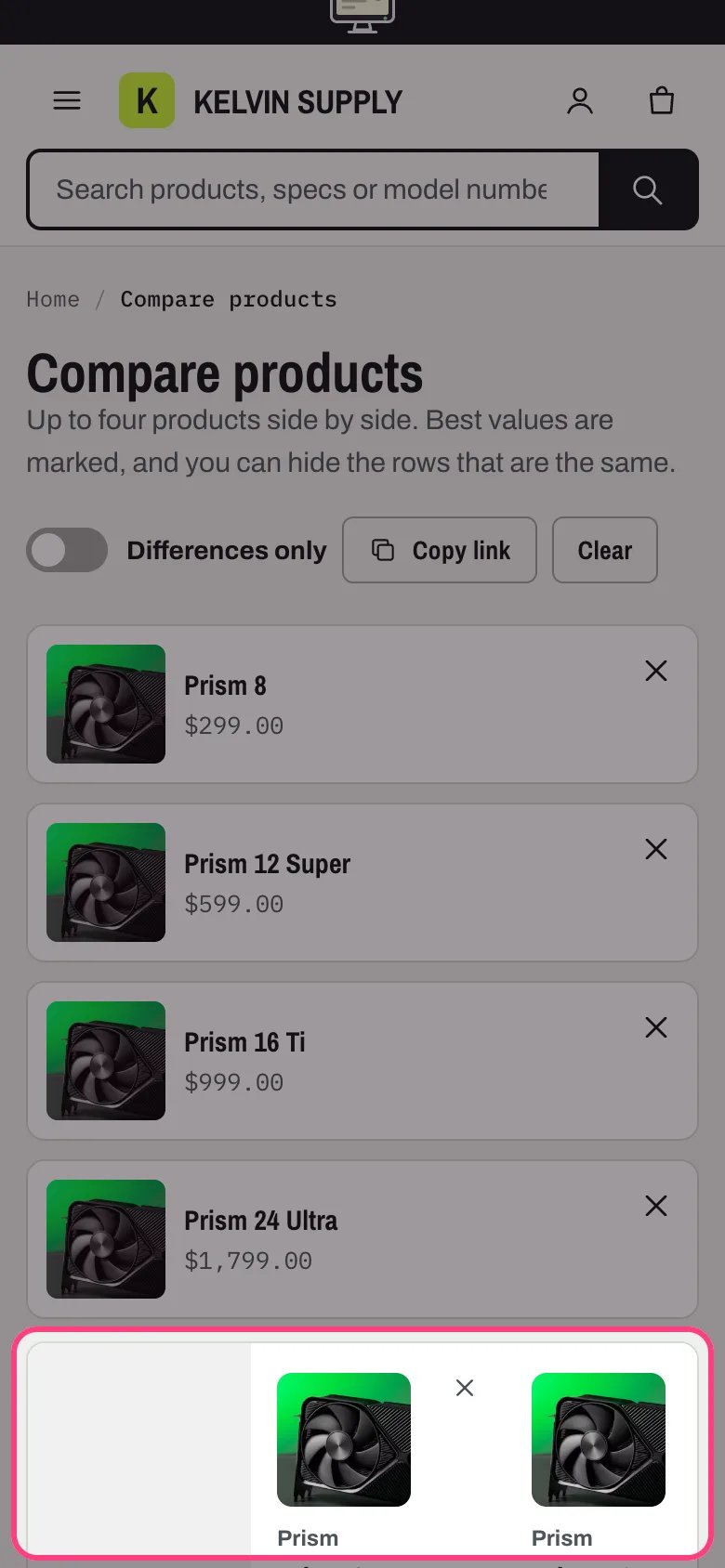
Compare page on a phone
Where to find it
On the compare page template (page.compare). Create a page in Online Store → Pages, set its template to compare, then choose it in Theme settings → Compare → Compare page. In the theme editor choose Pages → compare in the page selector, then select Compare.How it works
- The products come from the page link (
?items=followed by product handles separated by commas) or, without one, from the shopper’s compare list: the same list the Compare checkboxes, the compare tray and the home Compare picker use. The page keeps the link and the list in step. - It holds up to Theme settings → Compare → Products to compare at once (2 to 4). Empty places show Add a product, which searches your store by name, or lists the Compare pool collection with a search box and a Category filter by product type.
- The table has a column per product (photo, vendor, name and a remove button) and rows for Price (with the compare-at price struck through), Rating when a reviews app writes the reviews.rating metafield, and each key in Theme settings → Product cards → Spec rows that at least one product has, in that order. A missing value reads Not listed to screen readers and shows a dash.
- The lowest price and the highest rating are marked Best, and so are the best values in the rows named in Higher is better and Lower is better, compared by the first number in each value. Rows where every product matches are never marked. Best shows as a shade and the word, never color alone.
- Differences only hides the rows where every product matches. It is available once two products are shown.
- The last row has Add to cart for products with one variant, Choose options (to the product page) for products with several, and Sold out.
- Copy link copies the page address with the products in it, and Clear empties the list. Popular comparison blocks show under the table as buttons that load a set in one click.
- Products of different product types get a note that some rows are blank. Handles that no longer exist are left out with a message naming them. On narrow screens the table scrolls sideways, and the compare tray is hidden on this page.
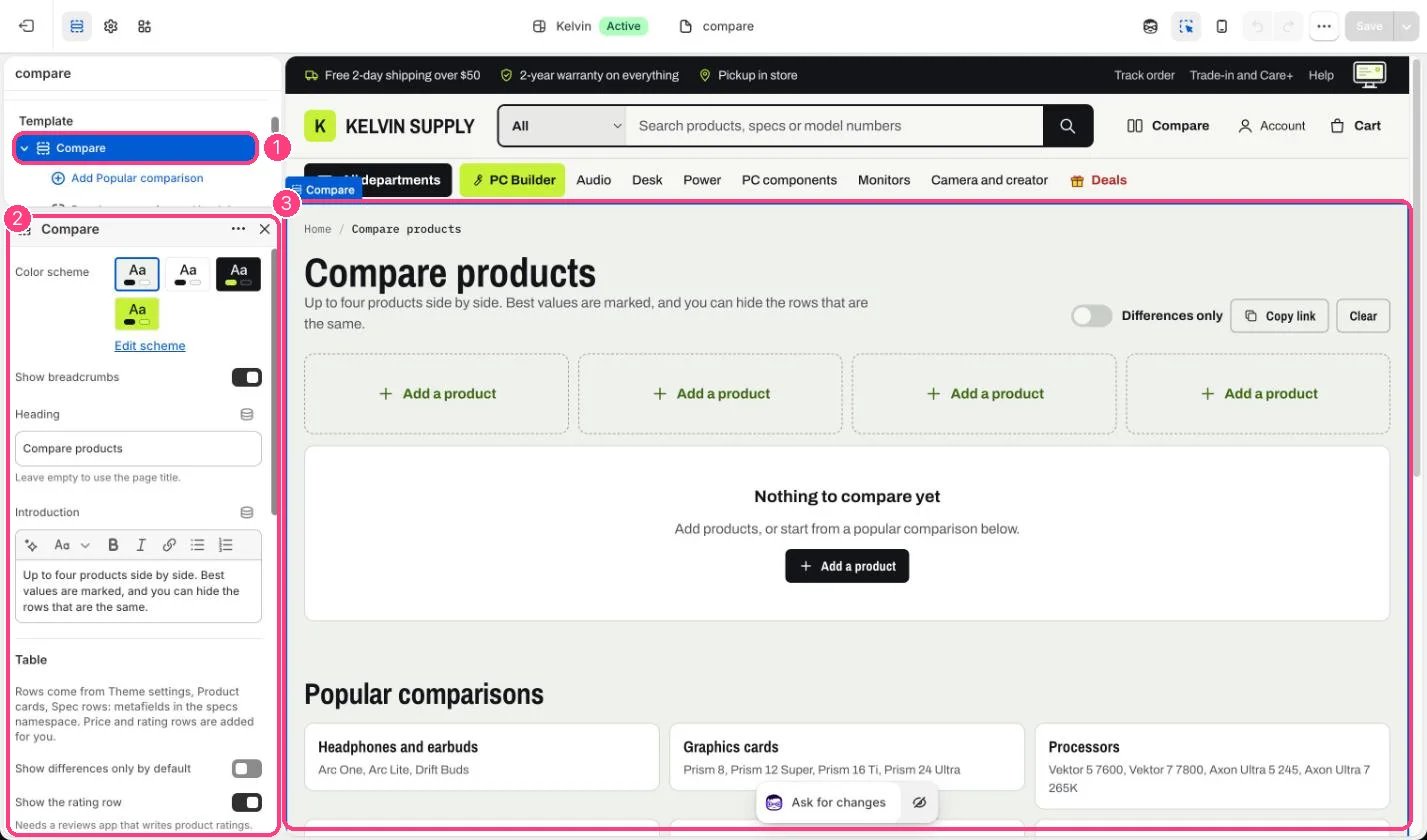
In the theme editor: 1 the section in the sidebar · 2 its settings · 3 the section in the preview
Edit it
- Write your spec rows first in Theme settings → Product cards → Spec rows: they are the table’s rows. See Spec rows.
- List the spec keys where a bigger number wins in Higher is better (default battery_life, polling_rate, cores, vram, capacity, refresh_rate) and where a smaller one wins in Lower is better (default weight), separated by commas.
- Set Compare pool to a collection when Add a product should list your products to pick from instead of searching the whole store.
- Add Popular comparison blocks, each with a Heading and two to four Products, such as your graphics cards or headphones.
- Tick Show differences only by default if your products have long spec lists.
- Untick Show the rating row if you do not use a reviews app; the row is hidden anyway when no product has a rating.
Settings
Table
Product list
Popular comparisons
Blocks
Add a block with Add block under the section in the sidebar; drag blocks to reorder them.Popular comparison
Without a page chosen in Theme settings → Compare → Compare page, no Compare checkbox, tray or header Compare link shows anywhere.Opening a compare link replaces the shopper’s own compare list with the products in the link.