
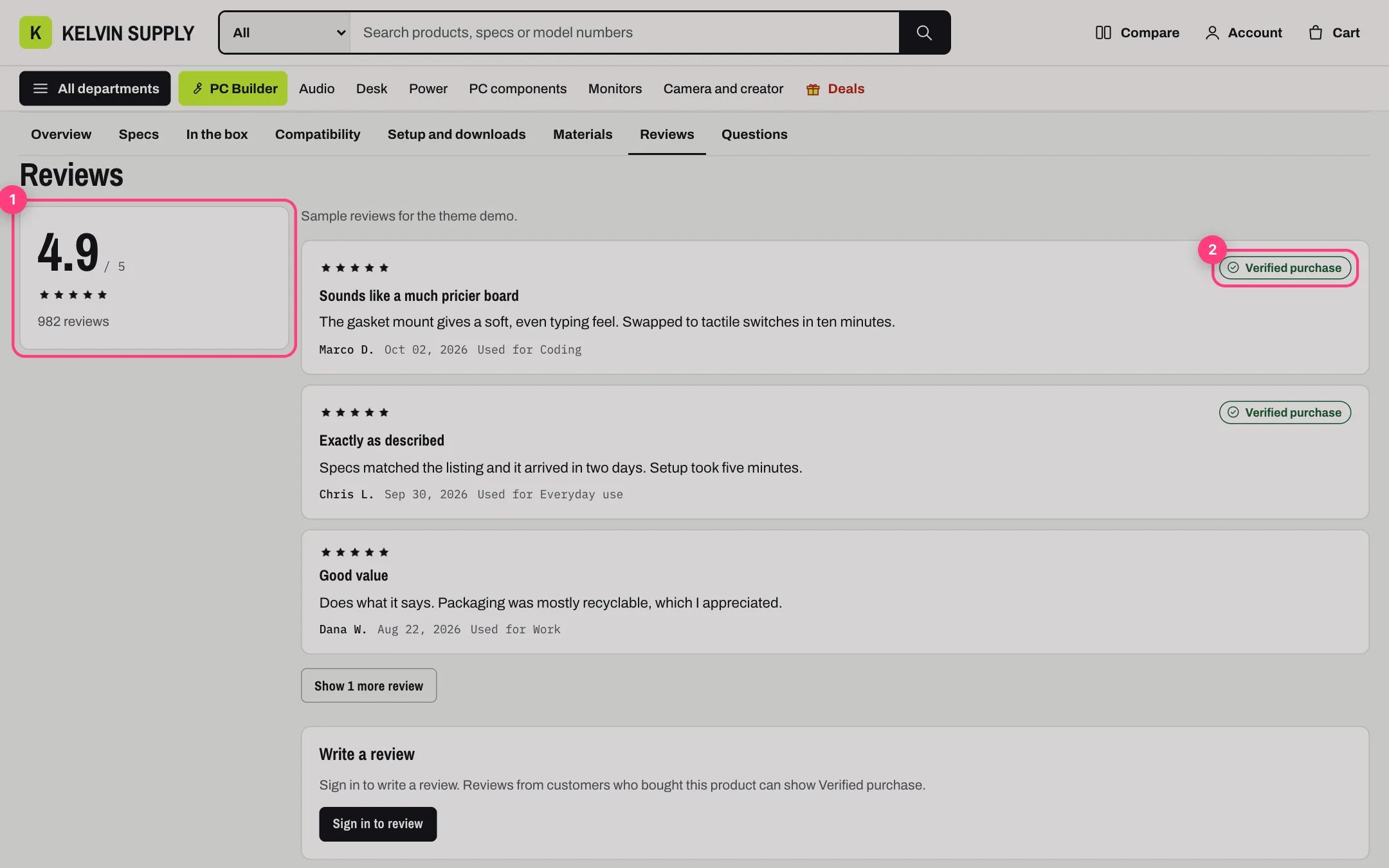
1 the score, 2 a published review with the Verified purchase badge
product_review from that name, but Shopify reserves that type, so change it to customer_review. Add these fields, with exactly these keys:
Keep Storefronts access on for the definition, so the theme can read the entries. If you turn on the definition’s active and draft status, only active entries show on the store.
2. Add the Reviews metafield to products. In Settings → Custom data → Products, click Add definition. Name it Reviews with the namespace and key
custom.reviews. Choose the type Metaobject, select Product review as the reference, choose List of entries, and save.
3. Check the block. The default product template has Below: reviews on install. In the theme editor open Products → Default product and select it:
- Heading: leave it empty for Reviews.
- Note under the heading: an optional short line, for example how you check reviews.
- Show the product’s reviews: the list from the Reviews metafield.
- Reviews shown before Show all: 2 to 12, 4 on install. The rest open from a Show more reviews button.
- Show the Write a review form: the form described below.
verified only for a review you matched to a real order that includes this product. Reviews show in the order of the list, so put the most useful first.
The score. When a reviews app writes Shopify’s rating metafields reviews.rating and reviews.rating_count, the score shows those, on the app’s scale. Otherwise it is the average of the reviews in the list, with their number as the count. With neither, no score shows.
Stars elsewhere. The Rating block in the buy box, quick view and the stars on product cards read only reviews.rating and reviews.rating_count. With Kelvin’s own reviews alone, stars show in the reviews section only. To show them everywhere, let a reviews app write those metafields, or add Shopify’s standard product definitions Product rating and Product rating count and fill them in yourself; the reviews section then shows that rating instead of the average.
How the Write a review form works. It is a Shopify contact form, so it needs no app and no outside service. A sent review arrives as a contact form email to your store, with the rating, title, text, the name to show, the product, a link to it and the customer’s email. The form asks for a star rating and at least 20 characters of text, and tells the customer that reviews are checked before they appear.
- A signed-in customer who bought the product: Kelvin looks through the customer’s own orders for this product. When one includes it, the form names the order, for example #1042, and says that once you check the order the review can show Verified purchase. The email carries the tags
product-review, verified-purchaseand a Verified purchase line with the order name. - Any other signed-in customer: the form explains that reviews from customers whose orders include the product can show Verified purchase, and the email carries the tag
product-review. - A guest: instead of the form, a Sign in to review button opens your customer sign-in page.
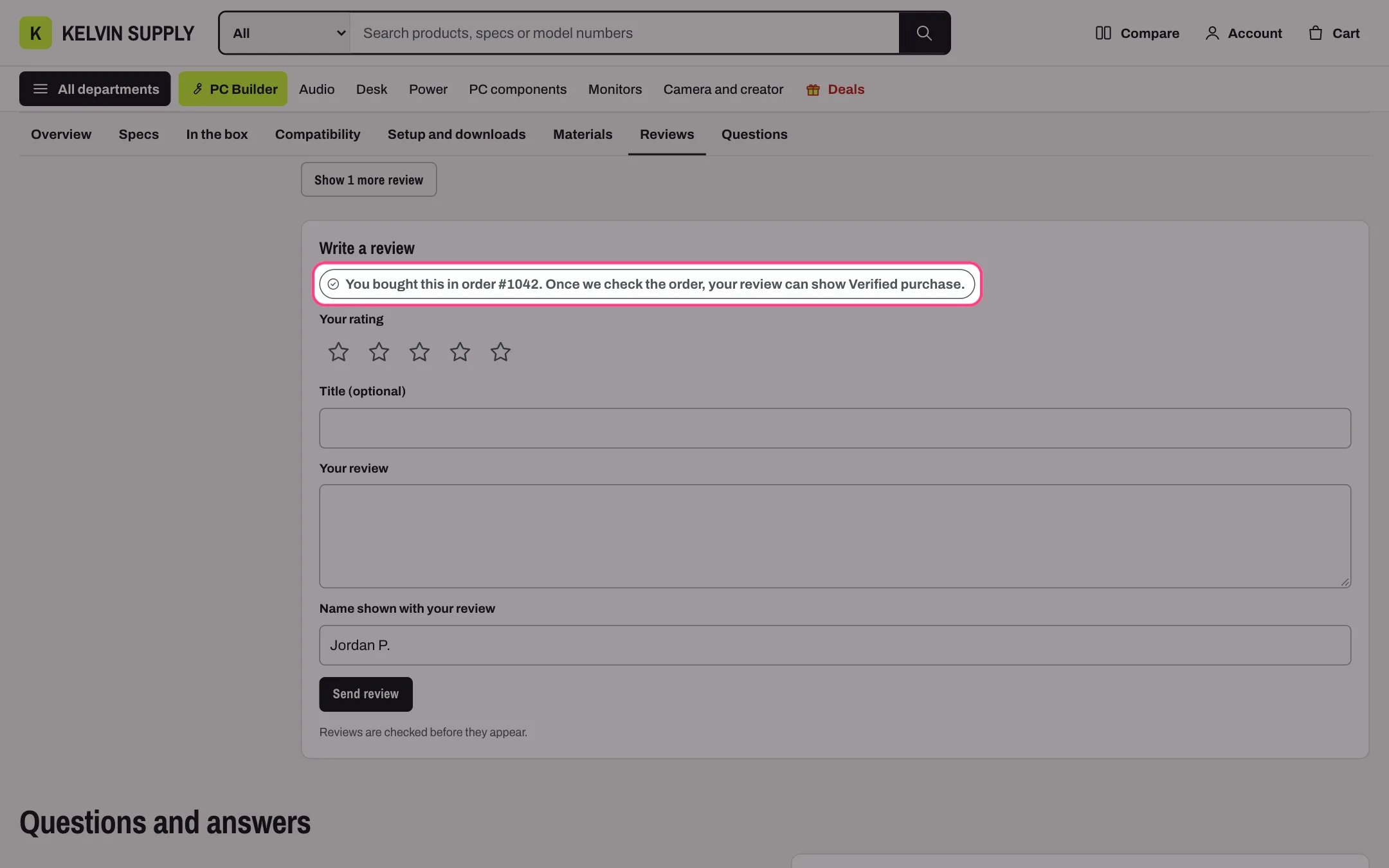
A signed-in customer whose order includes the product sees the order named and is told the review can show Verified purchase
verified once the order checks out. The order name in the email is a hint, not proof: the badge appears only when you tick it.
Kelvin reads the signed-in customer’s orders on the product page, outside the account pages, and this is not yet confirmed on a live store. Test it once: sign in as a customer who has an order, open a product from that order and check that the form names the order. If it does not, the form still sends a plain review and you match the order yourself.
In the theme editor
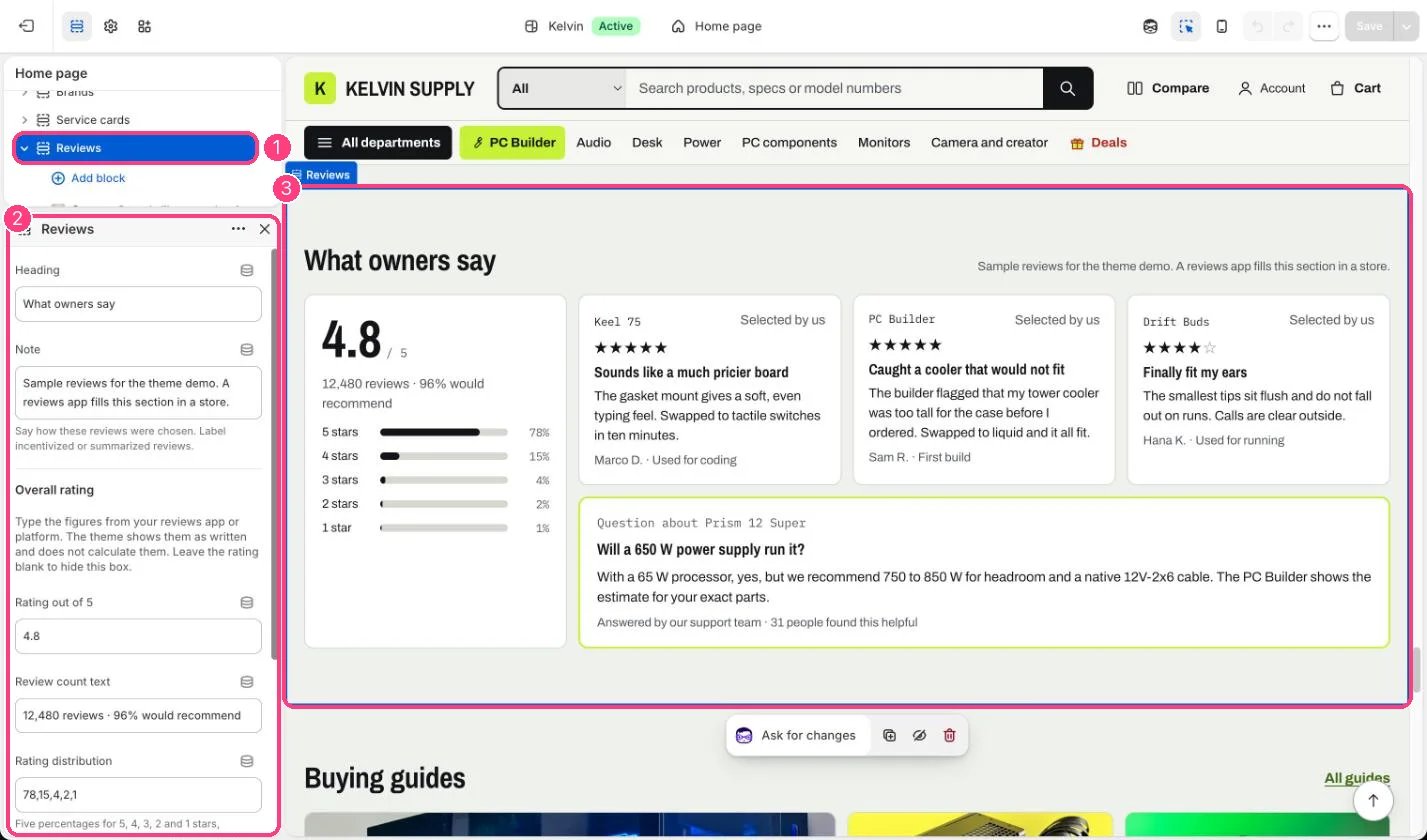
The home page Reviews section: 1 Reviews · 2 its settings · 3 the preview