
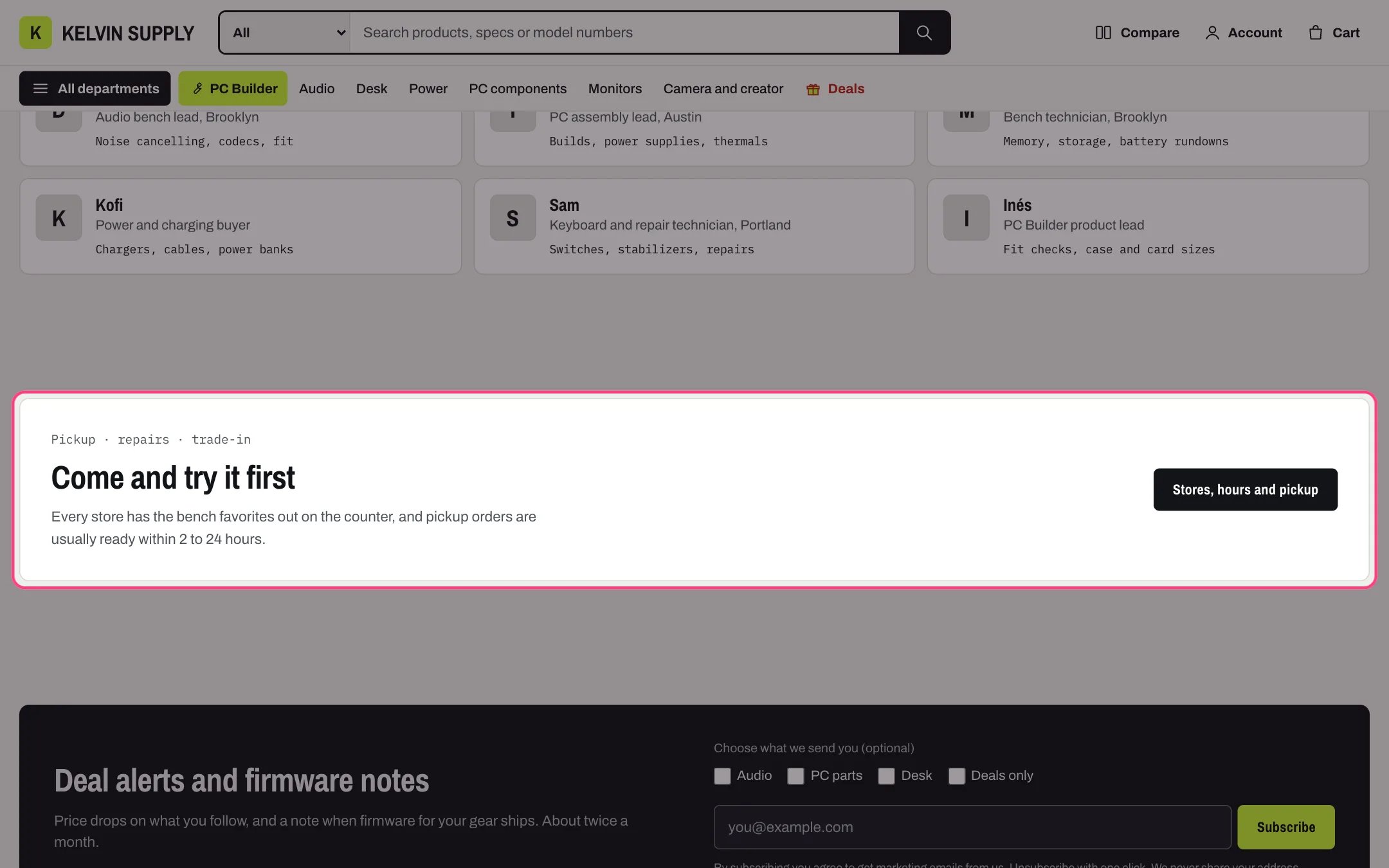
Call to action, highlighted with the demo content
Where to find it
On install it is on the about template (Come and try it first) and the faq template (three link cards under the questions). Create the page in Online Store → Pages with Theme template about or faq, then in the theme editor choose Pages, then about or faq, and select Call to action. Add it to any template with Add section.How it works
- The panel shows when Heading, Text or First button label is filled in; the buttons sit to its right on wide screens and under the text below 1000 px.
- Each button shows only when both its label and its link are filled in.
- Each Link card block adds a card with an icon, a heading, a short text and a link. Up to three sit in a row; below 1000 px they stack.
- With the panel empty, only the link cards show, as on the faq template.
- When the section has no Heading, the cards’ headings become its headings for screen readers.
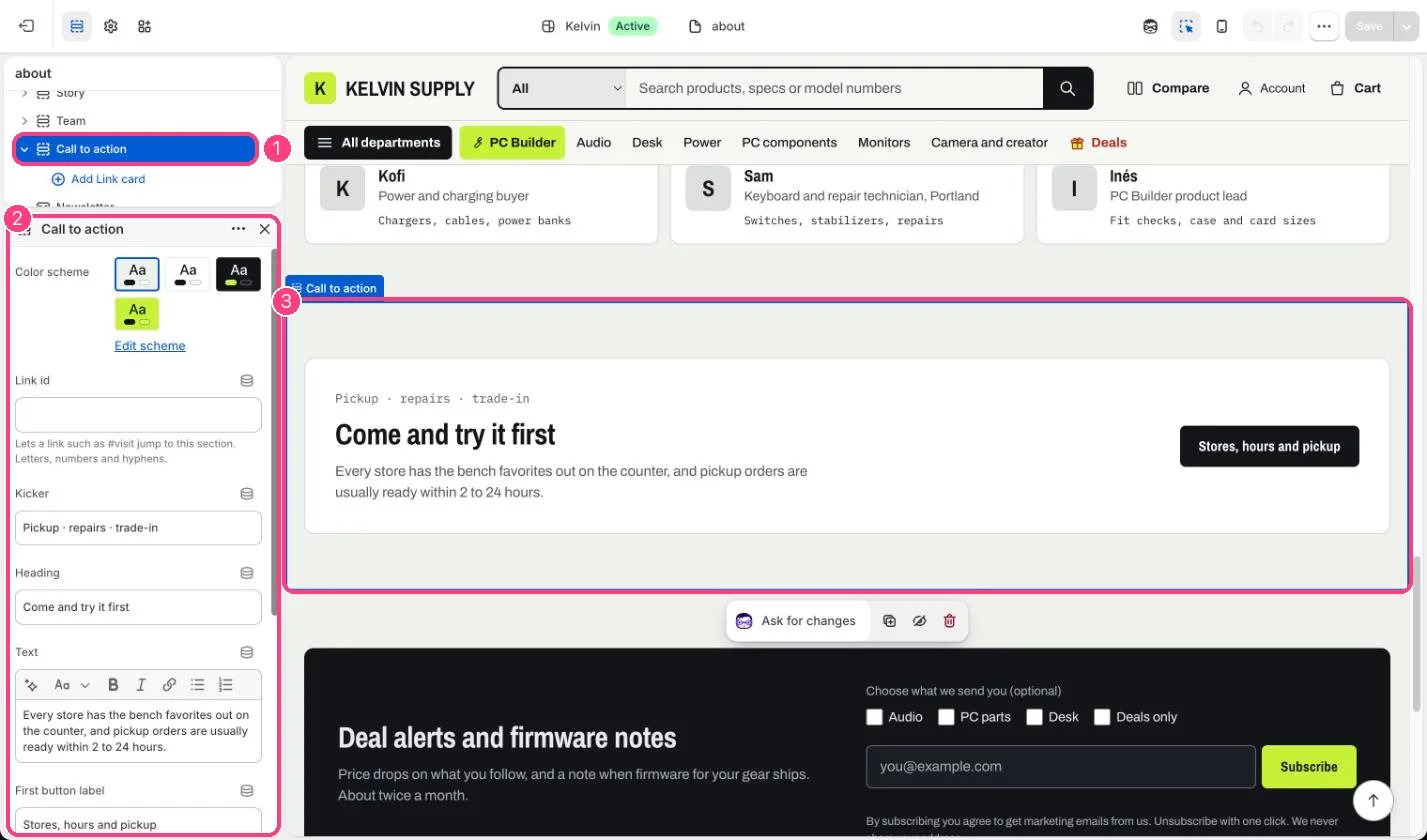
In the theme editor: 1 the section in the sidebar · 2 its settings · 3 the section in the preview
Edit it
- Edit Kicker, Heading and Text, and set First button label and First button link, such as /pages/stores.
- Add Link card blocks (up to 6) with Icon, Heading, Text, Link label and Link.
- To show only cards, clear Heading, Text and First button label.
Settings
Blocks
Add a block with Add block under the section in the sidebar; drag blocks to reorder them.Link card (up to 6)
On install the about template’s button (Find a store) and the faq template’s card links have no link set, so they do not show until you add the links.