
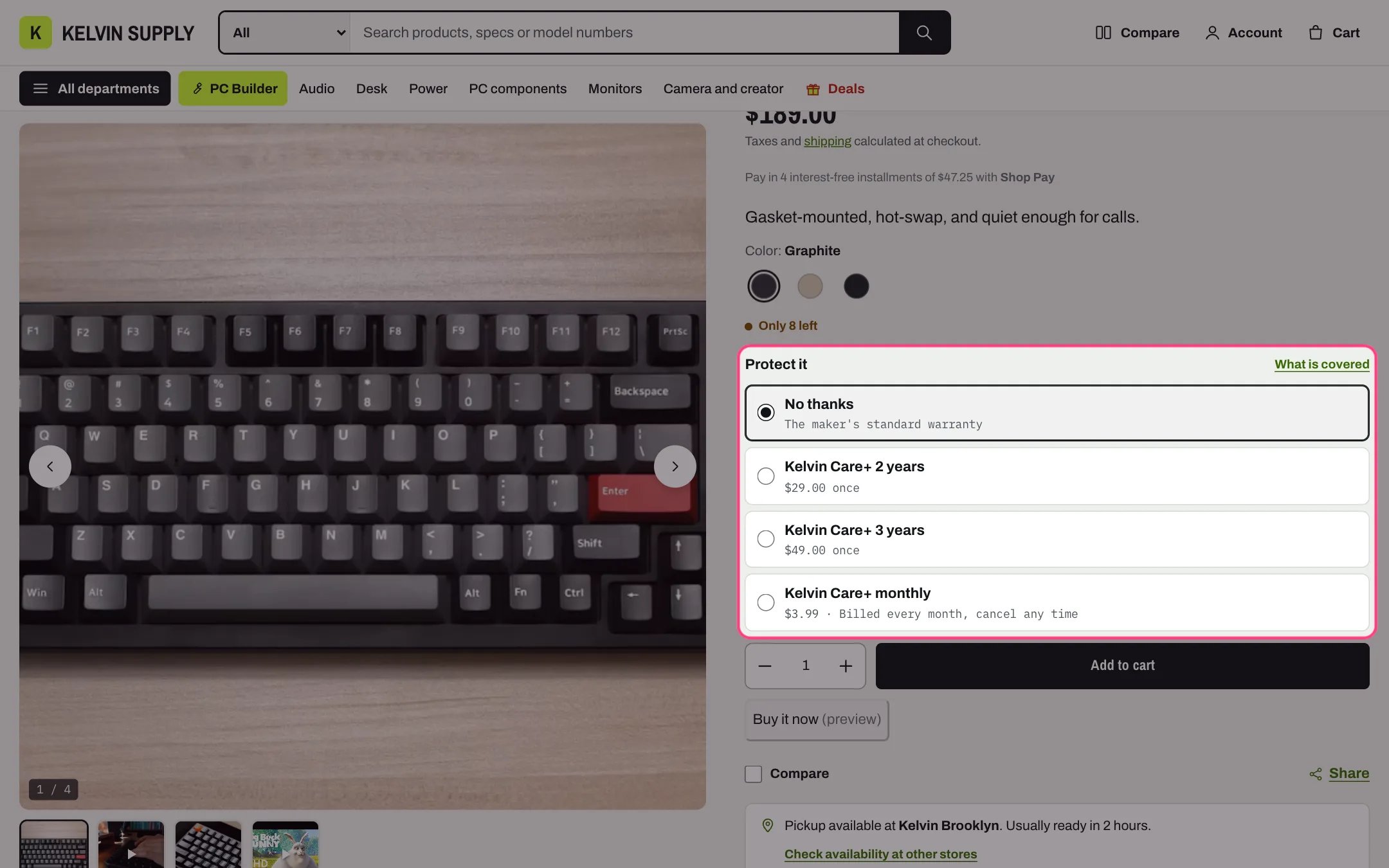
No thanks is chosen until the shopper picks a plan
specs.summary metafield (single line text), the one-line summary the cart offer shows.
2. Keep plans out of browsing. Plans are sold next to a product, not on their own. In Settings → Custom data → Products, add a definition with the namespace and key seo.hidden and the type Integer, then set it to 1 on each plan product: Shopify leaves those products out of your store’s search and your sitemap, and the product page and cart still work. Leave plans out of your collections too, for example with the automated collection condition Product type is not equal to Protection plan. The automatic all products page (/collections/all) lists every product, plans included, so link your own catalog collection in menus instead.
3. Add a monthly plan (optional). A monthly plan is a plan product sold with a selling plan from a subscriptions app, such as Shopify Subscriptions. In the app, create a plan that bills every month and add the monthly plan product to it. Kelvin then shows the subscription price with the selling plan’s name, adds the plan to the cart with that selling plan, and the cart line shows the plan’s name. Kelvin uses the plan product’s first selling plan, so give a monthly plan product one plan only.
4. Link plans to products. In Settings → Custom data → Products, add a definition named Protection plans with the namespace and key custom.protection_plans, the type Product and List of products. Then open each product that can be covered and pick its plans in that metafield. Plans show in the order you pick them, and the first one is the plan the cart offers, so put the plan you most want to sell first.
5. Check the block. The default product template has the Protection plans block on install; it shows nothing until a product has plans. In the theme editor open Products → Default product → Protection plans and set Heading (Protect it on install), Link to what plans cover (for example your Care page) with its Link text (See what is covered on install), and Line under No thanks (The maker’s standard warranty on install).
On the product page. No thanks is chosen first. Each available plan shows its name and price: a one-time price such as $29.00 once, or the subscription price with the plan’s name. The choice hides while the chosen variant is sold out. When the shopper adds the product with a plan chosen, Kelvin adds both in one step: the product, then the plan as a second line with the same quantity and a Covers line property set to the product’s title. The sticky add to cart bar uses the same form, so the plan applies there too. Quick view has no plan choice.
In the cart. The cart drawer and the cart page offer a plan for the first product in the cart that has protection plans (lines of a PC build are skipped): a checkbox that reads Add, the plan’s name, for, the product’s name, with its price and, under it, the plan’s specs.summary metafield or the start of its description. Ticking it adds the first plan in that product’s list, quantity 1, with the Covers property; unticking it removes that line. A plan sold only on a subscription is offered with its subscription price and plan name and added with that selling plan; a plan sold both ways is added as a one-time purchase.
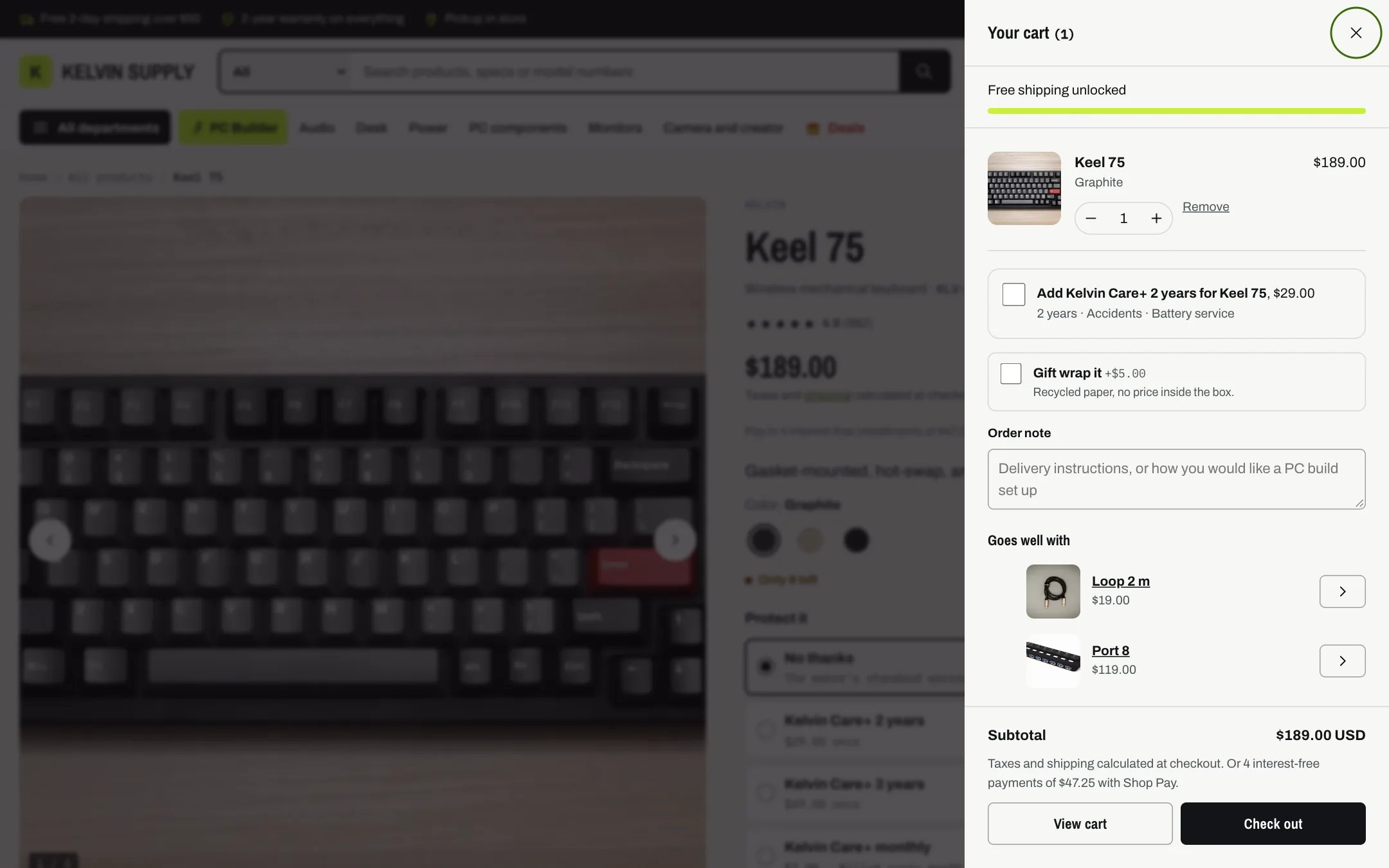
The cart offers the first plan for the first product that has plans
- A plan is its own cart line. Changing the product’s quantity or removing the product later does not change the plan line; the shopper removes it.
- Covers holds the product’s title at the time it was added. Use it to match plans to products in your orders.
- Kelvin does not register plans, handle claims or check eligibility. Your plan provider or your own team does that.
page.care (in the theme editor it shows as Pages → care). On install it has a page heading with jump links, Protection plans (one block per plan with a product picker, whose price comes from the product, a named variant or its first selling plan, plus what each plan covers as rows that build a comparison), What is covered, How to make a claim, a Comparison table of the warranty against a plan, and the Trade-in estimator. These sections describe and price your plans; shoppers buy a plan next to a product. Link the page from Link to what plans cover and from your footer.
In the theme editor
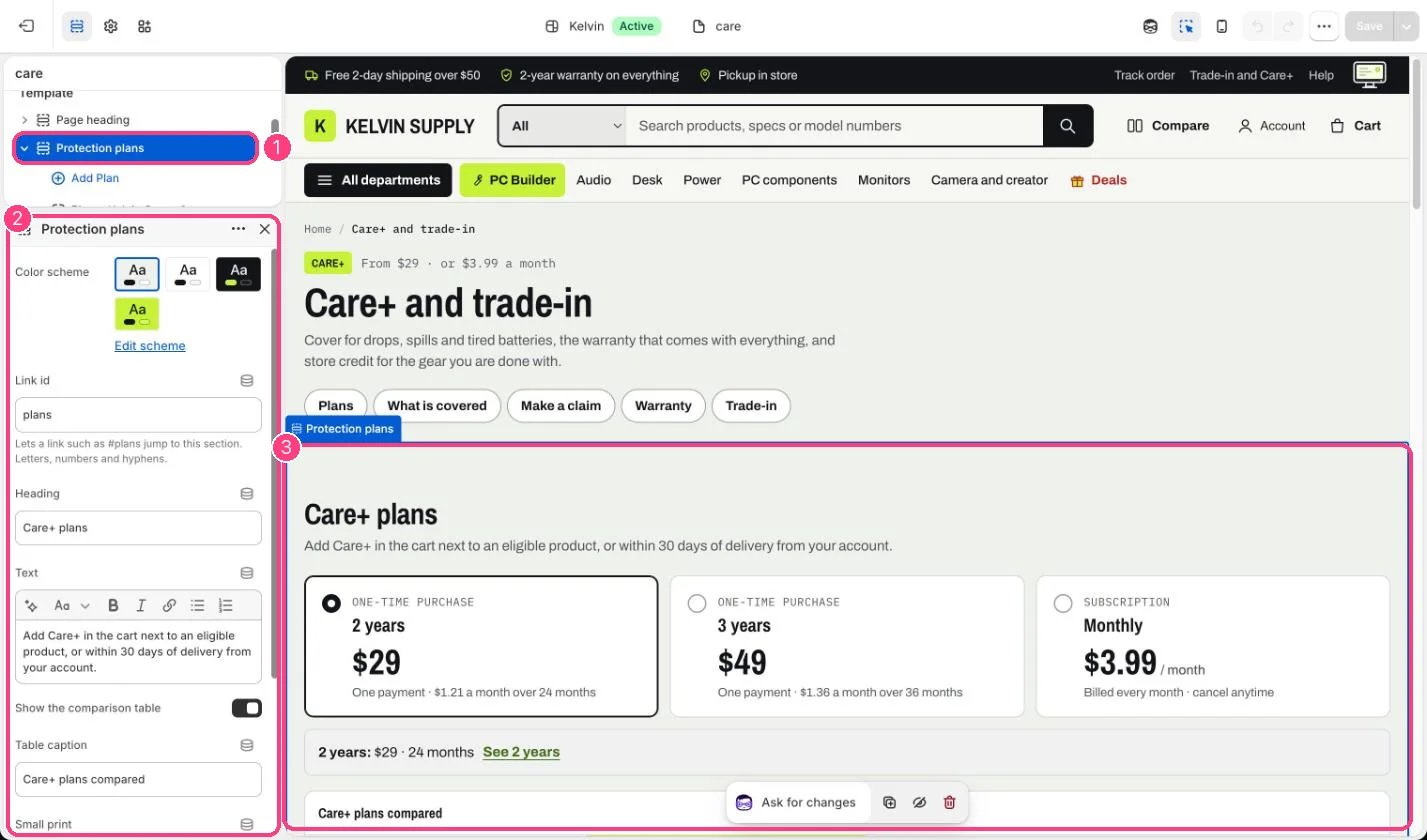
The Care+ page: 1 Protection plans · 2 its settings · 3 the preview