
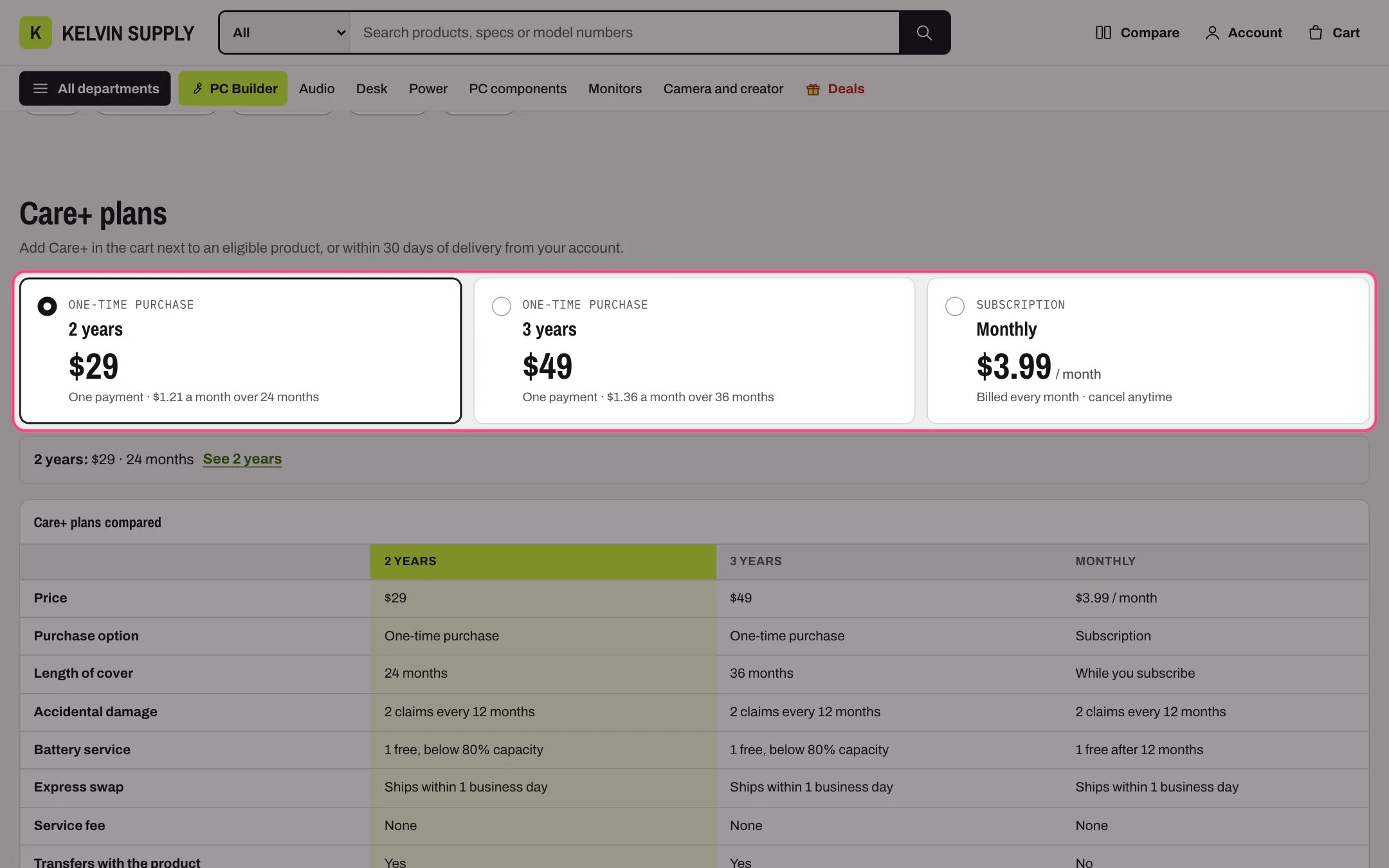
Protection plans, highlighted with the demo content
Where to find it
The care template (page.care), shown on the demo at /pages/care. Create a page in Online Store → Pages, choose care under Theme template and save. In the theme editor choose Pages, then care, and select Protection plans.How it works
- Each Plan block is a card showing the Purchase option, the name, the price and the Details line. Shoppers pick a card to highlight its column in the table and update the summary line under the cards, which screen readers announce. Nothing is added to the cart from this section.
- The price comes from the Plan product: the variant whose name contains Variant, else the first available variant. With Price as a subscription it is the price of the product’s first selling plan. Price text replaces the price, and Price suffix follows it, such as / month.
- A blank Name uses the variant name, or the product title when the product has no variants.
- The summary shows Summary when chosen, or else the name, price and Length of cover, followed by a See link to the plan product.
- The table lists Price, Purchase option and Length of cover, then one row for each label in What is covered, in the order the labels first appear. A plan without that label shows a dash.
- Up to four plans sit side by side; under 1000 px two per row, under 750 px one. The table scrolls sideways on small screens.
- Link id plans lets the page heading’s Plans link jump here.
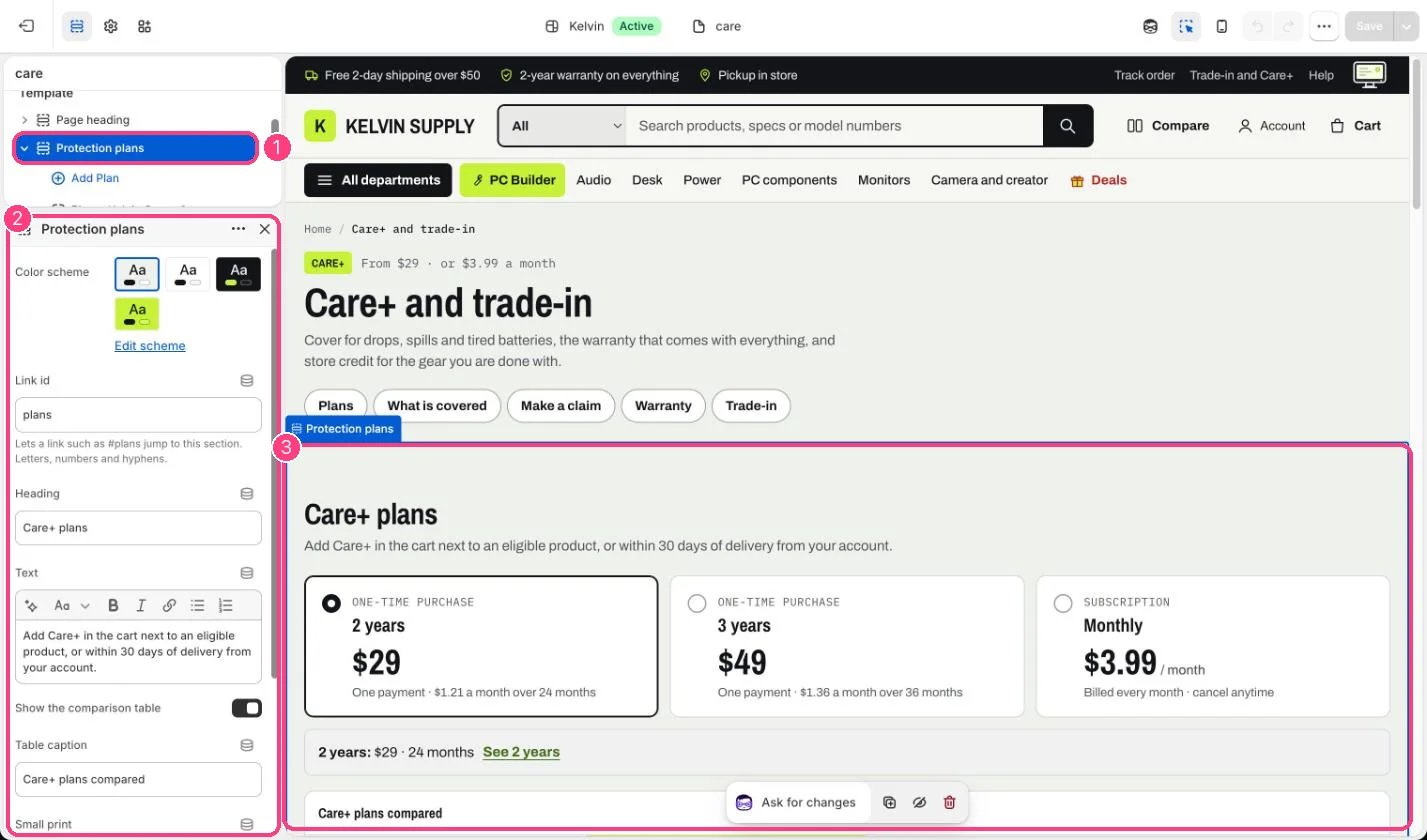
In the theme editor: 1 the section in the sidebar · 2 its settings · 3 the section in the preview
Edit it
- Create a product for each plan (or one product with a variant per length), then choose it in Plan product.
- Type What is covered as one Label: value line per row, such as Accidental damage: 2 claims every 12 months, using the same labels for every plan so the rows line up.
- For a monthly plan, tick Price as a subscription and set Price suffix to / month. The product needs a selling plan, which a subscriptions app adds.
- Fill in Purchase option, Length of cover and Details line on each plan.
- Edit Heading, Text, Table caption and Small print, or untick Show the comparison table.
Settings
Blocks
Add a block with Add block under the section in the sidebar; drag blocks to reorder them.Plan (up to 4)
Shoppers add a plan on the product page or in the cart: Kelvin offers the plans listed in a product’s custom.protection_plans metafield (a list of products) and adds the chosen plan as its own cart line naming the product it covers. This section explains and compares the plans.On install the three plans have no product chosen, so no price shows until you pick a Plan product or type a Price text. Their What is covered lines are placeholder guidance, such as Accidental damage: Say how many claims a plan allows.