
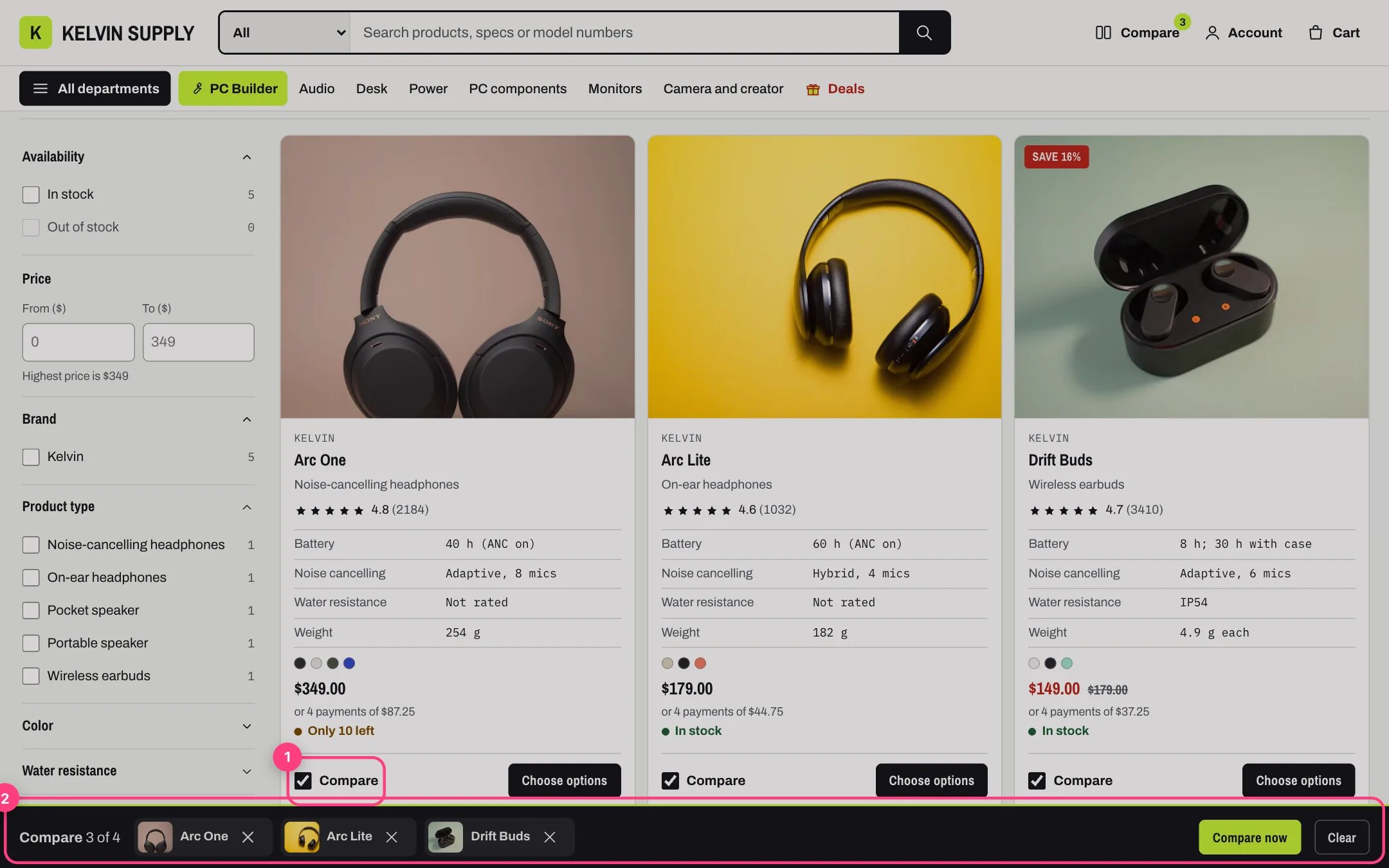
- The Compare checkbox on a product card. 2. The compare tray at the bottom of the screen
Set it up
1. Create the compare page. In the Shopify admin go to Online Store → Pages → Add page, name it Compare (or anything you like), choose compare under Theme template and save. 2. Choose it in Theme settings. In the theme editor open Theme settings → Compare, pick the page under Compare page, and set Products to compare at once to 2, 3 or 4 (default 4). Without a compare page, no Compare checkbox, tray or header Compare link shows anywhere. 3. Check the Compare checkboxes. They all need the compare page from step 2. Theme settings → Product cards → Compare checkbox (on by default) shows Compare on product cards, in the hero and in quick view. On the product page it is Show Compare in the Compare and share block of Product information. 4. Write the spec rows. Theme settings → Product cards → Spec rows lists the specs, one per line: a metafield key in thespecs namespace, a bar, and its label, such as battery_life | Battery. Product cards show the first ones a product has; the compare page shows all of them, in this order. See Spec rows for the metafields.
5. Tune the compare page. Choose Pages → compare in the theme editor’s page selector and select the Compare page section:
- Higher is better and Lower is better: the spec keys, separated by commas, whose best value is marked.
- Show the rating row: needs a reviews app that writes product ratings.
- Show differences only by default.
- Compare pool: a collection that Add a product lists, instead of searching the store.
- Popular comparison blocks: a Heading and two to four Products each, shown as one-click sets.
How shoppers build the list
- Compare checkboxes on product cards, the hero, quick view and the product page add or remove the product, with a short message. The header’s Compare link shows how many are in the list.
- The compare tray at the bottom of the screen shows the list, with Compare now and Clear.
- When the list is full, ticking one more says You can compare up to 4 products. Remove one to add another. (with your own number).
- Compare with similar, next to the product page’s specifications, replaces the list with that product and two related products from Shopify’s recommendations, then opens the compare page.
- The home Compare picker adds and removes products in the same list.
The compare page
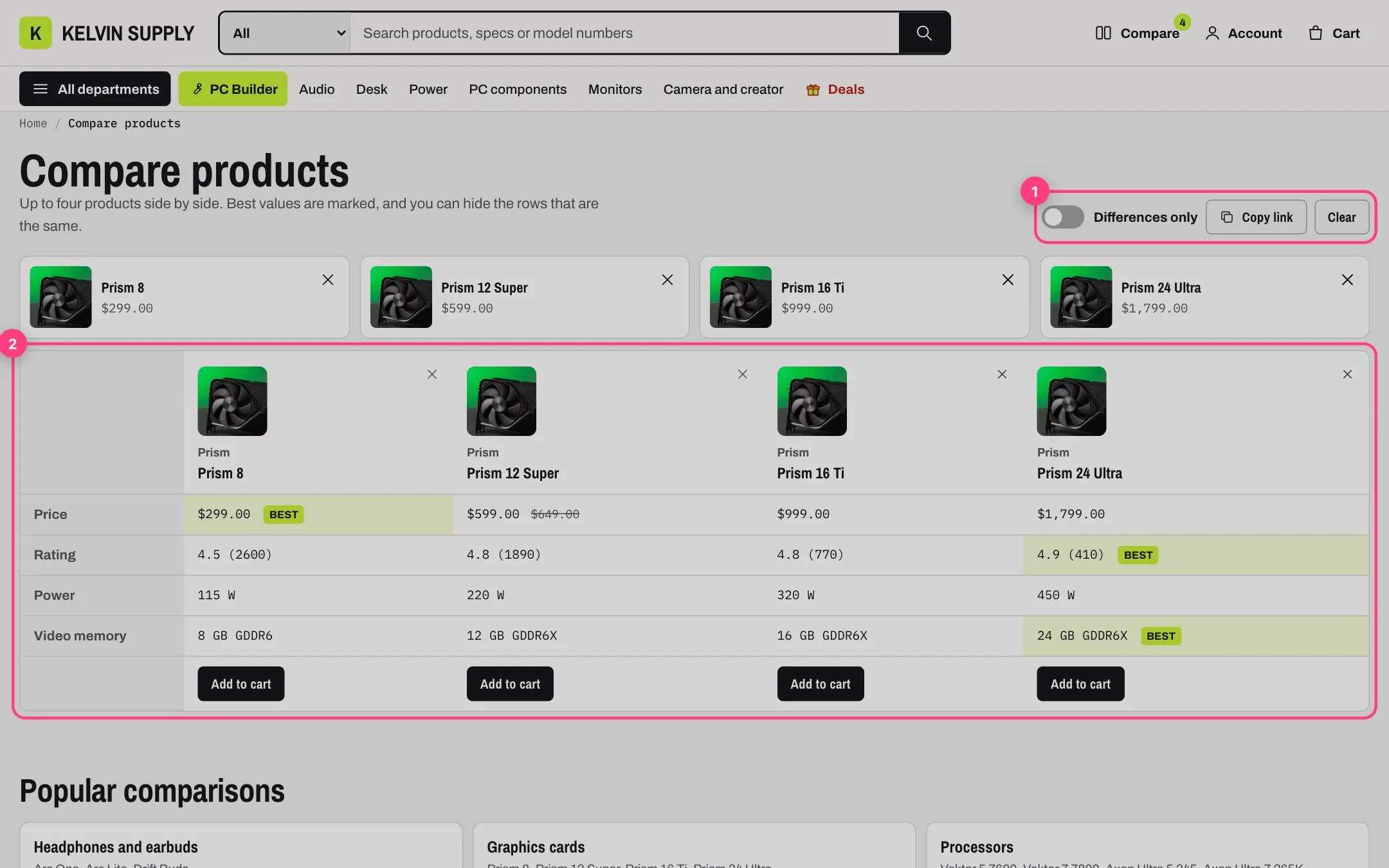
- Differences only, Copy link and Clear. 2. The table, with the best values marked
- Products: from the page link, or from the shopper’s list when the link has none. Each product has a remove button at the top and in its column. Empty places show Add a product, which searches your store by name (ten results), or lists the Compare pool collection with a search box and a Category filter by product type.
- Rows: Price (with the compare-at price struck through), Rating when a reviews app writes ratings, then each spec row that at least one product has. A missing value shows a dash and reads Not listed to screen readers.
- Differences only hides the rows where every product matches.
- Buy row: Add to cart for products with one variant, Choose options for products with several, and Sold out.
- Copy link copies the address with the products in it; Clear empties the list.
- Popular comparisons sit under the table as buttons that load a set in one click. With nothing to compare yet, the page says so and offers Add a product.
- Products of different product types get a note that some rows are blank. On narrow screens the table scrolls sideways.
Best values
Best is marked with a shade and the word, never color alone:- Price: the lowest.
- Rating: the highest.
- A spec row whose key is in Higher is better (default battery_life, polling_rate, cores, vram, capacity, refresh_rate) or Lower is better (default weight).
Share links
The compare page address holds the products, such as/pages/compare?items=handle-one,handle-two,handle-three, where each handle is the last part of a product’s address. Use these links in menus too, for example a Compare headphones item under Headphones.
- Opening one replaces the shopper’s own compare list with the products in the link.
- Handles that no longer exist are left out with Left out, no longer in the store: and their handles.
- The link holds up to the number set in Products to compare at once.
Limits
- The list is kept in the browser on the shopper’s device, not in Shopify or an account. Another device or browser starts empty, and the list stays until the shopper clears it.
- Up to four products at once.
- Prices are those of each product’s first available variant. Add to cart in the table appears only for products with one variant.
- Rows only show specs listed in Spec rows. A key that is not listed there never shows on the compare page.
- Add a product searches with Shopify’s own search suggestions. With a Compare pool it lists up to 300 products of that collection.
- Nothing is sent to an outside service.
In the theme editor
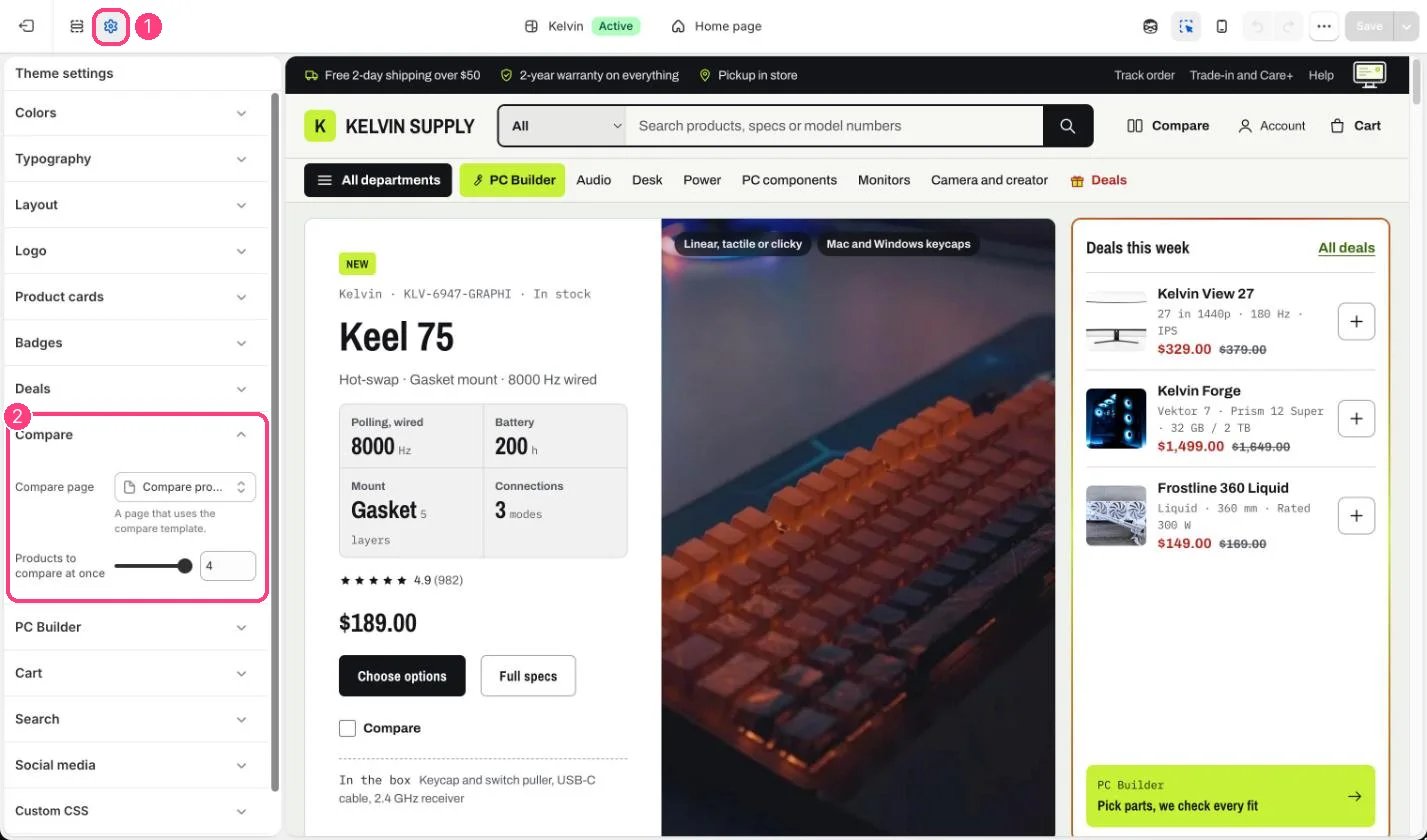
The compare page and how many products: 1 Theme settings · 2 Compare
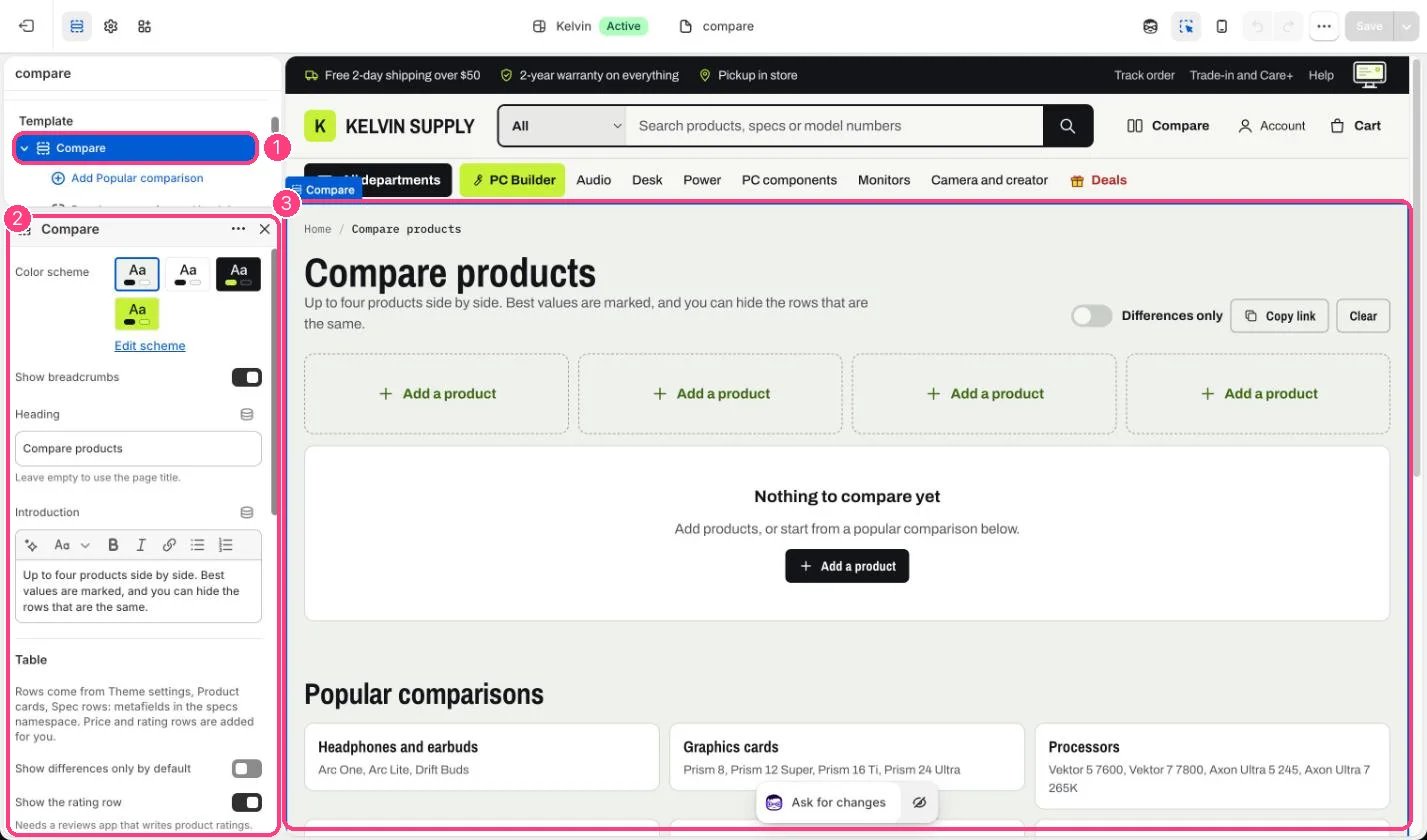
1 Compare, on the compare page · 2 its settings · 3 the preview