
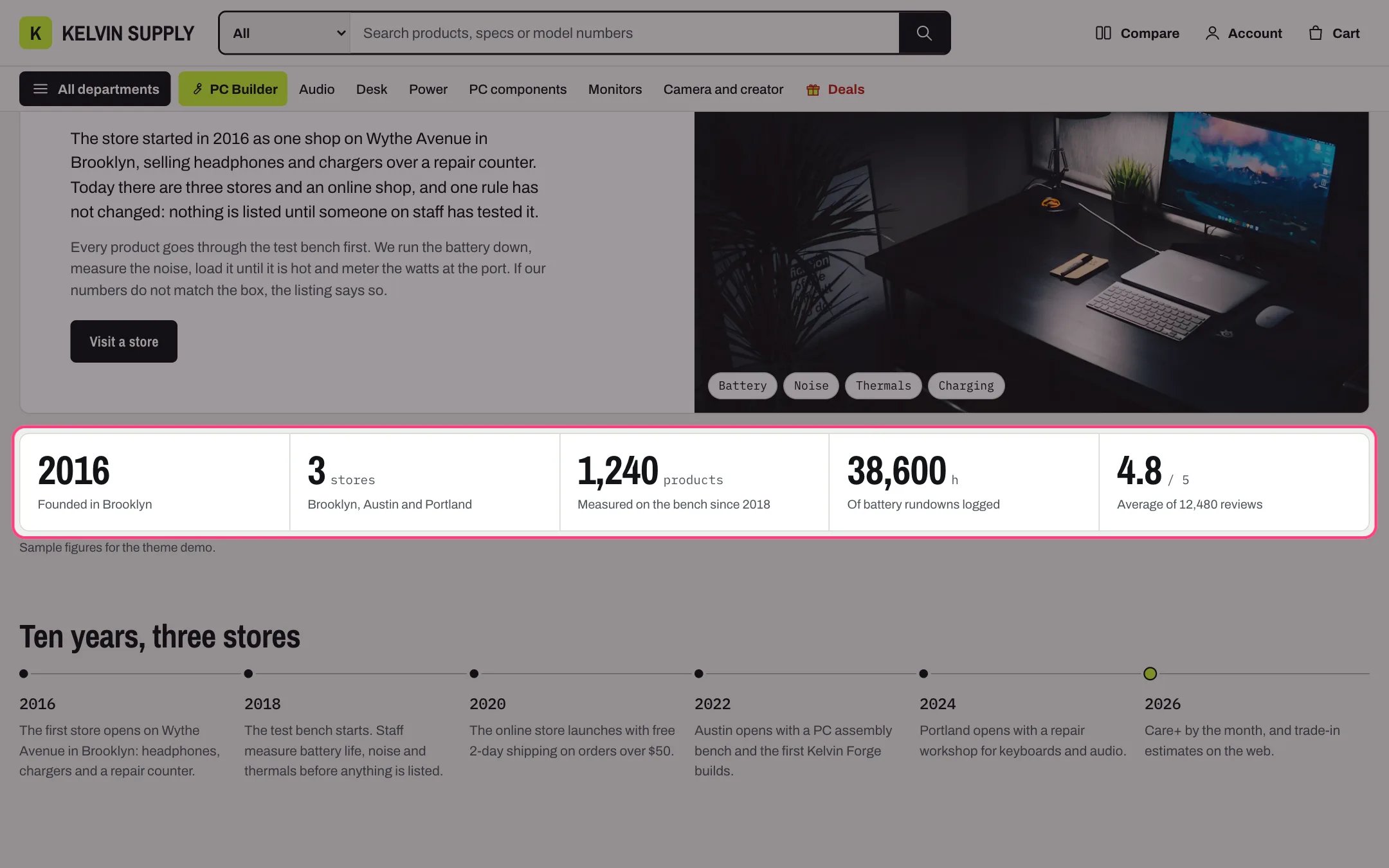
Figures, highlighted with the demo content
Where to find it
The about template (page.about), under the page heading. Create a page in Online Store → Pages with Theme template about, then in the theme editor choose Pages, then about, and select Figures.How it works
- Each Figure shows the Number large, the Unit small after it and the Label under it, in joined boxes.
- Up to five figures sit in a row; more wrap onto a second row. Under 1000 px they show two per row, and an odd count makes the first one full width.
- Spacing Close to the section above tucks the row under the page heading; Like other sections gives it normal spacing.
- With Show the heading off, the heading is still read by screen readers.
- Show a sample note adds the Sample note under the figures, so shoppers know the numbers are examples.
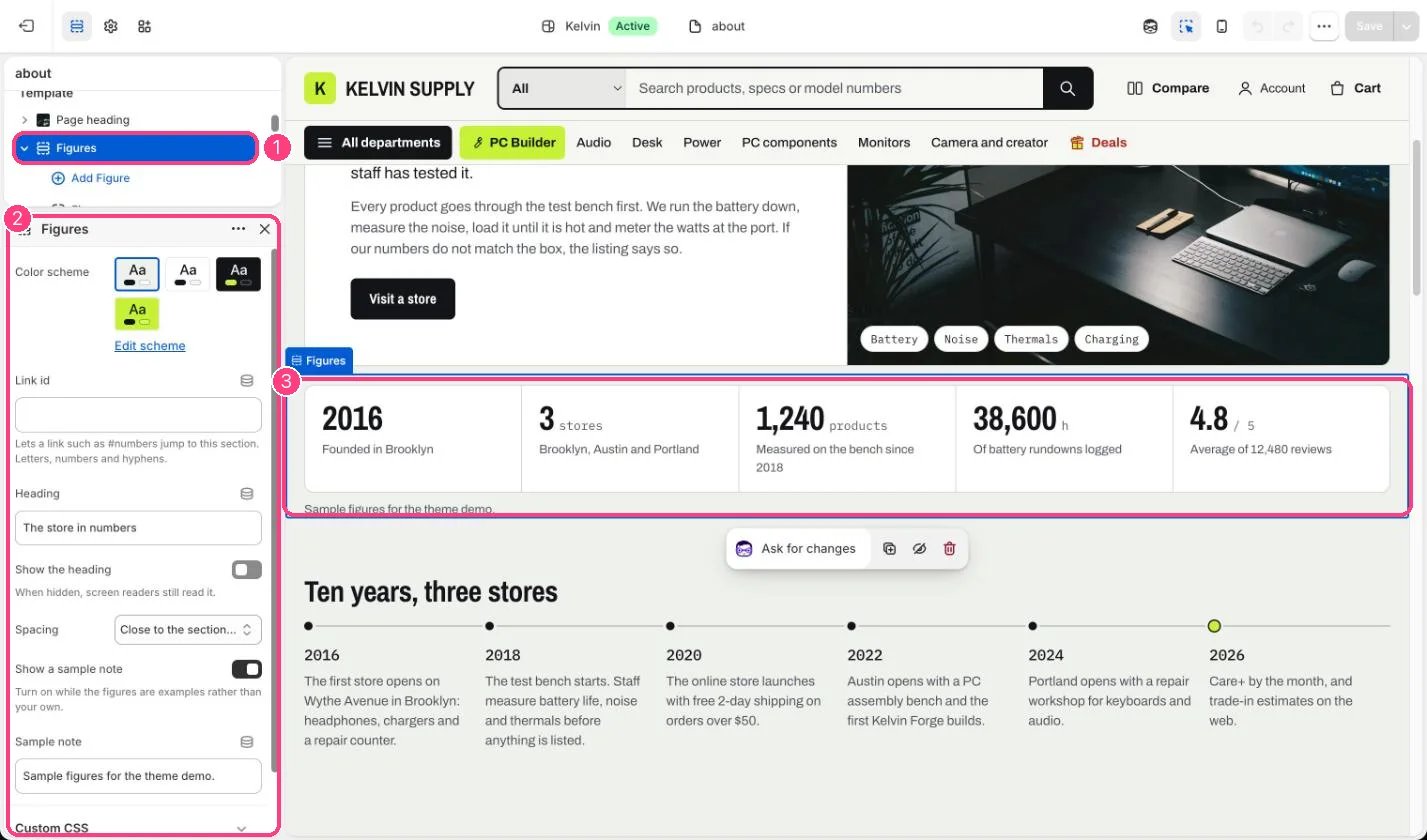
In the theme editor: 1 the section in the sidebar · 2 its settings · 3 the section in the preview
Edit it
- Add a Figure block per number (up to 10) with Number, Unit (such as stores, h or / 5) and Label.
- Type numbers exactly as they should read, such as 1,240; nothing is calculated.
- Turn off Show a sample note once the figures are your own.
- Turn on Show the heading and edit Heading to give the row a visible title.
Settings
Blocks
Add a block with Add block under the section in the sidebar; drag blocks to reorder them.Figure (up to 10)
On install the about template’s four figures are placeholders, such as a Number of Year with the Label The year you opened, and Show a sample note is on (Sample figures. Replace them with your own.). Only publish numbers you can stand behind.