
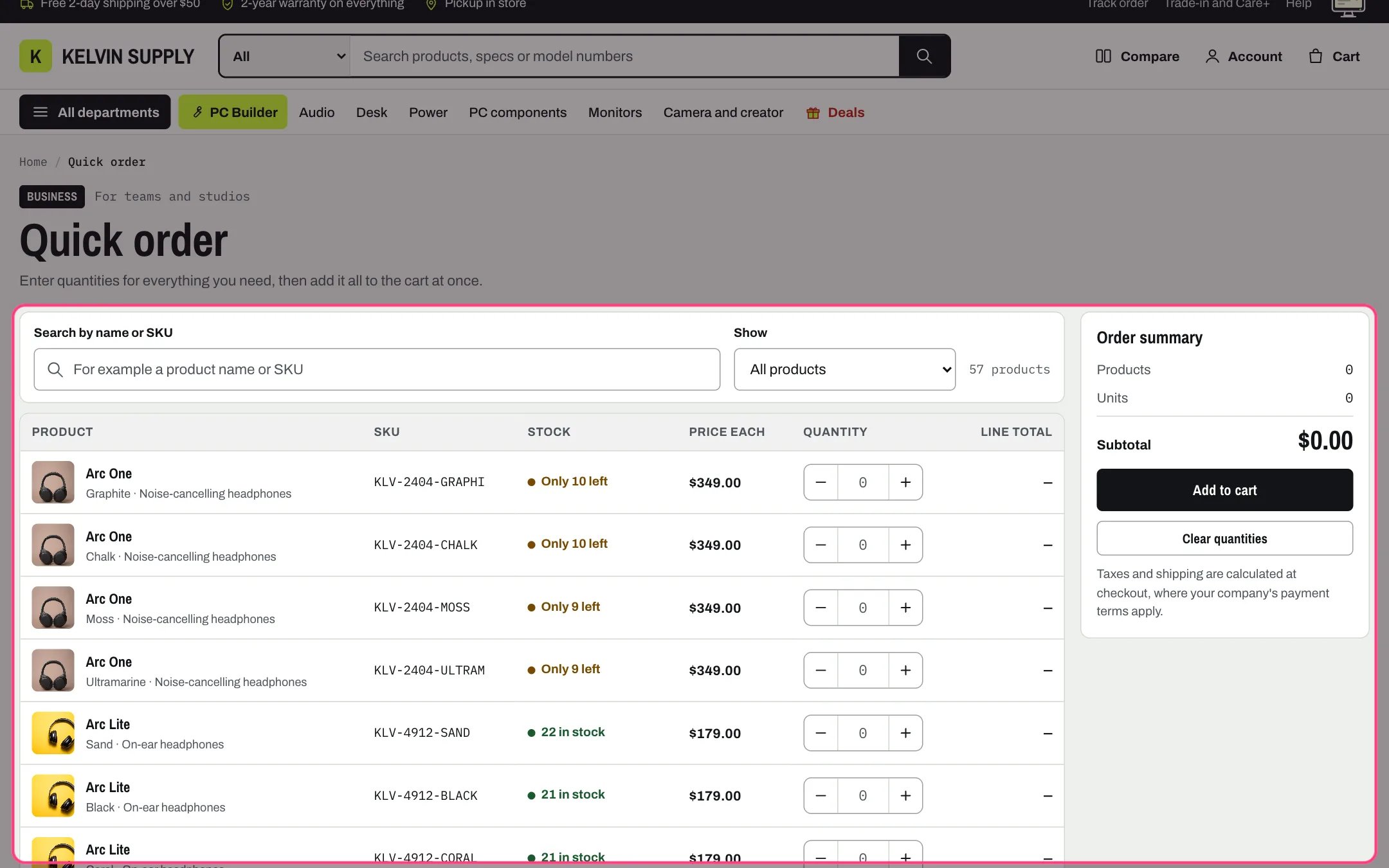
Quick order list, highlighted with the demo content
Where to find it
The page.quick-order template. Create a page in Online Store → Pages (for example Quick order), choose quick-order under Theme template, and link it from a menu your business buyers use. In the theme editor choose Pages, then quick-order, and select Quick order list. You can also add it to other pages with Add section.How it works
- Each variant of each product in the Collection is a row: photo, name linked to the variant, variant and product type, SKU, stock, price each, a quantity field and the line total. Gift cards are left out, because they need the recipient form on their product page.
- Stock reads the real inventory of tracked variants: N in stock (or In stock with Show stock counts off), Only N left once stock reaches Show low stock at or below in Theme settings → Product cards, or Out of stock with the date it is due back when Shopify has one. Variants that keep selling when sold out say Available to order.
- Quantities are checked as they are typed, with the message under the field: whole numbers only, no more than the stock of variants that stop selling when sold out (counting what is already in the cart), and the minimum, maximum and steps of a B2B quantity rule.
- The − and + buttons and the up and down arrow keys move the quantity in the rule’s steps. Each row also says how many are already in the cart.
- For B2B buyers with quantity price breaks, the price column lists the breaks and the line total uses the price for the quantity reached, with what it saves and how many more units reach the next break.
- The Order summary counts products, units and the subtotal, plus the list price and quantity savings when any row has price breaks. Add to cart sends every row with a quantity in one go, on top of what is already in the cart, then opens the cart drawer, or the cart page when Cart type is Page.
- Search by name or SKU narrows the rows as the buyer types. The Show filter picks one product type (offered when the list has more than one) or Only rows with a quantity.
- Below 1100 px the summary becomes a bar that stays at the bottom of the screen while the list scrolls; below 750 px each row becomes a card.
- The heading is the page’s main heading, with breadcrumbs, only when the section is the first on the page. Adding the order needs JavaScript; without it the table shows with a note saying so.
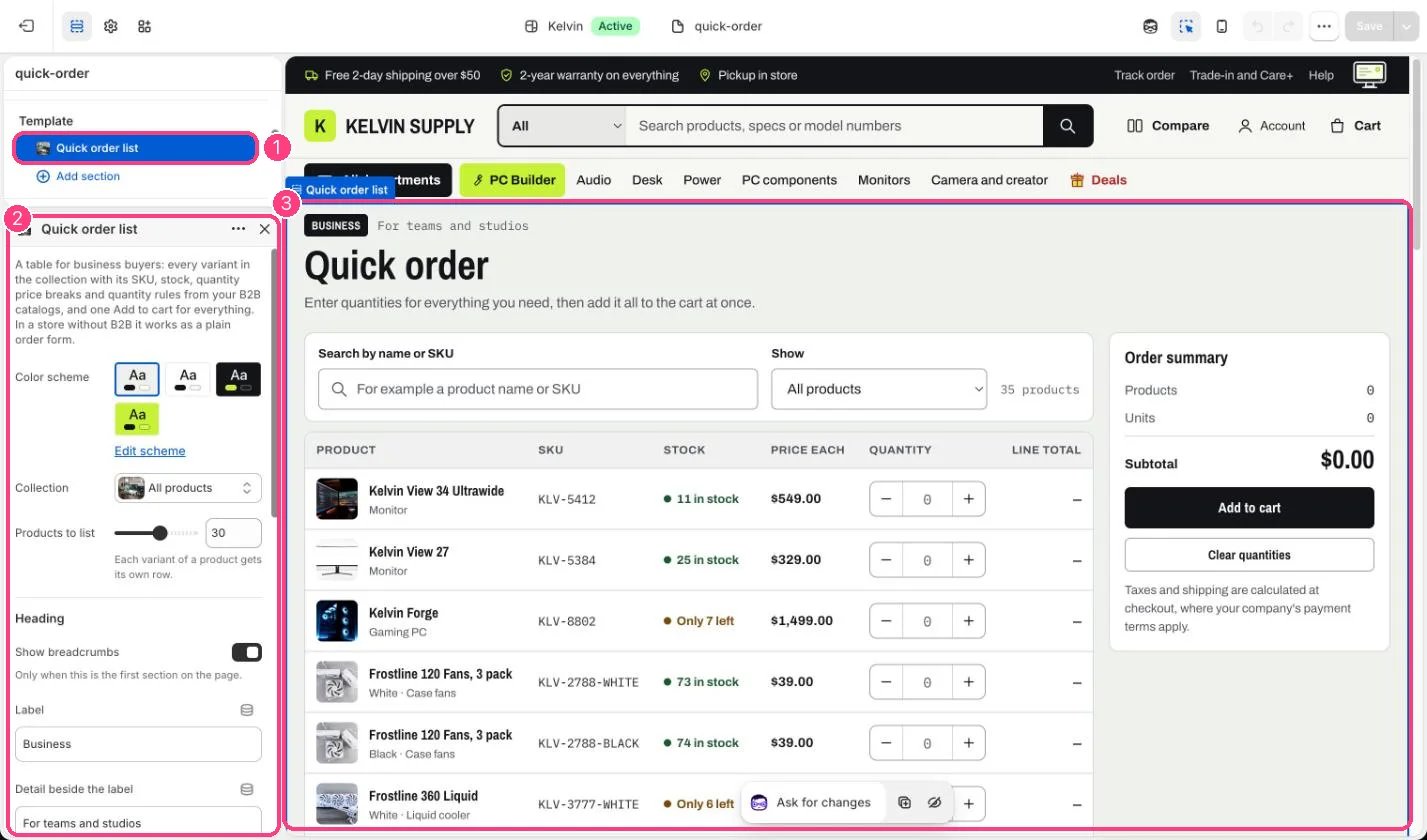
In the theme editor: 1 the section in the sidebar · 2 its settings · 3 the section in the preview
Edit it
- Choose the Collection: until you do, the page says No products to order yet. A collection made for business buyers keeps the list short.
- Set Products to list (5 to 50). Every variant gets its own row, so 50 products in four colors make 200 rows.
- Turn off Show stock counts if you would rather not show exact inventory. Low stock still shows as Only N left.
- Edit Note under the summary. The default mentions company payment terms, which only apply to B2B customers.
- Turn off Show product images for a denser list, for example of parts ordered by SKU.
Settings
Heading
Table
Quantity price breaks and quantity rules only show to B2B customers buying from a B2B catalog. Everyone else, and every store without B2B, gets a plain order form at normal prices. See Quick order and B2B.