
Kelvin marks deals with three small pieces of motion: a flowing border around deal boxes, an animated gift box on the Deals menu item, and a shine across sale badges. Each plays briefly by itself, under five seconds, and stays still for shoppers who ask their device to reduce motion. The flowing border. A ring in the section’s Sale and errors and Accent colors (sale red and lime with the default schemes) replaces the box’s own border. It shows on:
  • the deals rail of the Hero;
  • the box of the Deal countdown section;
  • Promo tile blocks of the Collection section with Mark as a deal ticked.
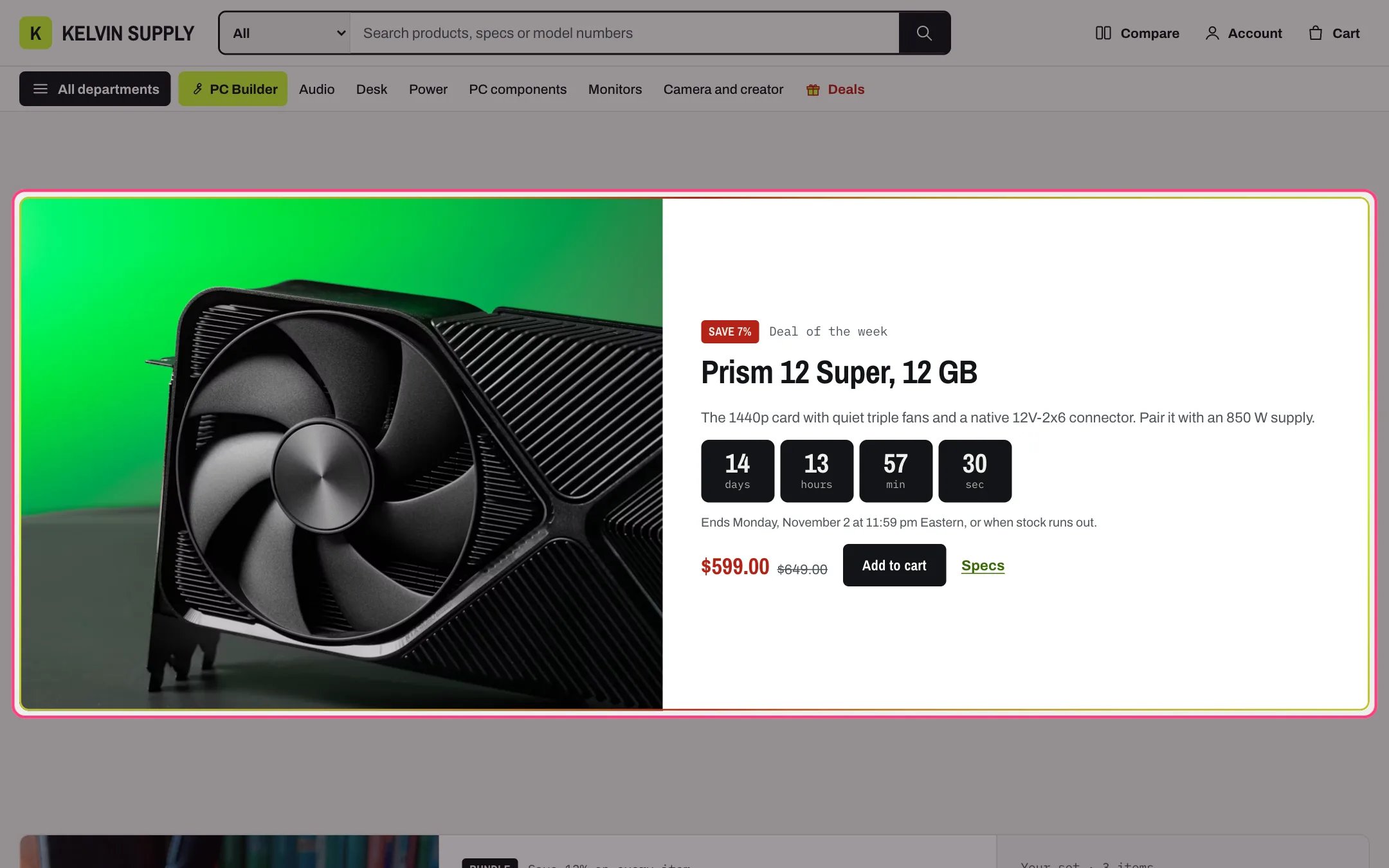
The ring turns twice each time the box scrolls into view, and keeps turning while the pointer rests on the box or something inside it has keyboard focus.
The flowing border on the Deal countdown

The sale-red and lime border on the Deal countdown

Stopping the border. Each of those sections and blocks has Animate the deal border (on by default). Unticked, that box’s ring stays in place but never moves: not when the box comes into view, and not on hover or keyboard focus. To stop every ring at once, untick Theme settings → Deals → Flowing border on deal sections. The ring itself always shows on the Hero rail and the Deal countdown; on a promo tile, untick Mark as a deal to remove it. The gift box on Deals.
  1. In Content → Menus, add a top-level item called Deals to the menu you use for the header’s quick links (or, when Quick links is empty, to the menu chosen under Main menu), linked to your deals collection. A smart collection with a condition on compare-at price keeps itself current.
  2. Check that the title matches Theme settings → Deals → Deals menu item (default Deals). Capitals and spaces at either end do not matter. If your item is called Offers, type Offers there.
  3. The link now shows a gift box before its title, and in the quick links row it is drawn in the sale color. In the phone menu it gets the gift box too, as long as it has no child links.
  4. The lid lifts three times the first time the link comes into view on a page, and again when a shopper points at it or tabs to it. Untick Animate the gift box to keep the box still.
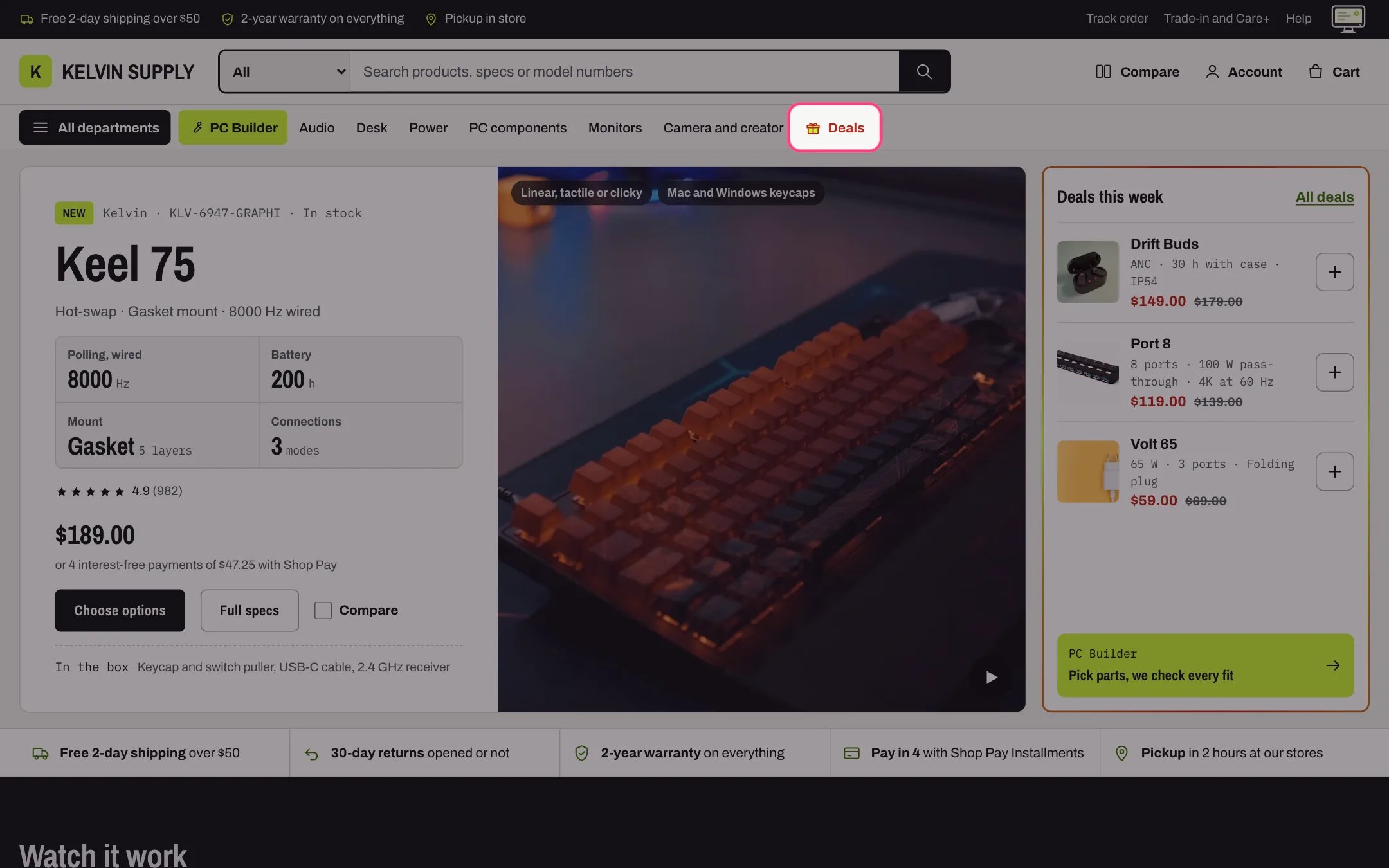
The Deals link with its gift box

The Deals link with its gift box in the header

The shine on sale badges. A product shows a sale badge when its variant has a compare-at price above its price. Theme settings → Badges → Sale badge picks the wording: Save and percent, Save and amount, Sale, or None. A light sweep crosses the badge twice the first time it comes into view, and once more when a shopper points at or tabs into the product card. Untick Animate sale badges to remove the shine. Reduced motion. For shoppers who turn on reduce motion in their device settings, the border, the gift box and the shine all stay still. The ring and the gift box still show; only the movement stops. Each play stops by itself within five seconds.
The highlights are decoration only. They never add urgency: countdowns follow the real end date you type, and stock lines follow real inventory.

In the theme editor
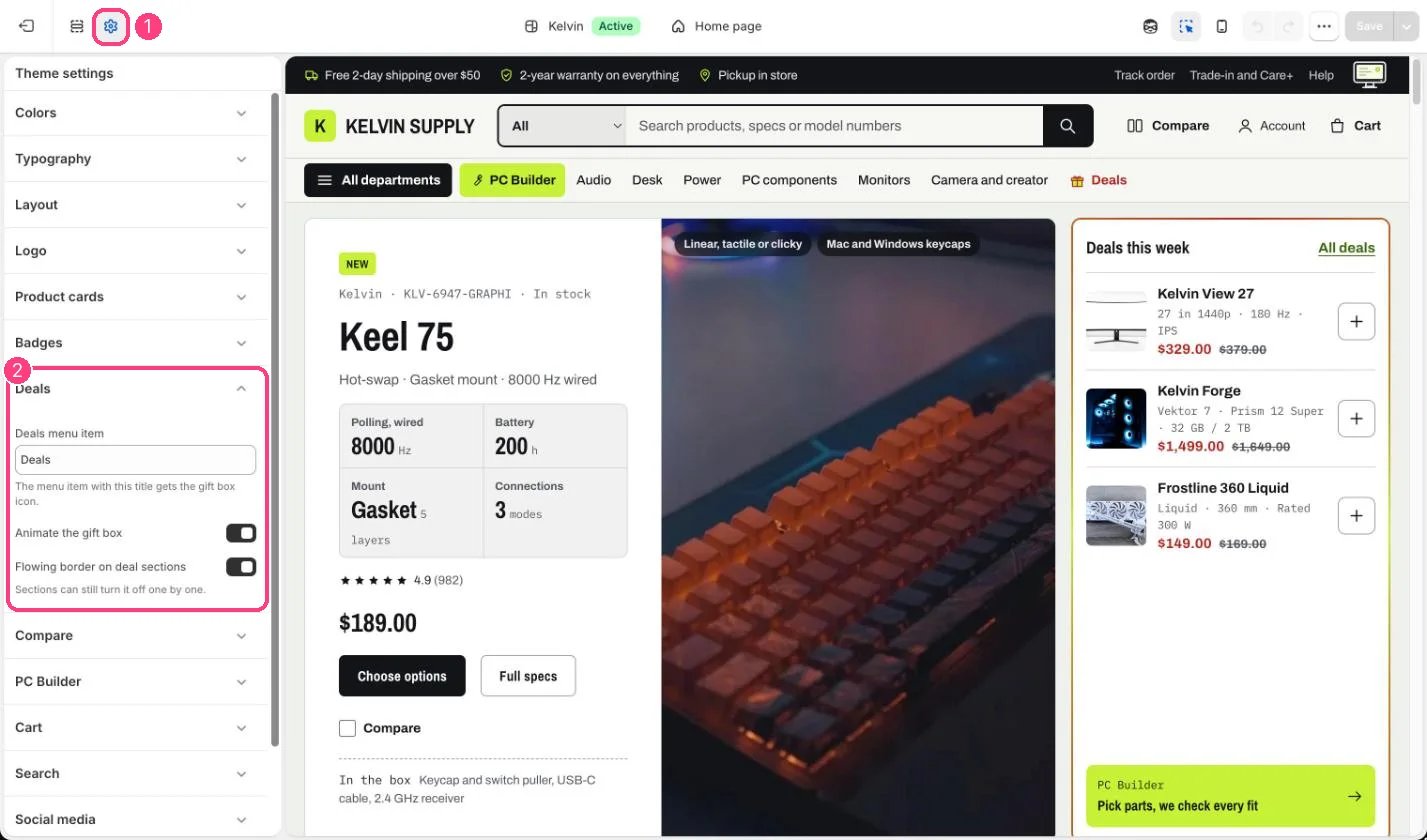
Deals settings

The Deals menu item, its gift box and the flowing border: 1 Theme settings · 2 Deals
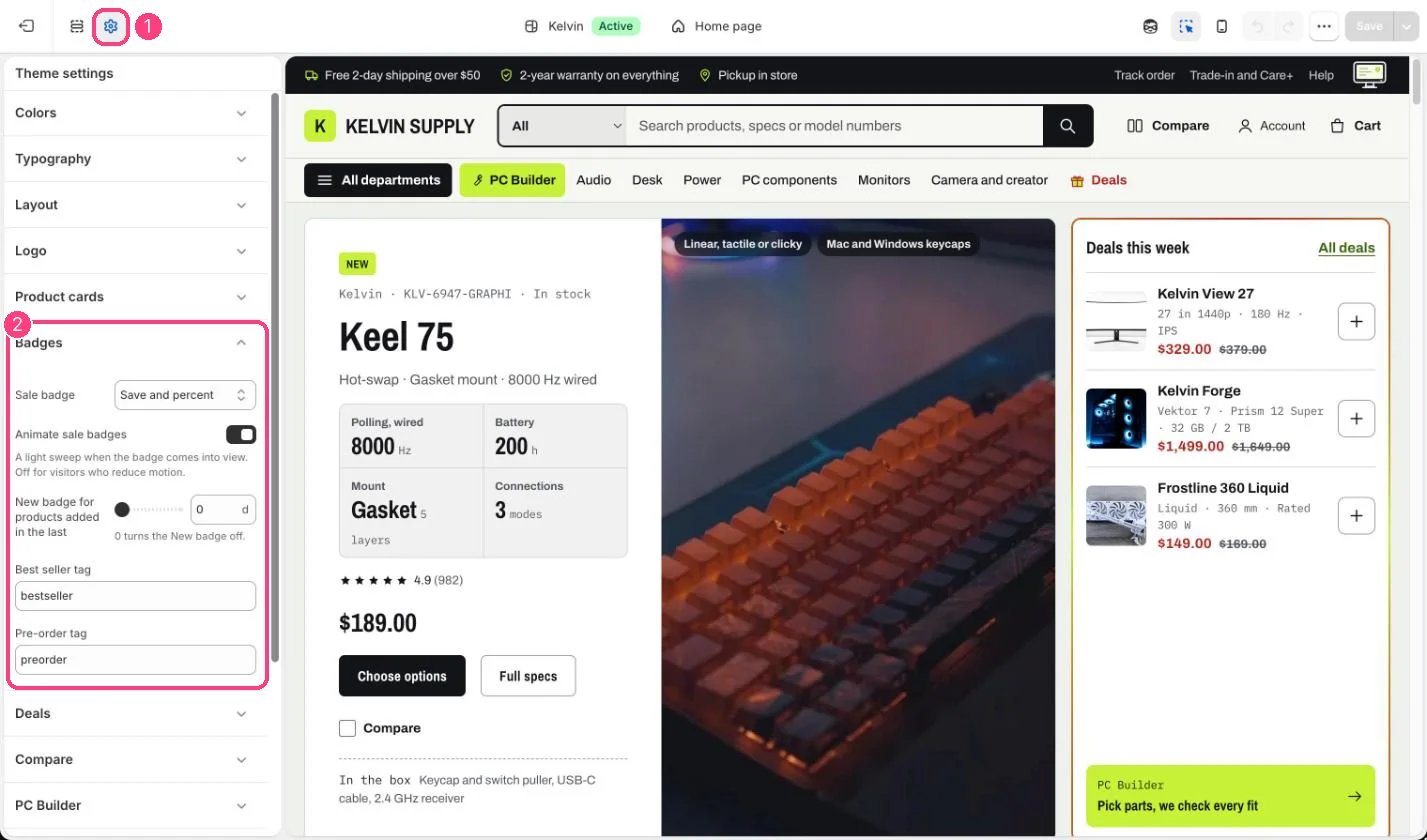
Badge settings

The shine on sale badges: 1 Theme settings · 2 Badges