
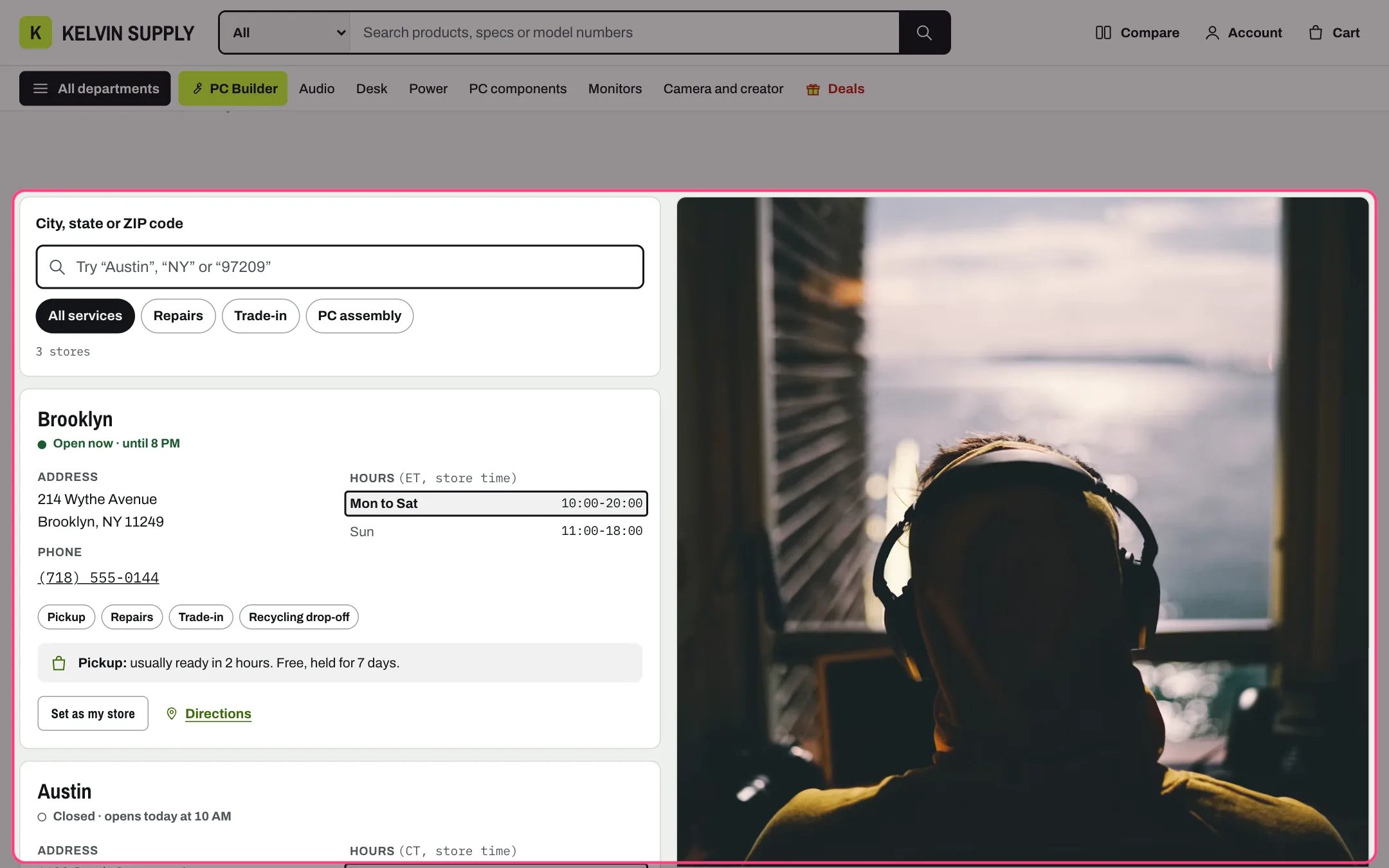
Stores, highlighted with the demo content
Where to find it
The stores template (page.stores), shown on the demo at /pages/stores. Create a page in Online Store → Pages, choose stores under Theme template and save. In the theme editor choose Pages, then stores, and select Stores. The template also has Page heading and Numbered steps (How pickup works).How it works
- Each Store block is a card: name, an open or closed line, address, phone (tap to call), opening hours, services, a pickup note and a Directions link.
- The open or closed line is worked out in the shopper’s browser from the weekday hours, in the store’s own Time zone: Open now · until 8 PM, Open, closes soon · until 8 PM in the last hour, or Closed · opens today, tomorrow or on the next open day. It updates every 30 seconds, and today’s row in the hours list is outlined.
- Hours show as you type them. Days in a row with the same text are joined, such as Mon to Sat, and a blank day shows Closed. Without JavaScript the hours still show, without the open line.
- With two or more stores and Show search on, a search field filters the cards as shoppers type, over the name, address, services and Search words, with a count and a Show all stores button when nothing matches.
- Service filters are chips for the services only some stores offer, built from each store’s Services list.
- Set as my store marks the card with Your store and remembers the choice on the shopper’s device.
- Directions opens a map search for the address in a new tab, or your own Directions link. No map service loads in the page.
- With a Photo or map image, the cards sit in one column beside the photo, which stays in view as shoppers scroll; without one, the cards sit two per row. Under 1000 px everything stacks.
- With two or more stores, the services table compares the pickup note, each service and the phone number of every store.
- In the theme editor, selecting a Store block scrolls to its card.
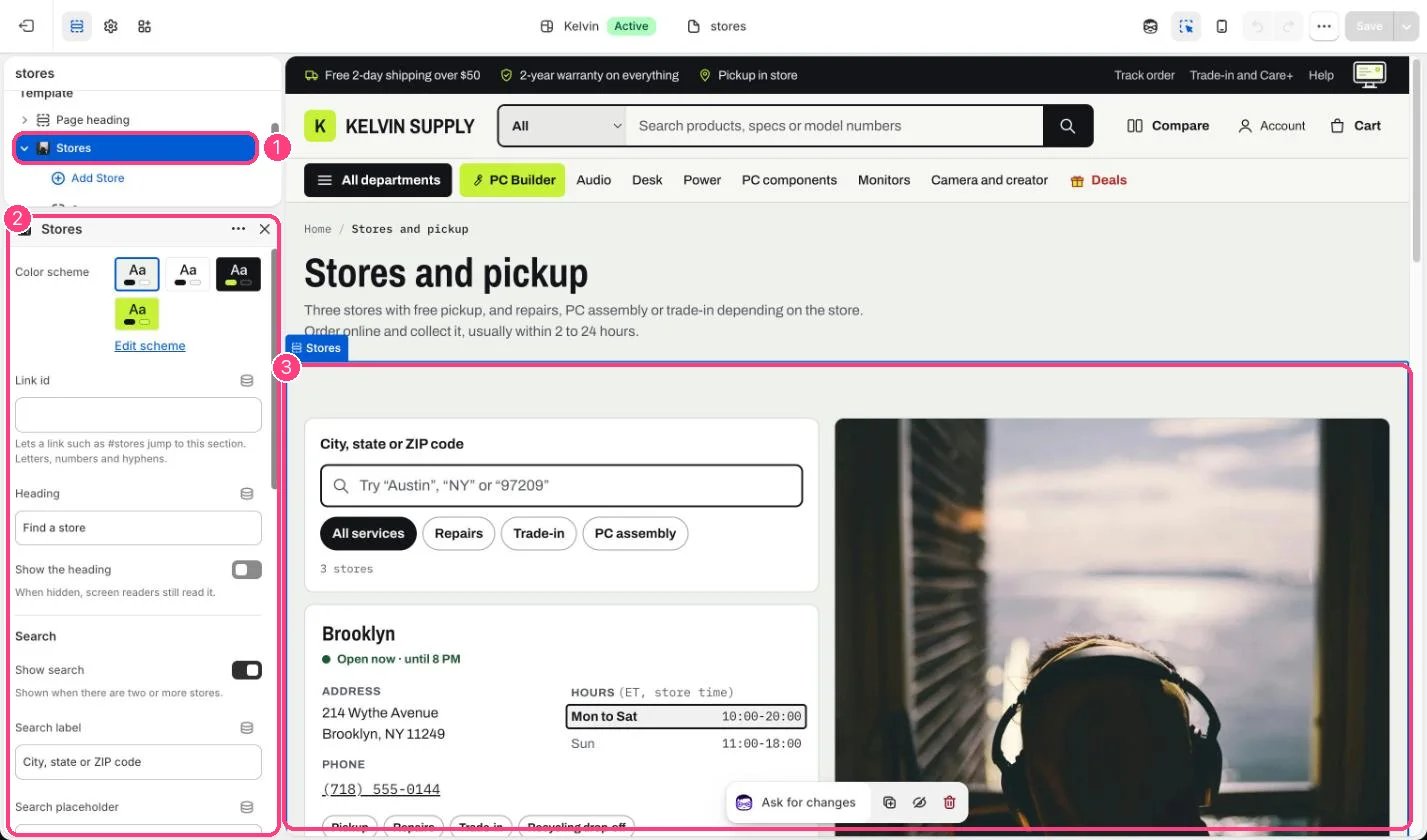
In the theme editor: 1 the section in the sidebar · 2 its settings · 3 the section in the preview
Edit it
- Add a Store block per location (up to 20) with Name, Address (one line per row), Phone and Photo. The photo is cropped to a wide strip around its focal point; 1000 x 420 px is recommended.
- Type Services separated by commas, such as Pickup, Repairs, Trade-in, spelled the same at every store so the filters and the table line up.
- Fill in Monday to Sunday under Opening hours, such as 10:00-19:00 or 10 am to 7 pm, and leave closed days blank. Every format is in Stores and opening hours.
- Set Time zone to a name such as America/New_York so daylight saving time is followed, and Time zone label to a short name such as ET.
- Write the Pickup note to match your local pickup settings, and add Search words such as the neighborhood, state or ZIP code.
- Choose Photo or map image and Caption for an area photo, or leave it empty for the two-column list.
- Turn Show search, Show service filters and Show the services table on or off, and edit Search label, Search placeholder, Text when nothing matches and Table heading.
Settings
Search
Area photo
Services table
Blocks
Add a block with Add block under the section in the sidebar; drag blocks to reorder them.Store (up to 20)
Opening hours
On install the template has two sample stores, Downtown store and Riverside store, with services but no address, pickup note or opening hours, so their cards have no open line and no Directions link. Fill them in before you link to the page.Stores are typed in the theme editor, not read from Settings → Locations. The pickup line on product pages and pickup at checkout come from your locations with local pickup turned on.Set as my store only marks the store on this page. It does not change the pickup location at checkout.