
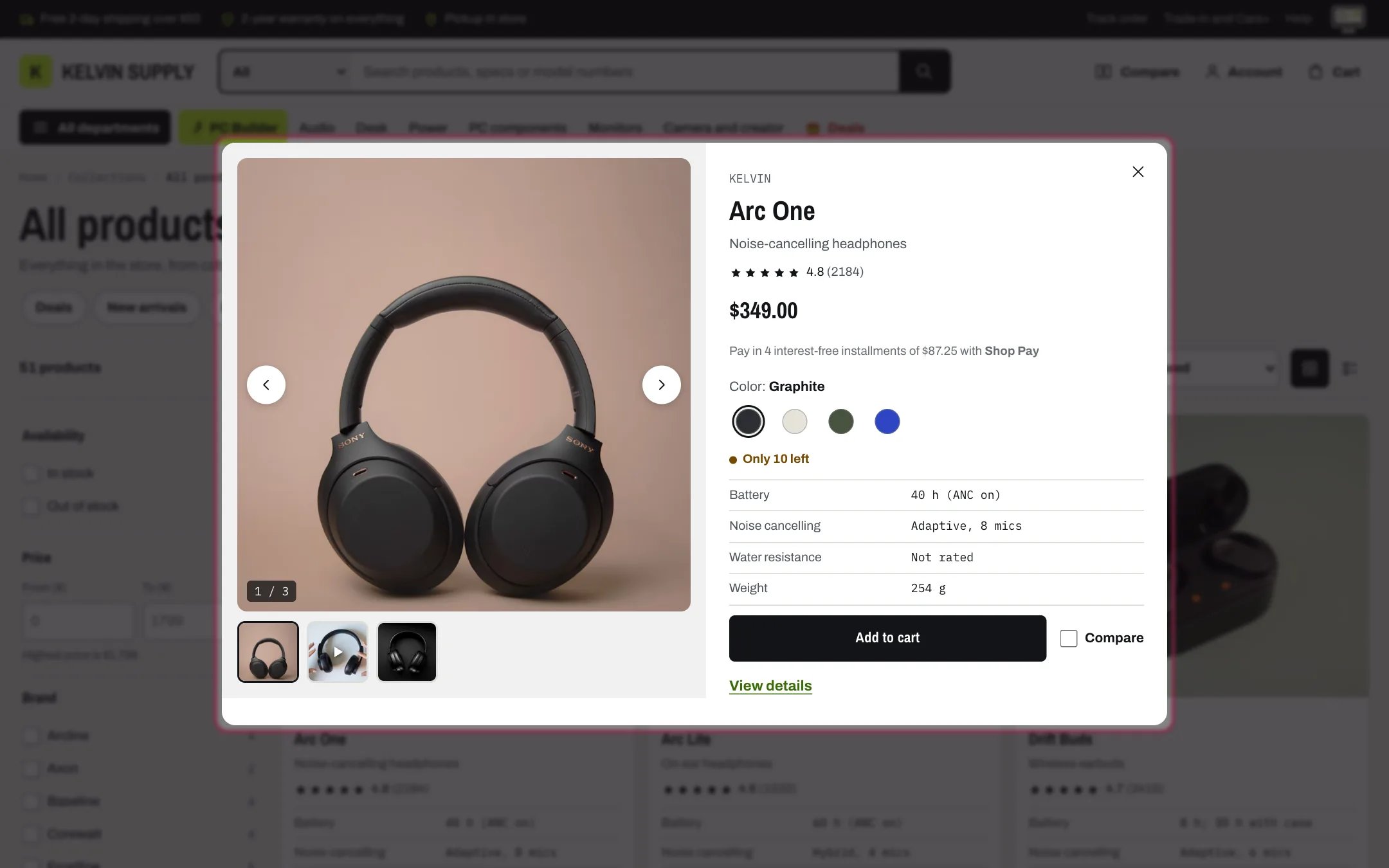
Quick view, opened from the eye button on a product card
Where to find it
On every product card while Theme settings → Product cards → Quick view is on (it is on install). Some home page sections open it too. It has no settings of its own and does not appear in the theme editor sidebar.How it works
- The eye button opens the dialog without leaving the page. On products with several variants, the card’s Choose options button opens it as well, so the shopper can pick before adding.
- It shows the gallery with thumbnails (photos shown whole, videos and 3D models included, no zoom), vendor, title, product type, rating stars from a reviews app, price and badges, Shop Pay Installments, options, purchase options, stock, up to six key specs, Add to cart (with the gift card recipient form just above it on every gift card), Compare (only when Theme settings → Product cards → Compare checkbox is on and Theme settings → Compare → Compare page is set) and View details.
- Changing an option updates the price, stock and add button; View details links to the chosen variant.
- There is no quantity selector, Buy it now button or protection plan choice. The cart can offer a plan afterwards.
- Focus moves to the product title. Esc, the close button or a click outside closes it, and focus returns to the button that opened it.
- After Add to cart the dialog closes and the cart drawer opens. If the product cannot load, its product page opens instead.
- On phones, under 750 px, the gallery sits above the details in one column.
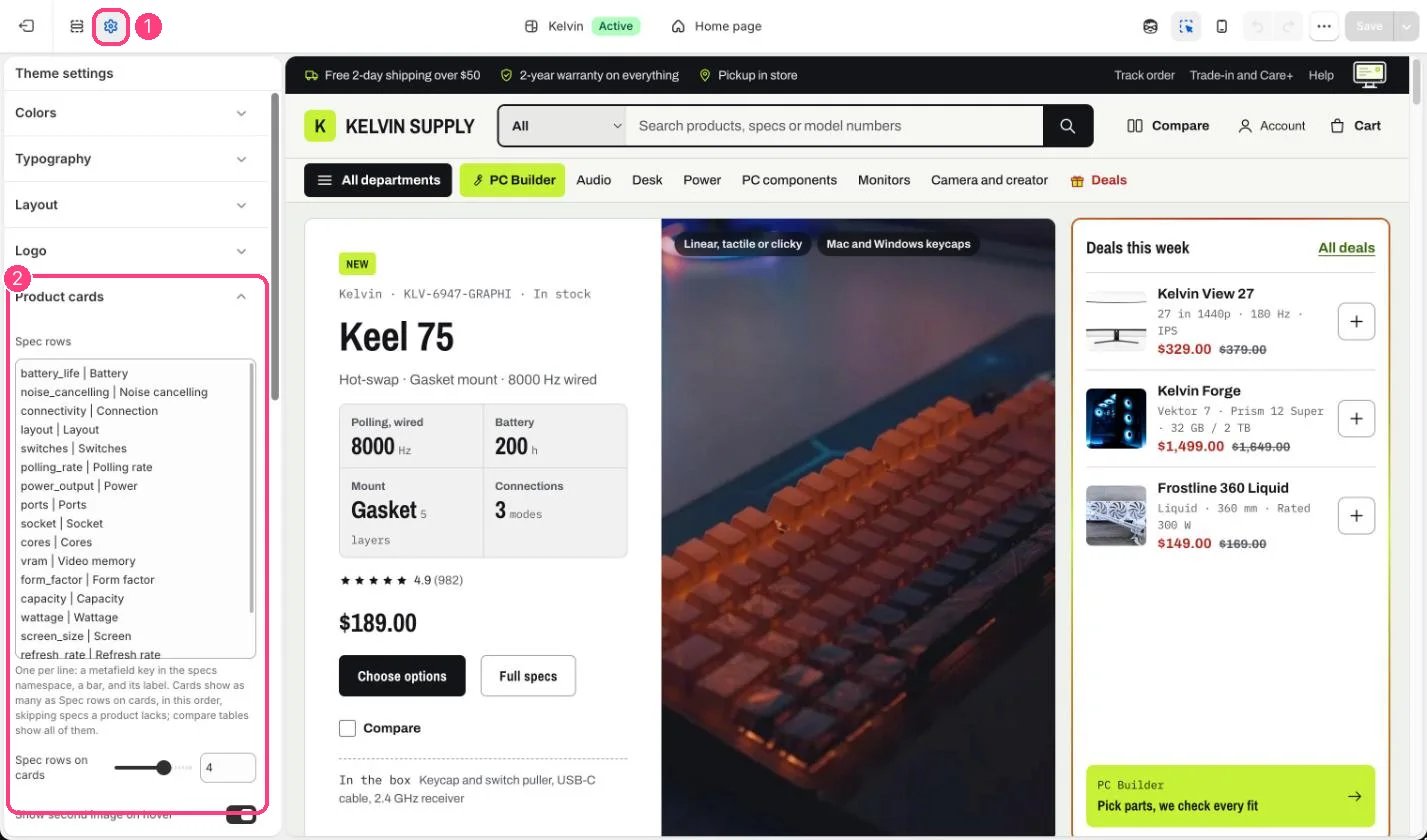
Quick view is switched on and off in 1 Theme settings · 2 Product cards
Edit it
- Turn quick view on or off in Theme settings → Product cards → Quick view.
- What it shows follows the product: key specs come from Theme settings → Product cards → Spec rows, and stars from a reviews app.
- Put each product’s best photo first: quick view opens on the selected variant’s media, else the first.