
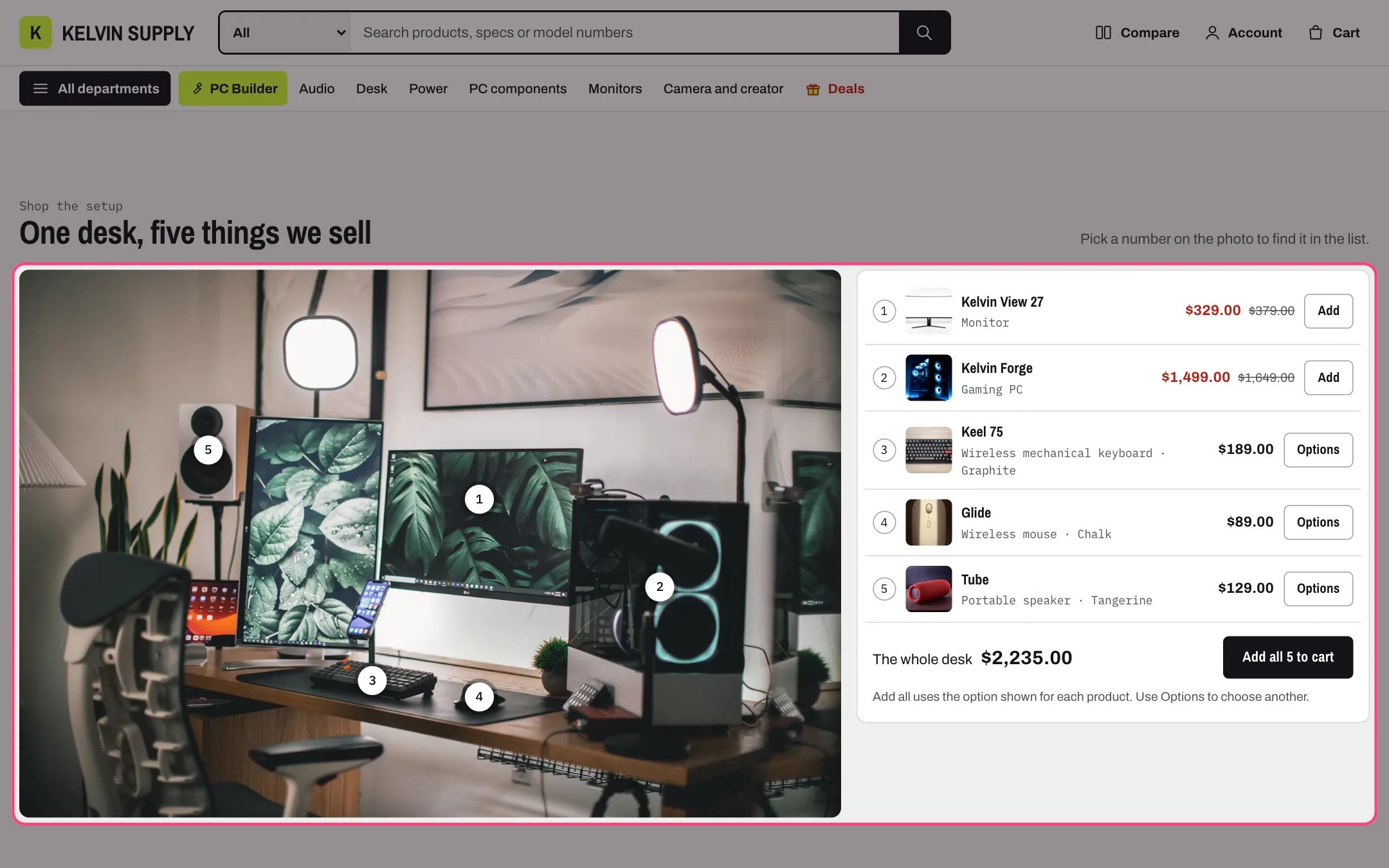
Shop the setup, highlighted with the demo content
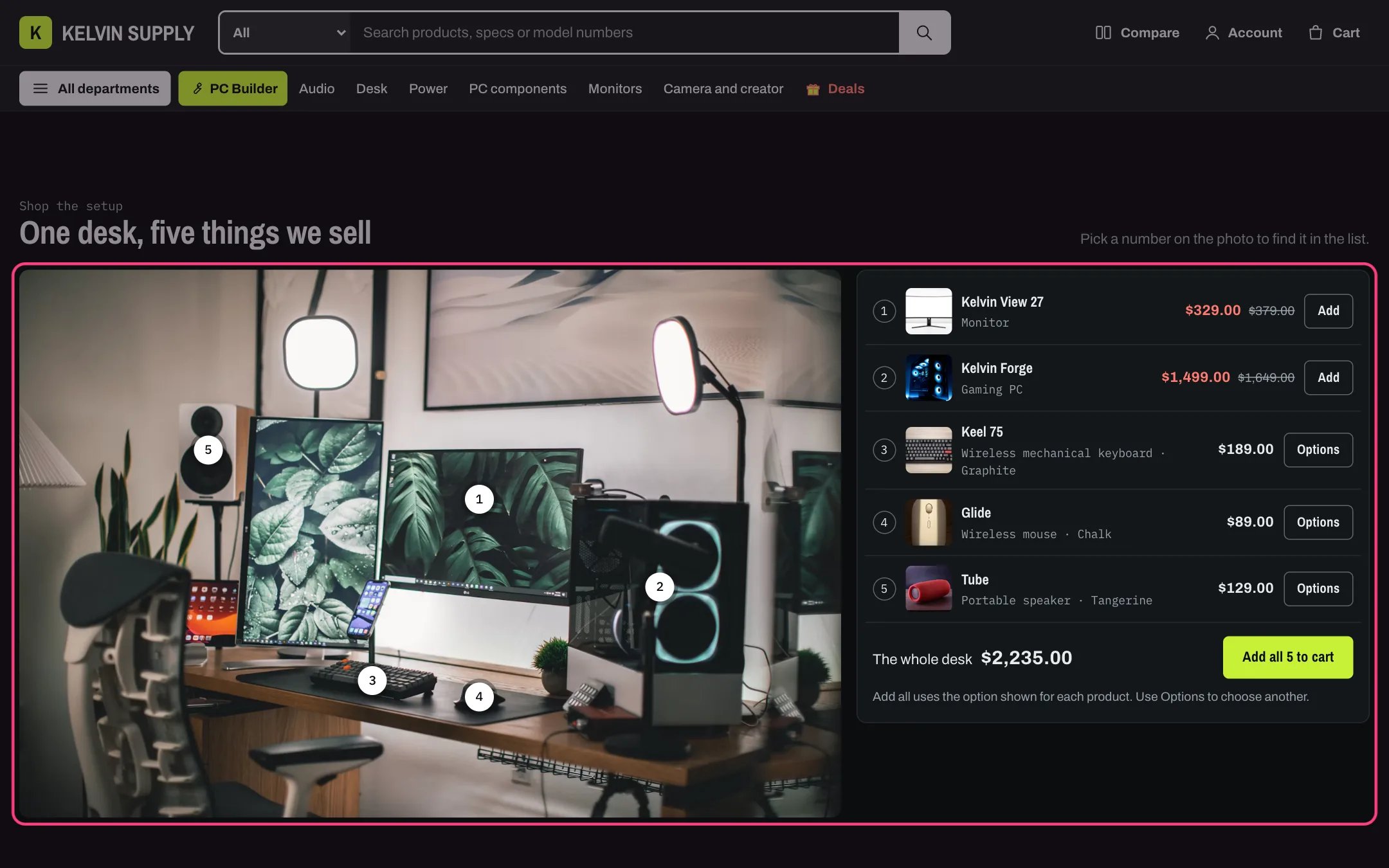
Shop the setup in dark mode
Where to find it
Home page. In the theme editor choose Home page in the page selector, then select Shop the setup. It stays hidden on the storefront until you add a photo or products.How it works
- Each Hotspot block puts a numbered dot on the Photo and a row in the list beside it: number, thumbnail, name, product type and option, price and a button.
- Pressing a dot highlights its row, and hovering over or focusing a row highlights its dot. Under 1000 px the list sits under the photo and the chosen row scrolls into view (instantly with reduced motion).
- The photo keeps its own shape and is never cropped, so each dot stays on the product you placed it on, in right-to-left languages too. Dots are 44 px targets.
- Rows show Add for an available product with a single option. Products with options show Options, which opens quick view when Quick view is on in Theme settings → Product cards, or the product page otherwise. Sold out products show a disabled Sold out button.
- Pre-order products say Pre-order and add a Pre-order line property, like the product page.
- The add all button appears when Show the add all button is on and at least two products are available. It shows the total of the listed prices, adds every available product in one step, each in the option shown in its row, then opens the cart drawer, or the cart page when Cart type is Page.
- Sold out products are skipped by the add all button. When some products have options, a line under the button says it uses the option shown and points to Options for another one.
- The add all button also works without JavaScript. Errors show under the button.
- Each dot and row use Label when it is set, otherwise the product title.
- With no photo and no products the section is hidden on the storefront; the theme editor shows a note. Selecting a Hotspot block in the editor highlights its dot.
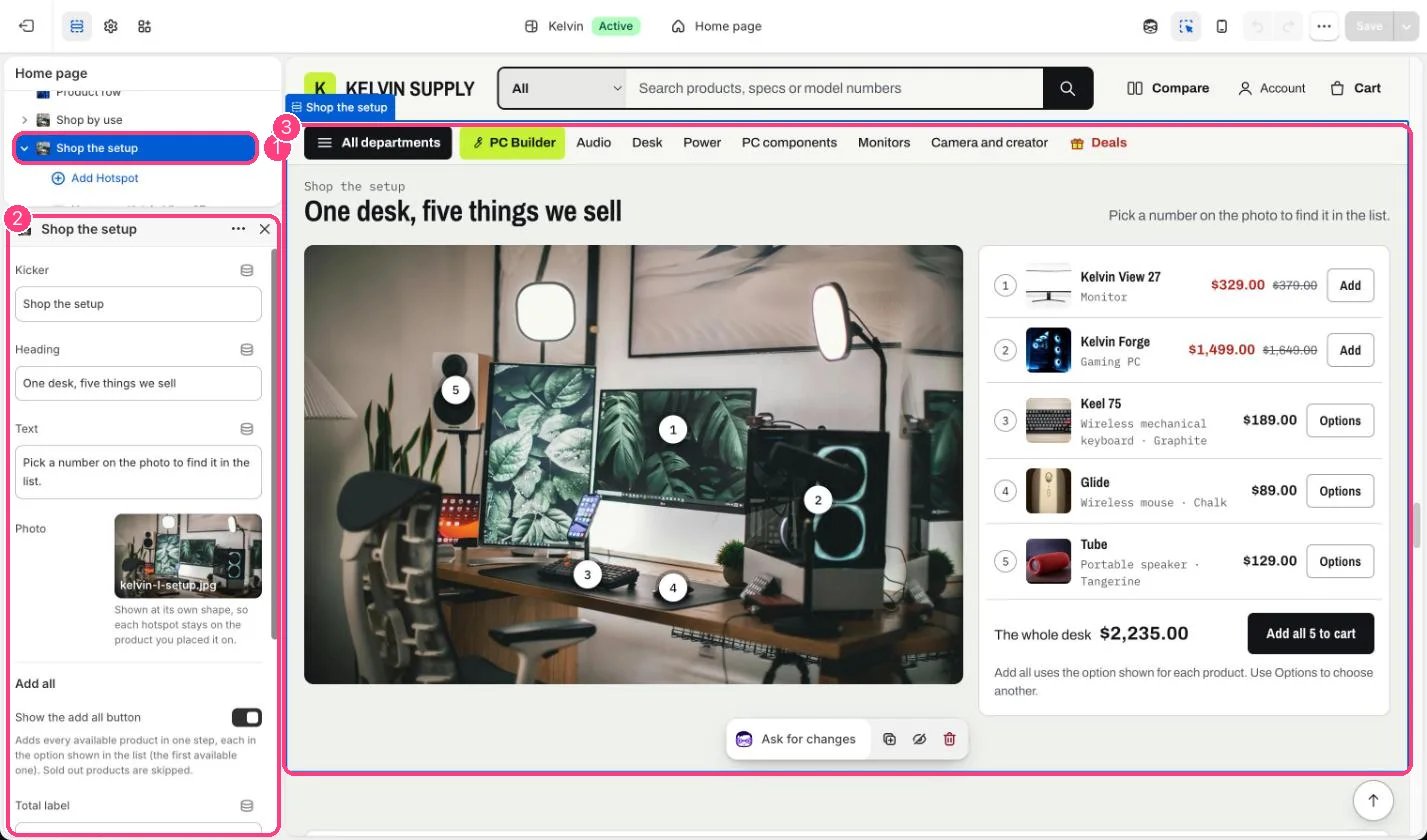
In the theme editor: 1 the section in the sidebar · 2 its settings · 3 the section in the preview
Edit it
- Upload a Photo of a real desk or setup, landscape and at least 1600 px wide.
- Add a Hotspot block per product (up to 8) and choose the Product.
- Move the dot with Horizontal position and Vertical position until it sits on the product. 0 is the left and top edge of the photo.
- Use Label for a short name when a product title is long.
- Edit Kicker, Heading, Text and Total label. Text shows once the section has products.
- Turn off Show the add all button if you want shoppers to add items one at a time.
Settings
Add all
Blocks
Up to 8 blocks. Add a block with Add block under the section in the sidebar; drag blocks to reorder them.Hotspot
On install the section has no photo and no products, so it does not show on the storefront until you add them.