
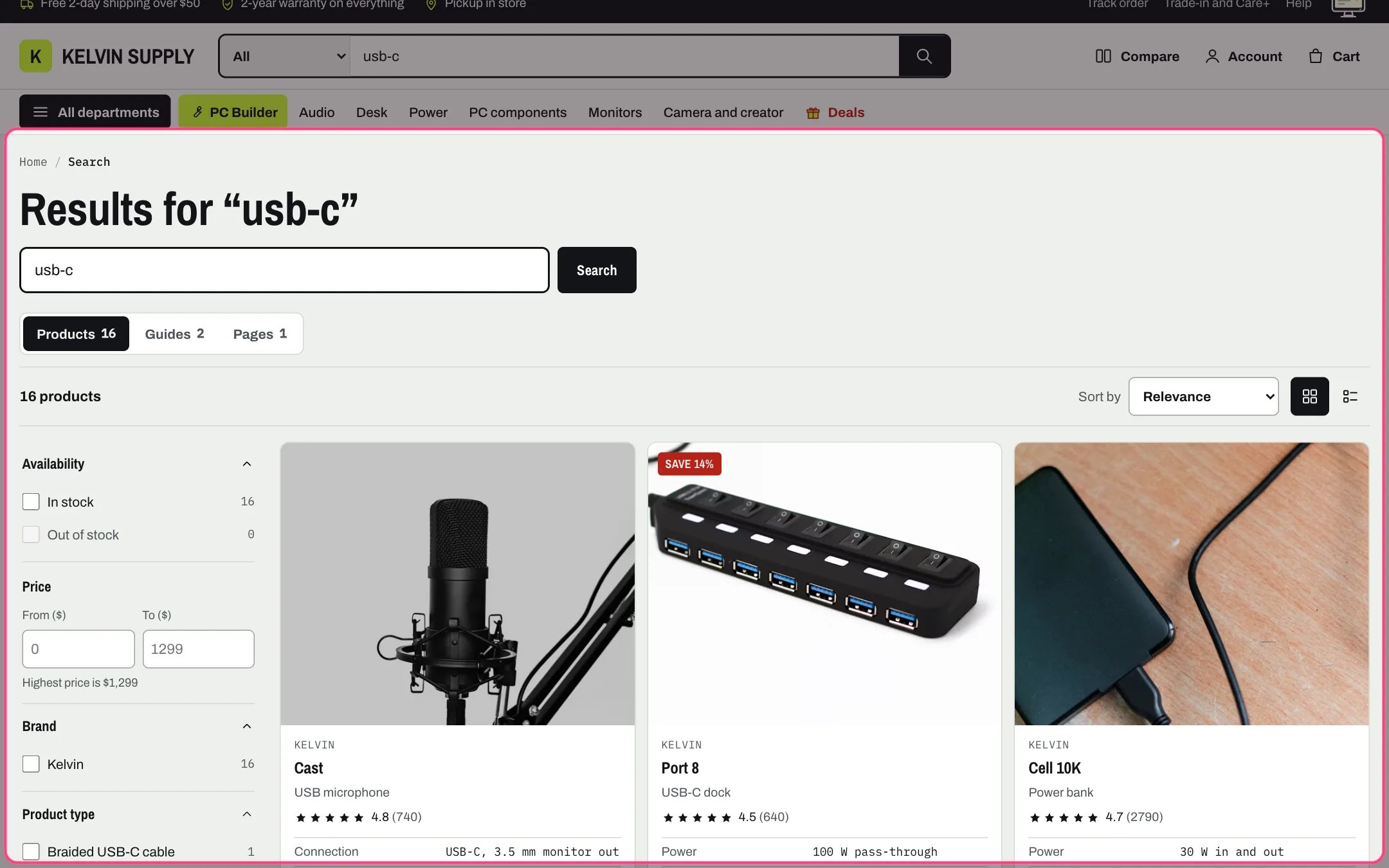
Search results, highlighted with the demo content
Where to find it
The search page (/search). In the theme editor choose Search in the page selector, then select Search results.How it works
- The heading reads Results for and the search terms, above a search box. A search from that box looks in the open result type, products by default.
- Tabs show Products, Guides (blog posts) and Pages with their counts. The open tab loads with the page; the others and their counts load in the background once the page is idle. Without scripts each tab is a plain link.
- The header search looks in products, guides and pages at once. The Products tab then shows the products among the results, and the count switches to the number of products once it is known.
- The Products tab uses the same toolbar, Search & Discovery filters, active filter chips, filter drawer, grid or list view and pagination as the collection page.
- Sort by offers Shopify’s search sorting: Relevance, Price, low to high, and Price, high to low.
- Guides show as article cards, three across on desktop, two at 1100 px and narrower and one on phones. Pages show as rows with the title and the first 24 words.
- Before a search the page asks What are you looking for?; when nothing matches it says No results for and the terms. Both offer department chips (the Menu under No results, or the first eight collections that have products) and a finder link when Finder link or the PC Builder page is set.
- When filters leave no products, it says No products match these filters with Clear all filters.
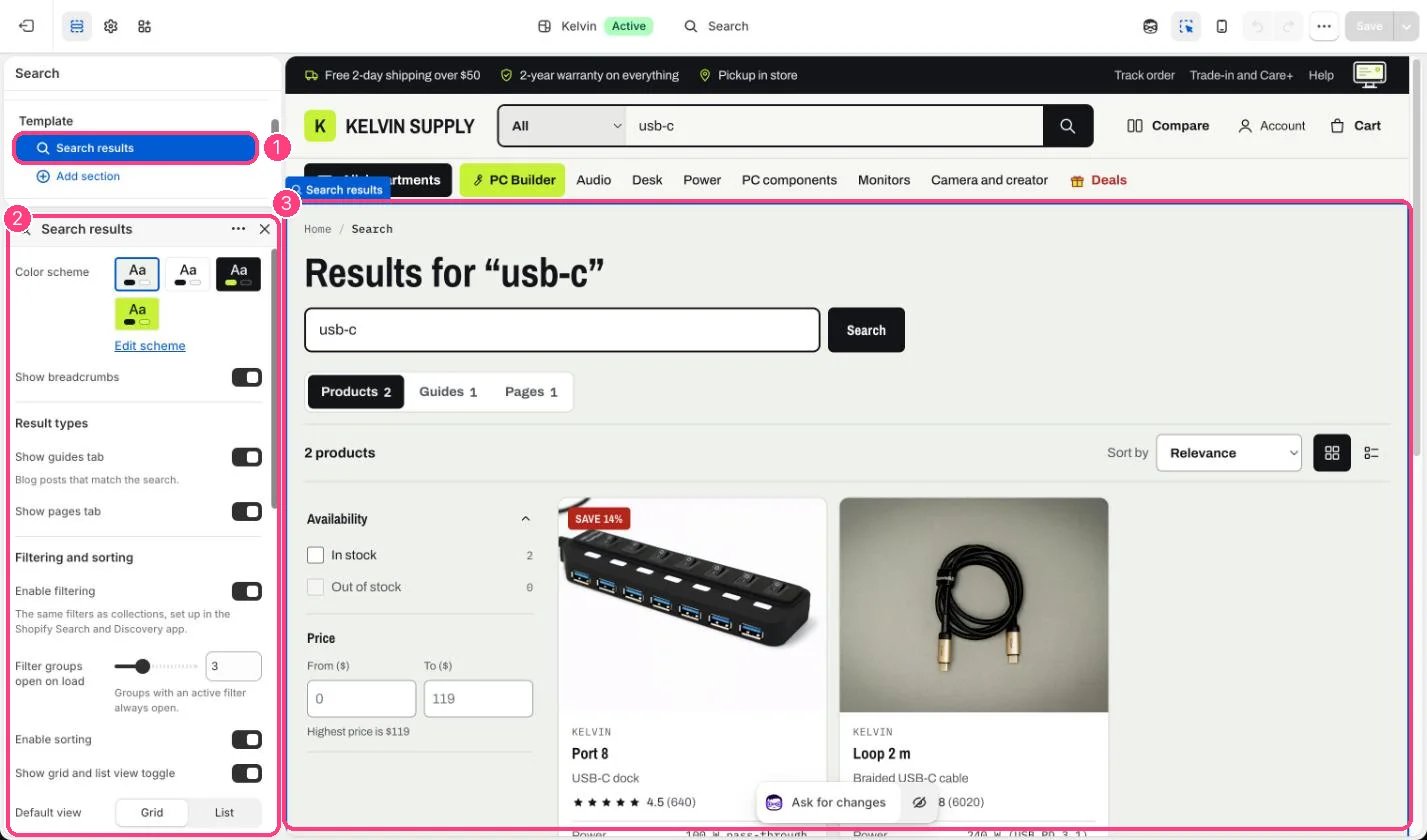
In the theme editor: 1 the section in the sidebar · 2 its settings · 3 the section in the preview
Edit it
- Turn the Guides and Pages tabs on or off with Show guides tab and Show pages tab.
- Set Enable filtering, Filter groups open on load, Enable sorting, Show grid and list view toggle, Default view, Results per page, Columns on desktop and Pagination as on the collection page. The filters are the same ones you set up in Search & Discovery: see Filters with Search & Discovery.
- Under No results, set Departments heading and choose a Menu for the links under it, for example the menu of your main collections.
- Set Finder link to the page with your compatibility finder, with a Finder link label (Use the finder to check what fits on install). Leave Finder link blank to link to the PC Builder page chosen in Theme settings, PC Builder; the button then reads Building a PC? Start in the PC Builder and Finder link label is not used.
- The header search box, its suggestions and its department choice are set in Theme settings, Search: see Search suggestions.
Settings
Result types
Filtering and sorting
Results
No results
On install the Menu under No results is empty, so the no-results state lists the first eight collections that have products. Finder link and the PC Builder page in Theme settings, PC Builder are empty too, so the finder link stays hidden until you set one.Results per page counts every result type when a search covers products, guides and pages together.Filters, sorting and the grid or list view apply to products only; the Guides and Pages tabs have none.