
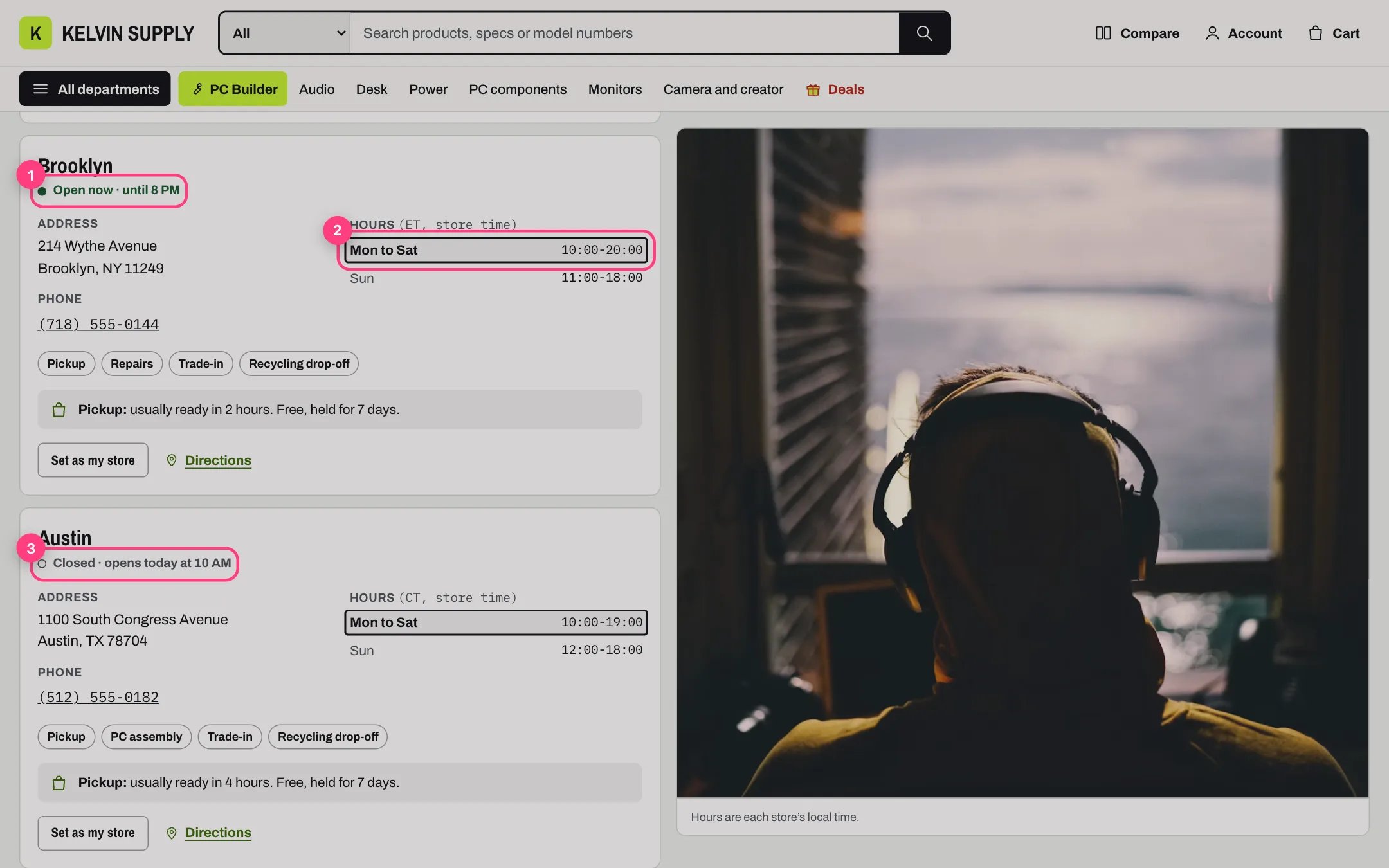
On the demo on a Monday morning: one store open now, one opening today, one opening tomorrow
1
Create the stores page
In Online Store → Pages, click Add page, give it a title such as Stores and pickup, choose stores under Theme template and save. Add the page to a menu in Online Store → Navigation, such as the footer.
2
Add a block per store
In the theme editor choose Pages, then stores, and select Stores. Replace the two sample stores, then click Add block and choose Store for each other location (up to 20). Fill in Name, Address (one line per row), Phone, Photo, Services and Pickup note.
3
Type the opening hours
Under Opening hours, fill in Monday to Sunday. Leave a day blank when the store is closed. The formats that work are in the table below.
4
Set the time zone
Type the store’s Time zone, such as America/New_York, and a short Time zone label, such as ET. The label shows next to the hours as ET, store time.
5
Check the open lines
Open the page and look at each card’s line. To see what shoppers see at another time, add ?now= and a time in UTC to the page address, such as /pages/stores?now=2026-10-19T23:30:00Z.
Opening hours formats
Each weekday is its own field. Kelvin reads the first two times in it as opening and closing time; anything else in the field is shown but ignored.
The hours list on the card shows your text exactly as typed, and joins days in a row that have the same text, such as Mon to Sat. Type the same hours the same way on every day (always
10:00-19:00, never 10-7 on one day) so they join. Days are joined in the order Monday to Sunday.
Time zones
- A time zone name, such as America/New_York, America/Chicago or Europe/London, follows daylight saving time. Use this.
- An offset from UTC, such as -05:00 or UTC-5, never changes. Update it when the clocks change, or the open lines are an hour off for half the year.
- A name Kelvin cannot read falls back to the shopper’s own clock, so check the spelling, such as America/Los_Angeles with an underscore.
What shoppers see
- Open now · until 8 PM while the store is open.
- Open, closes soon · until 8 PM in the last hour before closing.
- Closed · opens today at 10 AM before opening, Closed · opens tomorrow at 11 AM, or Closed · opens Wednesday at 11 AM for a later day.
- No line at all when none of the store’s days can be read.
Pickup, services and links
- Pickup note shows on the card after Pickup:, and in the Pickup row of the services table. It is formatted text, so it can hold a link, such as to your pickup questions at /pages/faq?cat=pickup.
- Keep it in line with Settings → Shipping and delivery → Local pickup. The pickup line on product pages and pickup at checkout come from your Shopify locations with local pickup turned on, not from these blocks.
- Services become filter chips when only some stores offer them, and rows in the services table. Spell them the same way at every store.
- Directions opens a map search for the address in a new tab. Paste your own map link in Directions link to use it instead.
- Search words are extra words the search should match, such as a neighborhood, state or ZIP code.
- On install the stores template also has a Numbered steps section with the Link id pickup, so /pages/stores#pickup jumps to How pickup works.
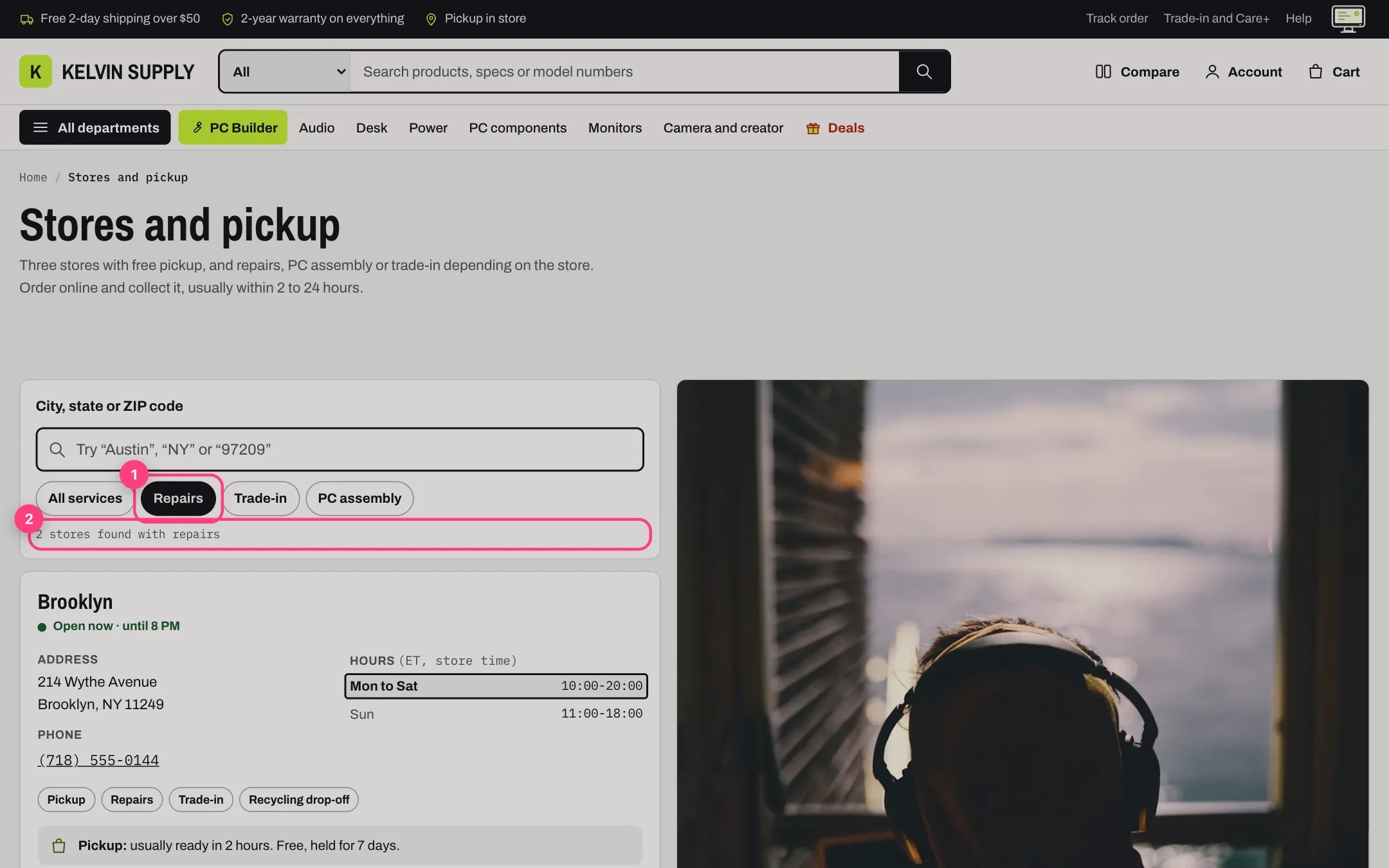
Choosing a service filter keeps the stores that offer it
What it does not do
- It does not load a map service or ask for the shopper’s location; Photo or map image is a plain picture.
- It does not sort stores by distance or show stock per store.
- Set as my store only marks that store on this page, saved on the shopper’s device. It does not change pickup at checkout.
- It does not read your Shopify locations: add, close or move a store in the theme editor too.
In the theme editor
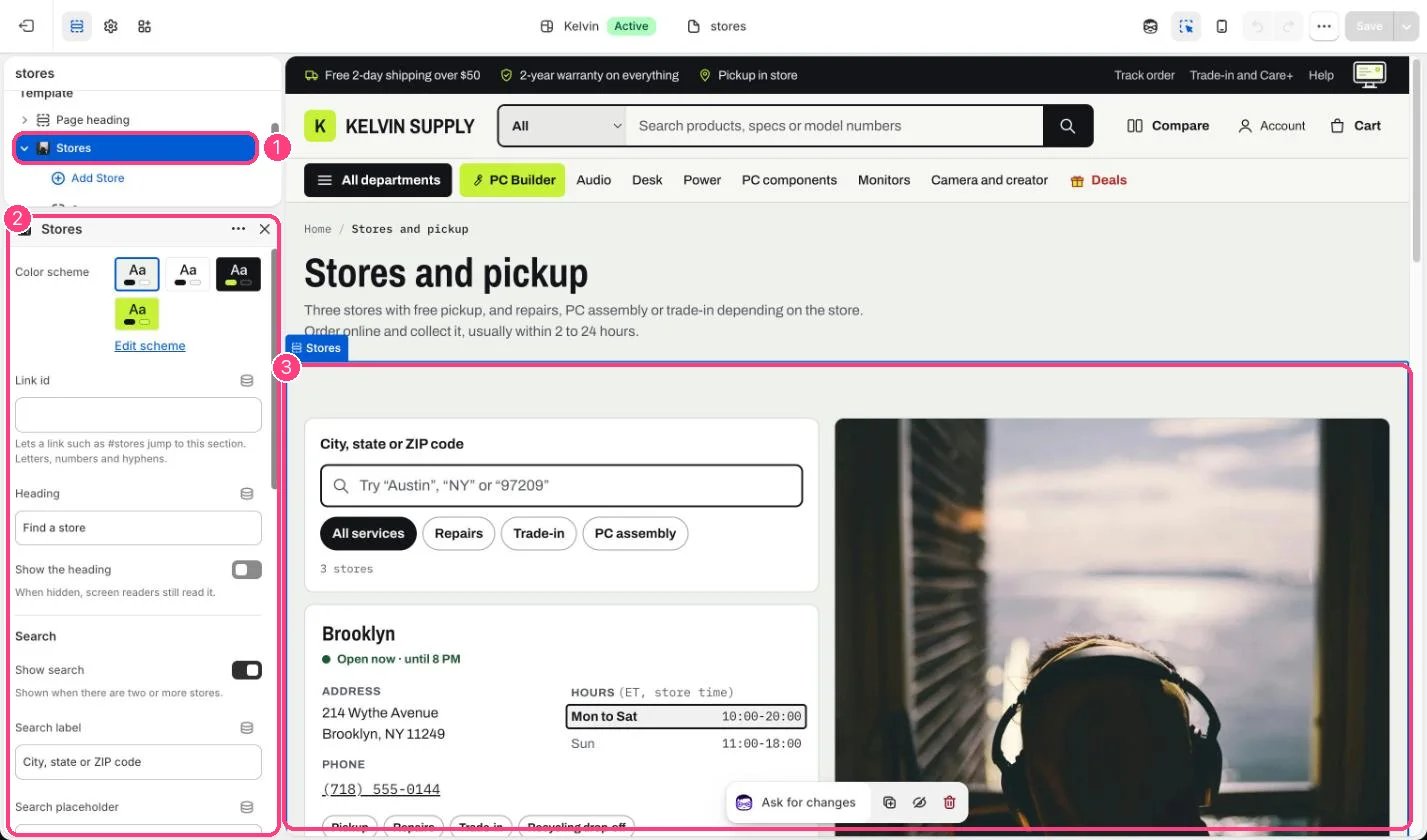
1 Stores; each store, with its hours and time zone, is a block · 2 its settings · 3 the preview