
The Pickup availability block in the product page’s buy box shows whether the chosen variant can be picked up, using your Shopify locations that offer local pickup. A drawer lists every pickup location with its stock, address and phone number. 1. Add your stores as locations. In Settings → Locations, add each store with its full address and phone number. The drawer shows that address and phone. 2. Turn on local pickup. In Settings → Shipping and delivery, open the local pickup settings (Pickup in store), choose each store location and turn on local pickup for it. Set the expected pickup time, for example Usually ready in 2 hours: Kelvin shows that text. 3. Keep stock at each store. A location shows In stock when it has the chosen variant in stock. 4. Check the block. The default product template has Pickup availability in the buy box on install; it has no settings. It prints nothing until at least one location offers local pickup, and never shows on gift cards. What shoppers see.
  • A line with a pin icon: Pickup available at the first pickup location that has the variant in stock, followed by its pickup time, or Pickup is not available at a store right now when none has it.
  • A button: Check availability at other stores when you have more than one pickup location, or Store address and pickup details when you have one.
  • The drawer: Pickup for the product, the chosen variant, and each pickup location with In stock and its pickup time, or Not in stock here, plus its address and a phone link.
  • Everything updates when the shopper picks another option.
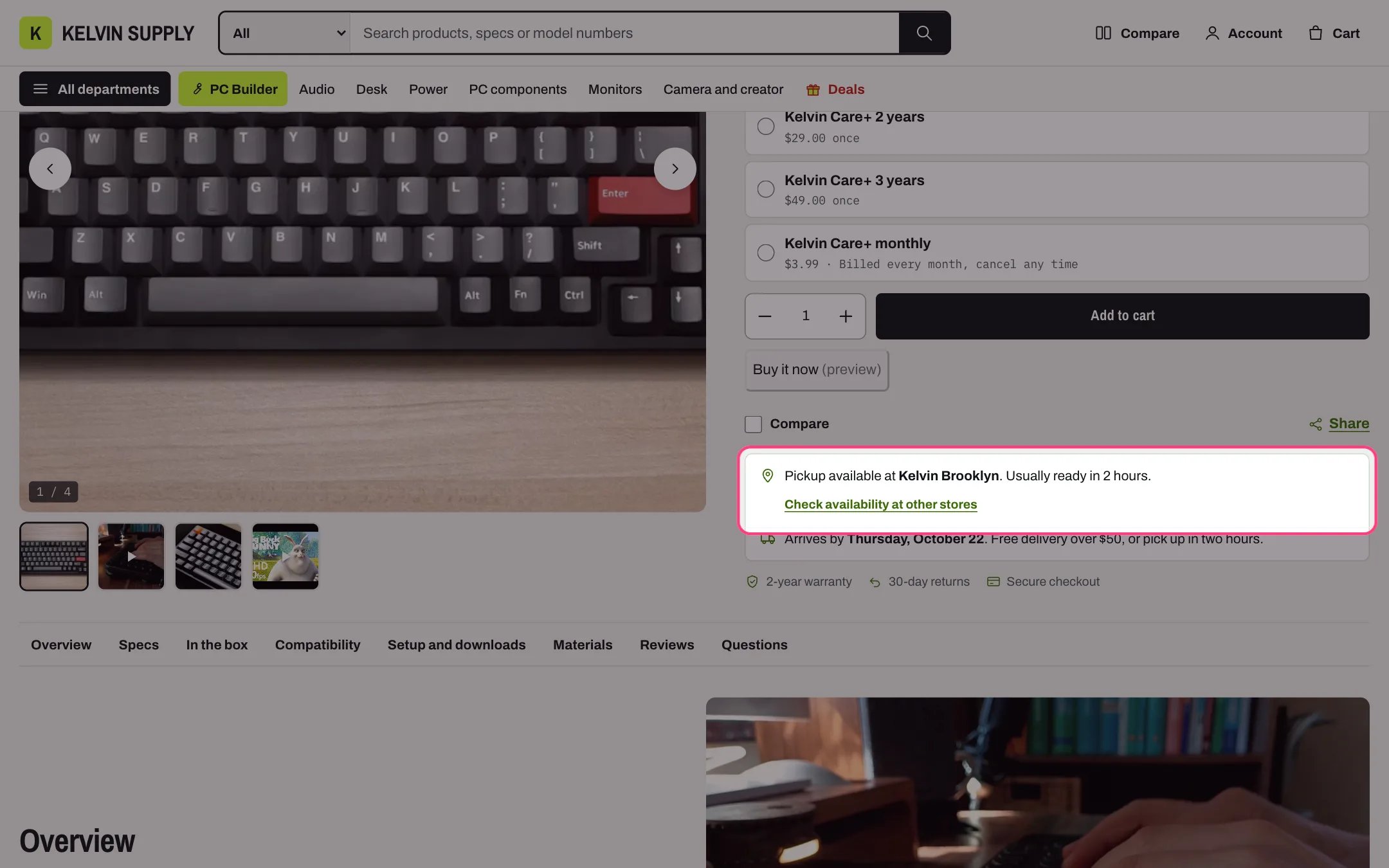
Pickup availability in the buy box

The pickup line and the button that opens the drawer
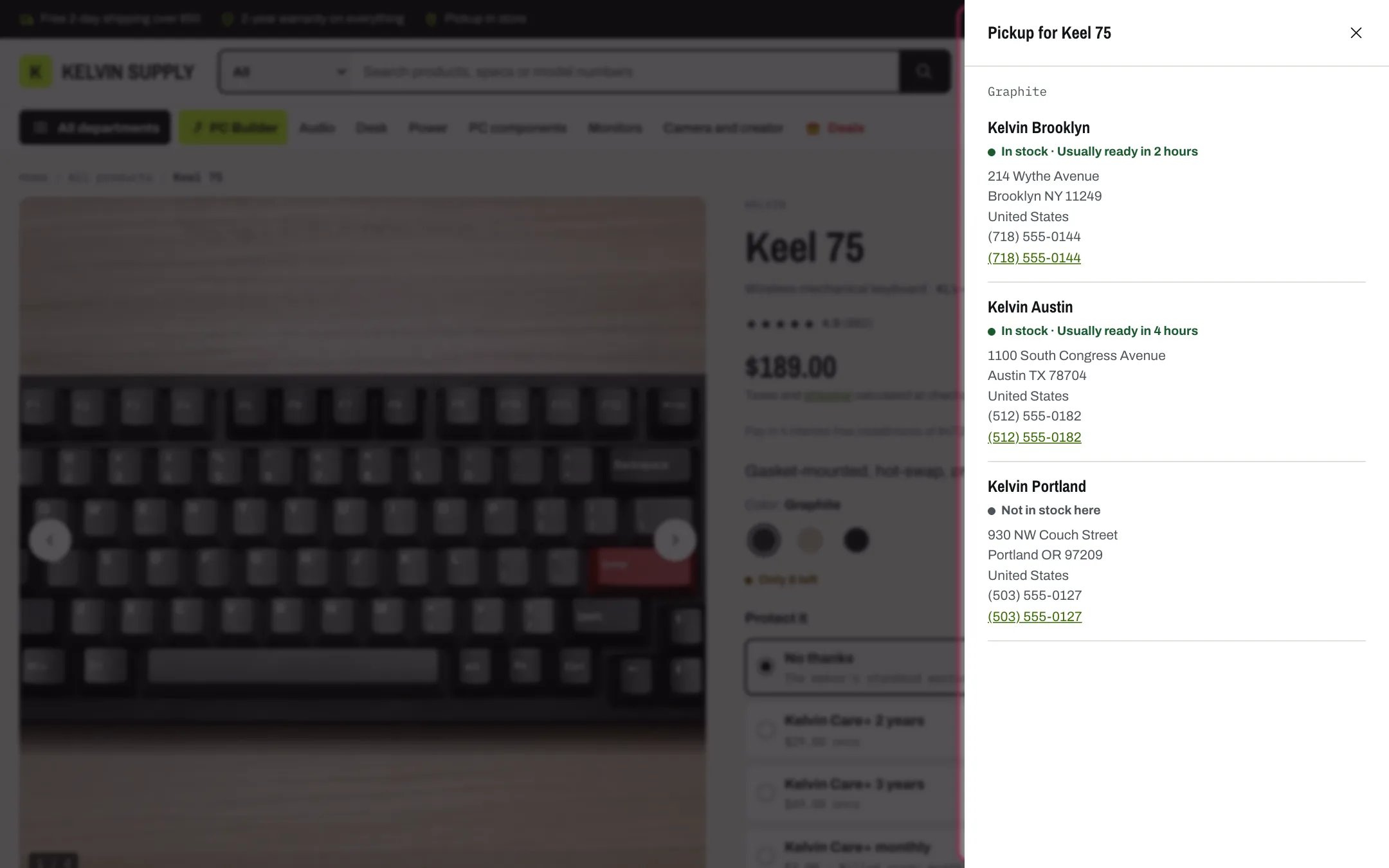
The pickup drawer

Every pickup location with its stock, address and phone

Shoppers choose pickup and the store at checkout, which Shopify handles. Kelvin does not reserve stock: the line shows Shopify’s stock when the page loads or the option changes. Delivery estimate next to it. Placed right after Pickup availability, the Delivery estimate block joins the same box. See Product information. The Stores page. Create a page, for example Stores, and choose the template page.stores (Pages → stores in the theme editor). On install it has a page heading, the Stores section (one Store block per store, where you add its address, phone, photo, services, a pickup note and opening hours for each weekday; the section adds search, service filters, open or closed now, and a services table) and How pickup works steps. The home page’s Stores band shows a short version. See Stores and opening hours to set them up.
The Stores page and the Stores band do not read your Shopify locations: you type your stores in the theme editor. When you open, move or close a store, update both the location in Settings and its Store block.

In the theme editor
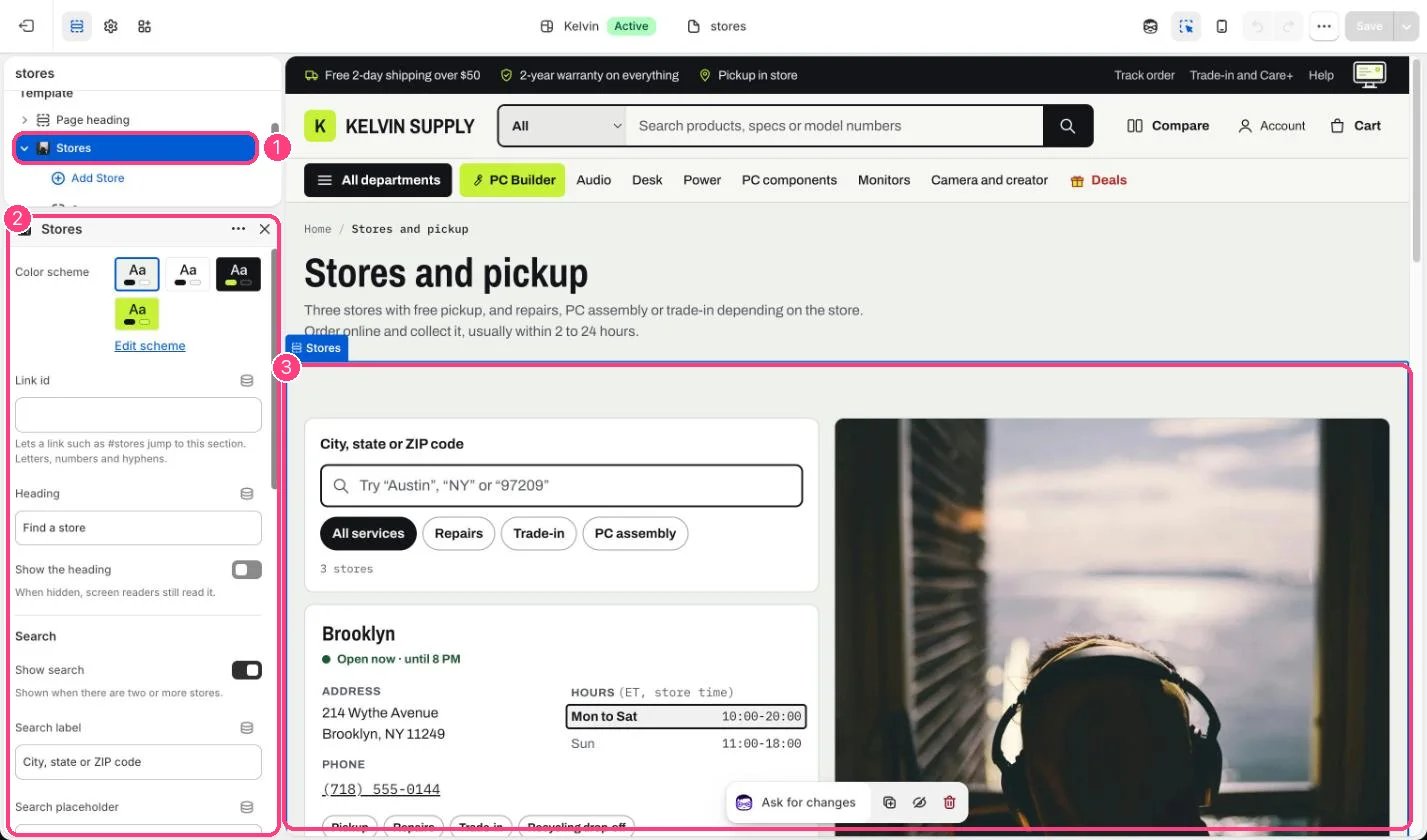
Stores in the theme editor

The Stores page: 1 Stores; each store is a block · 2 its settings · 3 the preview