
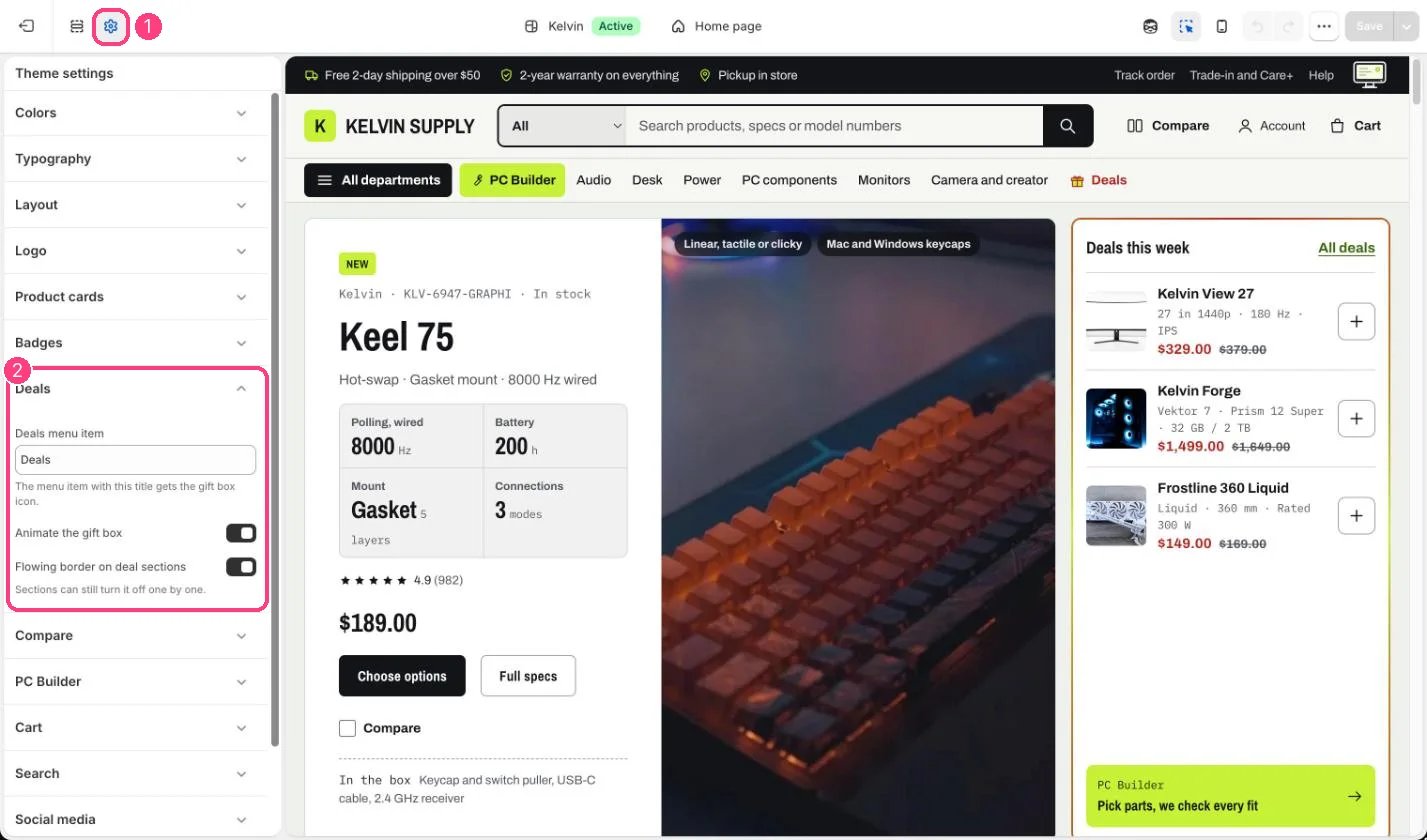
1 Theme settings (the gear icon) · 2 Deals, opened in the sidebar
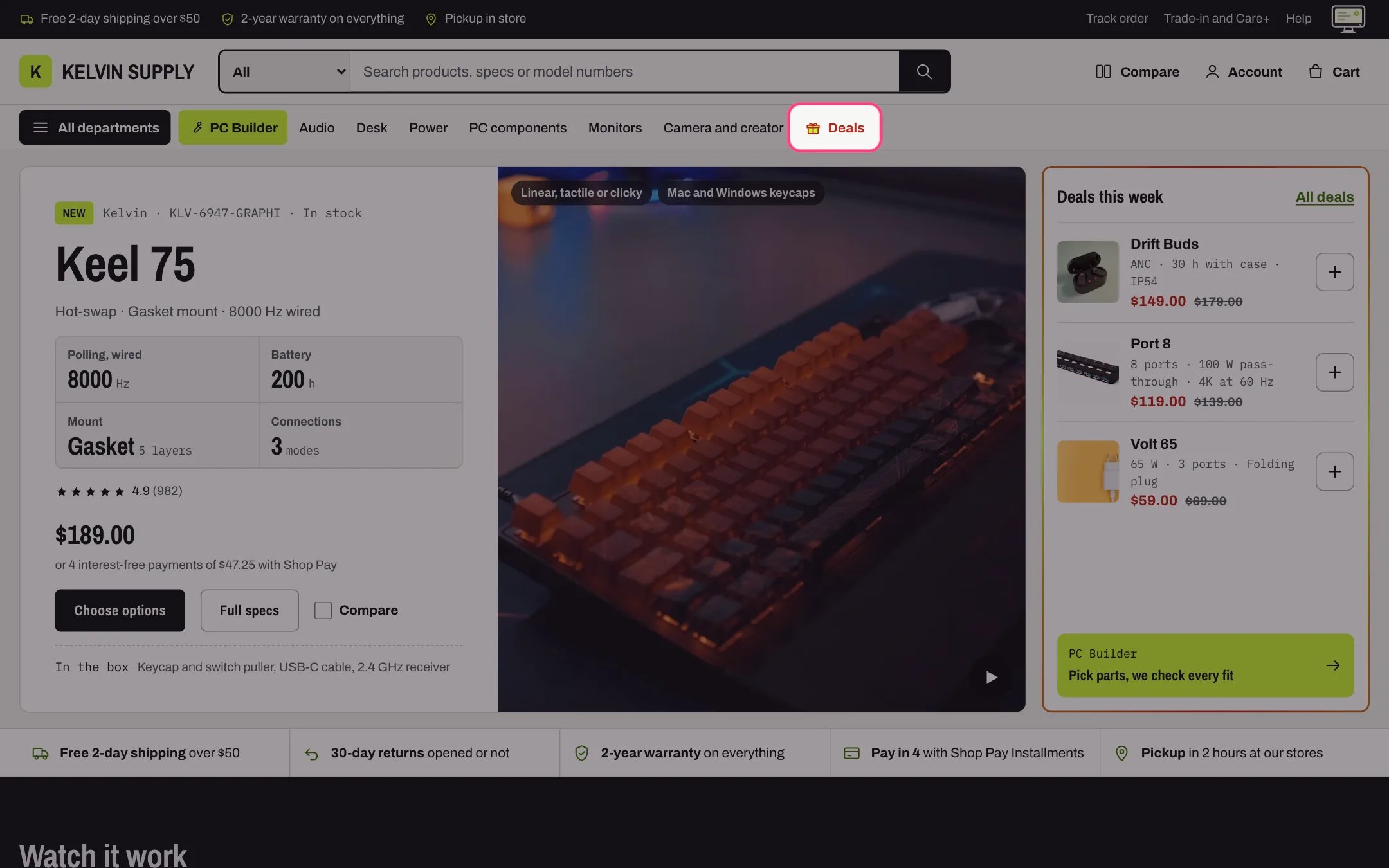
The Deals menu item with its gift box
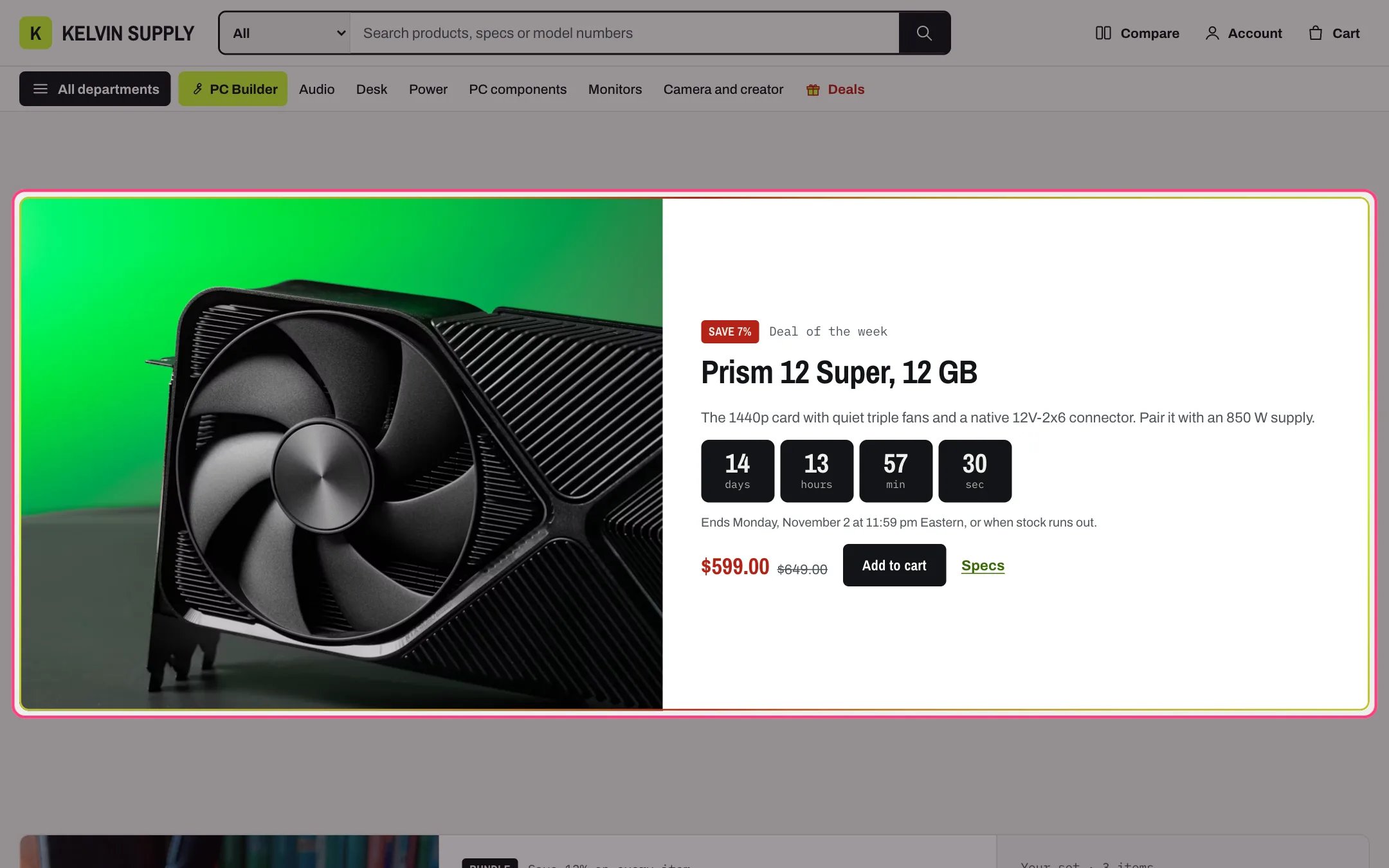
The flowing border on a deal section
How it works
- The header link whose title matches Deals menu item (default Deals) gets a gift box before its title. Capitals and spaces at either end do not matter.
- The gift box shows on that link in the quick links row, where the link is also drawn in the sale color, and in the phone menu when it is a top-level item without child links.
- With Animate the gift box on, the lid lifts three times (about 4 seconds) the first time the link comes into view, and again when a shopper points at it or tabs to it.
- Flowing border on deal sections moves the sale-red and lime ring around deal boxes (the Hero’s deals rail, the Deal countdown and Collection promo tiles marked as a deal) when they come into view and while they are hovered or focused. Off, every ring stays in place but still.
- Nothing moves for shoppers who ask their device to reduce motion. See Deal highlights.
Edit it
- If your deals item has another title, such as Offers, type that title in Deals menu item.
- To stop one section’s border, untick its own Animate the deal border setting: that ring then stays still on scroll, hover and focus alike. Untick Flowing border on deal sections to stop them all.
- The shine on sale badges is set in Theme settings → Badges, Animate sale badges.