
1
Create the page
In Online Store → Pages, click Add page, give it a title (and, for most templates, leave the content empty: the sections fill the page).
2
Pick the template
Under Theme template on the right, choose the template from the table below, then Save.
3
Edit it in the theme editor
In the theme editor, open the page selector, choose Pages, then the template (for example pc-builder). Changes apply to every page that uses that template.
4
Connect it where needed
Some pages must also be chosen in Theme settings, so other parts of the theme can link to them (see the table).
Other templates
- Products:
productfor every product, andproduct.gift-cardfor gift cards (its buy buttons include the recipient form). Choose the gift card template on your gift card product under Theme template. - Collections:
collectionfor every collection page,list-collectionsfor/collections. - Blog:
blogandarticle. See Blog and Article. - Search, cart, 404 and password: one template each. See Search results, Cart, Page not found and Password page.
- Gift card: the page shoppers get with their gift card code is Shopify’s
gift_cardtemplate, styled by Kelvin. A gift card sent to a recipient on a chosen date shows that date (Sent on).
Add the pages to your menus
Link the new pages from your menus in Online Store → Navigation, for example PC Builder and Compare in the main menu or the utility bar, and Care+, Stores and Help in the footer. See Menus and the mega menu.In the theme editor
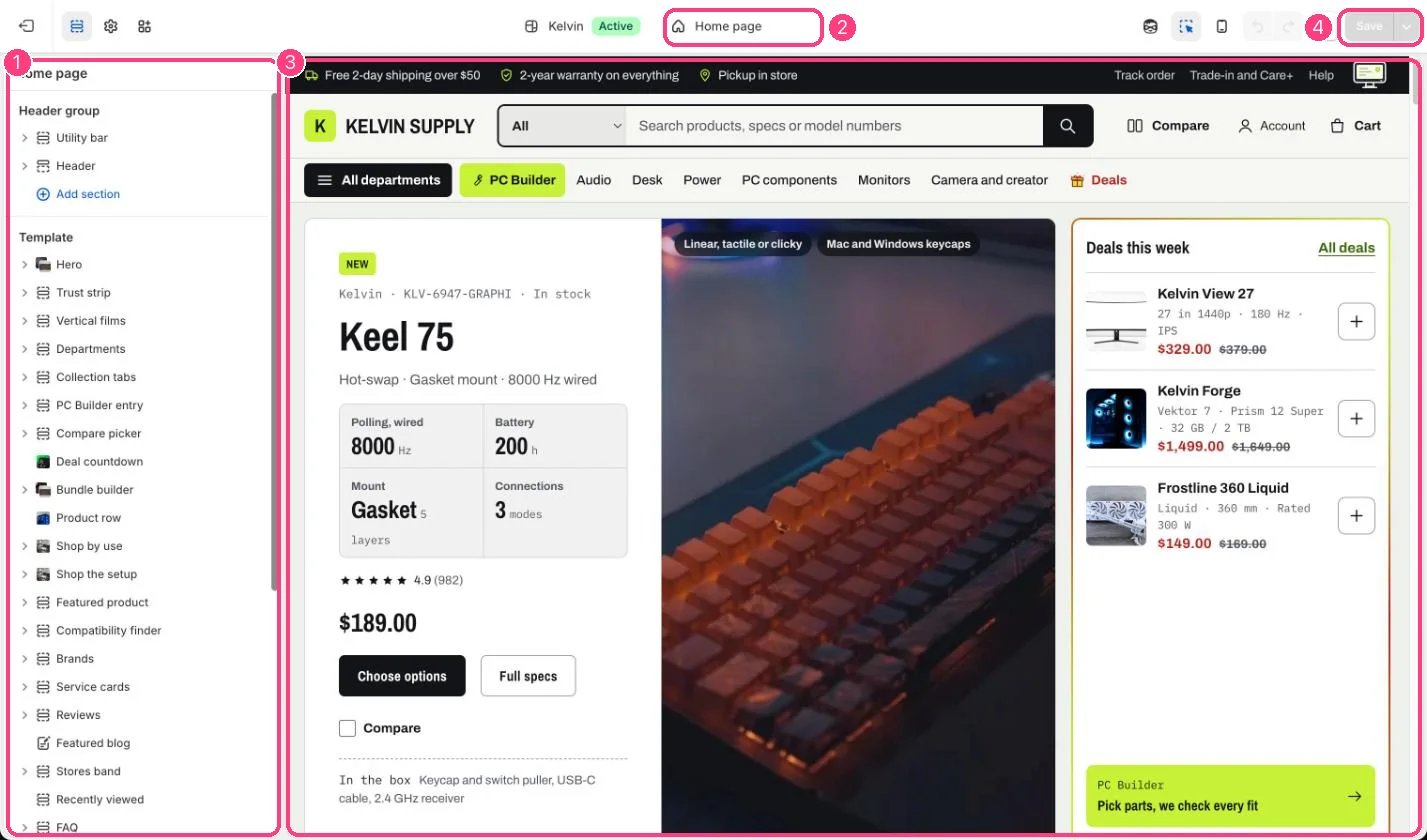
The theme editor: 1 the sections of the open template · 2 the page selector, which opens each template, such as Pages → pc-builder · 3 the preview · 4 Save