
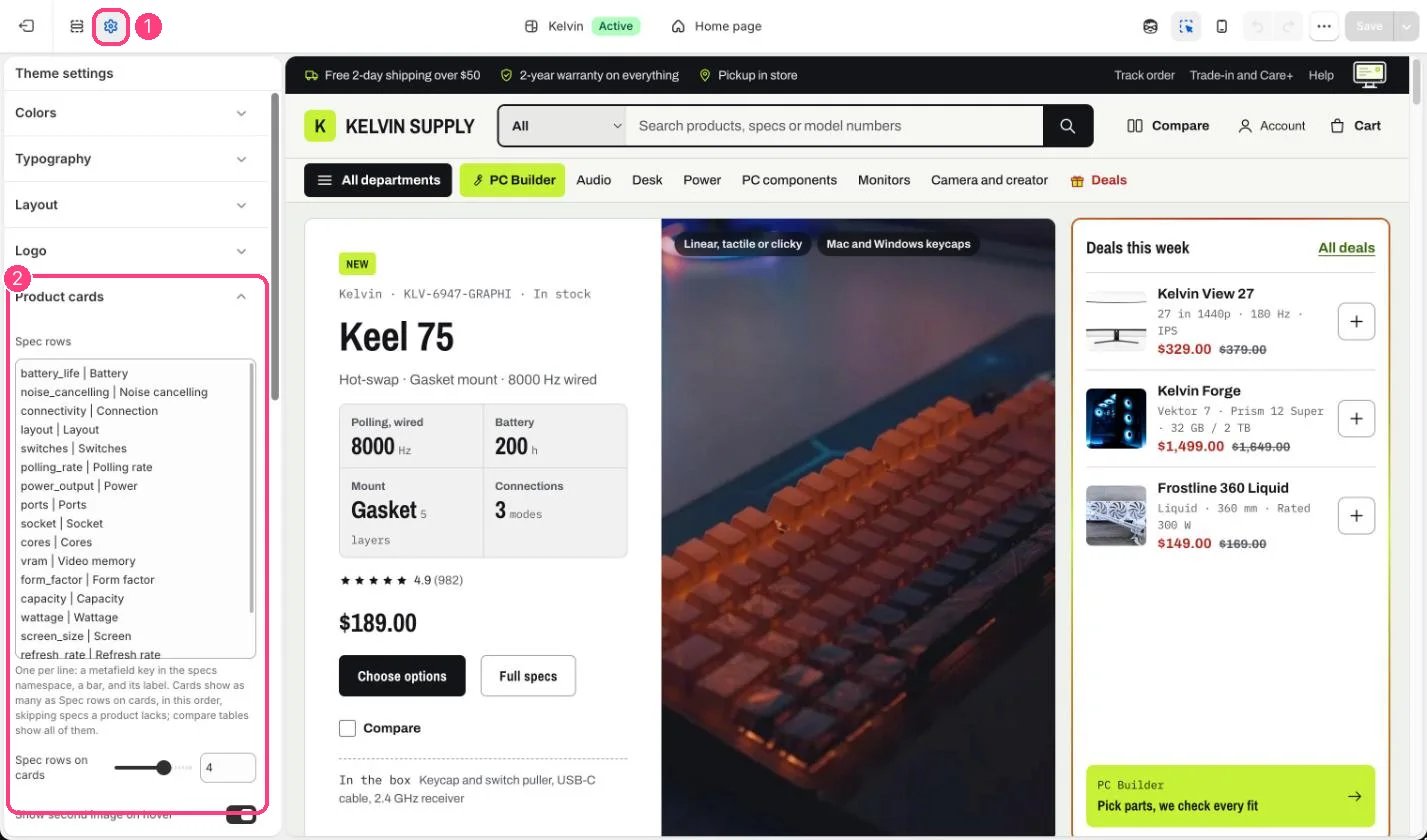
1 Theme settings (the gear icon) · 2 Product cards, opened in the sidebar
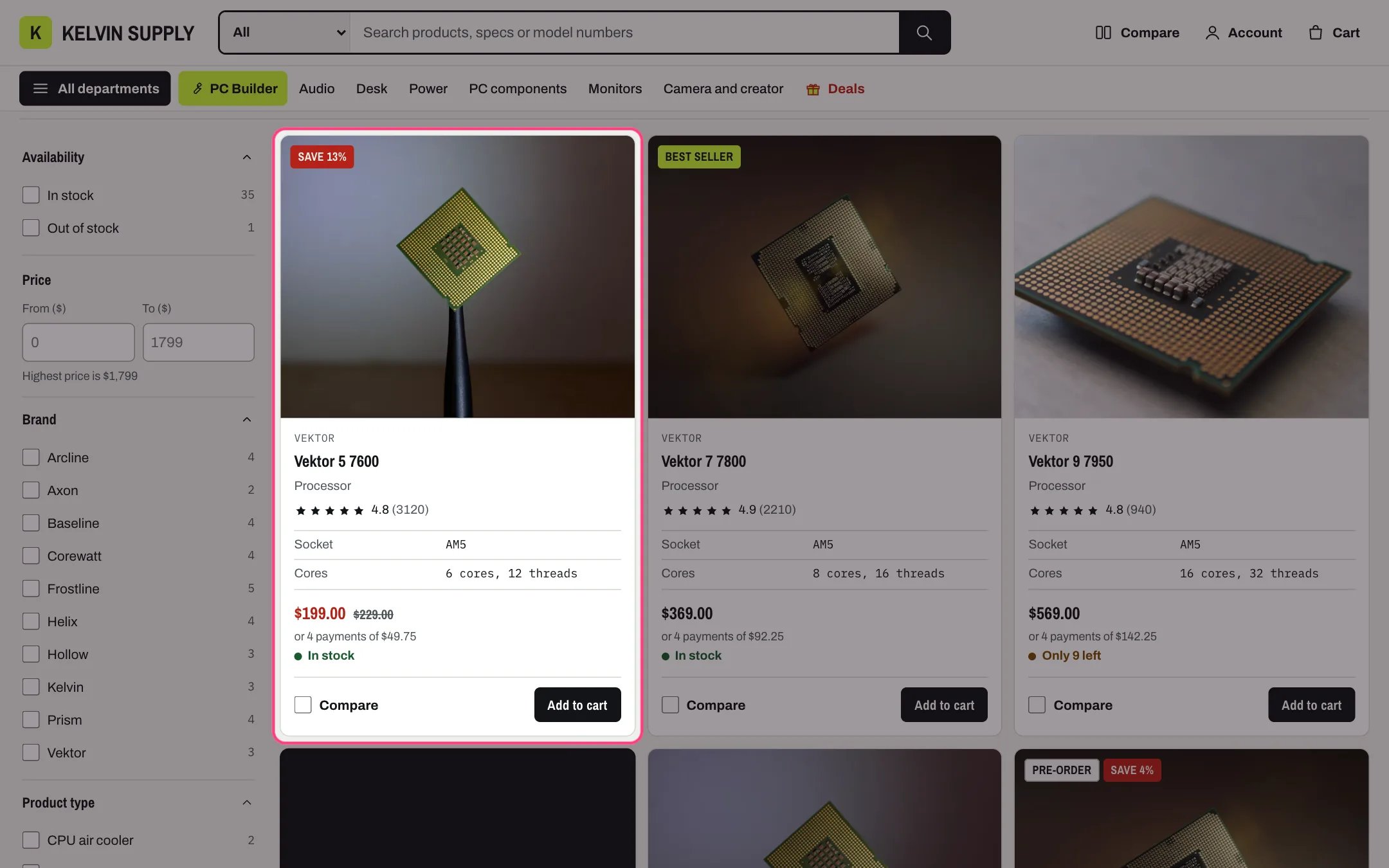
A product card with spec rows, rating, price, stock, color dots and the Compare box
How it works
- Spec rows lists the spec metafields Kelvin shows, one
key | Labelper line, with keys from thespecsnamespace. Product cards, the product page’s specs, quick view, compare tables and the PC Builder all read this one list. See Spec rows. - Spec rows on cards sets how many rows a card shows, 0 to 6 (4 on install): the first specs of the list that the product has. Under 750 px cards show the first two. 0 hides them.
- Show second image on hover fades to the product’s second image while a mouse pointer is over the card.
- Quick view adds an eye button on the photo that opens the product in a dialog.
- Quick add button adds a single-variant product straight to the cart. It reads Pre-order for pre-orders and Sold out, disabled, when nothing can be bought. Products with options get Choose options, which opens quick view, or the product page when Quick view is off.
- Compare checkbox adds a Compare box that puts the product on the shopper’s compare list. It shows only once a Compare page is chosen in Theme settings → Compare.
- Show vendor prints the vendor above the title. Show rating shows stars only when a reviews app writes the
reviews.ratingandreviews.rating_countmetafields; without them nothing shows. - Products with variant prices that differ sets the price of a product whose variants cost different amounts. Show the lowest and highest price, the setting on install, prints both with a dash between them; Show From and the lowest price prints From and the lowest price. It applies to product cards, the hero, the deal countdown, Shop the setup and Vertical films. The product page, Featured product and quick view show the selected variant’s price.
- Show the Pay in 4 line is off on install. On, it prints or 4 payments of, with the price divided by four, under the price, but only when Shop Pay is one of your payment methods and the price reaches Pay in 4 minimum price (50 on install, in your store currency). It is hidden on phones and on sold-out products. The hero product, the PC Builder total and the cart’s Shop Pay line use the same rule. Shoppers who browse in another currency never see these lines, since the minimum is not converted. Shopify decides real eligibility at checkout.
- Show color swatches shows up to six dots for the first option whose values have Shopify swatches, or else an option named Color or Colour, when it has two or more values. Each dot shows the value’s swatch image or swatch color from Shopify, or the value’s name read as a color.
- Show low stock at or below prints Only 3 left (for example) when a variant tracked by Shopify has that many or fewer in stock, and In stock otherwise. The same number drives the product page’s stock line. 0 removes Only N left everywhere and In stock from cards; Sold out and Pre-order still show.
Edit it
- Fill Spec rows first on a tech store: it is what makes cards and compare tables useful. Put the spec that matters most for each kind of product first.
- Turn on Show the Pay in 4 line only when Shop Pay Installments is active on your store, and set Pay in 4 minimum price to the minimum Shop Pay Installments sets for your market.
- Give your option values swatches in Shopify, a color or an image, so the dots show the real finish. Without them, only values that are plain color names, such as Black or White, get a color.
- A lower Show low stock at or below, such as 3 or 5, keeps Only N left for items that are really running out. The line always uses your real inventory.
- Untick Quick view, Quick add button or Compare checkbox if your products need the full product page to choose.