
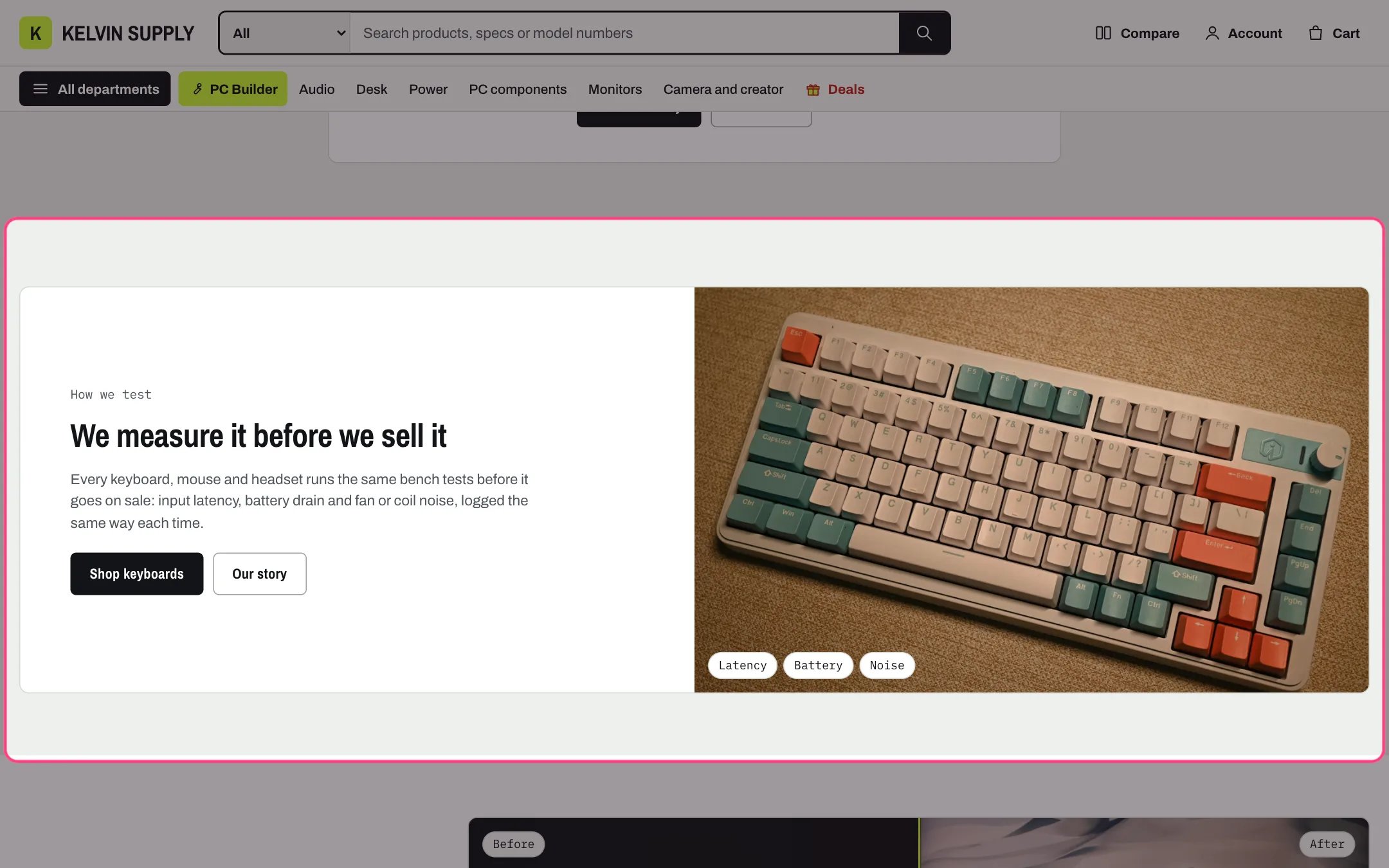
Image with text, highlighted with the demo content
Where to find it
Not on any page when the theme is installed. In the theme editor open any page, click Add section and choose Image with text.How it works
- One panel split in two: the text on one side and the Image filling the other. The photo is cropped to fill its half and is at least 420 px tall on desktop.
- Image position puts the photo After the text or Before the text. Under 900 px the photo always comes first, in a 16 to 10 shape.
- Tags on the image show as small labels in the bottom corner of the photo.
- Each button shows only when both its label and its link are filled. The first is solid, the second outlined.
- Without an image, Shopify’s placeholder drawing shows.
- Screen readers read the image’s alt text, which you edit in Content → Files.
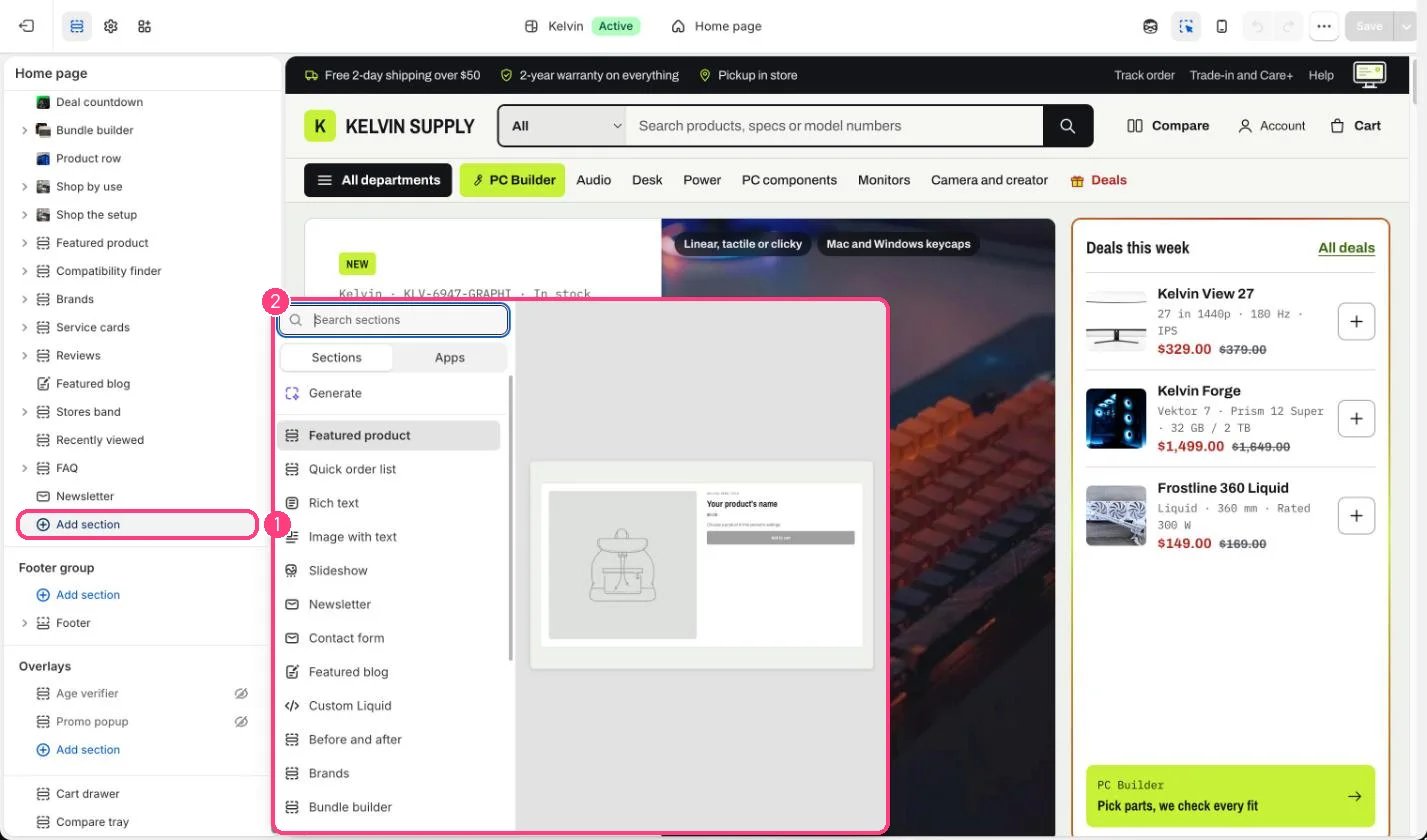
Not on the demo pages: add it with 1 Add section, then pick it in 2 the list
Edit it
- Upload an Image (1600 x 1200px recommended) and set its focal point so the crop keeps the subject in view, since the photo is cropped to fill its half.
- Type a few short Tags on the image, such as Battery, Noise, Thermals, or leave it empty.
- Edit Kicker, Heading and Text, then add a First button label and First button link.
- Choose Image position and a Color scheme.