
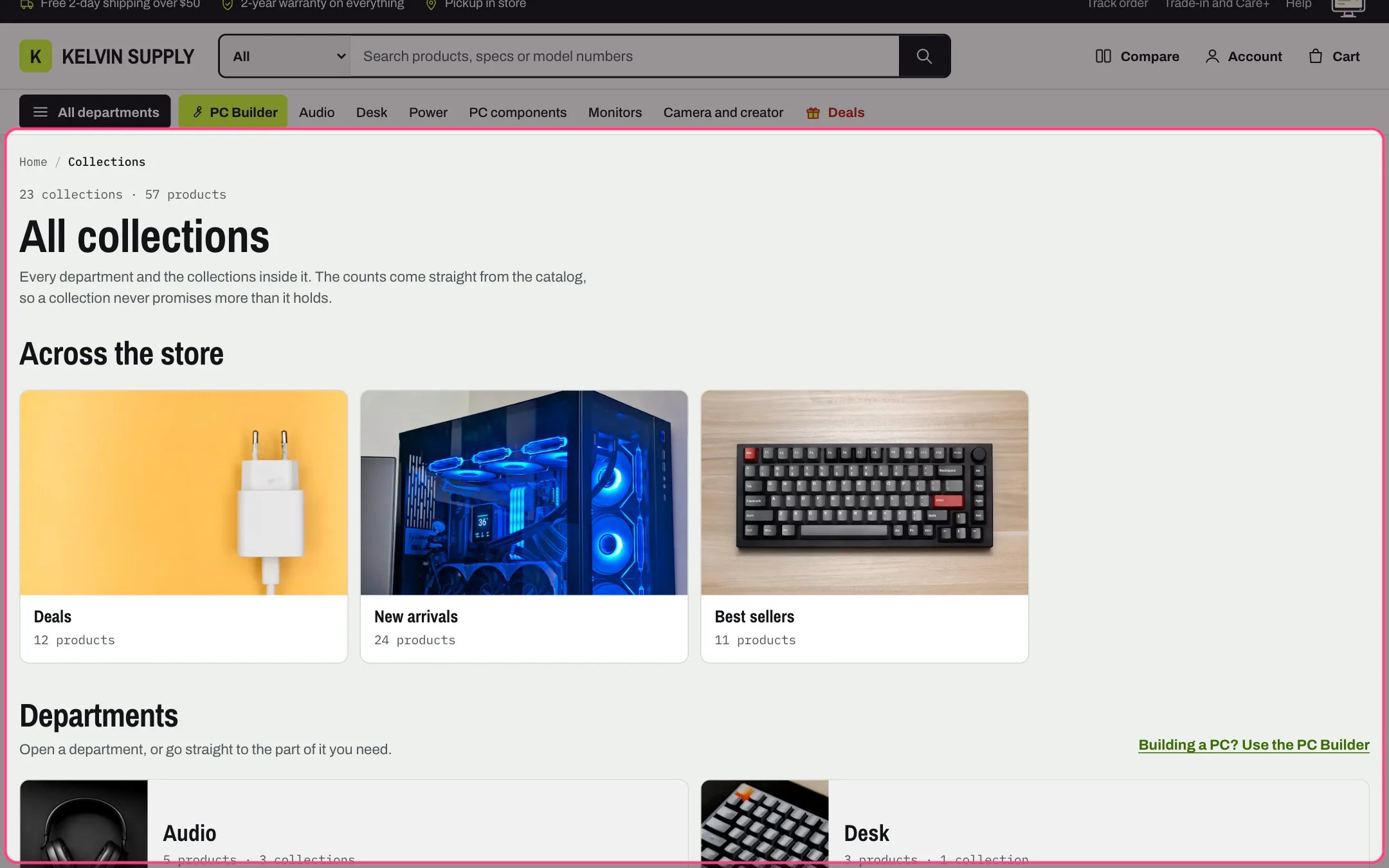
Collections list, highlighted with the demo content
Where to find it
The collections list page (/collections). In the theme editor choose Collections list in the page selector, then select Collections list.How it works
- The top shows breadcrumbs, a line with the number of collections and products in the store, the Heading and the Introduction.
- Across the store shows the Store-wide collections as tiles with an image, the name, the product count and, if turned on, the start of the description.
- With a Department menu, each top-level link that has links nested under it becomes a department panel: an image, the name, its product and collection counts, and a list of its collections with small images and product counts. Panels sit two across; a department with more than four collections takes a full row.
- Top-level links with nothing nested under them show as tiles below the panels, except collections already shown under Across the store.
- Without a Department menu, the page shows the chosen Collections as tiles, or every collection when none are chosen. The list of every collection shows Collections per page at a time, with page numbers under the tiles when there are more.
- Images are each collection’s image, or Shopify’s fallback such as the first product’s image. Counts and images need the menu links to point at collections.
- Brands A to Z lists every product vendor in the store, grouped by first letter (numbers under #), each linking to that brand’s products.
- Shop by use and budget shows the Use or budget blocks as tiles with an image, a short detail line and a title. Tiles are four across on desktop and two at 1000 px and narrower; on phones descriptions are hidden and department panels stack.
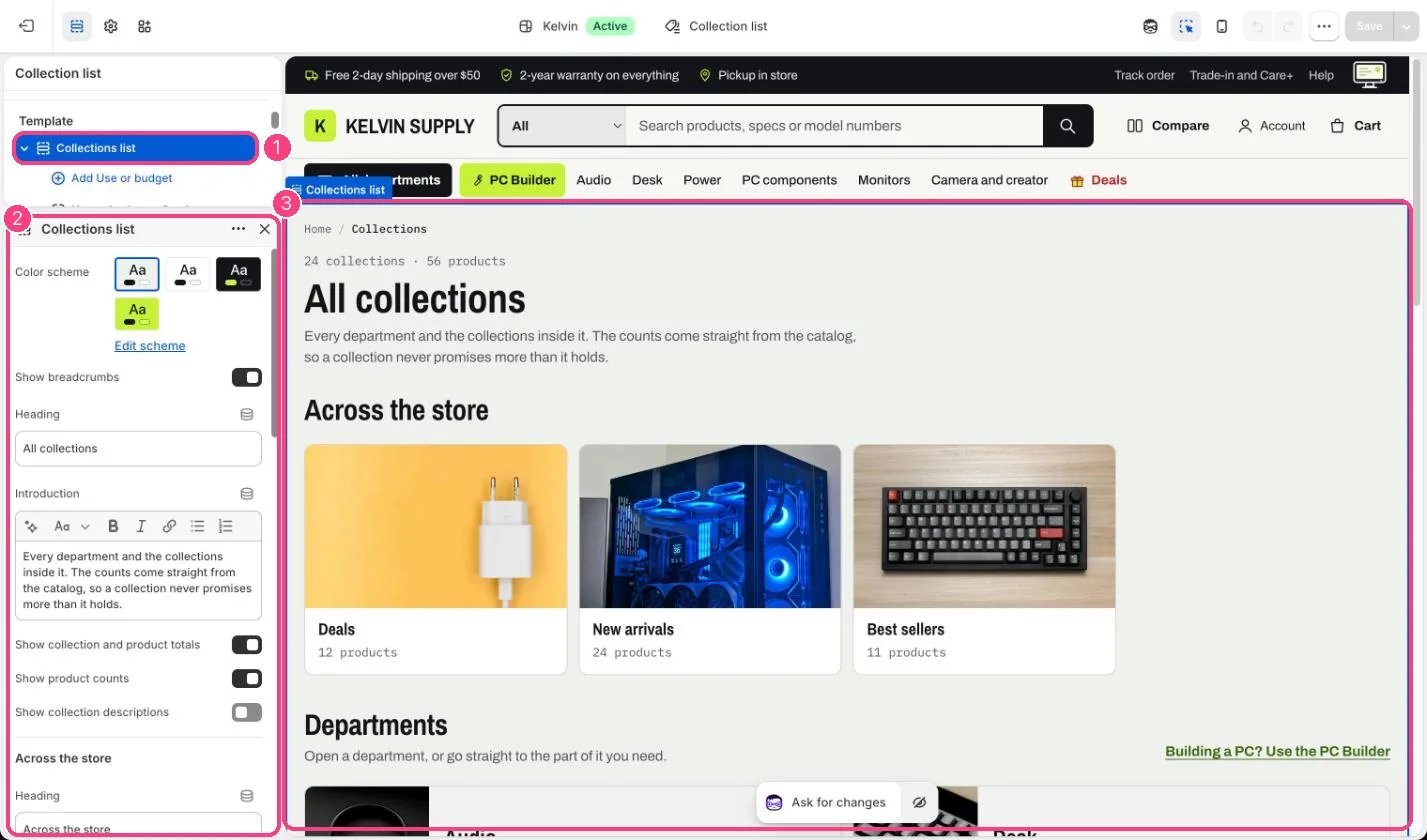
In the theme editor: 1 the section in the sidebar · 2 its settings · 3 the section in the preview
Edit it
- Build a department menu in Online Store, Navigation: top-level links for departments (linked to a collection such as PC components) with their collections nested under them. Choose it as Department menu.
- Pick up to eight Store-wide collections, such as deals, new arrivals and best sellers.
- When the page lists every collection, set Collections per page (8 to 48, 24 on install).
- Set Link and Link label to add a link beside the Departments heading, for example Plan a PC in the PC Builder.
- Keep vendor names consistent on your products: Show brands A to Z lists each spelling as its own brand.
- Add Use or budget blocks (up to 8) with a Heading, a Detail such as Under $1,000, a Link (a collection or a filtered collection address) and an Image in a 1.6:1 frame, at least 600 x 375 px, cropped around its focal point.
- Turn Show collection and product totals, Show product counts and Show collection descriptions on or off to suit your catalog.
Settings
Across the store
Departments
Brands
Use and budget
Blocks
Add a block with Add block under the section in the sidebar; drag blocks to reorder them.Use or budget (up to 8)
On install Department menu and Store-wide collections are empty, so every collection shows as a tile, 24 to a page; Brands A to Z is on; there are no Use or budget blocks, so that row is hidden.