
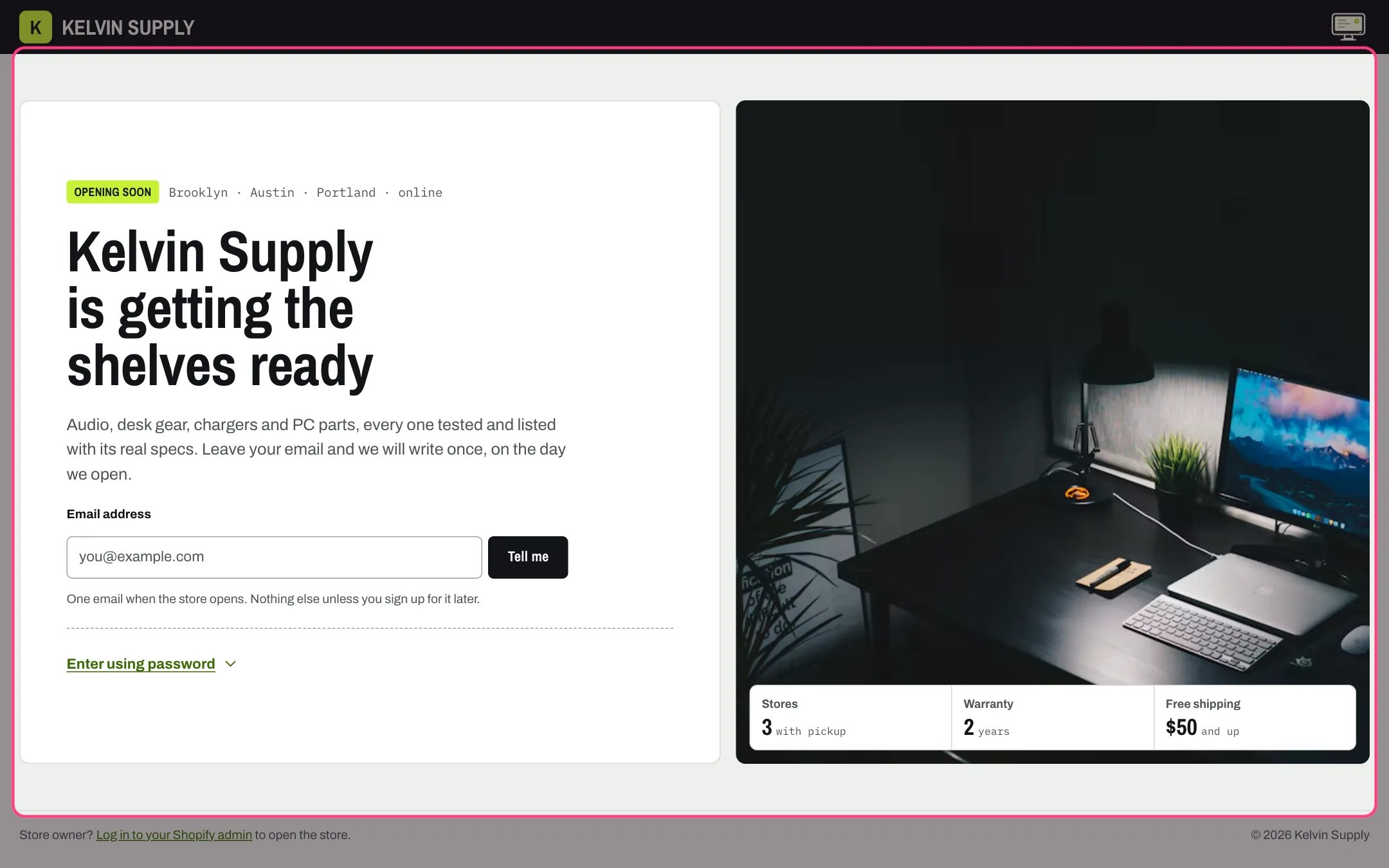
Password page, highlighted with the demo content
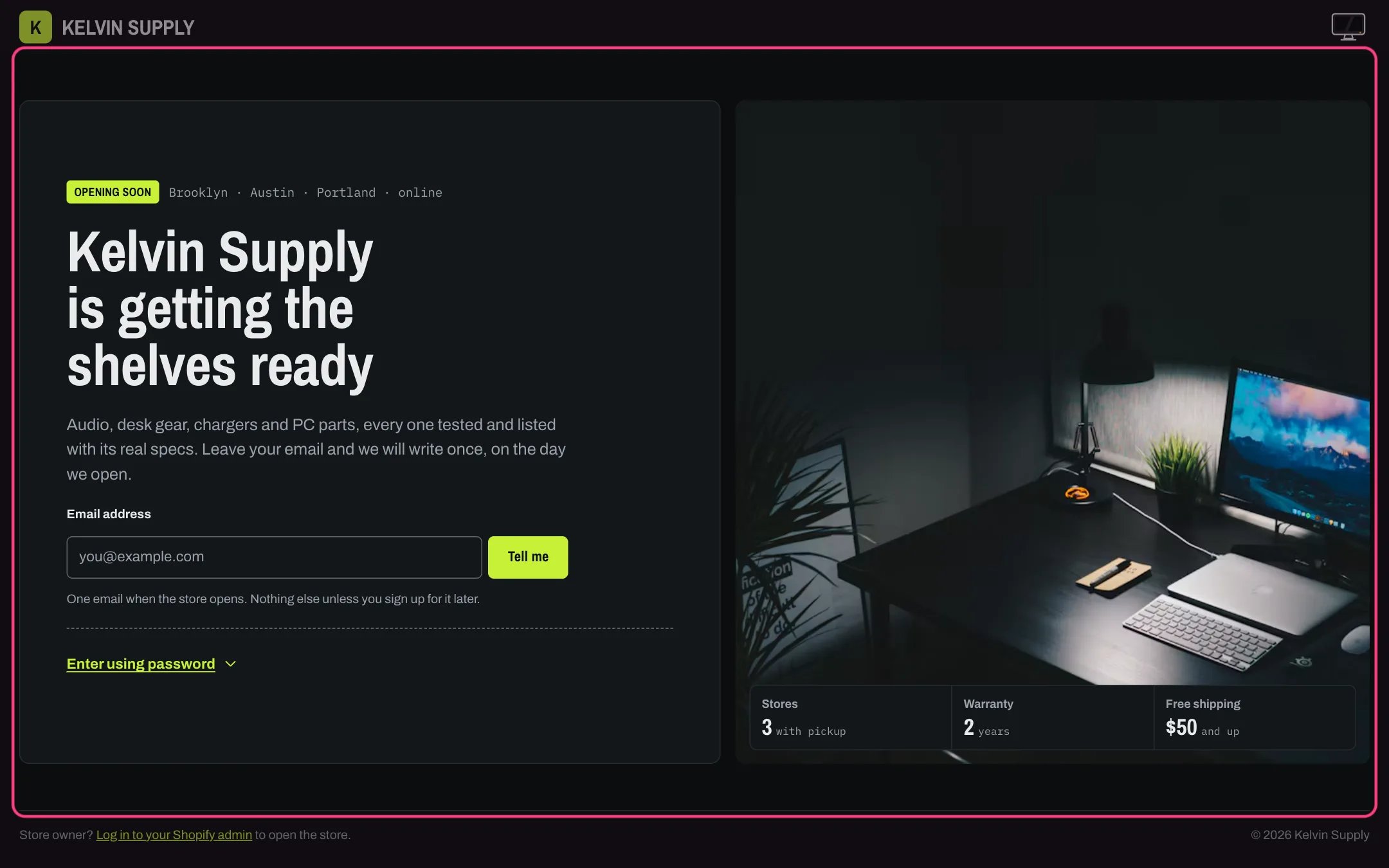
Password page in dark mode
Where to find it
Shown to every visitor while the store has a password (Online Store → Preferences → Password protection). In the theme editor choose Password in the page selector (under Others) and select Password page.How it works
- It has its own layout without the store header and footer: a top bar with your logo and, when Show the color mode switch is on in Theme settings → Colors, the light and dark mode switch.
- Dark top bar (on by default) keeps the bar dark in both modes and uses the logo for dark mode from Theme settings → Logo when there is one.
- An empty Heading uses your store name followed by is getting the shelves ready. An empty Text uses your message from Online Store → Preferences, then a line inviting visitors to leave their email.
- The email signup checks the address before sending it, shows Shopify’s errors, and saves the visitor as a customer who accepts marketing, tagged newsletter and password page. Then it thanks them.
- Enter using password opens the store password field. After a wrong password the page comes back with the field open, an error under it and the cursor in it. Without JavaScript the field is always shown.
- With a Photo, the Store fact blocks (up to four) sit on the photo; without one they show in a row under the text. Below 900 px the photo moves under the text.
- The footer has the store owner login line (Show the store owner login line) and the copyright line.
- There is no countdown. If you announce an opening date, write it in the Text.
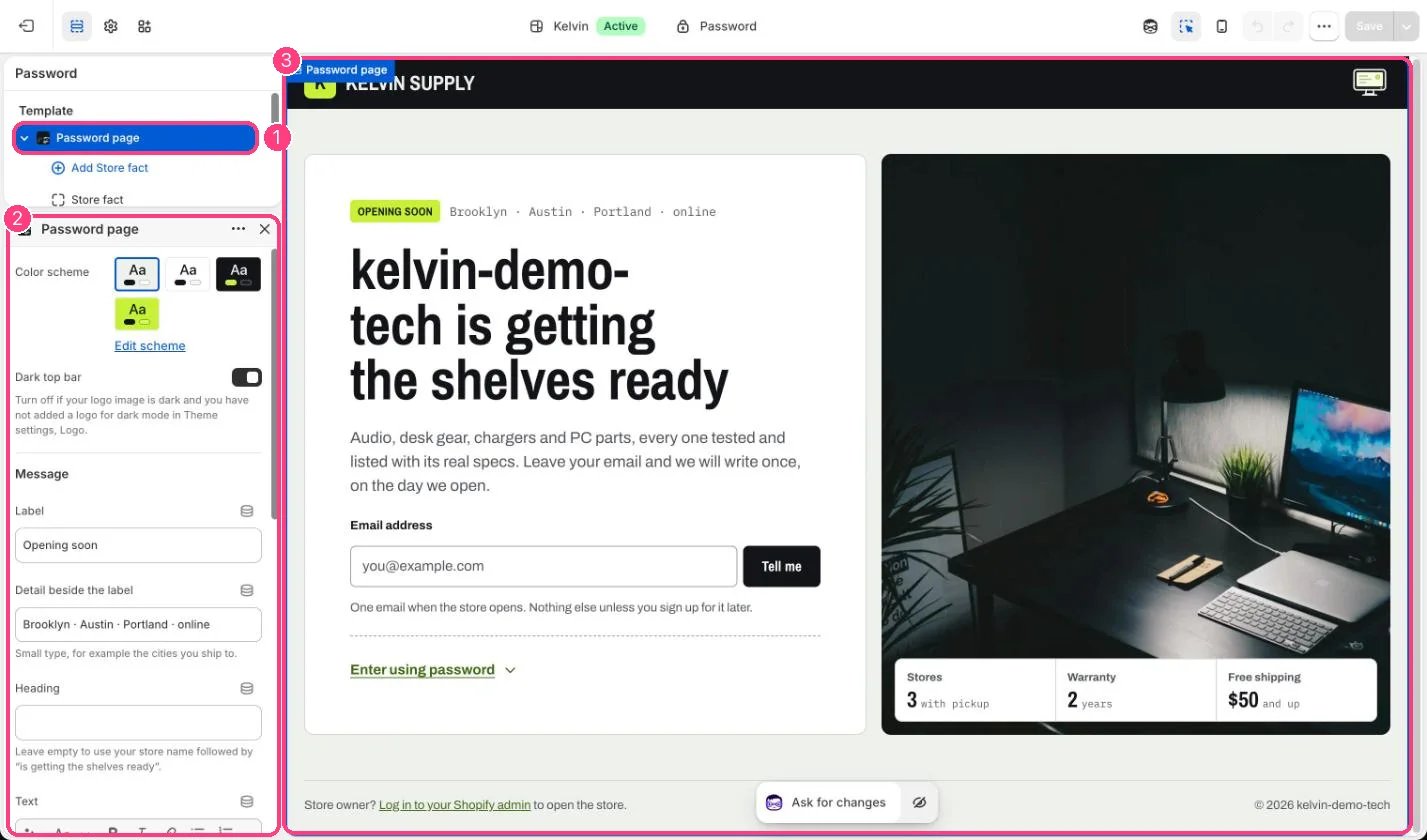
In the theme editor: 1 the section in the sidebar · 2 its settings · 3 the section in the preview
Edit it
- Write the Text for this page, or leave it empty to use the message from Online Store → Preferences.
- Add a landscape Photo at least 1200 px wide, and up to four Store fact blocks with a short Value, such as 3 or $50. A new Store fact block starts with Store fact, Value and Small text as its words: replace all three.
- Use the Label and Detail beside the label for a short status, such as Opening soon and the cities you ship to.
- Turn off Dark top bar if your logo is dark and you have no logo for dark mode.
- Replace Note under the field with what subscribers will get. On install it holds guidance (Say what subscribers get when the store opens), and visitors see it as written.
Settings
Message
Email signup
Photo and facts