
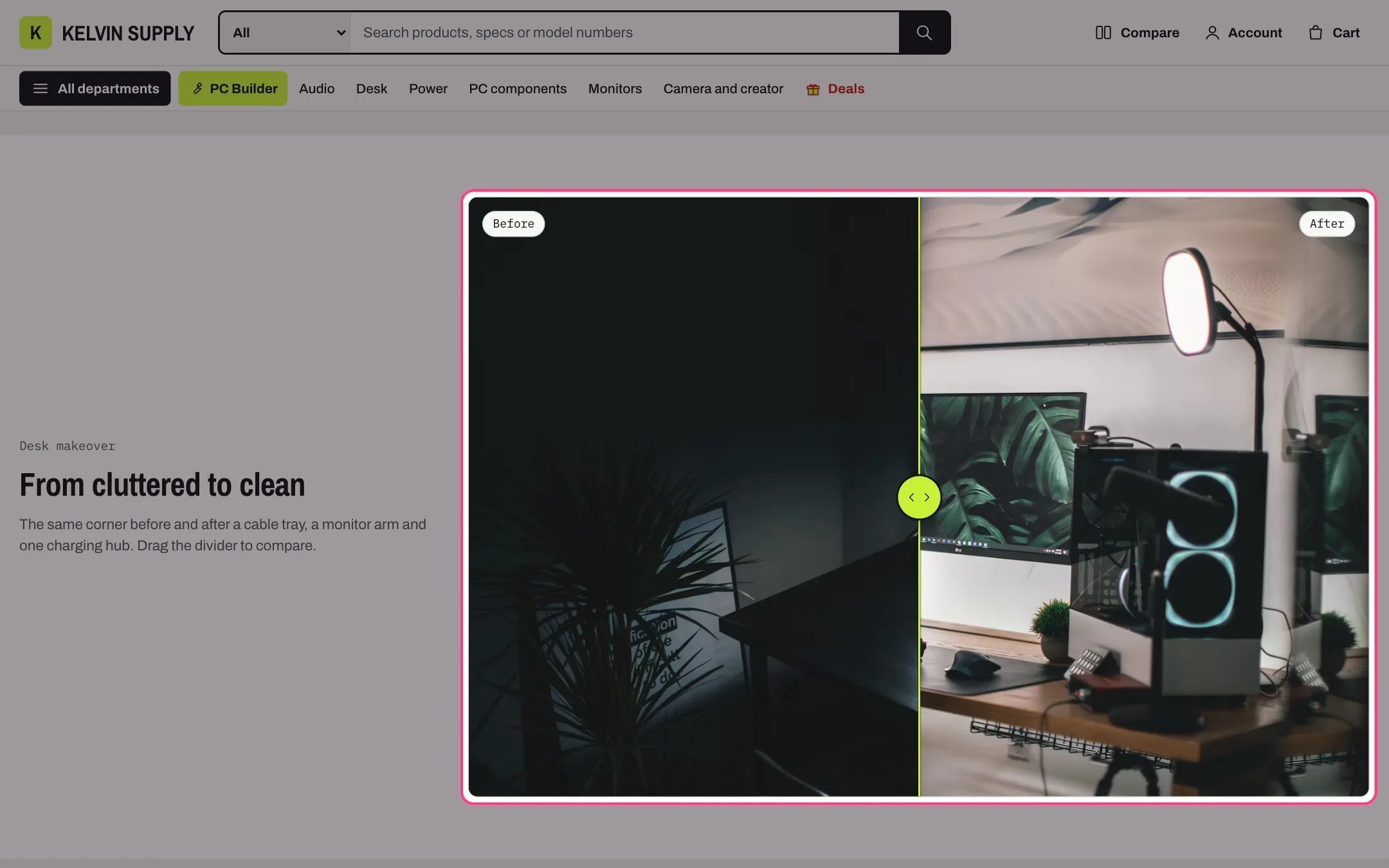
Before and after, highlighted with the demo content
Where to find it
On no template when the theme is installed. Add it to the home page or any other page with Add section, then choose Before and after.How it works
- The before photo is on the left (on the right in right-to-left languages), and the divider starts at Divider start position: 50% shows half of each photo.
- With a mouse, a click or a drag anywhere on the photos moves the divider. On touch screens shoppers drag the divider itself, so scrolling the page over the photos never moves it.
- The divider is a slider for keyboards: Tab to it, then use the arrow keys, Page Up and Page Down, Home and End. Screen readers hear how much of each photo shows, such as Before 60%, After 40%.
- Both photos are cropped to Image shape, Landscape (3:2) by default, so they line up, and the frame never gets taller than 85% of the screen.
- The Before label and After label sit on the photos; empty labels use Before and After in the shopper’s language.
- Kicker, Heading and Text sit beside the frame on screens 990 px and wider, and above it on smaller ones. Without them the frame takes the full width.
- Without JavaScript the two photos show side by side, stacked on phones. Until you upload photos, drawn placeholders show.
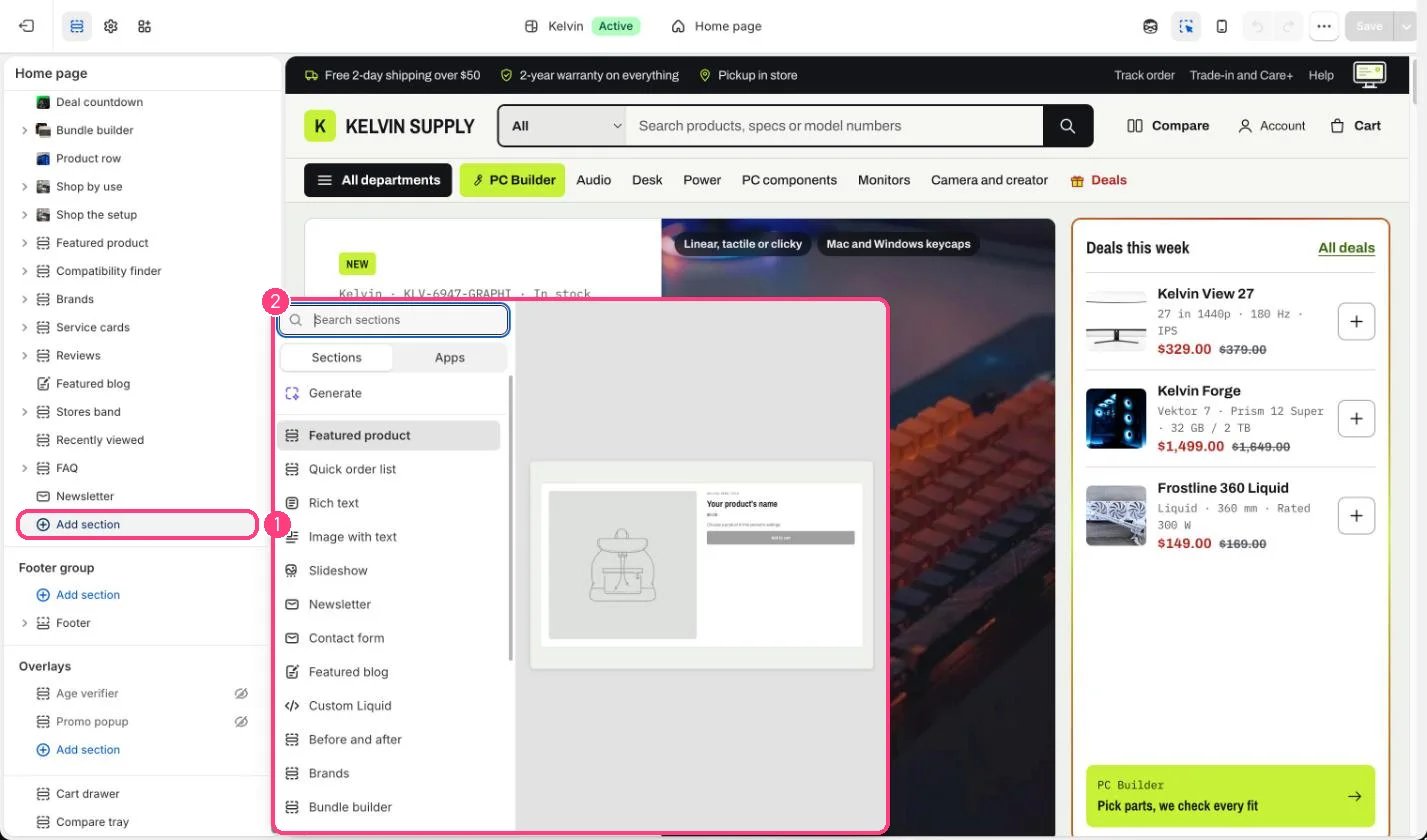
Not on the demo pages: add it with 1 Add section, then pick it in 2 the list
Edit it
- Use two photos taken from the same spot with the same framing and the same size, for example a desk before and after a cable tray and a monitor arm. 2000 x 1250px is recommended. If you set a focal point, set the same one on both photos so they stay lined up.
- Pick the Image shape closest to your photos, or Same as the before image.
- Keep the labels short, such as Before and After, or Stock and Upgraded.
- Set Divider start position so the change is visible as the page opens.
Settings
Images