
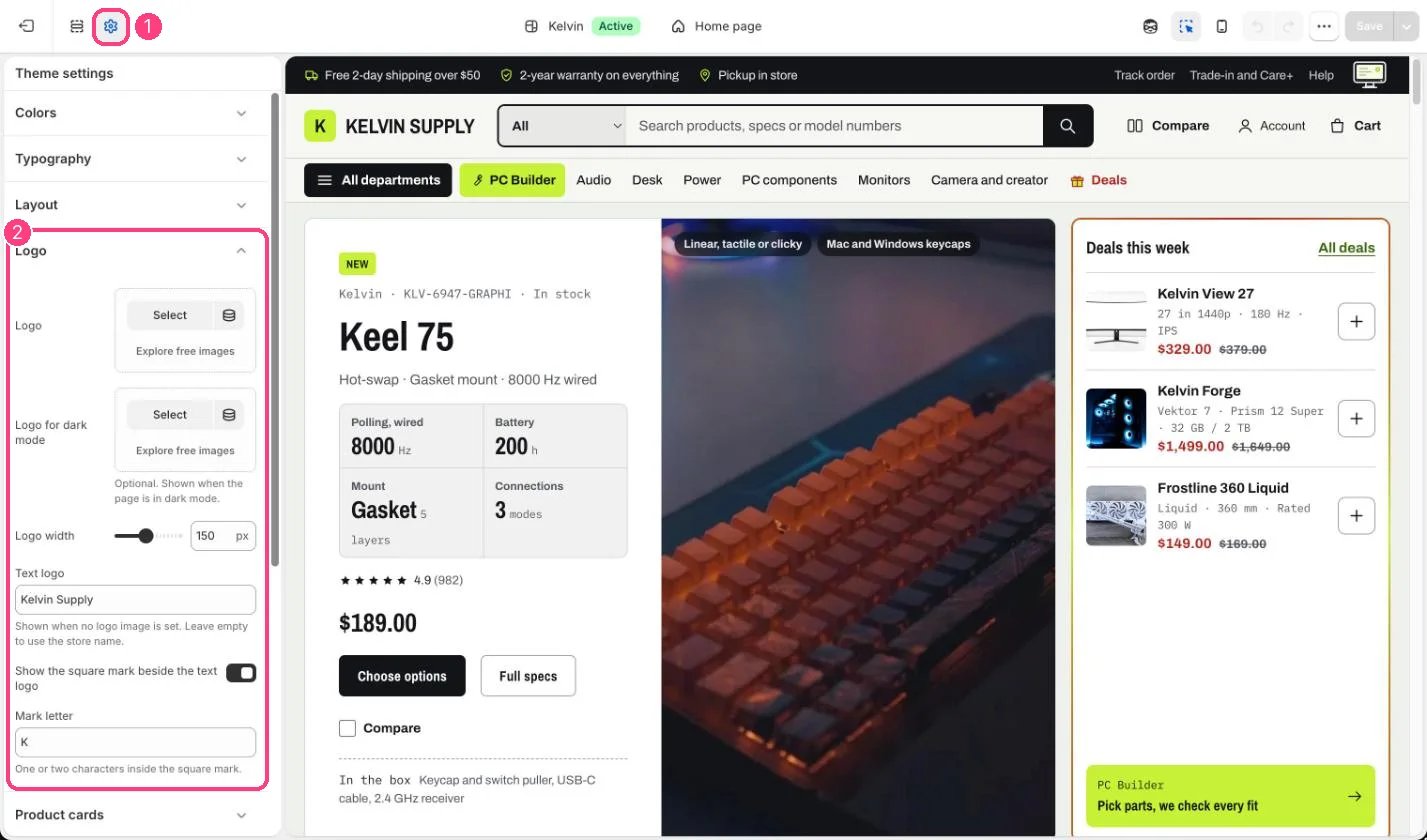
1 Theme settings (the gear icon) · 2 Logo, opened in the sidebar
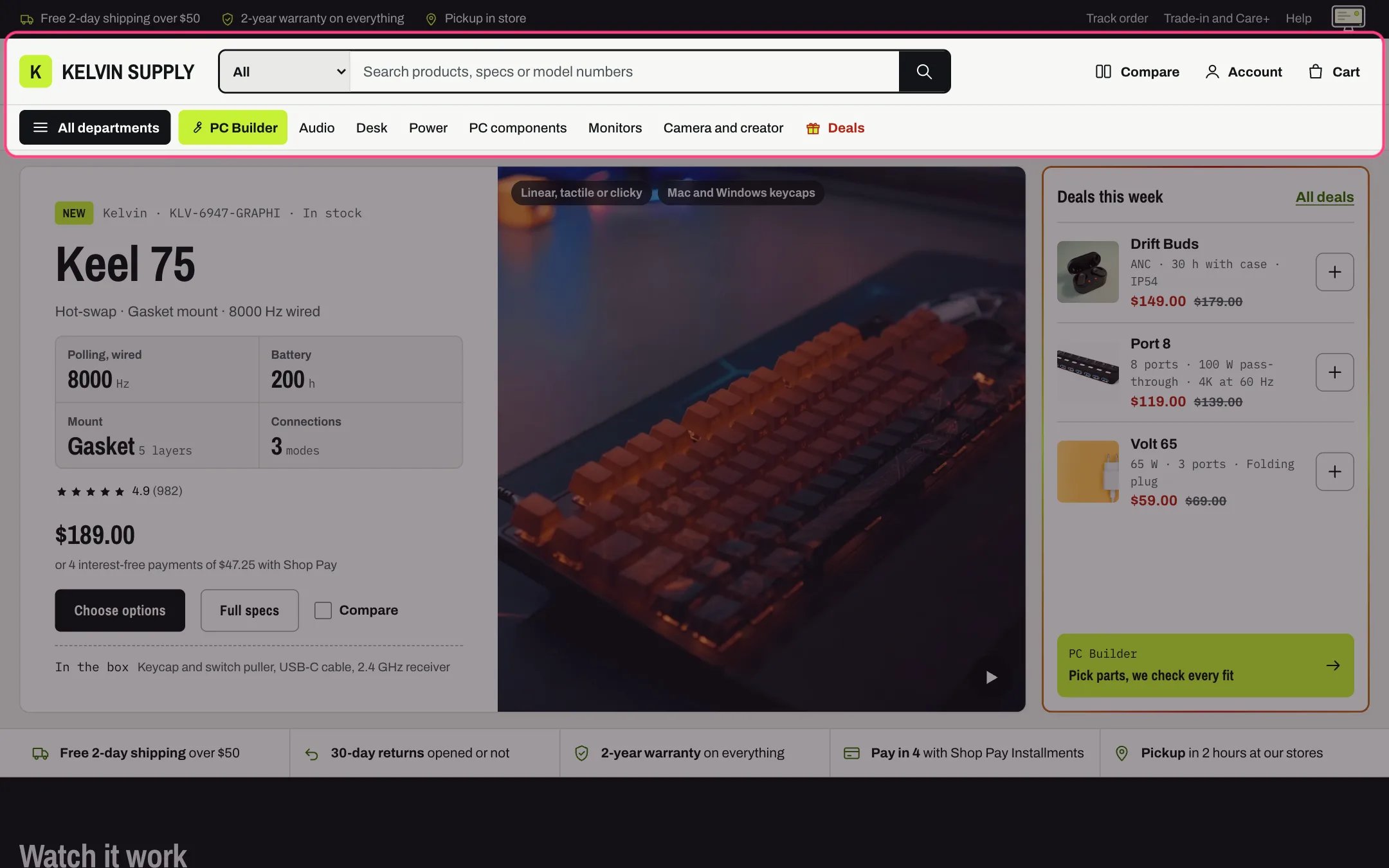
The text logo with its square mark
How it works
- With a Logo image, the header and password page show it at Logo width (60 to 260 px, default 150), and the footer at 80 percent of that. It is never taller than 56 px.
- Logo for dark mode replaces it while the store is in dark mode. It is used only when Logo is set too. The password page’s dark top bar also uses it.
- Without a logo image, the text logo shows Text logo, or your store name when Text logo is empty, in the heading font in capitals.
- Show the square mark beside the text logo adds a small square in the accent color holding Mark letter. Mark letter is empty on install, and while it is empty the square holds the first letter of the text logo. It shows only with the text logo.
- The logo links to the home page and is never a heading.
Edit it
- Upload a logo with a transparent background, about twice as wide as Logo width so it stays sharp on high-resolution screens.
- If your logo is dark, add a light version as Logo for dark mode: the header and footer turn near-black in dark mode.
- Leave Mark letter empty to use the first letter of the text logo, type one or two other characters, or untick the square mark.