
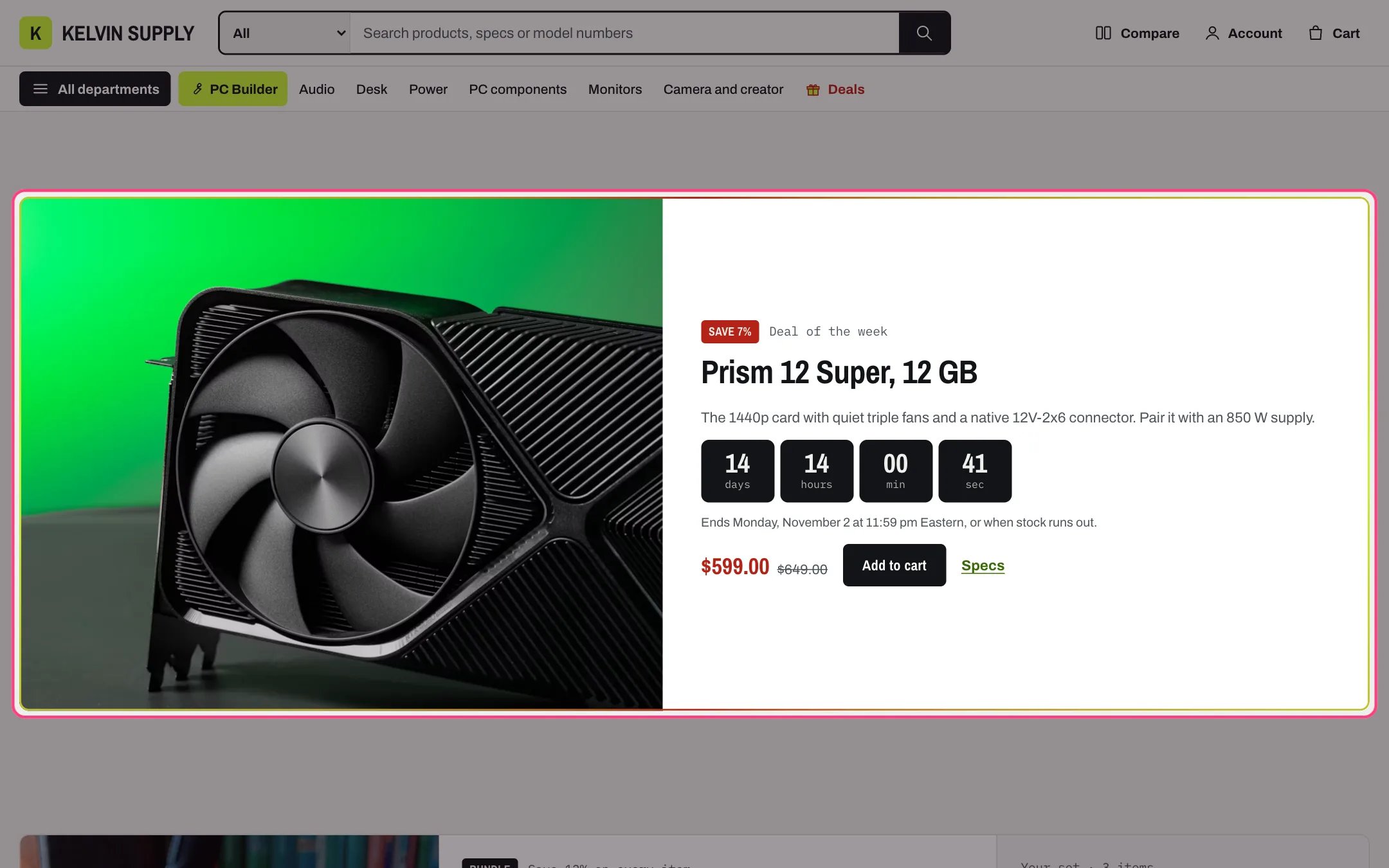
Deal countdown, highlighted with the demo content

Deal countdown in dark mode
Where to find it
Eighth section of the Home page template, hidden on install. In the theme editor choose Home page in the page selector, hover over Deal countdown in the sidebar and click the eye icon to show it. Add it to other pages with Add section.How it works
- The section shows on the store only when it has a Product and a readable Deal ends time that has not passed. Otherwise it is not on the store at all.
- It shows the Label with the product’s sale badge, the Heading (or the product title), the Text, the countdown in days, hours, minutes and seconds, the Small print, the price with any compare-at price struck through, Add to cart (Choose options for products with variants, Sold out when nothing is in stock) and a Specs link to the product.
- The countdown runs to the end time you type, the same for every shopper. At zero it removes itself and the section disappears. It never restarts.
- An end time Kelvin cannot read hides the section on the store. In the theme editor the section stays visible so you can fix it: a note says when the product or the date is missing or the date has passed, and a box with an unreadable date is dimmed.
- Screen readers hear the time left in days, hours and minutes, updated at most once a minute. Without JavaScript the end date shows as text.
- The box carries the flowing deal border. With Animate the deal border on, it turns twice when the box comes into view and again while it is hovered or focused, and it stays still for visitors who reduce motion. Turned off, the ring stays still.
- Wider than 900 px the image sits beside the copy; below that it sits on top, in a 16:9 frame.
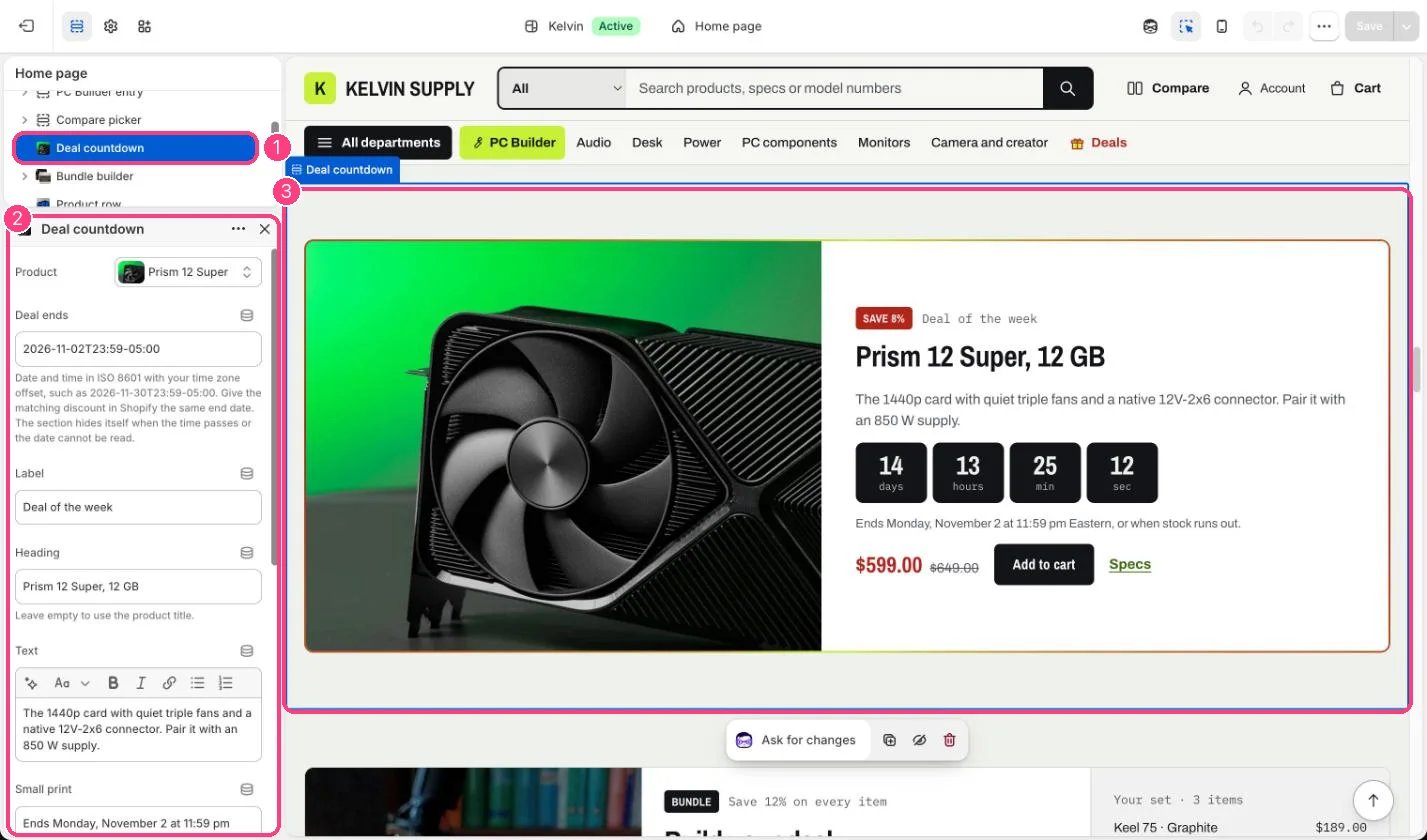
In the theme editor: 1 the section in the sidebar · 2 its settings · 3 the section in the preview
Edit it
- Put the product on sale first, with a compare-at price or a discount, ending at the same moment as the countdown.
- Type Deal ends in ISO 8601 with your time zone offset, such as
2026-11-30T23:59-05:00. The format is explained in Deal countdowns. - Use Small print to say when and how the deal ends, such as Ends Monday at midnight Eastern, or when stock runs out.
- Leave Image empty to use the product photo, or pick a 5:4 photo at least 1200 px wide.
- Click the eye icon beside the section in the sidebar to show it: it is hidden on install.
Settings
Off on install: the section is hidden and has no product or end date. A countdown must follow a real deadline; use it only for a deal that really ends then.The countdown does not change prices. Remove the compare-at price or end the discount yourself at the same moment.The deal border is explained in Deal highlights.