
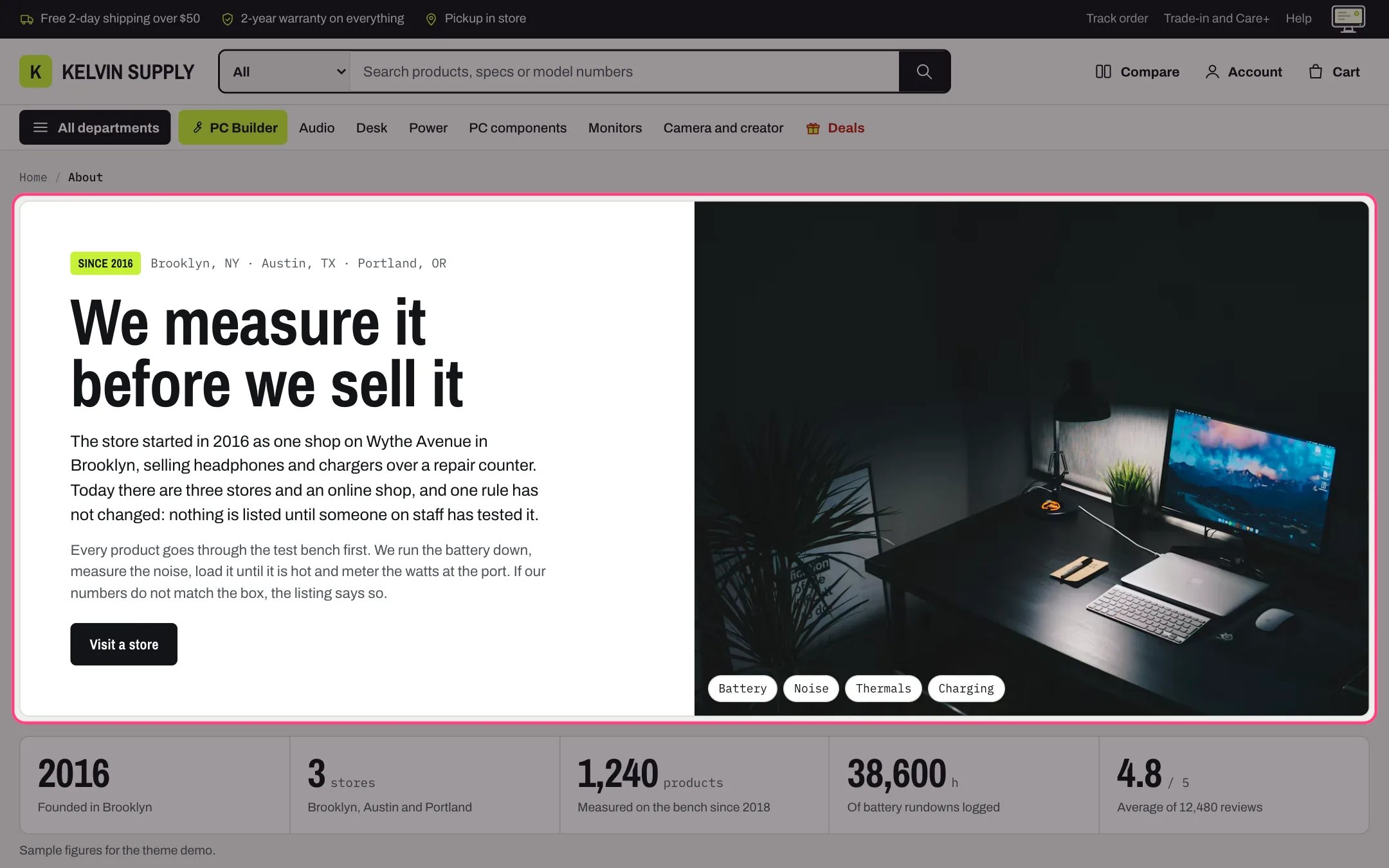
Page heading, highlighted with the demo content
Where to find it
The first section of the about, care, contact, faq and stores page templates (page.about, page.care, page.contact, page.faq, page.stores). To use one, create a page in Online Store → Pages, choose the template under Theme template and save. In the theme editor choose Pages in the page selector, then about, care, contact, faq or stores, and select Page heading. You can add it to any other template with Add section.How it works
- A blank Heading uses the page’s own title (on a blog or article template, the blog or article title).
- Layout Text only shows the heading, intro, buttons and jump links on the page background; the care, contact, FAQ and stores templates use it. Text and photo puts the text and a photo side by side in a panel; the about template uses it.
- In Text and photo, Tags on the photo shows one small tag per line in the corner of the photo, and Tags description names the list for screen readers. Under 1000 px the photo moves above the text, cropped to 16 by 10.
- Show the page’s content adds the text written for the page in Online Store → Pages under the intro. It is off on install, so on these templates the page’s own text does not show until you turn it on.
- Label shows as a small tag before the Kicker, which is set in the monospace font.
- Each Jump link block adds a rounded link under the heading. A link such as #plans jumps to the section whose Link id is plans; the care template uses them for Plans, What is covered, Make a claim, Warranty and Trade-in.
- Each button shows only when both its label and its link are filled in.
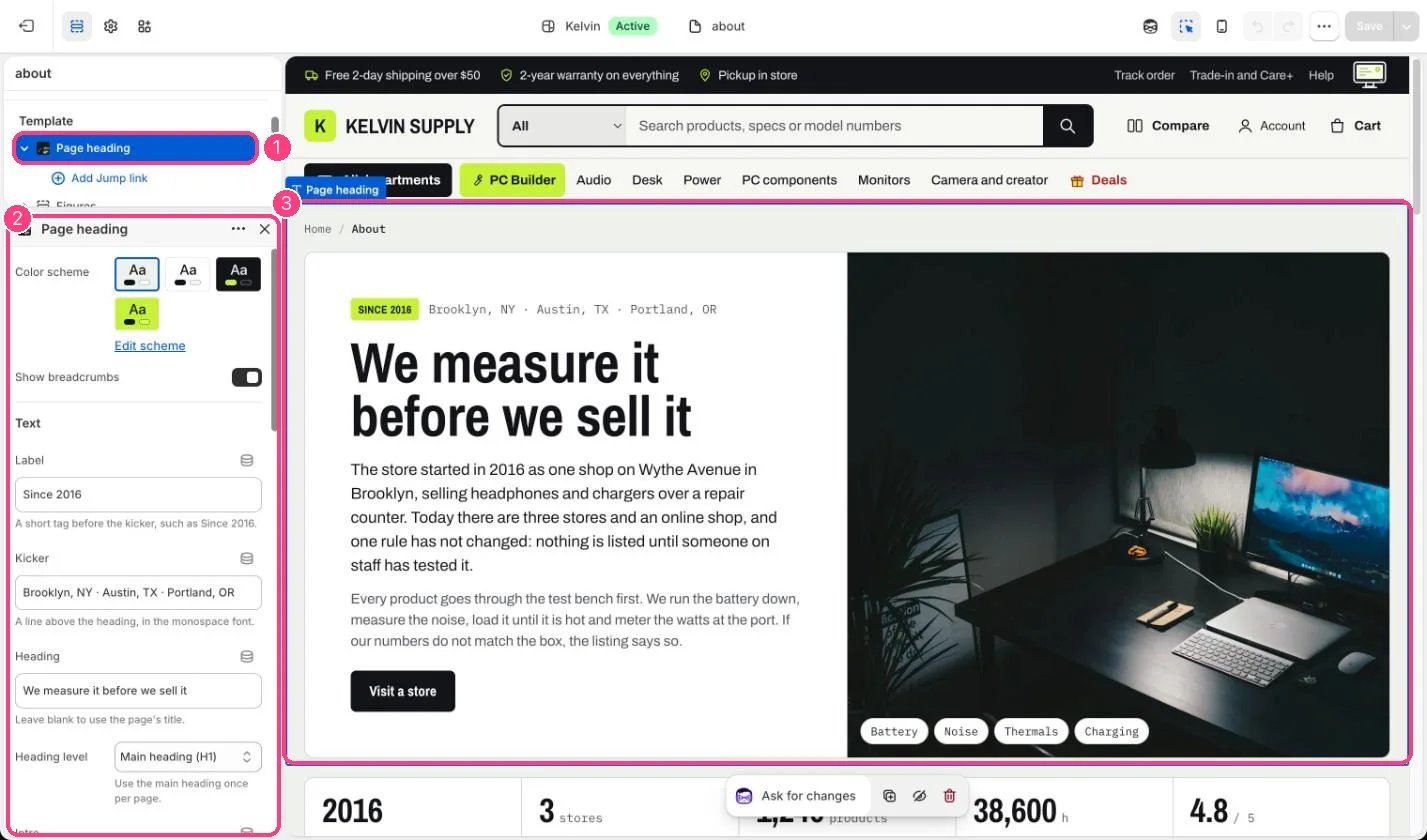
In the theme editor: 1 the section in the sidebar · 2 its settings · 3 the section in the preview
Edit it
- Leave Heading blank to use the page title, and keep Heading level on Main heading (H1): these templates have no other main heading.
- Write Intro as one or two short paragraphs.
- For the photo layout, choose Layout Text and photo, upload a landscape Photo at least 1600 px wide, and set its focal point so the crop keeps the subject. Photo position puts it before or after the text.
- Add a Jump link block per section you want to link to, with Label and Link, such as #trade-in. Give the target section the same Link id without the #.
- Add First button label and First button link, and a second button if you need one.
Settings
Text
Photo
Blocks
Add a block with Add block under the section in the sidebar; drag blocks to reorder them.Jump link
On install the Intro on the about, care, contact and stores templates is placeholder guidance that tells you what to write, such as Say what your protection plans cover: replace it with your own.