
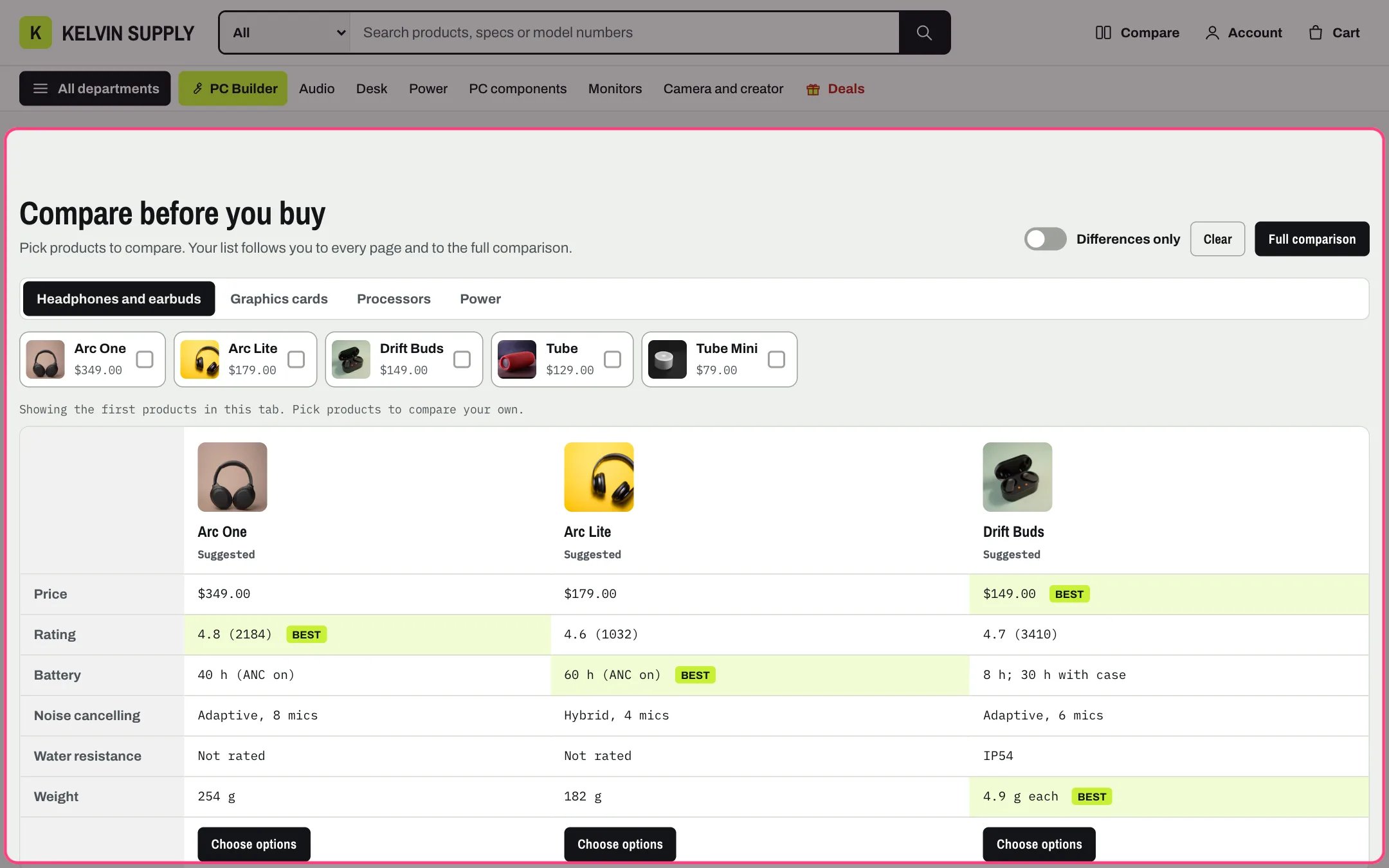
Compare picker, highlighted with the demo content
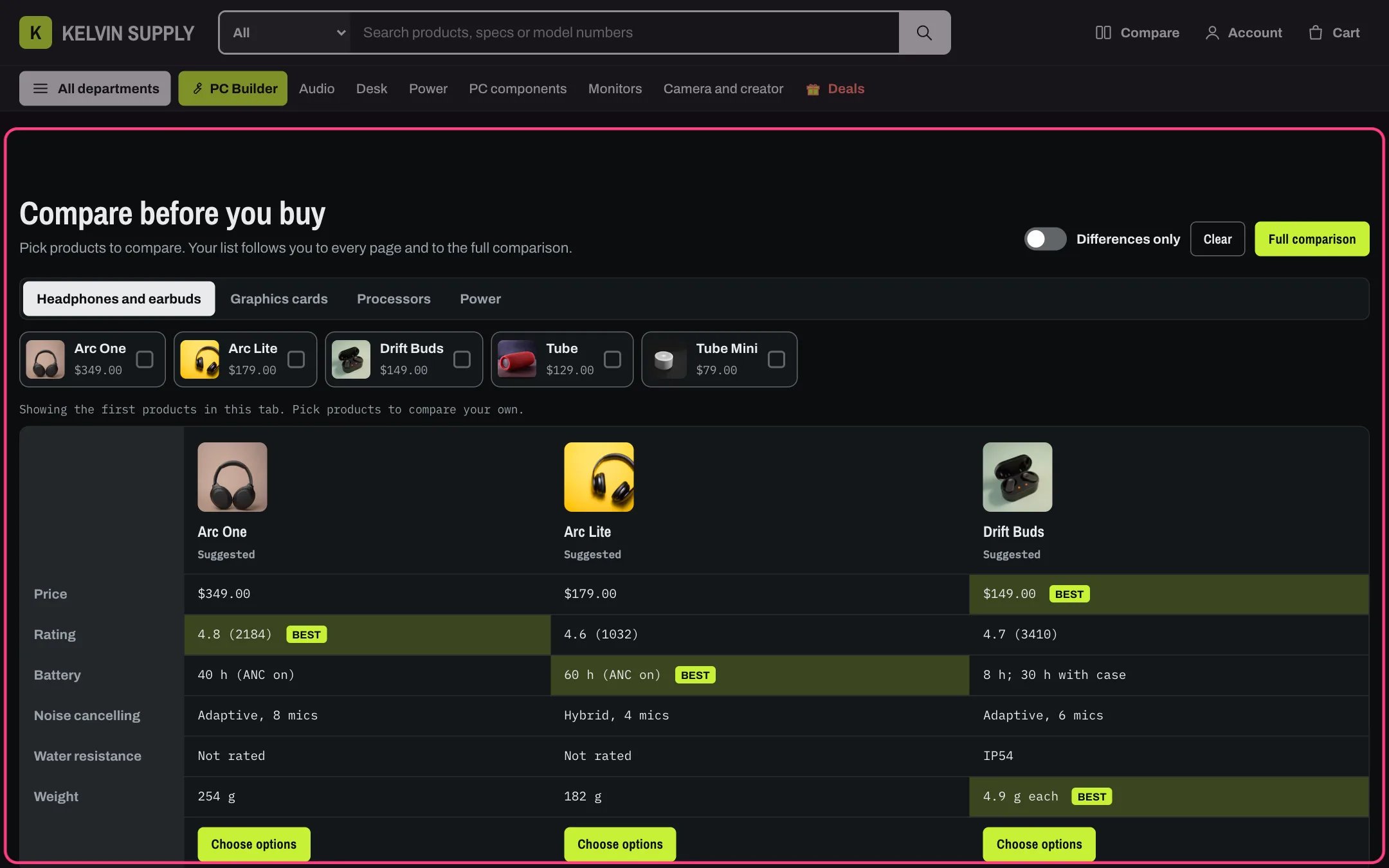
Compare picker in dark mode
Where to find it
Seventh section of the Home page template. In the theme editor choose Home page in the page selector, then select Compare picker. Add it to other pages with Add section.How it works
- Each Category block is a tab of the first 12 products of its collection. A product button adds the product to the shopper’s compare list, or takes it off.
- It is the same list the product cards’ Compare checkbox, the compare tray and the compare page use, saved on the shopper’s device. It holds up to the number set in Theme settings → Compare → Products to compare at once (2 to 4); a shopper who picks one more is told the list is full, and the section’s messages name the same number.
- The table shows the price, a rating row when a reviews app writes the reviews.rating metafield, and one row for each spec listed in Theme settings → Product cards → Spec rows that at least one product has. A missing value reads Not listed.
- In the rows named in Specs where higher is better and Specs where lower is better, the best value is shaded and marked with the word Best. Price is always lower is better and rating higher is better. Values are compared by their first number, such as 30 in 30 h.
- Differences only hides the rows where every product matches. Clear empties the list. Full comparison opens the compare page with the list, when a Compare page is chosen in Theme settings → Compare.
- Before a shopper picks anything, the first two or three products of the open tab fill the table, marked Suggested (Products compared before a visitor picks). They are not added to the list.
- Each column has a remove button and, in the last row, Add to cart, Choose options or Sold out.
- On phones the product buttons go full width, and the table scrolls sideways with the row names pinned.
- With no category collection chosen the section is hidden on the store.
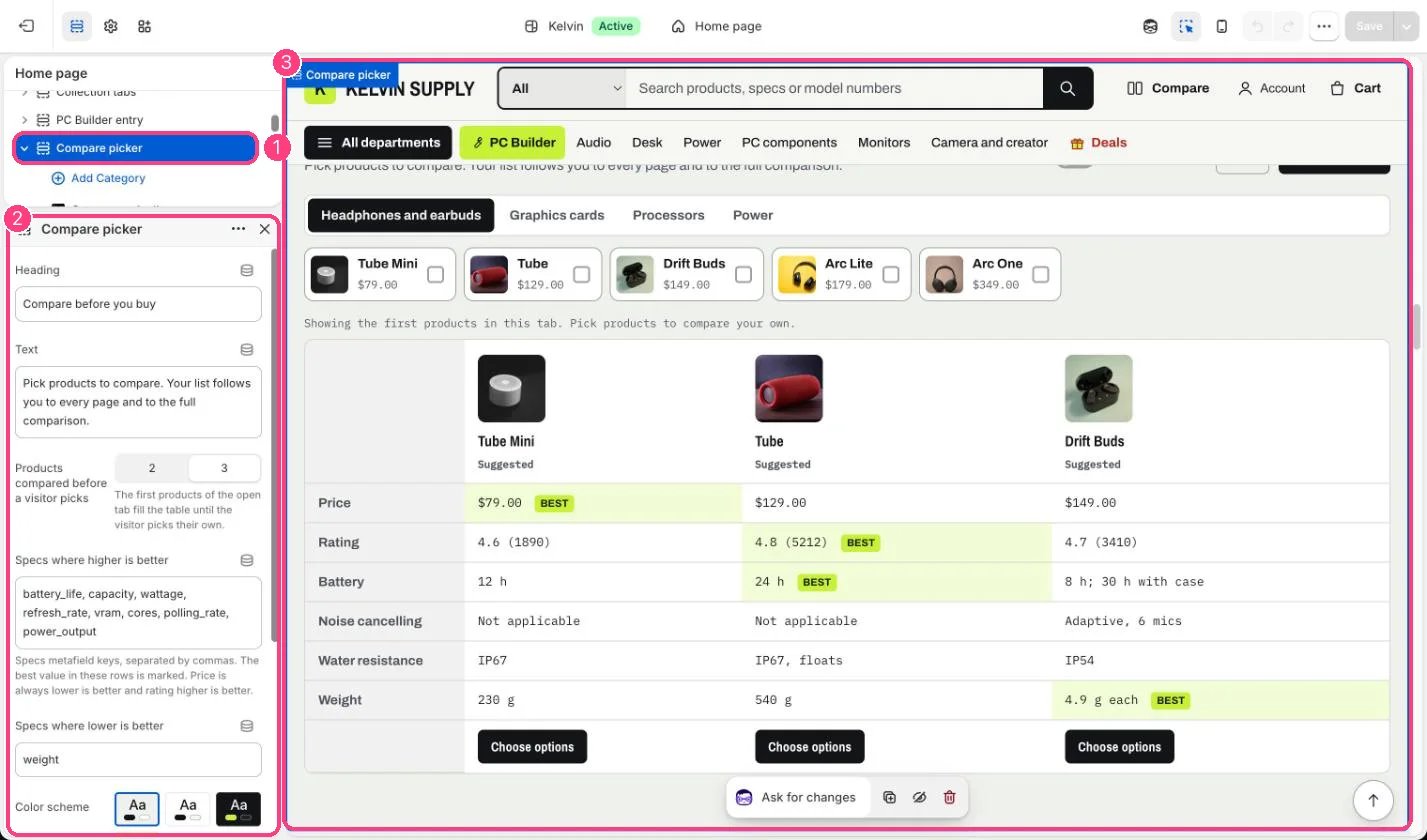
In the theme editor: 1 the section in the sidebar · 2 its settings · 3 the section in the preview
Edit it
- Add up to six Category blocks, each with a Collection of similar products, such as graphics cards. A table of headphones against chargers helps no one.
- Fill the specs metafields on your products and list their keys in Theme settings → Product cards → Spec rows: those rows make the table.
- List the keys where a bigger number wins in Specs where higher is better (such as battery_life or vram) and the others in Specs where lower is better (such as weight), separated by commas.
- Choose the Compare page in Theme settings → Compare so the Full comparison button shows.
Settings
Blocks
Up to 6 blocks. Add a block with Add block under the section in the sidebar; drag blocks to reorder them.Category
On install the four Category blocks have labels but no collections, so the section stays hidden on the store until you choose them.