
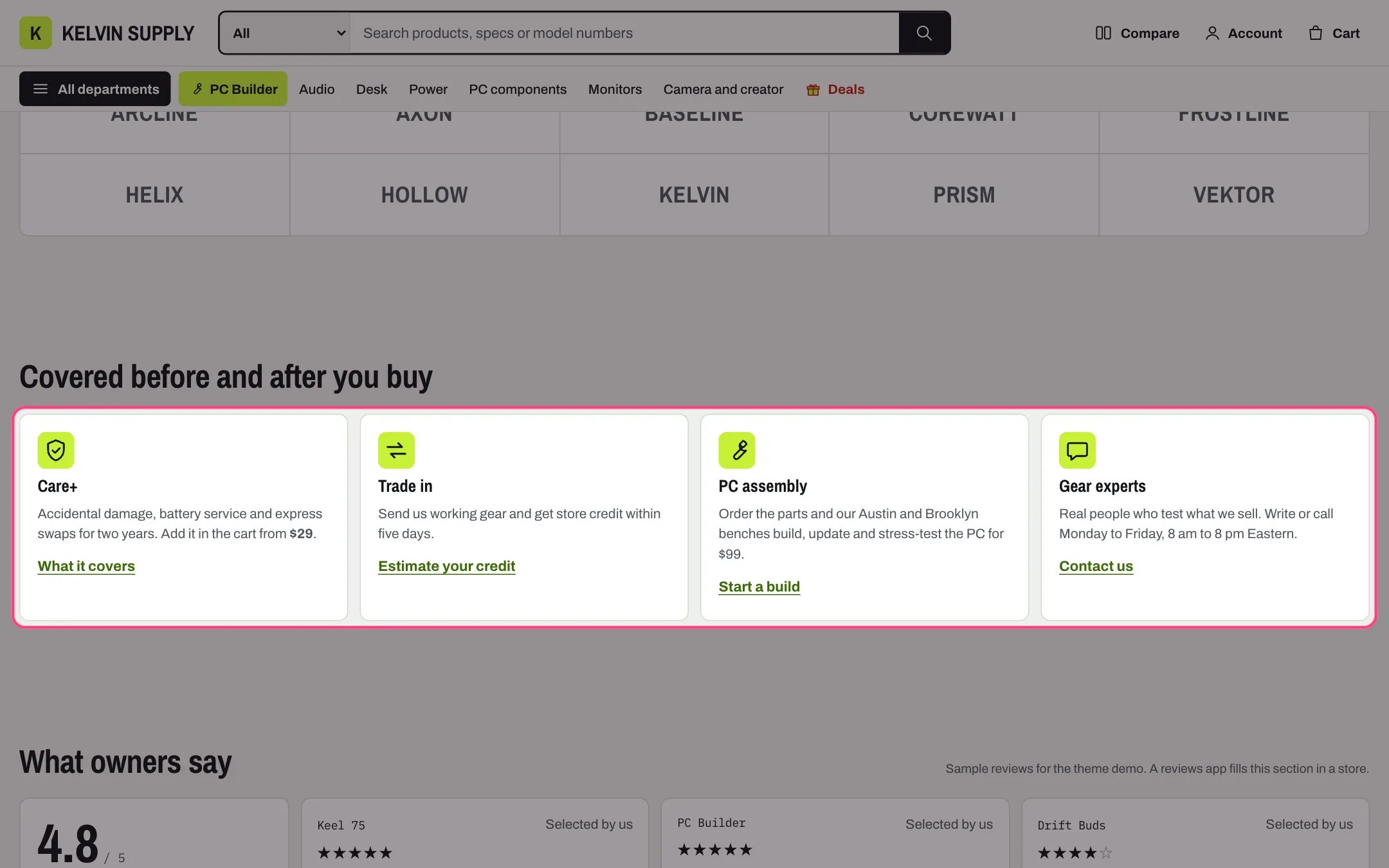
Service cards, highlighted with the demo content
Where to find it
Home page. In the theme editor choose Home page in the page selector, then select Service cards.How it works
- Each Card block shows an icon on an accent tile, a title, a short text and a link.
- Icon offers 17 line drawings, such as Shield, Trade in, Wrench, Chat, Truck and Return, or None.
- Text accepts bold, italic and links.
- The link shows only when both Link label and Link are filled. On install the cards have no links.
- Cards share one row on desktop, up to 4 per row; between 750 and 1000 px at most 2 per row; on phones one per row.
- The section is hidden when it has no cards.
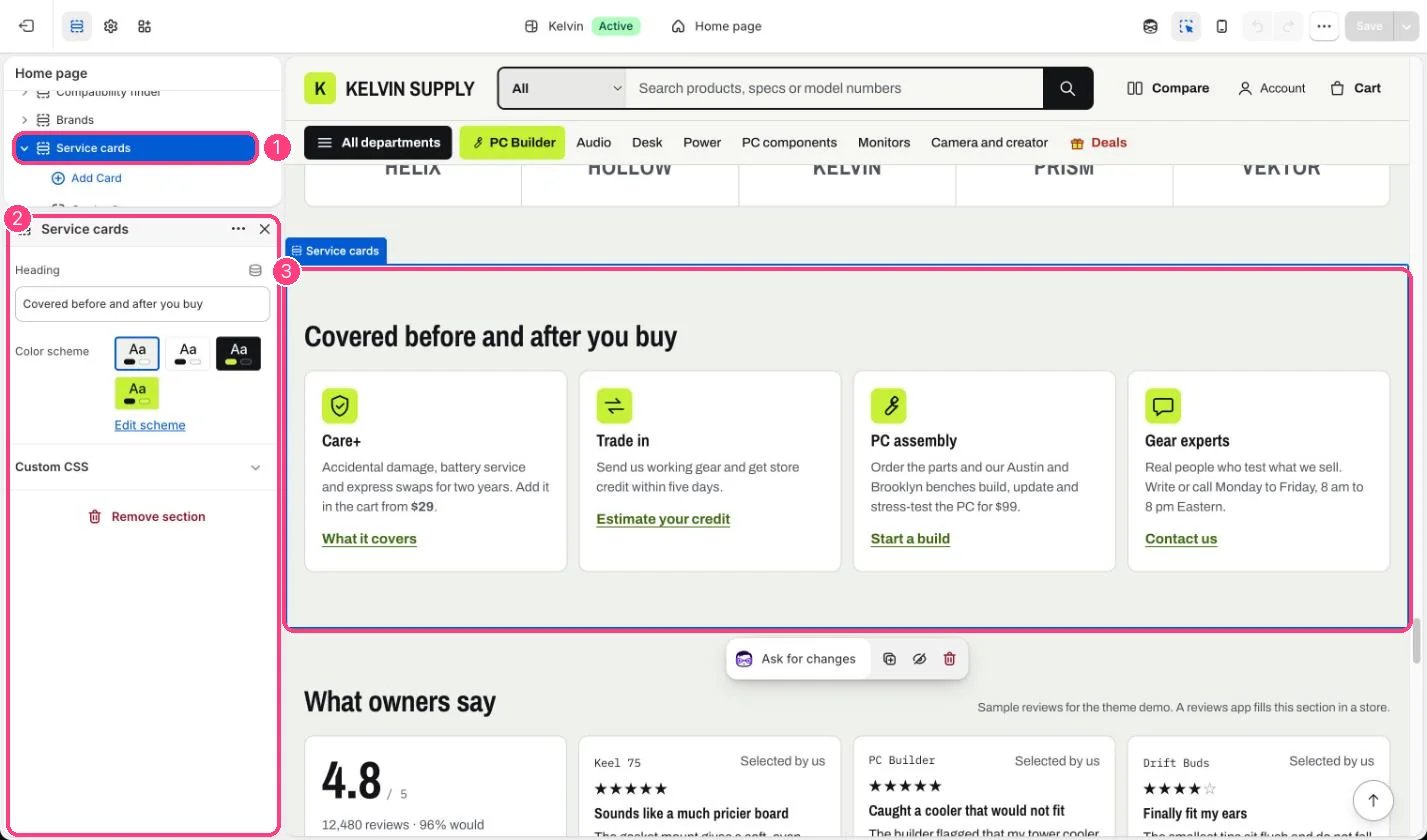
In the theme editor: 1 the section in the sidebar · 2 its settings · 3 the section in the preview
Edit it
- Keep one card per service you really offer and delete the others (up to 8 cards).
- Choose an Icon, then edit Heading and Text in one or two sentences.
- Set Link to the page that explains the service, such as your protection plans or trade-in page, with a short Link label.
- Edit the section Heading.
Settings
Blocks
Up to 8 blocks. Add a block with Add block under the section in the sidebar; drag blocks to reorder them.Card
On install the four cards (protection plans, trade-in, PC assembly and gear experts) hold guidance text, such as Say how shoppers can reach your team, instead of real copy. Replace it with what your store offers before you launch.