
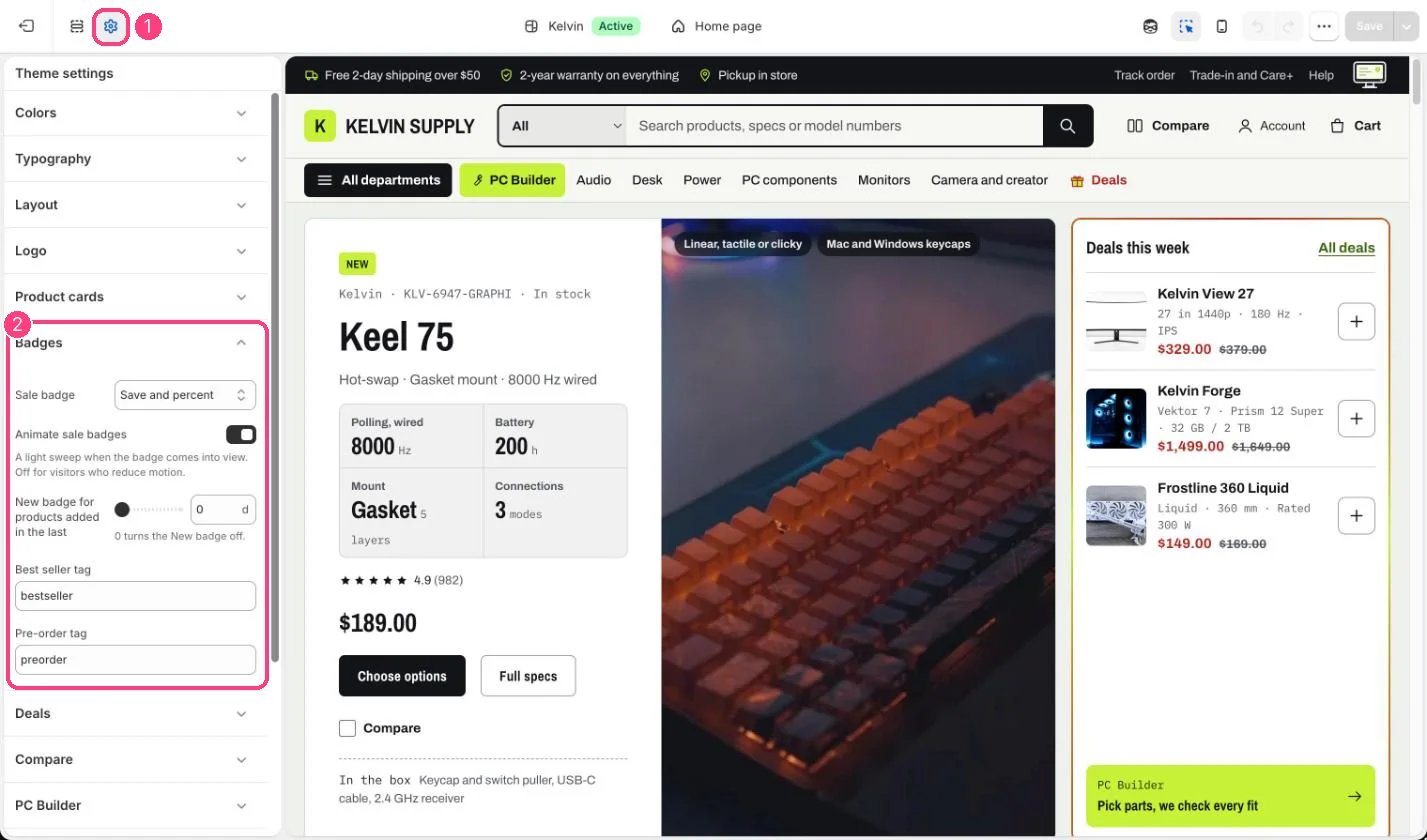
1 Theme settings (the gear icon) · 2 Badges, opened in the sidebar
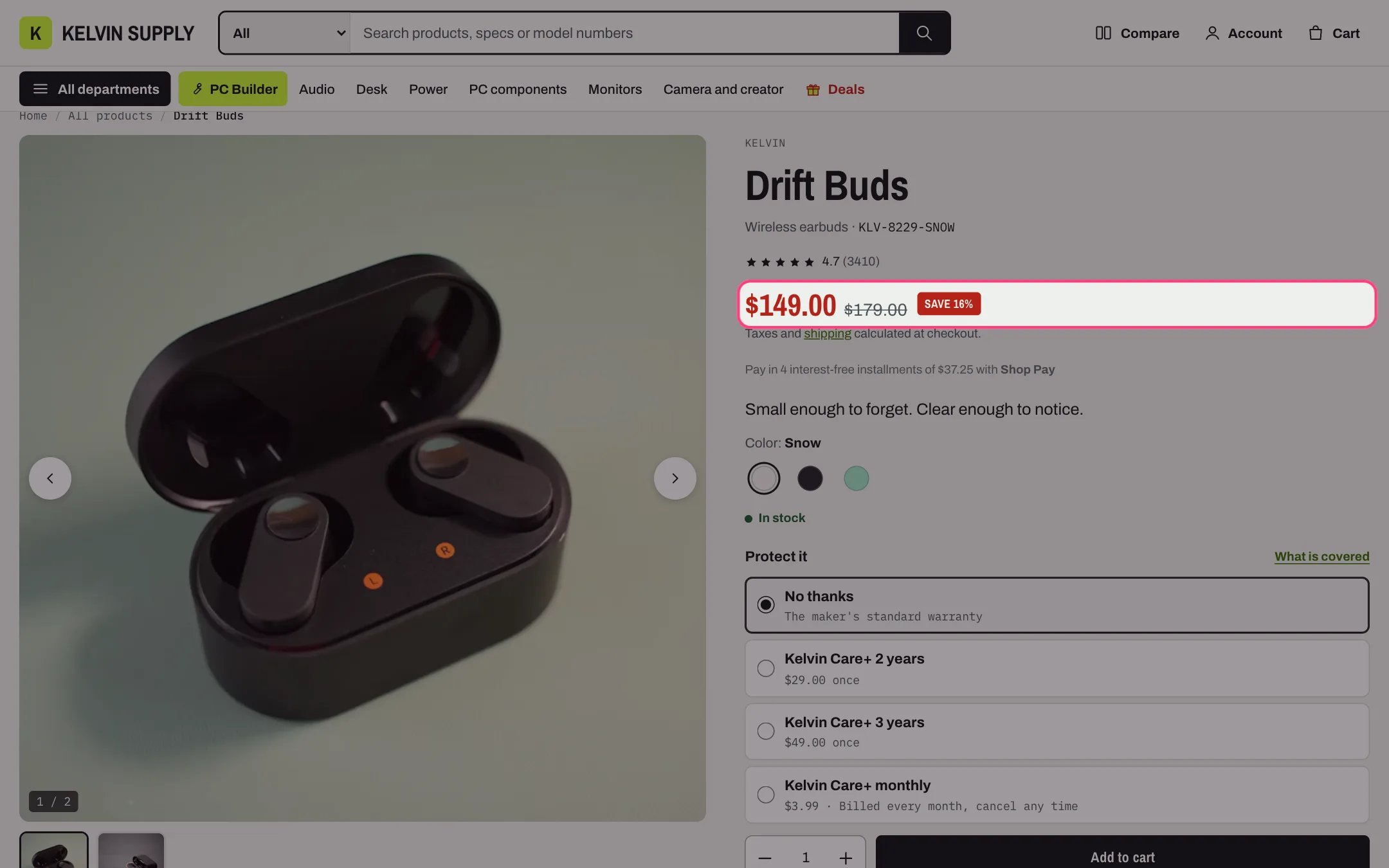
A sale badge, Save and percent
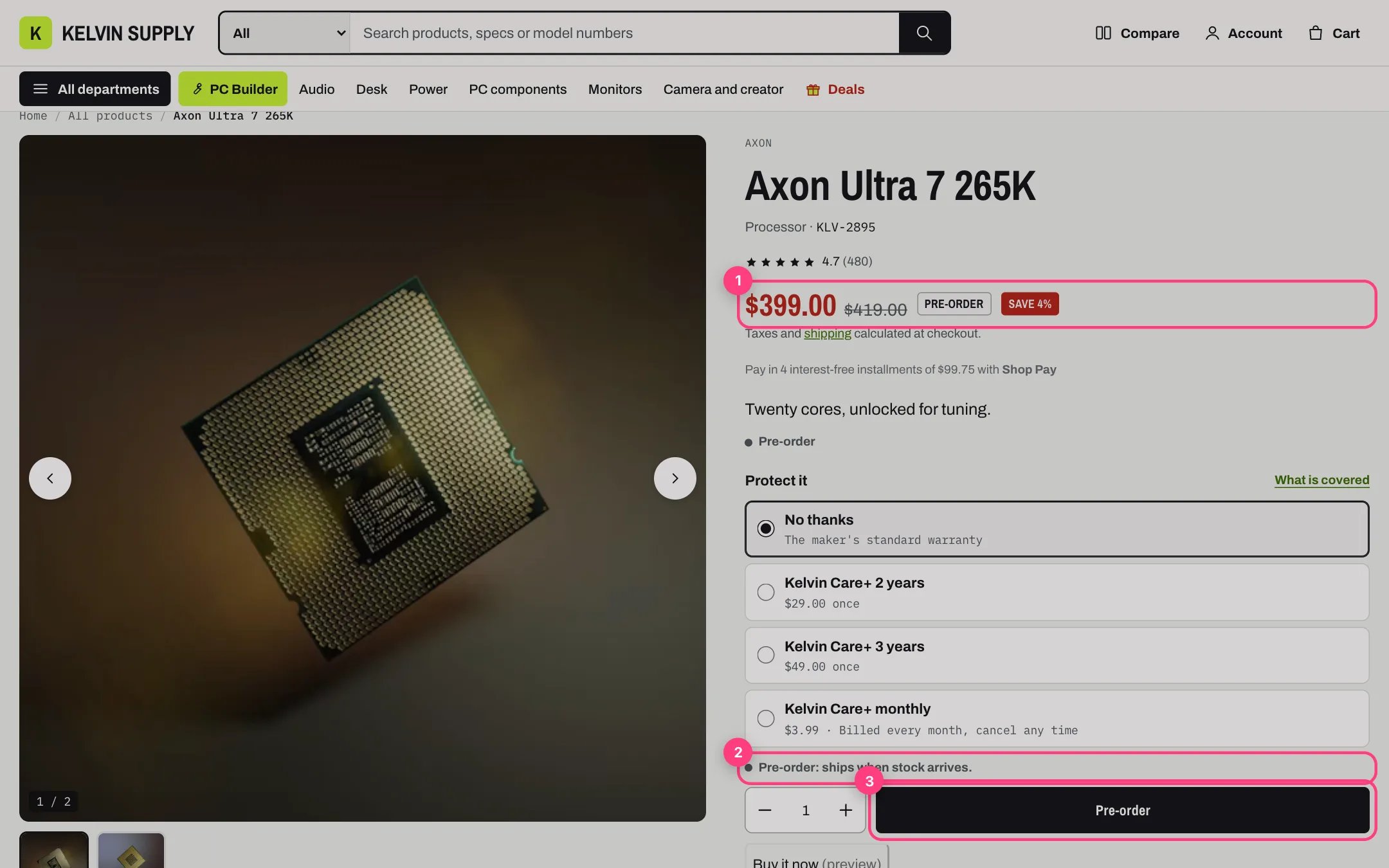
The Pre-order badge and button
How it works
- Cards show up to two badges in the corner of the photo. The product page shows them next to the price when Show badges is on in the Price block of Product information, and they follow the selected variant.
- Sale badge shows when the variant has a compare-at price above its price: Save and percent (Save 16%), Save and amount (Save and the amount), Sale, or None.
- Animate sale badges sweeps a light across sale badges as they come into view and when a shopper hovers over or focuses the card. Visitors who reduce motion never see it.
- New badge for products added in the last shows New on products created in Shopify within that many days, 0 to 60. 0, the setting on install, turns it off.
- Best seller tag (bestseller on install) marks tagged products with a Best seller badge.
- Pre-order tag (preorder on install) sells tagged products as pre-orders. Tracked variants at zero stock that continue selling are pre-orders without the tag.
- Sold out or Pre-order comes first, then Sale, then one of your own badge (the
specs.badgeorcustom.badgemetafield), New or Best seller when there is room.
Edit it
- Turn on New only once your products’ creation dates mean something: right after an import, every product is new.
- Tag names must match exactly, capitals included.
- See Badges and pre-order for every badge, pre-order and the stock line.