
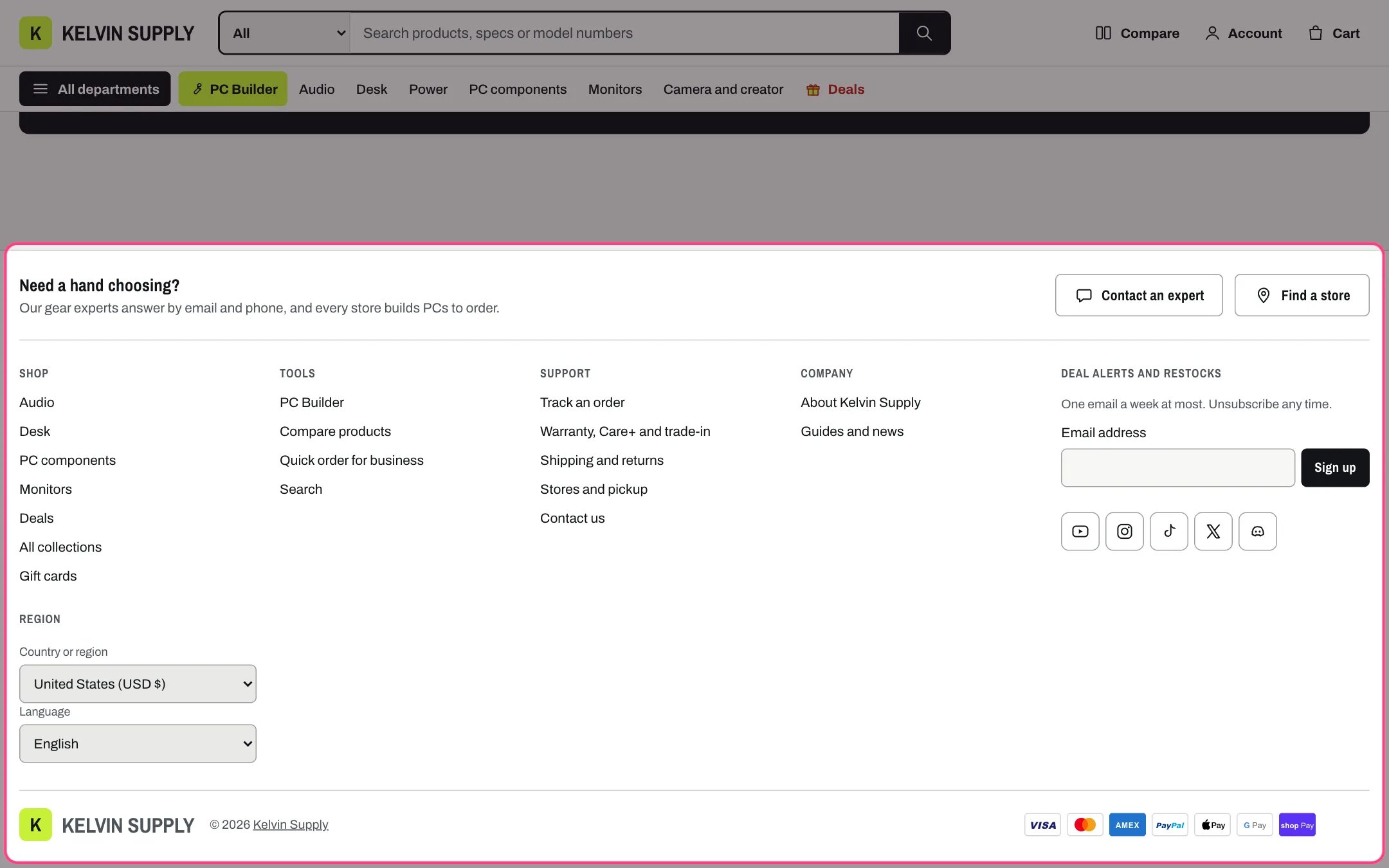
Footer, highlighted with the demo content
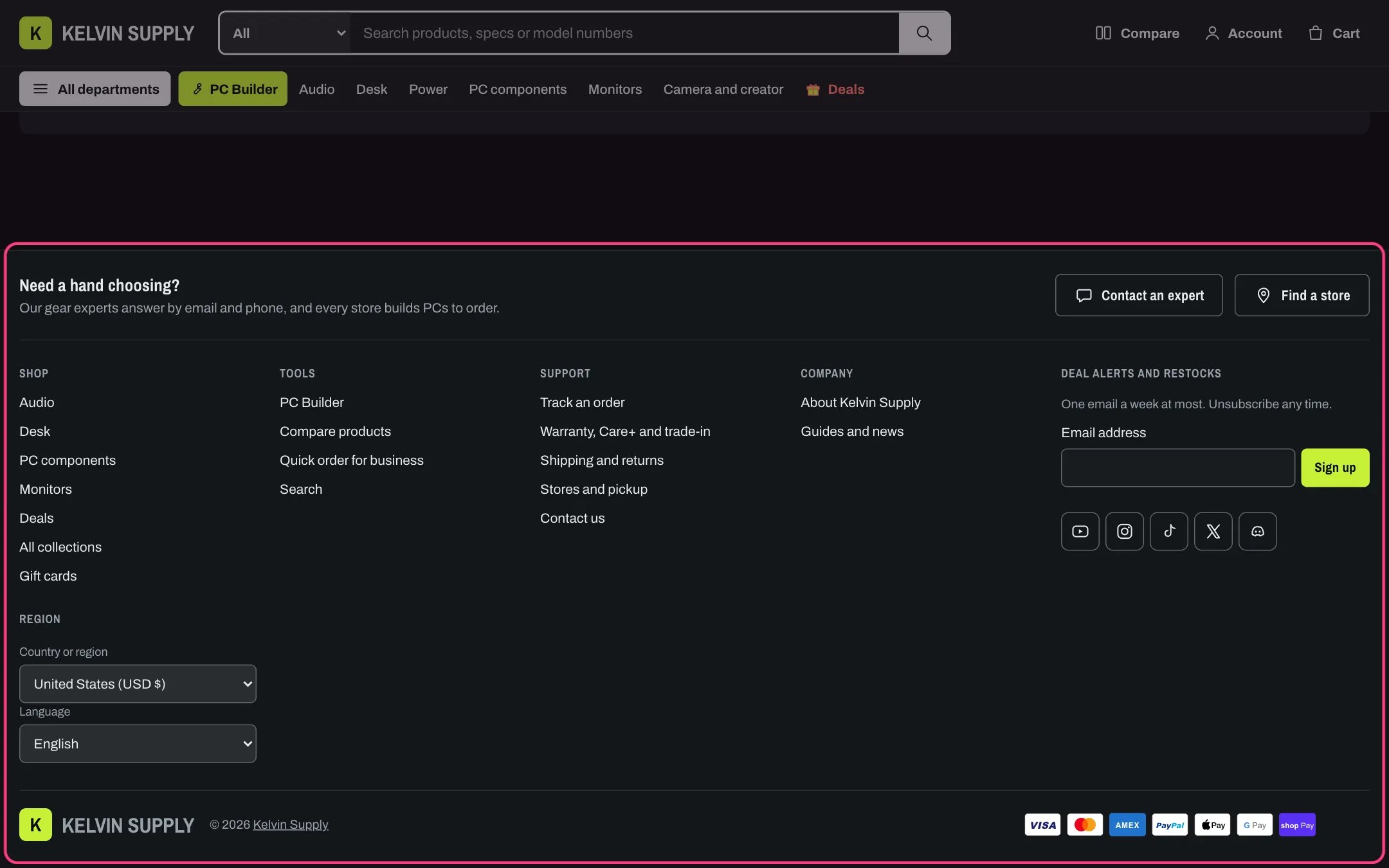
Footer in dark mode
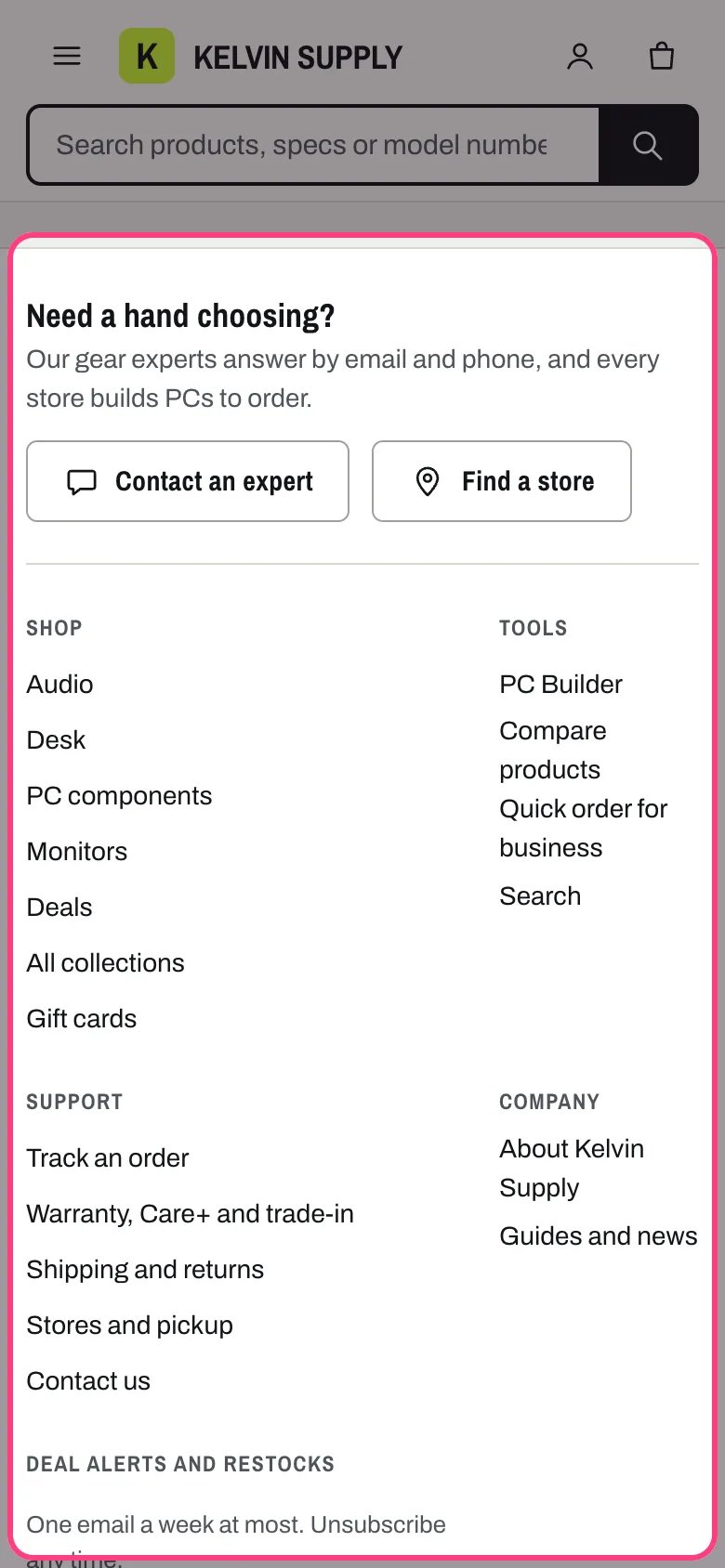
Footer on a phone
Where to find it
Every page. In the theme editor open any page, then select Footer in the Footer group of the sidebar. On install it holds a Menu block (Shop, with your footer menu) and an Email signup block.How it works
- The help row at the top shows a heading and a short text, plus up to two buttons (contact and store icons). Each button shows only once it has a link. Clear Heading to hide the row.
- Menu blocks show a heading and the links of one menu. Text blocks show a heading and formatted text. The Email signup block (one per footer) shows an email field and a Sign up button. Up to 6 blocks, followed by a last column for the selectors.
- Signups go to Shopify as customers tagged newsletter with email marketing accepted. Shoppers see a thank-you line after signing up, and a mistake in the address shows under the field.
- Social icons from Theme settings → Social media sit under the Email signup block. Without an Email signup block they move to the last column, under the selectors when there are any. See Social icons and payment icons.
- The last column holds the country or region and language selectors under a Region heading. They appear only when the store sells in more than one country or language, and changing one reloads the page in the new market or language. The column shows only when it has something in it: selectors, Follow on Shop, or the social icons when there is no Email signup block.
- Follow on Shop shows under the selectors when Show Follow on Shop is on and Shop Pay is turned on.
- The bottom row holds your logo, the copyright line with the store name and Text after the copyright, the payment icons Shopify draws for your enabled payment methods, and the policy links.
- Columns: five across on desktop, three from 1000 px down, two on phones under 750 px with the selector column across the full width. Above 1000 px the bottom row keeps clear of the back-to-top button.
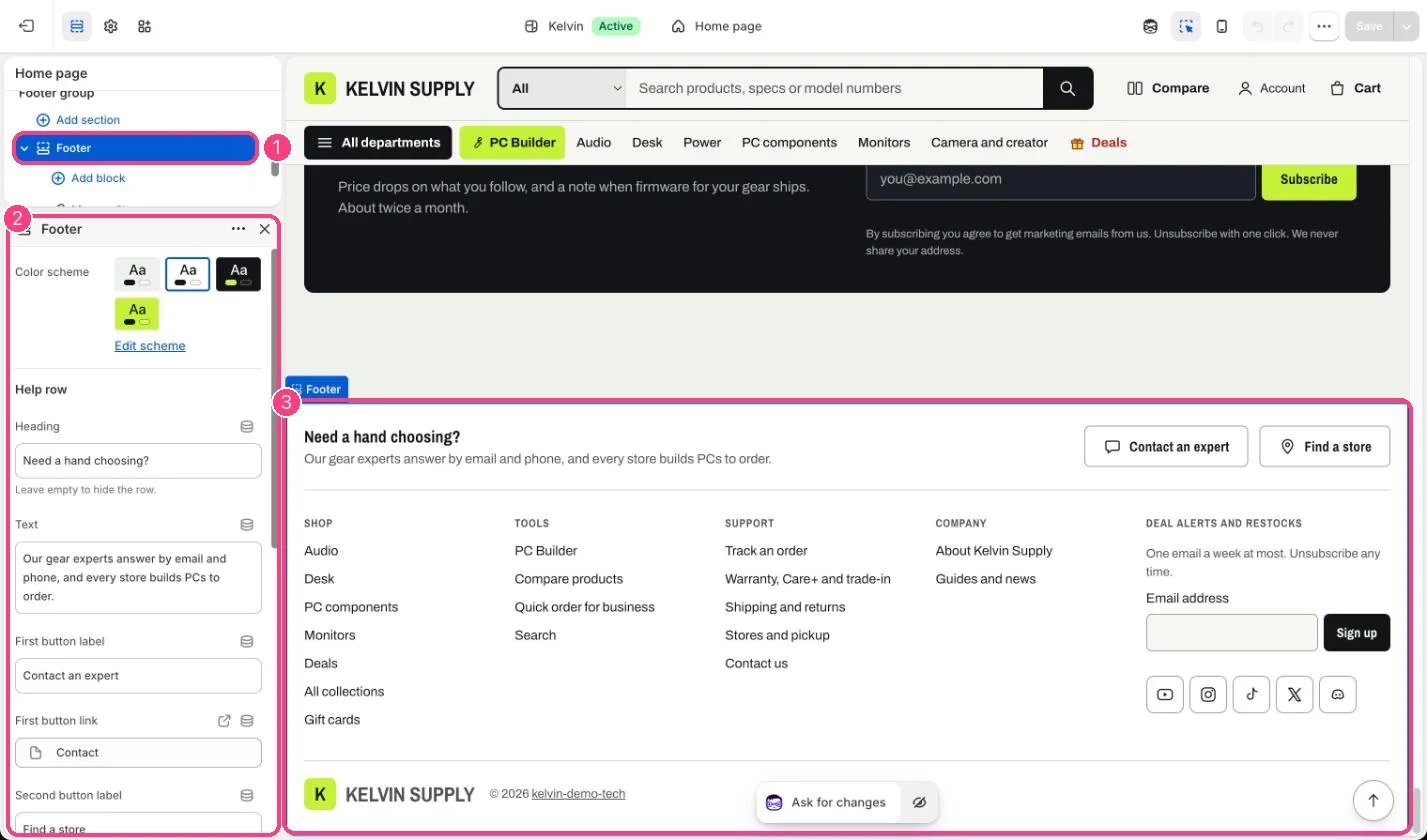
In the theme editor: 1 the section in the sidebar · 2 its settings · 3 the section in the preview
Edit it
- Edit the help row’s Heading and Text, then add First button link and Second button link, for example your contact page and your stores page.
- Add a Menu block per column and choose its menu, such as Shop, Support and Company. Leave Heading empty to use the menu’s name.
- Use a Text block for a short note, such as support hours. Keep it to two or three lines.
- Write an honest promise in the Email signup block’s Text, such as how often you email.
- Turn on Show policy links after adding your policies in Settings → Policies. Add a company number or address in Text after the copyright.
- Add your social links in Theme settings → Social media. Sell in more countries or languages in Settings → Markets and Settings → Languages to show the selectors.
Settings
Help row
Region and social media
Bottom row
Blocks
Up to 6 blocks. Add a block with Add block under the section in the sidebar; drag blocks to reorder them.Menu
Text
Email signup (up to 1)
On install the help row’s Text reads Say how shoppers can reach you for advice before they buy, and the Email signup block’s Text reads Say what subscribers get and how often you email. Both are guidance text: replace them with your own words, or clear the help row’s Heading to hide the row.Show policy links is off on install. Follow on Shop needs Shop Pay turned on in Settings → Payments.