
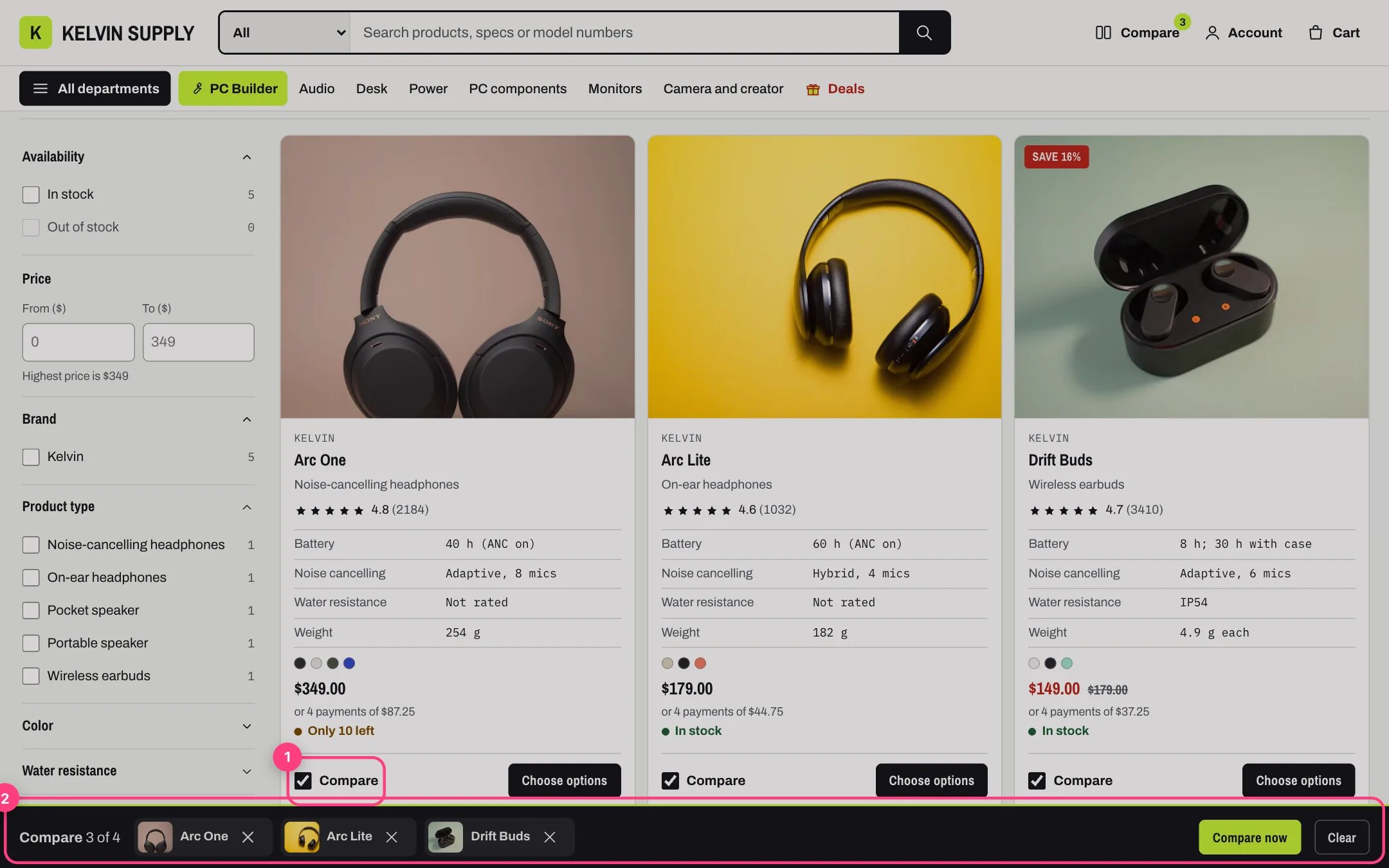
Compare tray, highlighted with the demo content
Where to find it
Every page. It is built into the layout rather than a template or a section group, so it cannot be moved or removed. The theme editor lists it at the bottom of the sidebar, below the Overlays, but it has no settings of its own. It shows only when Theme settings → Compare → Compare page is chosen and Theme settings → Product cards → Compare checkbox is on, and only while the shopper’s compare list holds at least one product. Without a compare page, no Compare checkbox shows anywhere either.How it works
- Shows Compare with the count, such as 3 of 4, then each product’s photo and name, linked to the product, with a remove button named Remove (product) from compare for screen readers. After a removal, focus moves to the next product’s remove button.
- Compare now opens the compare page with the products in its link. Clear empties the list.
- It follows every change to the compare list: the Compare checkboxes on product cards, the hero, quick view and the product page, the home Compare picker and the compare page, also from another tab.
- The list holds up to Theme settings → Compare → Products to compare at once (2 to 4). Ticking one more shows a message that the list is full.
- While the tray shows, the page gets extra room at the bottom so the tray never covers the footer, and the back to top button moves up. It is hidden on the compare page, and on the PC Builder page below 1000 px, where the builder’s own bar sits.
- The list is saved in the shopper’s browser on that device, not in an account, and stays until they remove the products or clear it.
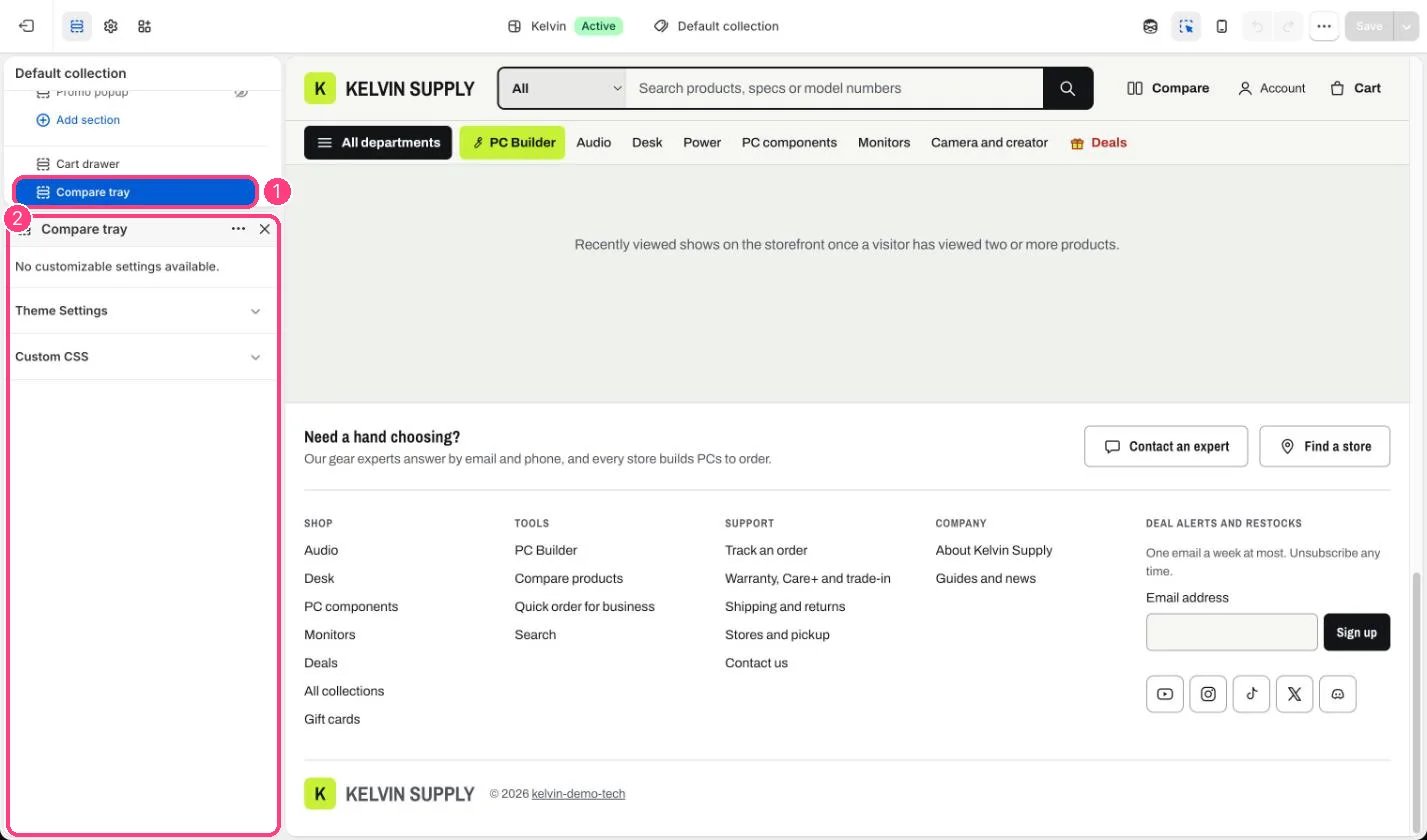
In the theme editor: 1 Compare tray, at the bottom of the sidebar · 2 it has no settings of its own
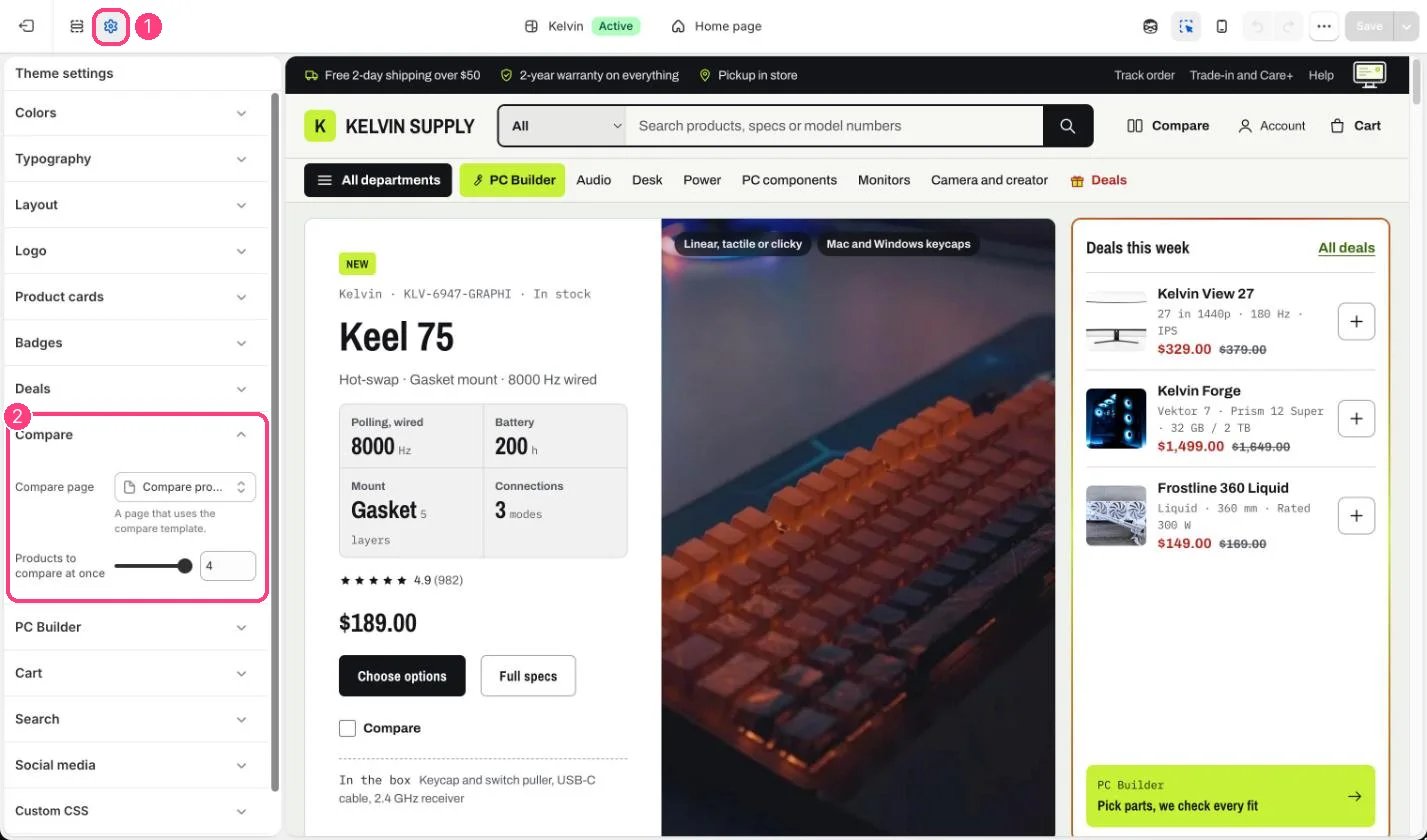
The compare page and the list size are in 1 Theme settings · 2 Compare
Edit it
- Choose the compare page in Theme settings → Compare → Compare page.
- Keep Theme settings → Product cards → Compare checkbox on to show the tray. Turning it off removes the checkbox from product cards, the hero and quick view, and the tray from every page.
- Set Products to compare at once to 2, 3 or 4 in Theme settings → Compare.
The tray’s words (Compare, Compare now, Clear) are theme text: change them in Online Store → Themes → Edit default theme content.