
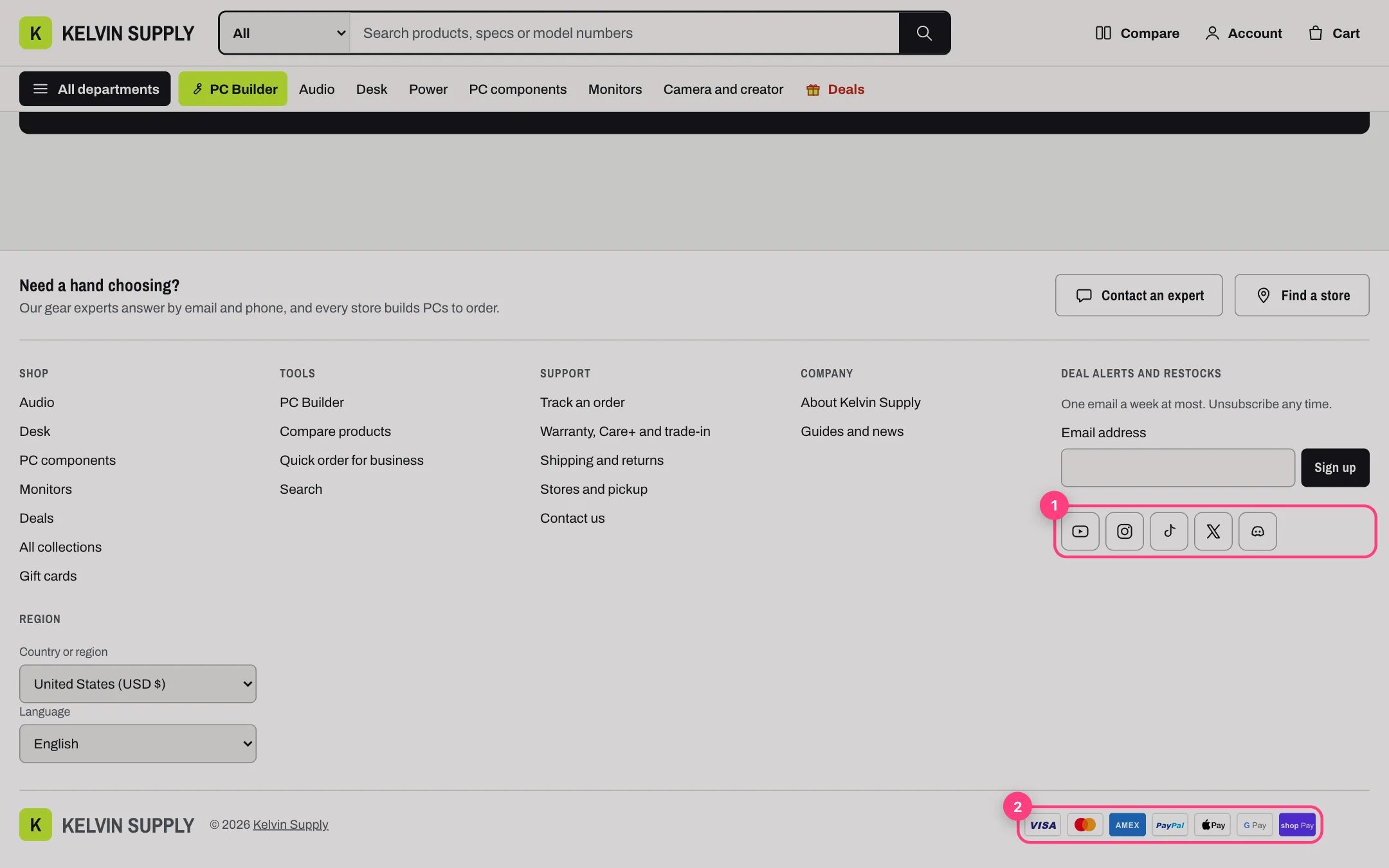
1 Social icons under the email signup · 2 Payment icons in the bottom row
- Open Theme settings → Social media and paste the full address of each account. Kelvin supports YouTube, Instagram, TikTok, X, Facebook, Discord, Reddit and Twitch. For example https://www.youtube.com/@yourstore, or a Discord invite such as https://discord.gg/yourinvite.
- Each network you fill in gets an icon; empty fields are left out. The icons always show in the order above. Every field is empty on install, so no icons show until you add a link.
- The icons sit in the footer under the Email signup block. When the footer has no Email signup block, they move to the footer’s last column, under the country and language selectors when the store has them.
- Footer → Show payment icons (on by default) shows them at the end of the footer’s bottom row, after the copyright line. Screen readers hear them as Payment methods.
- Shopify draws the icons, in its own artwork, for the payment methods enabled in Settings → Payments. They update by themselves when you turn a method on or off; the theme never picks them.
- No icons? Check that at least one payment method is active in Settings → Payments and that Show payment icons is on.
- On desktop the bottom row keeps clear of the back-to-top button, so the last icon is never covered.
Social and payment icons are plain links and pictures. Kelvin never loads anything from the social networks, and shows no social feed.
In the theme editor
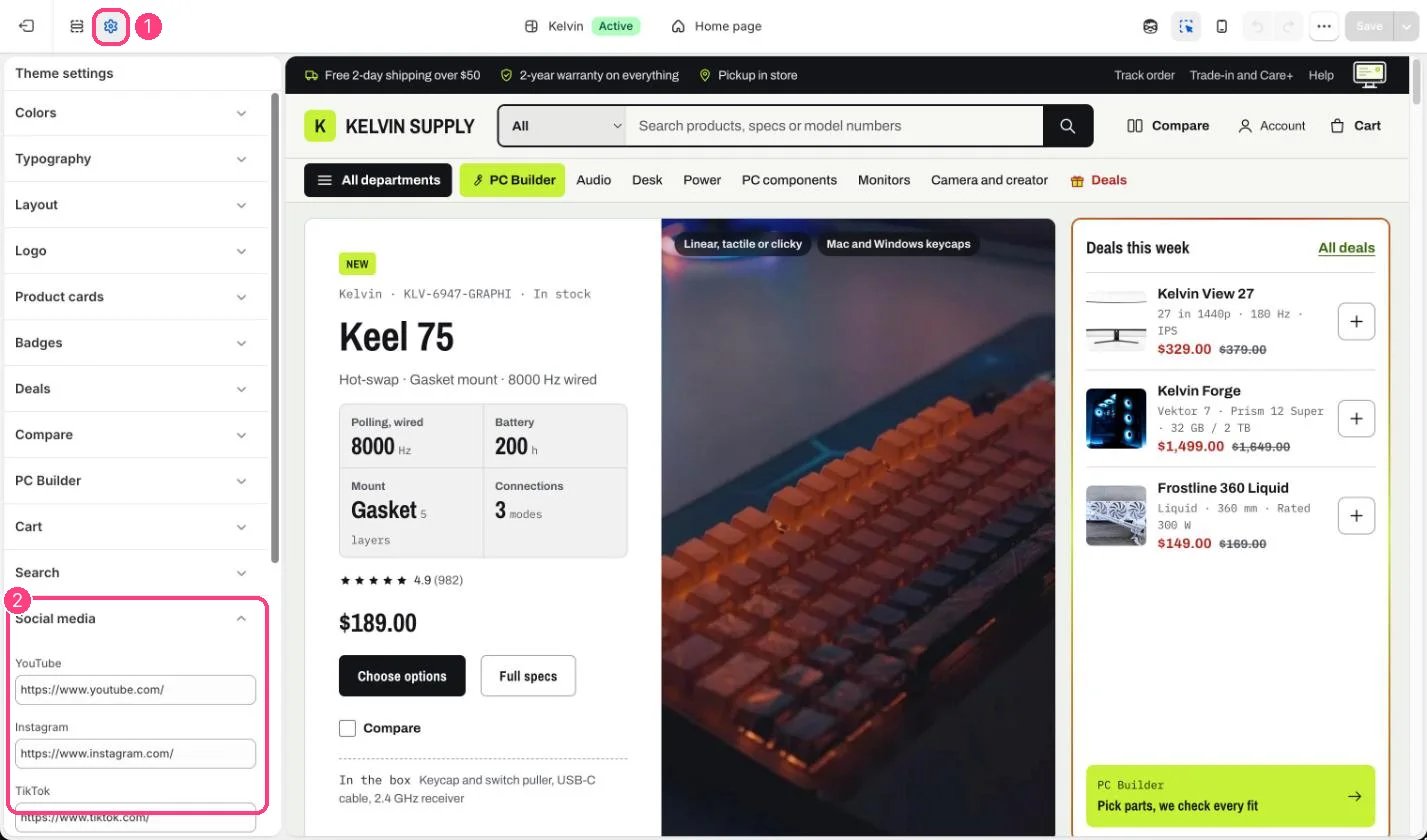
Follow links: 1 Theme settings · 2 Social media
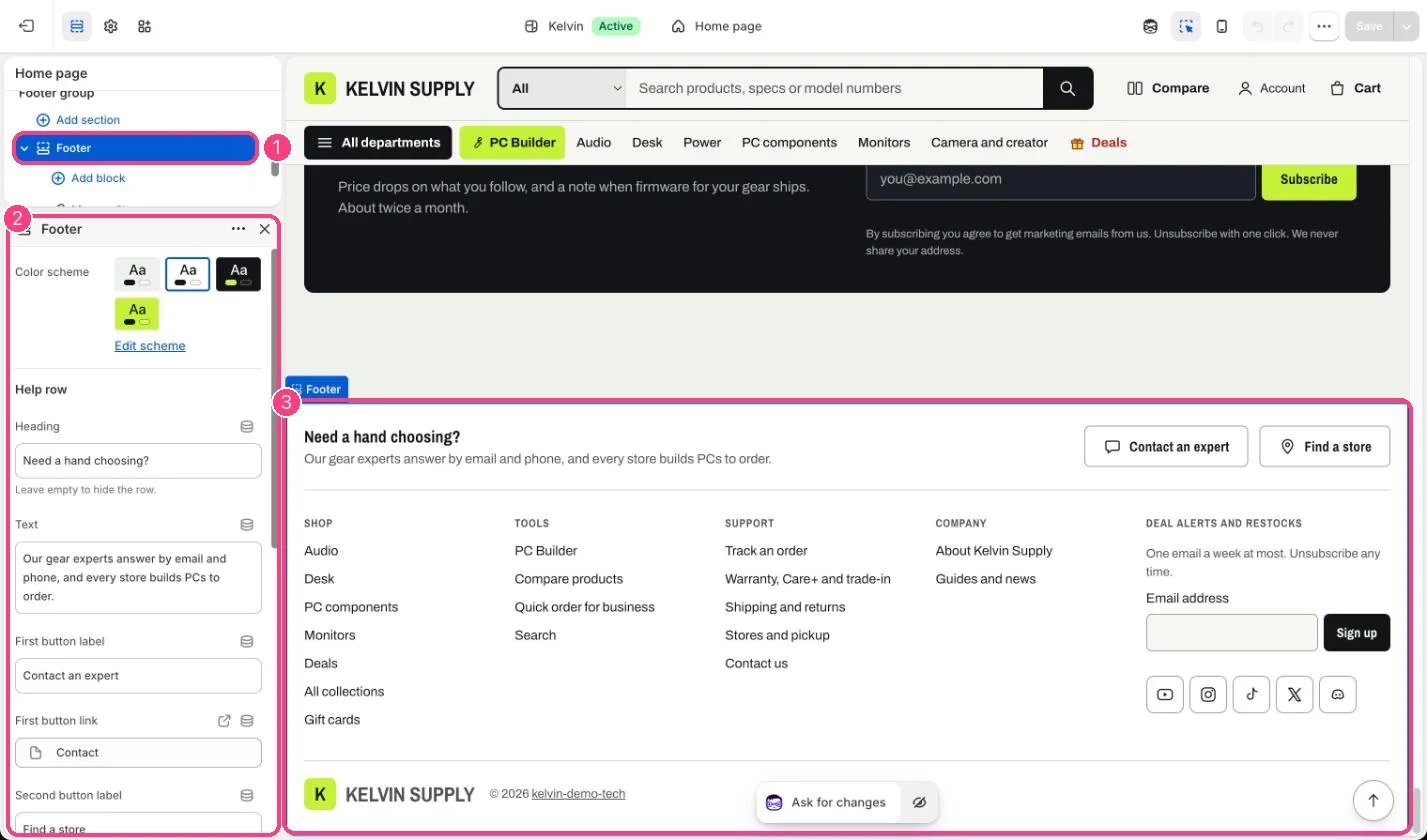
1 Footer · 2 its settings · 3 the footer in the preview