
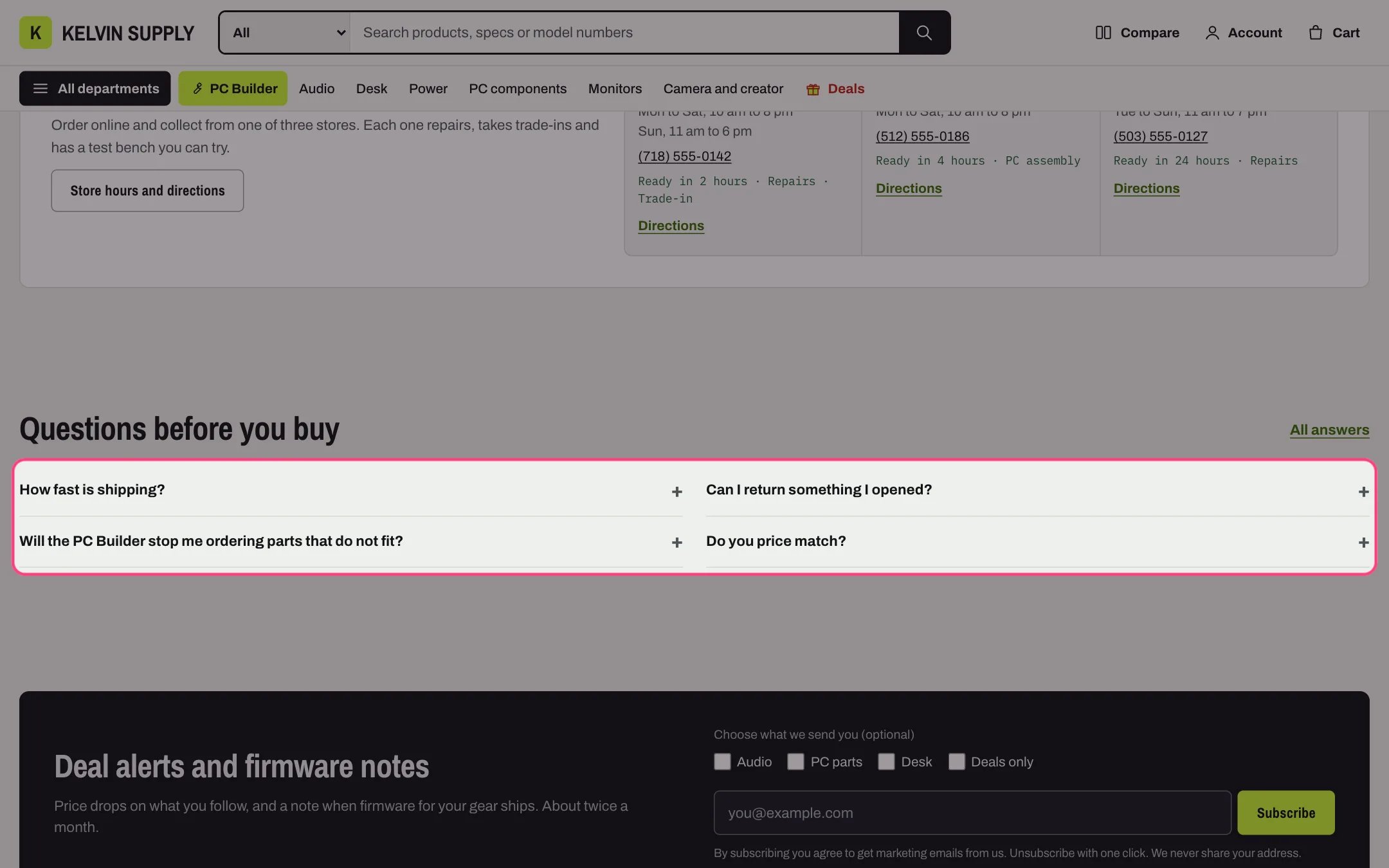
FAQ, highlighted with the demo content
Where to find it
Home page and the contact page (page.contact, where its heading is Quick answers). In the theme editor choose Home page, or Pages then contact, and select FAQ. For a full page of questions use FAQ page instead.How it works
- Each question opens and closes in place. The rows are the browser’s own expandable rows, so Enter and Space open them and screen readers announce them. A plus sign turns into a minus when open.
- Two columns on desktop, one under 750 px.
- Answers accept formatting and links.
- The link beside the heading shows only when both Link label and Link are filled. On install Link is empty, so it is hidden.
- Add FAQ structured data (off by default) describes the questions that have answers to search engines as FAQPage data.
- Question blocks with an empty Question are skipped. The section is hidden without questions, and the theme editor shows a note in its place.
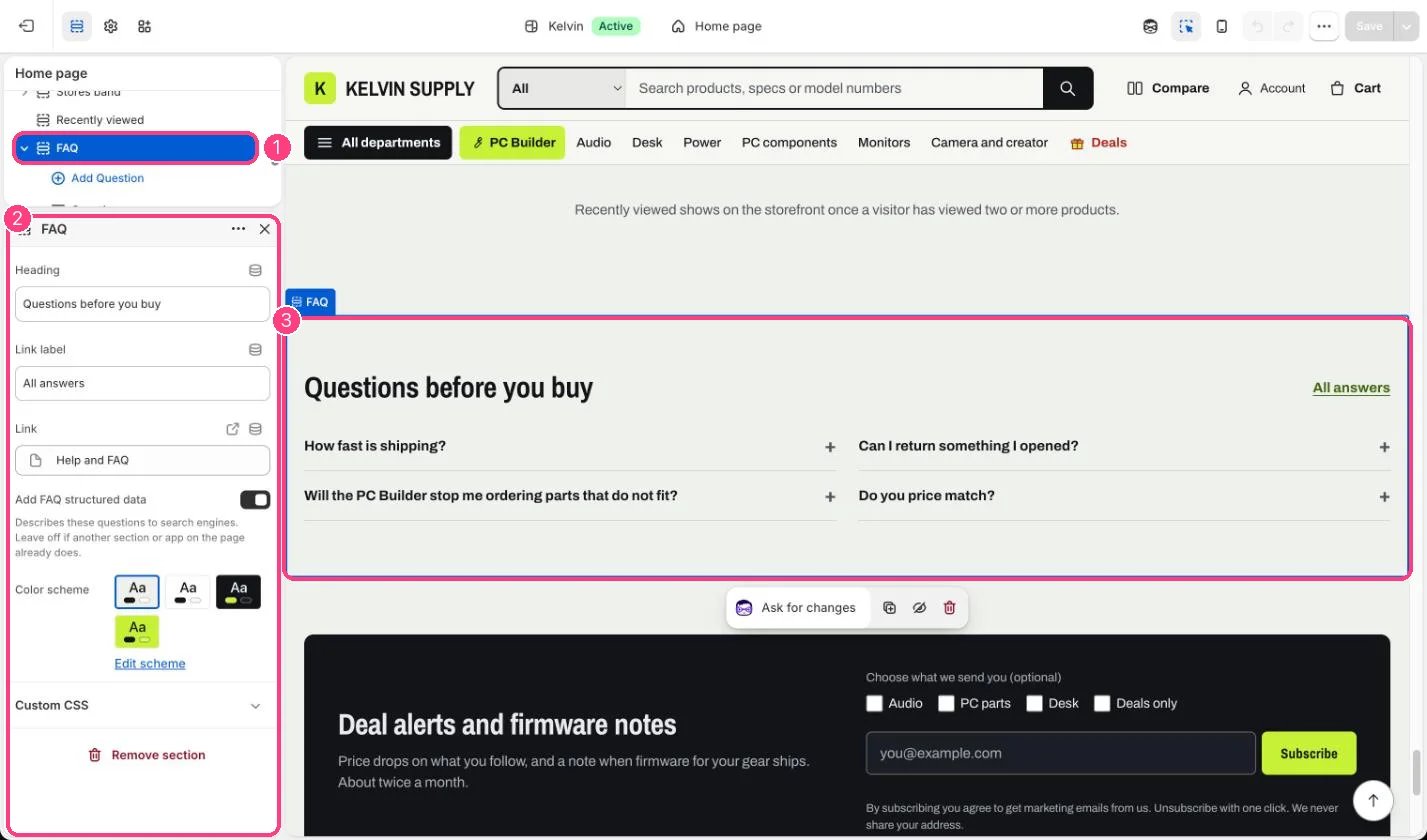
In the theme editor: 1 the section in the sidebar · 2 its settings · 3 the section in the preview
Edit it
- Replace the sample answers with your own policies (up to 16 Question blocks). Two or three sentences per answer read best.
- Point Link to your full questions page, such as a page on the page.faq template, and keep Link label short, such as See all answers.
- Turn on Add FAQ structured data on one section per page only, and leave it off when an app or another section on that page already adds it.
- On the contact page, edit its own Heading and questions: they are separate from the home page’s.
Settings
Blocks
Up to 16 blocks. Add a block with Add block under the section in the sidebar; drag blocks to reorder them.Question
The answers shipped with the theme are prompts, such as Say how long orders take to arrive. Replace them on both pages before you publish.